New Laptop......

ragavendrang

New member
Local time
6:37 AM
Messages
15
Hi All,
I bought a new HP i7 Quad edition laptop which have got installed win7 home premium x64 bit edition with single partition. I have 500 GB of HDD. I would like to make multi partition with 80 for C$ drive, remaining with 100 x 4. Moreover i would like to upgrade win 7 enterprise edition. Should i need to take backup of recover partition which already consumed with 13 GB.

Please help on how can i accomplish this task.

Regards
Ragavendran
 

My Computer

OS
Windows 7 Home premium
Welcome!

I suggest using Partition Wizard to shrink the 500GB partition to about 80 or 100GB, depending on how big you want the C drive. Then create 2 more Primary partitions, and 1 Extended partition, all of 100GB.

To upgrade to Windows 7 Enterprise, I believe you will need to do a clean install. You shouldn't remove the recovery partition, unless you are 100% sure you will not need to restore your computer. I don't want to encourage it, but if you are certain you want it deleted, I can give you instructions.
 

My Computer

Computer Manufacturer/Model Number
Custom
OS
Windows 7 Professional x64
CPU
Intel i7 2600K OC'd @ 4620 MHz
Motherboard
Asus P8Z68-V Pro
Memory
16GB GSkill Sniper 2133 Mhz (4x4GB)
Graphics Card(s)
EVGA GeForce GTX 480 SuperClocked+
Sound Card
Realtek High Definition Audio
Monitor(s) Displays
2x Acer S273HLbmii 27"
Screen Resolution
2 x 1920x1080
Hard Drives
64GB Crucial M4 SSD

Storage: Hitachi 1TB 5400RPM, Samsung 1.5TB 5400RPM
PSU
Corsair HW Series 750w (modular)
Case
Cooler Master HAF 932 Advanced Blue Edition
Cooling
CM Hyper 212+ CPU cooler, 3x 230mm + 1x 140mm case fans
Keyboard
Logitech MK320 (wireless)
Mouse
Logitech MK320 (wireless)
Internet Speed
30 Mb/s : 2 Mb/s
Thanks for your reply Jonathan :). I would like to delete the recovery partition is it possible to take the backup of this and delete?
 

My Computer

OS
Windows 7 Home premium
Last edited:

My Computer

Computer Manufacturer/Model Number
Custom
OS
Windows 7 Professional x64
CPU
Intel i7 2600K OC'd @ 4620 MHz
Motherboard
Asus P8Z68-V Pro
Memory
16GB GSkill Sniper 2133 Mhz (4x4GB)
Graphics Card(s)
EVGA GeForce GTX 480 SuperClocked+
Sound Card
Realtek High Definition Audio
Monitor(s) Displays
2x Acer S273HLbmii 27"
Screen Resolution
2 x 1920x1080
Hard Drives
64GB Crucial M4 SSD

Storage: Hitachi 1TB 5400RPM, Samsung 1.5TB 5400RPM
PSU
Corsair HW Series 750w (modular)
Case
Cooler Master HAF 932 Advanced Blue Edition
Cooling
CM Hyper 212+ CPU cooler, 3x 230mm + 1x 140mm case fans
Keyboard
Logitech MK320 (wireless)
Mouse
Logitech MK320 (wireless)
Internet Speed
30 Mb/s : 2 Mb/s

My Computer

Computer type
Laptop
Computer Manufacturer/Model Number
HP ENVY 17-1150eg
OS
Windows 10 Pro x64 EN-GB
CPU
1.6 GHz Intel Core i7-720QM Processor
Memory
6 GB
Graphics Card(s)
ATI Mobility Radeon HD 5850 Graphics
Sound Card
Beats sound system with integrated subwoofer
Monitor(s) Displays
17" laptop display, 22" LED and 32" Full HD TV through HDMI
Screen Resolution
1600*900 (1), 1920*1080 (2&3)
Hard Drives
Internal: 2 x 500 GB SATA Hard Disk Drive 7200 rpm
External: 2TB for backups, 3TB USB3 network drive for media
Cooling
As Envy runs a bit warm, I have it on a Cooler Master pad
Keyboard
Logitech diNovo Media Desktop Laser (bluetooth)
Mouse
Logitech Performance Mouse MX
Internet Speed
50/10 Mbps VDSL
Antivirus
Windows Defender 4.3.9431.0
Browser
Maxthon 3.5.2., IE11
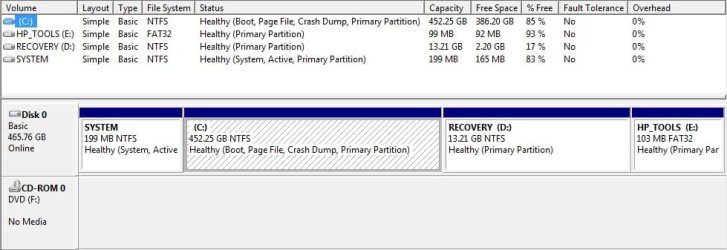
If you will post back a screenshot of your full Disk Management drive map with listings, we can advise you better of the steps to take if you tell us exactly what you want to do.

Use Snipping Tool in Start Menu, attach file using paper clip in reply box.
 
Hi Greg,
Here am pasting the disk management screenshot. please help me on dividing the C: in parts.
 

Attachments

  • Disk_MGMT.jpg
    Disk_MGMT.jpg
    47.4 KB · Views: 25

My Computer

OS
Windows 7 Home premium
You will want to leave your System partition alone as it contains the System Active MBR, or we can give you steps to remove it and recover MBR and disk space into Win7 partition.

First use CCleaner "Run Cleaner" and Registry tab to clean C: drive, followed by the Auslogics Disk Defragger which will prepare the C drive for shrinking as much as possible using Disk Management.

In Disk Mgmt. rightclick C to select Shrink Volume to see how much it will allow you to shrink the partition. If it is not enough, there are additional steps you can take to force it to shrink more. Otherwise choose the amount you want to shrink it: http://www.sevenforums.com/tutorials/2672-partition-volume-shrink.html

Next rightclick to Delete the Recovery Partition if you have made the disk set.

Now create the additional partitions you need in the deleted space: http://www.sevenforums.com/tutorials/2674-partition-volume-create-new.html

I would wait until you are ready to do a clean reinstall of your version of Windows 7 (without the factory bloatware) before deleting the Tools partition as I believe it contains the wireless manager, which is useless and adds to startup time. If you are prepared to configure the Windows wireless manager in it's place, and don't want any of the other useless HP utilities, then you can delete the Tools partition.

Also when you are ready to clean reinstall the OS with a clean copy of Win7 you locate, here is a neat method to extract just the apps you want from the HP recov disks: http://www.sevenforums.com/installa...are-after-clean-win-7-install.html#post488270
 
Last edited:
Two more questions:

1. Your active partition where the MBR resides is currently the little 199MB partition. Do you want to keep that.
2. do you have an installation disk for the Enterprise edition.
 

My Computer

Computer Manufacturer/Model Number
HP, Dell, Gateway, Toshiba - 4 laptops and 2 desktops
OS
Vista, Windows7, Mint Mate, Zorin, Windows 8
CPU
from 1.6GHz Duo to i7
Monitor(s) Displays
2x HP w2207
Hard Drives
5x HDD, 7x SSD, 12x Externals
Keyboard
with trackball - no mices
Mouse
Trackball mice
Internet Speed
DSL 6000
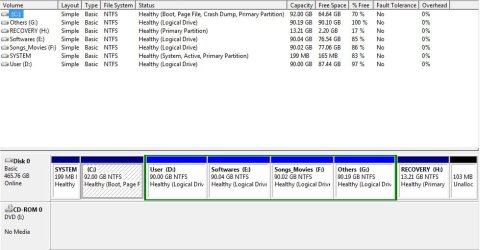
Thanks for everyone posting resolution to my issue. I have used partition wizard to do the partition now. am attaching the same screenshot.

Hi Whz,
Yes my HDD containts 199 MB of MBR partition how can i merge this with my current partition. Can u please help on this.

Now i have doubts on upgrading win7 home premium to Enterprise edition. How feasible is now to upgrade version from Home Premium to Enterprise edition. Please help on this.
 

Attachments

  • Disk_Mgmt.jpg
    Disk_Mgmt.jpg
    61 KB · Views: 12
Last edited by a moderator:

My Computer

OS
Windows 7 Home premium
There is a workaround that might allow you to in-place Upgrade HP to Enterprise, but it is not advisable since Enterprise uses volume licensing which is completely different activation method than HP.

So I would do a clean install, which means you can use the install DVD's Custom>Drive Options tools to delete both the 199mb partition and C:, then create a New partition there, Format and install. Back up your files first.

If you decide to keep HP on C and still want to merge the 199mb SysActive Boot partition into it, we can give you the steps to recover the disk space and MBR into C using Partition Wizard CD and Win7 DVD or Repair CD.
 
Is there any advantage to keeping the 199 MB boot partition separate?

I guess it doesn't apply to the Enterprise version but I did an anytime upgrade from the HP factory home premium install to W7 Ultimate which took only a couple of minutes and worked very well.
 

My Computer

Computer Manufacturer/Model Number
HP DV8t quad
OS
Windows 7 Ultimate x64 (Retail)
CPU
i7-Q 720
Motherboard
Motherboard Chipset Intel Ibex Peak-M PM55, Intel Lynnfield
Memory
6 GB
Graphics Card(s)
nVidia GeForce GT 230M (1GB)
Sound Card
IDT High Definition Audio CODEC
Monitor(s) Displays
18.4 inch HP Infinity FHD (Samsung 184HT03-001)
Screen Resolution
1920 x 1080
Hard Drives
Hitachi 500GB 7200 rpm (x2)
Seagate FreeAgent 1.5 TB External USB (x2)
Thermaltake BlacX eSATA/USB 2.0 3.5/2.5 HD dock
Cooling
Zalman NC-2000 notebook cooling pad
Keyboard
laptop
Mouse
Logitech VX Revolution
Other Info
Backup Unit: Lenovo T61p
Unless you use Bitlocker in Ultimate, the advantage of the SysReserved partition is to place "Repair My Computer" on the Advanced Boot Tools menu accessed by tapping F8 at bootup.

If you pre-partition your HD, the installer won't offer the Win7 100mb SysReserved partition. Deleting your current 199mb factory Sys Reserved and C may or may not cause the installer to create SysReserved since there is other partitioning on the HD. If you are sure you don't want that boot partition, then pre-partition the deleted space using free Partition Wizard bootable CD: NTFS Primary partition.
 
Thanks.

Unless you use Bitlocker in Ultimate, the advantage of the SysReserved partition is to place "Repair My Computer" on the Advanced Boot Tools menu accessed by tapping F8 at bootup.

If you pre-partition your HD, the installer won't offer the Win7 100mb SysReserved partition. Deleting your current 199mb factory Sys Reserved and C may or may not cause the installer to create SysReserved since there is other partitioning on the HD. If you are sure you don't want that boot partition, then pre-partition the deleted space using free Partition Wizard bootable CD: NTFS Primary partition.
 

My Computer

Computer Manufacturer/Model Number
HP DV8t quad
OS
Windows 7 Ultimate x64 (Retail)
CPU
i7-Q 720
Motherboard
Motherboard Chipset Intel Ibex Peak-M PM55, Intel Lynnfield
Memory
6 GB
Graphics Card(s)
nVidia GeForce GT 230M (1GB)
Sound Card
IDT High Definition Audio CODEC
Monitor(s) Displays
18.4 inch HP Infinity FHD (Samsung 184HT03-001)
Screen Resolution
1920 x 1080
Hard Drives
Hitachi 500GB 7200 rpm (x2)
Seagate FreeAgent 1.5 TB External USB (x2)
Thermaltake BlacX eSATA/USB 2.0 3.5/2.5 HD dock
Cooling
Zalman NC-2000 notebook cooling pad
Keyboard
laptop
Mouse
Logitech VX Revolution
Other Info
Backup Unit: Lenovo T61p
Back
Top