Newbie question - VMWare Player needs XP disk

DaveR

New member
Local time
1:14 PM
Messages
39
I just downloaded and installed VMWare Player on my new Dell running Windows 7 Pro 64-bit. When I created my first Windows XP virtual machine, I was asked to supply an XP OS installation disk. Oops! The only XP disk I ever had was an upgrade disk from ME, which would not be any help even if I still had it.

I'm completely new at this, and don't know what to do. Would it be possible, for instance, to use Microsoft's Windows XP Mode to supply the OS? That is, I'd be running XP Mode in VMWare Player instead of in Windows Virtual PC (as I understand things). Would that work?

Thanks for anyone's help, and your patience with such a basic question.
 

My Computer

OS
Windows 7 Pro 64-bit SP 1
Technically it would work but the licensing may not allow it. But technically you should be able to take that image and convert it to VMware format.
 

My Computer

OS
Windows 7 Ultimate x64 SP1
CPU
Intel Core i3 530 2.93 Ghz Clarkdale
Motherboard
ASRock P55 PRO/USB3 LGA 1156
Memory
4 GB OCZ DDR3 1600 (PC12800) Low Voltage Desktop Memory
Graphics Card(s)
Nvidia GeForce GTX 550 Ti with 1 GB of RAM
Sound Card
Realtek HD ALC892
Monitor(s) Displays
20'' eMachines E202HDbmd Glare Panel Widescreen
Screen Resolution
1600 x 900
Hard Drives
Western Digital 1 TB Caviar Black Edition (7200 RPM) SATA
Hitachi Deskstar 500 GB (7200 RPM) SATA
Samsung SpinPoint 400 GB (7200 RPM) SATA
PSU
Rosewill Xtreme Series RX750-D-B ATX12V v2.2 & EPS12V (750W)
Case
Cooler Master Centurion 534 RC-534-KKN2-GP Mid-Tower
Cooling
Standard Case Fans and Stock CPU Heatsink
Keyboard
Microsoft Wireless Optical Desktop Elite
Mouse
Microsoft Wireless Optical Desktop Elite
Internet Speed
7.1 Mbps Verizon DSL
Technically it would work but the licensing may not allow it. But technically you should be able to take that image and convert it to VMware format.

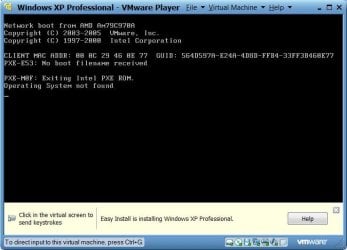
Thanks, Darician, that's encouraging! I just attempted to create an XP VM using the file "Windows XP Mode base.vhd" that the Windows XP Mode installation created. No dice, apparently. The process ended with the "Operating System not found" message shown in the attached screenshot.

So, how would I go about converting this .vhd file to the .iso file that VMWare Player seems to want?
 

Attachments

  • VMWare XP Mode failure.jpg
    VMWare XP Mode failure.jpg
    48.8 KB · Views: 37

My Computer

OS
Windows 7 Pro 64-bit SP 1
No, that won't work. What you'll need to do is use the import function (not sure if VMware Player has it) or use the VMware Converter software (VMware vCenter Converter, Convert Physical Machines to Virtual Machines), which is to convert the disk to the preferred VMware format.

ISOs are for when you plan on installing an operating system generally and build the Virtual Machine from within VMware.
 

My Computer

OS
Windows 7 Ultimate x64 SP1
CPU
Intel Core i3 530 2.93 Ghz Clarkdale
Motherboard
ASRock P55 PRO/USB3 LGA 1156
Memory
4 GB OCZ DDR3 1600 (PC12800) Low Voltage Desktop Memory
Graphics Card(s)
Nvidia GeForce GTX 550 Ti with 1 GB of RAM
Sound Card
Realtek HD ALC892
Monitor(s) Displays
20'' eMachines E202HDbmd Glare Panel Widescreen
Screen Resolution
1600 x 900
Hard Drives
Western Digital 1 TB Caviar Black Edition (7200 RPM) SATA
Hitachi Deskstar 500 GB (7200 RPM) SATA
Samsung SpinPoint 400 GB (7200 RPM) SATA
PSU
Rosewill Xtreme Series RX750-D-B ATX12V v2.2 & EPS12V (750W)
Case
Cooler Master Centurion 534 RC-534-KKN2-GP Mid-Tower
Cooling
Standard Case Fans and Stock CPU Heatsink
Keyboard
Microsoft Wireless Optical Desktop Elite
Mouse
Microsoft Wireless Optical Desktop Elite
Internet Speed
7.1 Mbps Verizon DSL
No, that won't work. What you'll need to do is use the import function (not sure if VMware Player has it) or use the VMware Converter software (VMware vCenter Converter, Convert Physical Machines to Virtual Machines), which is to convert the disk to the preferred VMware format.

ISOs are for when you plan on installing an operating system generally and build the Virtual Machine from within VMware.

OK, thanks, I'll see if I can get some of this to work. VMWare Player does have an "Import Windows XP Mode VM" option on the File menu. I've tried it, and it always just gives the error message "An error has occurred while reconfiguring the virtual machine," which is not too helpful.
 

My Computer

OS
Windows 7 Pro 64-bit SP 1
Yeah, I haven't had much luck importing VMs before but I'll try this soon as I get my new PC set up to see if I get any errors.
 

My Computer

OS
Windows 7 Ultimate x64 SP1
CPU
Intel Core i3 530 2.93 Ghz Clarkdale
Motherboard
ASRock P55 PRO/USB3 LGA 1156
Memory
4 GB OCZ DDR3 1600 (PC12800) Low Voltage Desktop Memory
Graphics Card(s)
Nvidia GeForce GTX 550 Ti with 1 GB of RAM
Sound Card
Realtek HD ALC892
Monitor(s) Displays
20'' eMachines E202HDbmd Glare Panel Widescreen
Screen Resolution
1600 x 900
Hard Drives
Western Digital 1 TB Caviar Black Edition (7200 RPM) SATA
Hitachi Deskstar 500 GB (7200 RPM) SATA
Samsung SpinPoint 400 GB (7200 RPM) SATA
PSU
Rosewill Xtreme Series RX750-D-B ATX12V v2.2 & EPS12V (750W)
Case
Cooler Master Centurion 534 RC-534-KKN2-GP Mid-Tower
Cooling
Standard Case Fans and Stock CPU Heatsink
Keyboard
Microsoft Wireless Optical Desktop Elite
Mouse
Microsoft Wireless Optical Desktop Elite
Internet Speed
7.1 Mbps Verizon DSL
Absolutely no luck

I've created a Windows XP Mode virtual machine in Windows 7, using Windows Virtual PC. I've tried multiple times to import or convert it into VMWare. The VMWare player has an "Import Windows XP Mode VM" option on the File menu, but when I click it, it always just gives the uninformative error message, "An error has occurred while reconfiguring the virtual machine."

So I downloaded the VMware vCenter Converter Standalone and have tried using its wizard to convert the virtual machine. There are two possibilities, both of which fail.
  1. Third-party virtual machine: I browse to the Windows XP Mode VM (C:\Users\[username]\AppData\Local\Microsoft\Windows Virtual PC\Virtual Machines\Windows XP Mode.vmc); but when I click Next I always get the message, "Unable to proceed because the source is powered on." This happens even though I have used the "Turn off" option from within the XP Mode machine.
  2. So, if the Converter thinks the VM is powered on, I should try the other wizard option, Powered-on machine, right? You'd think so. But how would I specify this VM in the "remote machine" dialogue (since I'm not trying to convert my whole actual local machine)? All I can think of is to give the path to it here too: C:\Users\[username]\AppData\Local\Microsoft\Windows Virtual PC\Virtual Machines\Windows XP Mode.vmc. But this only yields the error message, "Unable to contact the specified host 'C.'..."

As far as I can tell, the free VMWare tools are simply incapable of importing or converting a Windows XP Mode machine, even though they claim they can do so. Unless someone can tell me some way to do this, I'm going to try VMLite. Of course, I've got XP Mode up and running, and it was quite easy to do, so I can always use it. But for the specific purposes I need, which involve file access between the VM and the host, I'm told that VMWare works much better. I suppose it might, if it worked at all. If VMLite doesn't work, I'll just be stuck with XP Mode and its issues.
 

My Computer

OS
Windows 7 Pro 64-bit SP 1
As long as you have a copy of Windows 7 Professional, Enterprise or Ultimate you are entitled to freely download and install Windows XP Mode on your computer.

After installing XP Mode, you install VMWare Player 3.1. Then, open VMWare Player, click on File at the top and select Import Windows XP Mode VM. A dialog box will come up showing you the status of the conversion and then you will end up with a virtual machine in your inventory called Windows XP Mode. It will be properly licensed and activated.

I use this functionality extensively and it works everytime.


So...since you have tried this and have gotten that error ""An error has occurred while reconfiguring the virtual machine."....we have to figure out what you have done different

#1). Did you simply install the Windows XP Mode.exe install file (like 450MB or so in size) and then immediately try to convert.
#2). After installation of the Windows XP Mode...did you copy the .vhd file from it's normal installation point to another point on your hard drive. If so, vmware might be having problems locating it on the hard drive based on where the registry says it should be.
 

My Computer

Computer Manufacturer/Model Number
Self-Built in July 2009
OS
Windows 7 Ultimate x64
CPU
Intel Q9550 2.83Ghz OC'd to 3.40Ghz
Motherboard
Gigabyte GA-EP45-UD3R rev. 1.1, F12 BIOS
Memory
8GB G.Skill PI DDR2-800, 4-4-4-12 timings
Graphics Card(s)
EVGA 1280MB Nvidia GeForce GTX570
Sound Card
Realtek ALC899A 8 channel onboard audio
Monitor(s) Displays
23" Acer x233H
Screen Resolution
1920x1080
Hard Drives
Intel X25-M 80GB Gen 2 SSD
Western Digital 1TB Caviar Black, 32MB cache. WD1001FALS
PSU
Corsair 620HX modular
Case
Antec P182
Cooling
stock
Keyboard
ABS M1 Mechanical
Mouse
Logitech G9 Laser Mouse
Internet Speed
15/2 cable modem
Other Info
Windows and Linux enthusiast. Logitech G35 Headset.
As long as you have a copy of Windows 7 Professional, Enterprise or Ultimate you are entitled to freely download and install Windows XP Mode on your computer.

After installing XP Mode, you install VMWare Player 3.1. Then, open VMWare Player, click on File at the top and select Import Windows XP Mode VM. A dialog box will come up showing you the status of the conversion and then you will end up with a virtual machine in your inventory called Windows XP Mode. It will be properly licensed and activated.

I use this functionality extensively and it works everytime.


So...since you have tried this and have gotten that error ""An error has occurred while reconfiguring the virtual machine."....we have to figure out what you have done different

#1). Did you simply install the Windows XP Mode.exe install file (like 450MB or so in size) and then immediately try to convert.
#2). After installation of the Windows XP Mode...did you copy the .vhd file from it's normal installation point to another point on your hard drive. If so, vmware might be having problems locating it on the hard drive based on where the registry says it should be.

I did at first try to simply convert from the .vhd file created by installing Windows XP Mode.exe. When that failed, I realized my mistake, and went ahead with the full Windows Virtual PC install, and creation of a virtual machine. Its .vmc file is located in C:\Users\[username]\AppData\Local\Microsoft\Windows Virtual PC\Virtual Machines\. That's what I'm trying to import or convert. This folder also has the file Windows XP Mode.vhd, which I have not moved anywhere.

I appreciate any help you can give me.
 

My Computer

OS
Windows 7 Pro 64-bit SP 1
I would start with the following.
#1). Uninstall vmware player 3.x completely
#2). Uninstall Windows XP mode completely.
#3). Delete the base folder for the XP Mode install
#4). Reboot your host
#5). Install XP Mode file. (Windows XPMode_en-us). I happened to install mine to D:\Windows XP Mode. Inside of that folder, is a tutorial folder, Windows XP Mode base.vhd.lck file, KEY, VXPEULA and Winodws XP Mode base.vhd
#6). Install vmware player. Reboot if it says you must
#7). Open VMWare Player 3.1, click on File, Import XP mode.

Let me know what happens.
 

My Computer

Computer Manufacturer/Model Number
Self-Built in July 2009
OS
Windows 7 Ultimate x64
CPU
Intel Q9550 2.83Ghz OC'd to 3.40Ghz
Motherboard
Gigabyte GA-EP45-UD3R rev. 1.1, F12 BIOS
Memory
8GB G.Skill PI DDR2-800, 4-4-4-12 timings
Graphics Card(s)
EVGA 1280MB Nvidia GeForce GTX570
Sound Card
Realtek ALC899A 8 channel onboard audio
Monitor(s) Displays
23" Acer x233H
Screen Resolution
1920x1080
Hard Drives
Intel X25-M 80GB Gen 2 SSD
Western Digital 1TB Caviar Black, 32MB cache. WD1001FALS
PSU
Corsair 620HX modular
Case
Antec P182
Cooling
stock
Keyboard
ABS M1 Mechanical
Mouse
Logitech G9 Laser Mouse
Internet Speed
15/2 cable modem
Other Info
Windows and Linux enthusiast. Logitech G35 Headset.
I would start with the following.
#1). Uninstall vmware player 3.x completely
#2). Uninstall Windows XP mode completely.
#3). Delete the base folder for the XP Mode install
#4). Reboot your host
#5). Install XP Mode file. (Windows XPMode_en-us). I happened to install mine to D:\Windows XP Mode. Inside of that folder, is a tutorial folder, Windows XP Mode base.vhd.lck file, KEY, VXPEULA and Winodws XP Mode base.vhd
#6). Install vmware player. Reboot if it says you must
#7). Open VMWare Player 3.1, click on File, Import XP mode.

Let me know what happens.

I may need to do that, we'll see. But in the meantime, I managed to download VMLite (not much is intuitive on their Web site!), and it created a Windows XP virtual machine from the XP Mode installation with no problem. Unless it proves terminally clunky. I'm going to go with that, rather than start all over with VMWare.

Thanks anyway, though. I'm going to keep these instructions on file.
 

My Computer

OS
Windows 7 Pro 64-bit SP 1
Back
Top