No boot after extending partition

nnate72

New member
Local time
8:31 PM
Messages
5
Hi,
I just recently installed windows 7 on a partition that previously had vista, and backed up my "users" folder on another partition. I copied all the files back to the 7 partition and used a program like partition magic to delete the backup and extend the 7 partition. my computer won't boot now. I've tried resetting the mbr, bcdedit, bootfix, and pretty much every solution on the first 20 pages of a google search about this. Help!?
 

My Computer

OS
Windows 7 Ultimate x64
Hi,
I just recently installed windows 7 on a partition that previously had vista, and backed up my "users" folder on another partition. I copied all the files back to the 7 partition and used a program like partition magic to delete the backup and extend the 7 partition. my computer won't boot now. I've tried resetting the mbr, bcdedit, bootfix, and pretty much every solution on the first 20 pages of a google search about this. Help!?

You probably deleted the hidden 100 Mb partition holding the boot files. If you dual booted they were in the vista partition

If you have you win 7 dvd (not a restore dvd) you can do a repair install, by booting from the dvd.


ken J
 

My Computer

Computer Manufacturer/Model Number
HP Pavillion dv-7 1005 Tx
OS
Win 8 Release candidate 8400
CPU
[email protected]
Memory
4 gigs
Graphics Card(s)
Nvidia 9600M
Sound Card
HD built-in
Monitor(s) Displays
17" Wxga
Screen Resolution
1440x900
Cooling
none
Internet Speed
45Mb down 5Mb up
A screenshot from disk management using the snipping tool would help.
Use the paperclip or manage attachments.
 

My Computer

Computer type
PC/Desktop
Computer Manufacturer/Model Number
Own build
OS
Windows 7x64 Home Premium SP1
CPU
Intel i7 2600k
Motherboard
ASUS P8Z68 Deluxe
Memory
G.Skill Ripjaws (DDR3-1600) 2x4GB
Graphics Card(s)
Nvidia GeForce GTS 450; Intel HD Graphics 3000(GT2+)
Monitor(s) Displays
Dell Ultrasharp IPS panel U2311H, Samsung SyncMaster P2350
Screen Resolution
1920x1080
Hard Drives
Samsung 850 Pro SSD 256GB, Samsung SSD 840 120GB, Seagates 1TB Barracuda ST31000528AS x2
PSU
Seasonic M12II 520W
Case
Lian Li Lancool PC-K60
Cooling
Case: 1x120mm, 3x140mm CPU: Hyper 212+
Keyboard
Logitech MK520 (wireless)
Mouse
Logitech MK520
Internet Speed
6-7 Mbps
Antivirus
Norton Security Premium, Malwarebytes on 2 (MSE on 3rd PC)
Browser
FireFox
Other Info
Audio: Logitech Z523 2.1
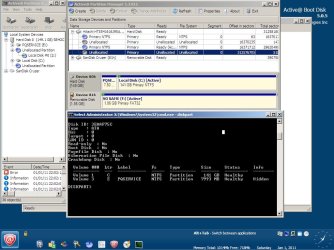
I have a copy of Active@ Boot Disk, which is the only way i can get good info from the system. This is a screen shot of the partitions.
If you look, there is a ~150GB drive which according to the partition manager, is a 7GB and a 140GB partition. The 140 came from extending a 70 to another 70. If you look to the left, you can see a Local Disk #0. This is the old vista partition, but I have no clue how it exists as it does now.

Even more crazy to me is that my "new" 140GB partition says it only has a capacity of 70....

If you need any more info let me know, I really appreciate it
 

Attachments

  • untitled.jpg
    untitled.jpg
    104 KB · Views: 88

My Computer

OS
Windows 7 Ultimate x64
Partition Magic will mess up your Win7. Use free Partition Wizard bootable CD. Free Download Magic Partition Manager Software - Partition Wizard Online

It appears the System MBR has been compromised and needs repair. Since it is already marked Active, boot the Win7 DVD Repair console or Repair CD, accept any offered repair. If it doesn't start, boot back in to run Startup Repair from the tools list up to 3 separate times with reboots so it can attempt repair and possibly rewrite the System MBR. http://www.sevenforums.com/tutorials/105541-startup-repair-run-3-separate-times.html

If this fails, boot Partition Wizard CD: Confirm Win7 partition is marked Active. On the Disk tab, try to Rebuild MBR. If necessary post back a screenshot of PW drive map with listings.
 
Last edited:
More questions than answers.
Looks like the HDD shown (Acer Vista PC?) originally with PQservice (factory recovery partition), a system reserved now unallocated, Originally a Vista OS partition (70GB0, and a data partition (70GB). Is that the way it was?

What Windows 7 install disks have you got?

Edit: Just seen the response above. Information from/ and using Partition Wizard would be useful. You've still got some unallocated space sandwiched in there.
I don't think Startup repair will help since you say you've done the manual equivalents. But give it a go.
 
Last edited:

My Computer

Computer type
PC/Desktop
Computer Manufacturer/Model Number
Own build
OS
Windows 7x64 Home Premium SP1
CPU
Intel i7 2600k
Motherboard
ASUS P8Z68 Deluxe
Memory
G.Skill Ripjaws (DDR3-1600) 2x4GB
Graphics Card(s)
Nvidia GeForce GTS 450; Intel HD Graphics 3000(GT2+)
Monitor(s) Displays
Dell Ultrasharp IPS panel U2311H, Samsung SyncMaster P2350
Screen Resolution
1920x1080
Hard Drives
Samsung 850 Pro SSD 256GB, Samsung SSD 840 120GB, Seagates 1TB Barracuda ST31000528AS x2
PSU
Seasonic M12II 520W
Case
Lian Li Lancool PC-K60
Cooling
Case: 1x120mm, 3x140mm CPU: Hyper 212+
Keyboard
Logitech MK520 (wireless)
Mouse
Logitech MK520
Internet Speed
6-7 Mbps
Antivirus
Norton Security Premium, Malwarebytes on 2 (MSE on 3rd PC)
Browser
FireFox
Other Info
Audio: Logitech Z523 2.1
Hello nnate72, welcome to Seven Forums!


For future info; there is a way to boot the Windows 7 installer to diskpart to see information about the Hard Disk Drive(s) attached to the PC, you would use commands like these once in diskpart, for instance, to see if a partition/volume is marked "Active" when finished type exit twice to get back to the installer; have a look at these two tutorials below.

DISKPART : At PC Startup

SSD / HDD : Optimize for Windows Reinstallation


list disk <enter>
select disk # <-- the targer disk #
list partition
select partition #
detail partition

list disk
select disk #
list voume
select volume #
detail volume
 

My Computer

Computer Manufacturer/Model Number
* BFK Customs *
OS
W 7 64-bit Ultimate
CPU
Intel Q9550 Yorkfield
Motherboard
ASUS P5Q Pro
Memory
8GB Dominator 8500C5D
Graphics Card(s)
ATI : XFX 5870
Sound Card
Realtek HD Audio 7-1
Monitor(s) Displays
1x 47" LCD HDMI & 3x 26" LCD HDMI
Screen Resolution
1920x1080P & 1920x1200
Hard Drives
1x 80GB Intel X25-M G2 SSD : 1x 500GB & 1x 640GB WD Caviar Black(s)
PSU
Corsair 620HX
Case
Cooler Master RC-690
Cooling
Tuniq Tower 120, 2x 140mm and 3x 120mm case fans
Keyboard
Microsoft 500
Mouse
Razer Diamondback 3G
Internet Speed
14 Mb/s
Other Info
1x Koutech 3Gb/s SATA HDD Hot Swap Rack
Alright, well I can't post a screen of the computer because it is just booted to Partition Wizard (which I now remember is the program that I originally modified the partitions with), but I can describe the information. I also did try the 3x Startup repair...no go. I have also detailed the disk in diskpart (see screen above).

Disk 1 is listed with:
*.PQSERVICE - FS=NTFS| CAP=7.81GB | USED= 5.81 | STATUS=NONE | TYPE=PRIMARY |
*.- FS=NTFS| CAP=70.47GB | USED= 49.25 | STATUS=ACTIVE | TYPE=PRIMARY |

*. Properties: Type ID= 0x7 | FS=NTFS | S/N={some numbers} | First Physical Sector=16371712 | Last Physical Sector= 312576704 | Total Physical Sector=141.24GB


If I click on recover partitions, I find that there is a Lost/Deleted partition (the old vista one). I cannot recover it however without deleting the new partition though because they overlap.

I tried choosing "Set windows boot partition" but the response is "no windows directory."

There is a windows directory though.... three in fact (all created by startup repair):
Windows\
Windows.old\
Windows.old0\

The only thing I can think of is finding out what command Partition Wizard used extend the partition, and then reverse that. Either that, or wait a week or so until I have access to an external HD so that I can back up the files and then just clean install.

Any ideas?
Thanks again.
 
Last edited:

My Computer

OS
Windows 7 Ultimate x64
Did you run Rebuild MBR from PW Disk tab as suggested earlier?

Does an OS show to repair when you boot into Repair? What is the exact result given after running Startup Repair three separate times?

Try to copy out your files with DVD/Repair CD using this method if they were not properly backed up: http://www.sevenforums.com/tutorials/93347-copy-paste-windows-recovery-console.html

Then wipe the HD to clean reinstall using these tips to get a perfect install: http://www.sevenforums.com/installation-setup/125874-re-install-windows-7-a.html#post1086729
 
Ah yes, I did try to fix MBR as well with PW, sorry, forgot to mention that.
When I boot to repair, it says "nothing wrong was found" every time.

I can't copy my data over to another HD, as I have none (until next week).
Why does it say that there is no 'windows' directory? Any other thoughts?
 
Last edited:

My Computer

OS
Windows 7 Ultimate x64
Based on your Diskpart, List volume screenshot if that still applies
1) a letter has been assigned to PQSERVICE (volume 3) which is the hidden factory recovery partition. It shouldn't have a letter assigned. What if anything has been placed in there I don't know.
2) You have no volume 2 which should probably be your 100MB system reserved
3) Volume 1 has a blank info field. Where is system and boot?

Volume 2 should be system and volume 1 should be boot.

list partition may provide a little bit more information.

I think the system is in enough of a mess that your option to wait for a backup drive then clean install is the way ahead.
 

My Computer

Computer type
PC/Desktop
Computer Manufacturer/Model Number
Own build
OS
Windows 7x64 Home Premium SP1
CPU
Intel i7 2600k
Motherboard
ASUS P8Z68 Deluxe
Memory
G.Skill Ripjaws (DDR3-1600) 2x4GB
Graphics Card(s)
Nvidia GeForce GTS 450; Intel HD Graphics 3000(GT2+)
Monitor(s) Displays
Dell Ultrasharp IPS panel U2311H, Samsung SyncMaster P2350
Screen Resolution
1920x1080
Hard Drives
Samsung 850 Pro SSD 256GB, Samsung SSD 840 120GB, Seagates 1TB Barracuda ST31000528AS x2
PSU
Seasonic M12II 520W
Case
Lian Li Lancool PC-K60
Cooling
Case: 1x120mm, 3x140mm CPU: Hyper 212+
Keyboard
Logitech MK520 (wireless)
Mouse
Logitech MK520
Internet Speed
6-7 Mbps
Antivirus
Norton Security Premium, Malwarebytes on 2 (MSE on 3rd PC)
Browser
FireFox
Other Info
Audio: Logitech Z523 2.1
You can copy your files to external, DVD, CD or another computer via cross-over or ethernet cable setting up an ad-hoc home network to another computer.

Can you see the files and access them using the Copy method posted?

If so, then you do have an installation to repair. If it is not showing up in Repair console, click through to open a Command line to run bootrec.exe /fixboot and bootrec.exe /fixmbr to see if it will goose WinRe to show the installation to run 3 Startup Repairs.

Just to confirm you did run from the PW CD Disk tab Rebuild MBR which is not the same as fix boot?
 
OKAY, so in PW I decided to "resize" the buggy partition to it's logical size. After doing this, and then designating the rest of the space as Unallocated, the computer booted! So I have backed up my data, and am clean installing everything.

Thanks, all!
 

My Computer

OS
Windows 7 Ultimate x64
Back
Top