
No FACTORY IMAGE RESTORE choice! ?

lllypa

New member
Local time
2:51 AM
Messages
3
Hi!

So here's my problem. I have Dell Inspiron 1520 originally running Vista. I installed Windows 7 some time ago, keeping Recovery partition untouched. Now I'm trying to restore to factory defaults and...:

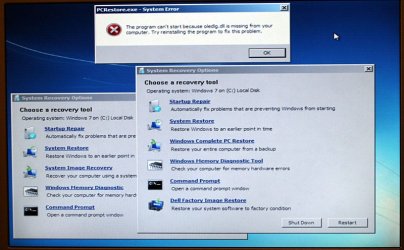
1. When I go through F8 - repair - there's no "Dell Factory Image Restore" choice.
2. If I run system recovery .exe file from recovery partition manualy (d:/sources/recovery/recenv.exe) it opens the same window, BUT WITH the "Dell Factory Image Restore" choice, but..
3. If I press it - it won't run because of "oledlg.dll" file missing.

I've attached screenshot of all I wrote about. I guess Windows 7 console loads it's files and misses something that Vista's recovery partition needs. Well, that's my lamer's opinion. =)

PLEASE advice!
THanx!
 

Attachments
  • DELL.jpg
    DELL.jpg
    83.6 KB · Views: 2,364

My Computer My Computer

OS
Windows 7 Home Premium 32bit
It seems your Recovery partition was damaged by the Win7 install as can happen.

Your options now are to call Dell Tech Support to order Factory Recovery disks for your model which will restore the machine to factory condition.

Or you can find a Vista retail installer to clean reinstall using the Product Key on COA sticker on machine.

If you only need to reinstall Win7, then Vista does not have to be reinstalled first.

Follow these steps for clean reinstalling either OS to get a purrfect install: http://www.sevenforums.com/installation-setup/125874-re-install-windows-7-a.html#post1086729
 
What exactly do you mean by "damaged recovery partition"? Why would windows installation touch any other partition, then the one it's installing on??!

I'm interested in getting factory default notebook - that's the exact aim.

Any other suggestions? If I install Vista myself and try to "F8 - repair..." would it help to see Dell defaults choice?

If anyone could not just suggest, but explain possible problem of what I wrote in the beginning - I'd appreciate it!

TNX!
 

My Computer My Computer

OS
Windows 7 Home Premium 32bit
When you install another OS it loses all links to the Recovery partition, and the Partition itself can lose it's hotkey links. Maybe someone else can explain exactly how it happens but we have seen it enough here that we know it is not uncommon.

This is one reason why during Win7 install many choose to wipe their HD to rely only on Recovery disks to restore to Factory condition: You simply can't count on the partition once you've installed another OS.

Our expert SIW2 might be able to help you locate and run the factory .wim file from the partition.

Otherwise if you want Recovery to factory condition, I would order the Recovery Disks which can be made during setup.
 
Hello lllypa, welcome to Seven Forums!


Have a go at the old method to recover a Dell, I don't know if it'll work but it can't hurt to try.


   Information

Here are the recovery instructions from Dell.

1. Reboot, and press Ctrl + F11 at the Dell logo.
2. The Dell™ PC Restore by Symantec screen will come up.
3. Select "Restore" or use the Tab key to highlight it and press Enter.
4. if you wish to continue, click "Confirm", or use the Tab key to highlight it and press Enter.
5. When the utility is finished, click "Finish", or use the Tab key to highlight it and press Enter.


My Computer My Computer

Computer Manufacturer/Model Number
* BFK Customs *
OS
W 7 64-bit Ultimate
CPU
Intel Q9550 Yorkfield
Motherboard
ASUS P5Q Pro
Memory
8GB Dominator 8500C5D
Graphics Card(s)
ATI : XFX 5870
Sound Card
Realtek HD Audio 7-1
Monitor(s) Displays
1x 47" LCD HDMI & 3x 26" LCD HDMI
Screen Resolution
1920x1080P & 1920x1200
Hard Drives
1x 80GB Intel X25-M G2 SSD : 1x 500GB & 1x 640GB WD Caviar Black(s)
PSU
Corsair 620HX
Case
Cooler Master RC-690
Cooling
Tuniq Tower 120, 2x 140mm and 3x 120mm case fans
Keyboard
Microsoft 500
Mouse
Razer Diamondback 3G
Internet Speed
14 Mb/s
Other Info
1x Koutech 3Gb/s SATA HDD Hot Swap Rack
1. Click Command Prompt from the System Recovery Options window.

2. In the Administrator window, type the following lines, pressing <Enter> after each line.
path d:\windows;d:\windows\system32

d:
CD Tools
PCRestore

3. In the Dell Factory Image Restore window, click Next.

4. In the Confirm Data Deletion window, click to select Yes, reformat hard drive and restore system software to factory condition, and then click Next. The message Factory image successfully restored! appears when the process is complete.

5. Click Finish to restart the system.
 

My Computer My Computer

OS
ME/XP/Vista/Win7
Our expert SIW2 might be able to help you locate and run the factory .wim file from the partition.
I can see .wim file in my recovery partition. Can anyone explain how to run it?

2. In the Administrator window, type the following lines, pressing <Enter> after each line.
path d:\windows;d:\windows\system32

d:
CD Tools
PCRestore
Can you explain what exactly to write in command prompt (I'm not good at it) - because you confused me? What do you mean by d:\windows;d:\.. etc.. ?

But if I try to run d:\tools\pcrestore.exe I get the same missing dll error. I guess I have to somehow run it throught D:\windows? Because there's Vista's clone? and it should have dlls I need? So how do I do that? I'm getting unproper commands messages in command prompt..

TNX

ps. and by the way, is it still possbile to write my recovery partition on DVD? I mean do the same thing, that my notebook ofered me in the very beginning? =)
 

My Computer My Computer

OS
Windows 7 Home Premium 32bit
Post screenshots of your recovery partition - showing the folders amd the wims - you may have several wims.
 

My Computers My Computers

System One System Two

  • Computer type
    PC/Desktop
    OS
    7 X64
    CPU
    i5 8400
    Motherboard
    gigabyte b365m ds3h
    Memory
    2x8gb 3200mhz
    Hard Drives
    various
    PSU
    pure power 11 400w cm
    Case
    Coolermaster
    Cooling
    cryorig m9i
  • Computer type
    PC/Desktop
    OS
    7x64
    CPU
    g5400
    Motherboard
    ga b365m ds3h
    Memory
    8gb ddr4 2400
    PSU
    xfx pro 450w
you can request Backup Discs from here:
Dell - Support


Have tried opening PCRestore from Windows 7?
 

My Computer My Computer

OS
ME/XP/Vista/Win7
Identify the recovery partition (eg partition 1)


  1. Down load Hirens boot CD.
  2. Boot the CD
  3. scroll down to the end of the menus (Hirens is disk 1)
  4. select the recovery partition (probably disk2 partition 1?)
  5. Boot directly to the partition with Hirens
  6. Your factory recovery screen should appeal
If your recovery partition has been damaged them recovery won't boot properly.
Then a set of recovery disks as suggested earlier is your best option in my opinion.
 
Last edited:

My Computer My Computer

Computer type
PC/Desktop
Computer Manufacturer/Model Number
Own build
OS
Windows 7x64 Home Premium SP1
CPU
Intel i7 2600k
Motherboard
ASUS P8Z68 Deluxe
Memory
G.Skill Ripjaws (DDR3-1600) 2x4GB
Graphics Card(s)
Nvidia GeForce GTS 450; Intel HD Graphics 3000(GT2+)
Monitor(s) Displays
Dell Ultrasharp IPS panel U2311H, Samsung SyncMaster P2350
Screen Resolution
1920x1080
Hard Drives
Samsung 850 Pro SSD 256GB, Samsung SSD 840 120GB, Seagates 1TB Barracuda ST31000528AS x2
PSU
Seasonic M12II 520W
Case
Lian Li Lancool PC-K60
Cooling
Case: 1x120mm, 3x140mm CPU: Hyper 212+
Keyboard
Logitech MK520 (wireless)
Mouse
Logitech MK520
Internet Speed
6-7 Mbps
Antivirus
Norton Security Premium, Malwarebytes on 2 (MSE on 3rd PC)
Browser
FireFox
Other Info
Audio: Logitech Z523 2.1
No "Factory Image Restore" Image Solution

After hours and hours of searching for a solution to there being no "Factory Image Restore" option, this is what I did to reset my own Dell laptop (should really work on any manufacturer) to factory original. Of course, be sure you have your documents backed up before beginning as you will lose everything.

Assuming your recovery partition has not been damaged (if it has, this will not work)

Download Hiren's BootCD from Download Hiren
Burn Hiren's BootCD to a CD
Put the Hiren's BootCD into CD Drive and Reboot computer
Select "Mini XP" from the menu
Double click on "My Computer"
Identify the partition that you use for your operating system
Right click on that partition and select "Format" to ensure a clean install
Identify the recovery partition and go to the "Imaging" folder
Right click on the "Imaging" folder and select "Command Prompt Here"
At the command prompt type (substituting c for your particular recovery partition and e for the partition that you use for your operating system)

imagex /apply c:\dell\image\factory.wim 1 e:\

After the image is successfully applied, close the command prompt.
Close "My Computer"
Remove Hiren's BootCD from CD Drive
Reboot computer

Your computer should now be reset to factory.

And as a bonus, if you try and use the Dell DataSafe Restore it will be there now! Woohoo!
 

My Computer My Computer

OS
Windows 7 Ultimate x64
Hi George,

Glad you managed to do that - it must have been very frustrating.

There are a couple of methods to try and restore in that situation.

The first is to mark the recovery partition Active - then if you are lucky, you can boot straight into the oem recovery program ( some kind of bootable wim on that partition) and start the recovery process.

The second way - if you can find the .wim which includes the recovery image, simply apply it with imagex.

There are other tools to handle wim images - Gimagex makes it easy with a nice GUI. GImageX - AutoItScript

That all assumes the recovery .wim ( or wim's - they are quite often split into several small ones - depends on the oem ) are not damaged.
 

My Computers My Computers

System One System Two

  • Computer type
    PC/Desktop
    OS
    7 X64
    CPU
    i5 8400
    Motherboard
    gigabyte b365m ds3h
    Memory
    2x8gb 3200mhz
    Hard Drives
    various
    PSU
    pure power 11 400w cm
    Case
    Coolermaster
    Cooling
    cryorig m9i
  • Computer type
    PC/Desktop
    OS
    7x64
    CPU
    g5400
    Motherboard
    ga b365m ds3h
    Memory
    8gb ddr4 2400
    PSU
    xfx pro 450w
Hi SIW2,

Thank you for the suggestions to other possible solutions. Of the three, I had already tried the second method and was unable to make that work.

The other two methods intrigue me and I am tempted break the computer now to try both of those methods.

I was most challeged to come up with a solution when I read in forum after forum that it was impossible. I love to overcome impossibilities. :D

Thanks again for your suggestions. When I try them for myself, I will get back with you and let you know how they each worked for me.
 

My Computer My Computer

OS
Windows 7 Ultimate x64
I guess you tried the suggestion in post#10 of using Hirens to boot directly into the Recovery Partition. It works on my old ACER but not for all recovery configurations.

In general though:
When you set the recovery partition active it just tells the MBR boot code where to jump to next. If the OEM has configured the recovery partition to be directly bootable it will have the appropriate Bootsector and bootmgr. You then generally need to set the partition inactive after recovery.
You can avoid the active/inactive setting by bypassing the MBR and going straight to the partition without the rigamarole.
 
Last edited:

My Computer My Computer

Computer type
PC/Desktop
Computer Manufacturer/Model Number
Own build
OS
Windows 7x64 Home Premium SP1
CPU
Intel i7 2600k
Motherboard
ASUS P8Z68 Deluxe
Memory
G.Skill Ripjaws (DDR3-1600) 2x4GB
Graphics Card(s)
Nvidia GeForce GTS 450; Intel HD Graphics 3000(GT2+)
Monitor(s) Displays
Dell Ultrasharp IPS panel U2311H, Samsung SyncMaster P2350
Screen Resolution
1920x1080
Hard Drives
Samsung 850 Pro SSD 256GB, Samsung SSD 840 120GB, Seagates 1TB Barracuda ST31000528AS x2
PSU
Seasonic M12II 520W
Case
Lian Li Lancool PC-K60
Cooling
Case: 1x120mm, 3x140mm CPU: Hyper 212+
Keyboard
Logitech MK520 (wireless)
Mouse
Logitech MK520
Internet Speed
6-7 Mbps
Antivirus
Norton Security Premium, Malwarebytes on 2 (MSE on 3rd PC)
Browser
FireFox
Other Info
Audio: Logitech Z523 2.1
Thanks Theog! This worked when nothing else did.

1. Click Command Prompt from the System Recovery Options window.

2. In the Administrator window, type the following lines, pressing <Enter> after each line.
path d:\windows;d:\windows\system32

d:
CD Tools
PCRestore

3. In the Dell Factory Image Restore window, click Next.

4. In the Confirm Data Deletion window, click to select Yes, reformat hard drive and restore system software to factory condition, and then click Next. The message Factory image successfully restored! appears when the process is complete.

5. Click Finish to restart the system.
 

My Computer My Computer

OS
win 7

My Computer My Computer

Computer Manufacturer/Model Number
Toshiba Satellite S875D-S7239 laptop
OS
MS Windows 7 Ultimate SP1 64-bit
CPU
AMD A10-4600M
Motherboard
AMD Pumori (Socket FT1)
Memory
6.00 GB Dual-Channel DDR3 @ 798MHz (11-11-12-28)
Graphics Card(s)
AMD Radeon HD 7660G
Sound Card
High Definition Audio Device
Monitor(s) Displays
Generic PnP Monitor (1600x900@60Hz)
Screen Resolution
1600x900@60Hz
Hard Drives
SSD 119GB Corsair CSSD-V128GB2 ATA Device
Keyboard
Standard PS/2 Keyboard
Mouse
HP Wireless Optical Mobile Mouse Model FHA-3410
Internet Speed
What the local pub, local coffee shop offers.
Other Info
Optical Drive:MATSHITA BD-CMB UJ160B ATA Device


Also have an Asus ha1002xp netbook with Win 7 Ultimate installed.
1. Click Command Prompt from the System Recovery Options window.

2. In the Administrator window, type the following lines, pressing <Enter> after each line.
path d:\windows;d:\windows\system32

d:
CD Tools
PCRestore

3. In the Dell Factory Image Restore window, click Next.

4. In the Confirm Data Deletion window, click to select Yes, reformat hard drive and restore system software to factory condition, and then click Next. The message Factory image successfully restored! appears when the process is complete.

5. Click Finish to restart the system.


Thank You !!
This was exactly what I needed.
I tried to update an old vista laptop to windows 7.
I had to do it from usb drive because the dvd-drive was stuck.

It failed partialy because the old system had to much garbage.
Didn't find the recovery image.
I followed your path (what's in a name, pathsettings) and the recovery worked fine.

From this clean Windows Vista system I can try to update to Windows 7.

Thanks a lot !!
 

My Computer My Computer

OS
Windows 7 Ultimate
Thanks

theog,

Thanks for the solution. Your Method worked on the 2nd try. I had installed Win 7 on a Dell Inspiron 1318 laptop, but I wanted to restore the Vista install, to try and upgrade to Windows 8, just because I like to abuse myself.


My Computer My Computer

Computer Manufacturer/Model Number
Gateway DX4840
OS
Win 7 Pro 64bit
CPU
I5 3.2 GHz
Motherboard
Acer?
Memory
6GB
Graphics Card(s)
Nvidia GeForce 315
Sound Card
Nvidia
Hard Drives
1TB
That was a long time ago.
You are welcome.
 

My Computer My Computer

OS
ME/XP/Vista/Win7
Back
Top