
No OS found. C:\ drive became RAW

dunjenz

New member
Local time
10:20 AM
Messages
11
I have a Lenovo Y560 laptop. I turned on my computer in the morning and the computer automatically went to the System Recovery Options. Everything was working fine the night before.

There was no operating system listed and the system restore point was from 2011. No OS was found. I used a bootable Windows 7 disc and went to the Repair screen. In startup repair, I ran it 5 straight times and it kept saying bad partition table. I tried the command prompt and was unable to do chkdsk cause the c:\ drive is raw. All my data is on the c:\ drive and my backup/restore point was on the d:\ drive.

I tried the bootable Peppermint option to try and salvage the data but I got mount error, so I was unable to click on my drive.

I tried the bootable partition wizard but it did not work. It automatically restarted my computer after I selected the resolution.

Using Hiren's Boot CD, I was able to boot into Mini Windows XP. On Disk Manager, the c:\ is not FAT32 or NTFS but just blank. I run Partition Wizard on the C:\ drive and I can explore one of the allocations and see all my files listed so I recover it and give it a new letter E:\. However, it states that the partition is 29 GB, when in fact it should be much larger. So on Partition Wizard it is showing at negative space usage. I cannot re-size or copy or re-allocate as I get error messages. On My Computer, the E:\ is unaccessible and windows asks if I want to format. I tried Peppermint again, but still mount issues.

I'm currently running the Lenovo Diagnostics.

Any ideas on how to at least salvage my data? I guess my next option is to see if the restore point is still accessible (I unallocated it to try and move my data onto that D:\ drive. I have recovered it after I was unable to copy over to the D:\ drive).
 

My Computer My Computer

At a glance

Windows 7 Home Premium 64 bitIntel Core i7 720QM (1.60GHz)4GB DDR3ATI Mobility Radeon HD 5730
Computer type
Laptop
Computer Manufacturer/Model Number
Lenovo Y560
OS
Windows 7 Home Premium 64 bit
CPU
Intel Core i7 720QM (1.60GHz)
Memory
4GB DDR3
Graphics Card(s)
ATI Mobility Radeon HD 5730
Hard Drives
HDD
500GB
HDD RPM
5400RPM
HDD Interface
SATA
I'm not sure if I'm allowed to bump my own topic, but I haven't received any responses.

I went back to a Windows Repair and got the same messages as before. I went to do a system restore from the 2011 date but after clicking next, it says to select the drives to reformat - including the drive with all my data. So I cancelled it.

I read about TestDisk and PhotoRec. I see they are in Hiren's Boot CD. Should that be my next course of action. Will it wipe out the data by attempting TestDisk? I think I read that there's a limit on how many files it can recover? Or it can only recover photos?

Thanks
 

My Computer My Computer

At a glance

Windows 7 Home Premium 64 bitIntel Core i7 720QM (1.60GHz)4GB DDR3ATI Mobility Radeon HD 5730
Computer type
Laptop
Computer Manufacturer/Model Number
Lenovo Y560
OS
Windows 7 Home Premium 64 bit
CPU
Intel Core i7 720QM (1.60GHz)
Memory
4GB DDR3
Graphics Card(s)
ATI Mobility Radeon HD 5730
Hard Drives
HDD
500GB
HDD RPM
5400RPM
HDD Interface
SATA
This thread should probably be in the Backup and Restore category. Resident expert there is "Jumanji". Maybe a moderator will move this.
 

My Computer My Computer

At a glance

Windows 7 Home Premium SP1, 64-bitIntel Skylake i5-6600K, not overclocked8 GB HyperX DDR4-2666 (2 x 4 GB)none; graphics are integrated on CPU
Computer type
PC/Desktop
Computer Manufacturer/Model Number
Ignatz Special; 4 speed manual gearbox; factory air conditioning; one of one
OS
Windows 7 Home Premium SP1, 64-bit
CPU
Intel Skylake i5-6600K, not overclocked
Motherboard
AsRock Z170M Extreme 4, micro ATX
Memory
8 GB HyperX DDR4-2666 (2 x 4 GB)
Graphics Card(s)
none; graphics are integrated on CPU
Sound Card
onboard: Realtek ALC1150; external: USB Behringer UF0-202
Monitor(s) Displays
Dell S2340M 23 inch IPS
Screen Resolution
1600 x 900
Hard Drives
System: Crucial MX100 series SSD, 128 GB;
Data: Samsung Spinpoint 103SJ, 1 TB;
Backup: WD Caviar Green WD30EZRX-00D8PB0, 3 TB
PSU
Rosewill SilentNight 500 watt fanless, semi-modular
Case
Antec Solo II
Cooling
Noctua NH-U12S; Noctua F12 intake, Noctua S12A exhaust
Keyboard
Microsoft 200 6JH-00001 USB
Mouse
Dell or Microsoft optical wired; USB
Antivirus
Microsoft Security Essentials and Malwarebytes Premium
Browser
Pale Moon
Other Info
All fans PWM; speeds at idle: CPU circa 500 rpm; intake circa 600 rpm; exhaust circa 600 rpm; CPU temps 27 idle and 47 C load in a warm room (27 C/81 F) when running Intel Extreme Tuning Utility stress test.
I hesitate to handle a laptop especially when the system drive is involved.

Anyway, you said you ran Peppermint and got stuck. You can try Lucid Puppy. Hold on. I have to search and find one of my old posts which gives all details on how to create a Lucid Puppy pen drive.

So hold on till I come back. In the meanwhile do not try anything on your laptop. Suspend all operations.
 

My Computer My Computer

At a glance

Windows 7 Home Premium 32 bit
OS
Windows 7 Home Premium 32 bit
OK here we go.

Download lupu-528.005.iso (132.6 MB) from http://puppylinux.org/main/Long-Term-Supported%20Puppy.htm#lucidpuppy

Create your bootable Lucid Puppy pendrive with this ISO using Rufus 2.1 (788KB) https://rufus.akeo.ie/ (All data on the pendrive will be lost when rufus formats the pendrive before writing the ISO and so backup any data on the pendrive elsewhere before running Rufus)

Plug in your destination drive with adequate space to copy files and boot your PC with this pendrive using the onetime boot menu. Check whether that faulty drive is shown and you can access it and see your data. If seen copy all data to the empty drive.

Guide on how to use Lucid Puppy :Go to the topic Recovering files from the non-bootable Internal Drive: in my thread
http://www.sevenforums.com/software/198909-lucid-puppy-way-recover-files-non-bootable-computer.html

NOTE: Whatever is stated before this particular heading explains how I made the drive inaccessible, created my Lucid puppy to try it. Your drive is already inaccessible and you are going to create your bootable pendrive with Rufus.. So give it a pass and go direct to the topic mentioned in bold letters.)

I hope you also have the bootable Partition Wizard. If yes we shall run it later.

I am out for dinner. So will be back only after another 3-4 hours.
 

My Computer My Computer

At a glance

Windows 7 Home Premium 32 bit
OS
Windows 7 Home Premium 32 bit
Hi,

I booted on Lucid Puppy and mounted the corrupted drive and external hard drive. On the corrupted drive, I get a NTFS Warning "The ntfs-3g driver was unable to mount the NTFS partition......Failed to read last sector (946507183): Invalid argument......the inbuilt kernel NTFS driver has been used to moutn the partition read-only"

Thus when I try to copy over to my external hard drive, I get a cp: cannot create regular file...Read-only file system
 

My Computer My Computer

At a glance

Windows 7 Home Premium 64 bitIntel Core i7 720QM (1.60GHz)4GB DDR3ATI Mobility Radeon HD 5730
Computer type
Laptop
Computer Manufacturer/Model Number
Lenovo Y560
OS
Windows 7 Home Premium 64 bit
CPU
Intel Core i7 720QM (1.60GHz)
Memory
4GB DDR3
Graphics Card(s)
ATI Mobility Radeon HD 5730
Hard Drives
HDD
500GB
HDD RPM
5400RPM
HDD Interface
SATA
Ok, this must be a Linux specific problem when dealing with a bad drive.. I have to perhaps research into this. I am just wondering what the last sector has to do (unless it is a GPT drive. Only GPT drives will have the GPT Header backup in there)

Now tell me whether you can see all the files, open those and read?

There is GParted/Parted Magic Partitioning program in Lucid puppy. Just run it and let me know the structure of the disk. How many partitions there and their capacity. If you can post a camera shot well and good. Otherwise describe in detail.

Also there is a screen capture program in it. You have to play around with it on how to capture and where to save it and find it. If you can capture the screen, save it (it will save in the RAM drive) and then move it to the external drive or even your Lucid Puppy drive, fine.Upload the screenshot. There is a browser also you can log into the forum and upload it.

Whether you are able to do this or not we shall move onto running Partition Wizard from a bootable pendrive.Download the latest bootable CD version Bootable Partition Manger | MiniTool Partition Wizard Bootable Edition and prepare your pendrive with Rufus.

Tomorrow we shall do it.( I was already dozing in the restaurant.)
 

My Computer My Computer

At a glance

Windows 7 Home Premium 32 bit
OS
Windows 7 Home Premium 32 bit
Ok, I saw the full error message in the Lucid Puppy Forum. The error can mean "the partition table is corrupt (partition is smaller than NTFS),
or the NTFS boot sector is corrupt (NTFS size is not valid).

We shall try to tackle it tomorrow with Partition Wizard. If you can take camera shots and upload it will be easier to give appropriate instructions online .
 

My Computer My Computer

At a glance

Windows 7 Home Premium 32 bit
OS
Windows 7 Home Premium 32 bit
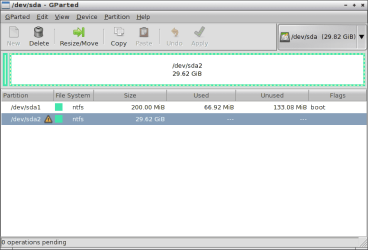
Attached is the screenshot from Gparted. The data I wish to retrieve is in sda2. In read-only mode, some pictures I can view, but most say contains no data or have and exclamation mark on it and when I click, it says "File does not exist, or I can't access it".

I had tried the bootable Partition Wizard, but when I go to select the resolution, options 1 and 2 flash the Partition Wizard screen and then reboots. Options 3 and 4 lead me to a /bin/sh: can't access tty.

Using Hiren's Boot CD, I was able to use Mini Windows XP and from there I can access the Partition Wizard. Would that work as well in case I cannot get the bootable Partition Wizard again? I will attempt to run the bootable version now and provide updates.
 

Attachments

  • image-1.png
    image-1.png
    13.3 KB · Views: 1

My Computer My Computer

At a glance

Windows 7 Home Premium 64 bitIntel Core i7 720QM (1.60GHz)4GB DDR3ATI Mobility Radeon HD 5730
Computer type
Laptop
Computer Manufacturer/Model Number
Lenovo Y560
OS
Windows 7 Home Premium 64 bit
CPU
Intel Core i7 720QM (1.60GHz)
Memory
4GB DDR3
Graphics Card(s)
ATI Mobility Radeon HD 5730
Hard Drives
HDD
500GB
HDD RPM
5400RPM
HDD Interface
SATA
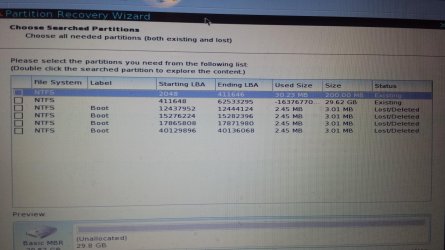
I tried the Bootable partition wizard and it works now.

Here is a screenshot after running the recovery. You can see it looks funny with the negative used size. I did not apply any operation after taking this screen shot and will await further instruction. Thank you for taking the time to help me. I will be unable to do anything until I get home tomorrow evening from work. I'll check this forum during the day and try to answer what I can.
 

Attachments

  • 20150512_234716.jpg
    20150512_234716.jpg
    999.5 KB · Views: 4

My Computer My Computer

At a glance

Windows 7 Home Premium 64 bitIntel Core i7 720QM (1.60GHz)4GB DDR3ATI Mobility Radeon HD 5730
Computer type
Laptop
Computer Manufacturer/Model Number
Lenovo Y560
OS
Windows 7 Home Premium 64 bit
CPU
Intel Core i7 720QM (1.60GHz)
Memory
4GB DDR3
Graphics Card(s)
ATI Mobility Radeon HD 5730
Hard Drives
HDD
500GB
HDD RPM
5400RPM
HDD Interface
SATA
You are doing a good job. You are also right in not "Apply" ing anything when not found right.

Now I presume that you only ran a Quick Scan with Partition Recovery Wizard. Run a Full Scan which may take quite sometime to complete and post a screenshot of the partitions shown. Let us see whether it can dig out the right partitions. Again do not APPLY. Let me see the screenshot. After the screenshot cancel and close PW. If need be it can be run later.

For the present you may continue to run Partition Wizard from the same source from which you have been running it.

If the screenshot does not look good, then you may need to create the bootable pendrive with the latest version downloaded from the link I had already given..
 

My Computer My Computer

At a glance

Windows 7 Home Premium 32 bit
OS
Windows 7 Home Premium 32 bit
The image you see is the result from a full scan. There is another disc on my computer. Should I run a full scan on that disc as well?
 

My Computer My Computer

At a glance

Windows 7 Home Premium 64 bitIntel Core i7 720QM (1.60GHz)4GB DDR3ATI Mobility Radeon HD 5730
Computer type
Laptop
Computer Manufacturer/Model Number
Lenovo Y560
OS
Windows 7 Home Premium 64 bit
CPU
Intel Core i7 720QM (1.60GHz)
Memory
4GB DDR3
Graphics Card(s)
ATI Mobility Radeon HD 5730
Hard Drives
HDD
500GB
HDD RPM
5400RPM
HDD Interface
SATA
What do you mean by another disk in your computer?

Your laptop drive is the one which has gone RAW and you have run the Partition Recovery Wizard on that drive. Right?
 

My Computer My Computer

At a glance

Windows 7 Home Premium 32 bit
OS
Windows 7 Home Premium 32 bit
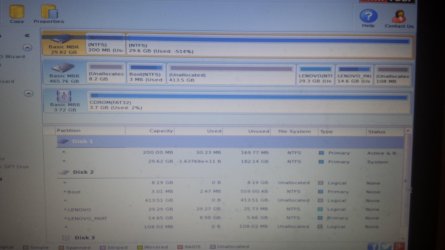
Here is what it looks like from partition wizard

Disc 1 seems to be the problem
 

Attachments

  • 20150514_212942.jpg
    20150514_212942.jpg
    408.3 KB · Views: 5

My Computer My Computer

At a glance

Windows 7 Home Premium 64 bitIntel Core i7 720QM (1.60GHz)4GB DDR3ATI Mobility Radeon HD 5730
Computer type
Laptop
Computer Manufacturer/Model Number
Lenovo Y560
OS
Windows 7 Home Premium 64 bit
CPU
Intel Core i7 720QM (1.60GHz)
Memory
4GB DDR3
Graphics Card(s)
ATI Mobility Radeon HD 5730
Hard Drives
HDD
500GB
HDD RPM
5400RPM
HDD Interface
SATA
I must admit I just do not understand the screenshot you have put out.

I do know that there are/were some motherboards with a small SSD built in to speed up booting etc., and also there are hybrid HDDs with a small solid state memory builtin.

So could it be your laptop has some unusual features?

I think it would be best to talk to Lenovo Support and get to know what they say.

Even the second drive does not look alright though it shows a large 400GB+ partition.At one point after running Lucid Puppy you said you were able to see the files but could not copy those as those showed as Read only. On which drive was it?

Of course running bootable Lucid Puppy or Partition Wizard is not going to make any changes.

So at this stage I would advise you to create a PW bootable pendrive, boot from it ,run it and show how the drive appears in it. Just the first screen as soon as you run Partition Wizard. You can then discuss what you see with Lenovo Support.
 

My Computer My Computer

At a glance

Windows 7 Home Premium 32 bit
OS
Windows 7 Home Premium 32 bit
I am unable to mount disk 1 in lucid puppy. The other disk mounts fine.

The screen shot is from the Bootable partition wizard as it works now.

The problem disk is disk 1 with the negative usage space. When I explore, I can see the names of the files I wish to recover. I find it interesting partition wizard shows the 29gig allocation as ntfs but windows sees it as raw. Does any of this help? Should I try photorec?
 

My Computer My Computer

At a glance

Windows 7 Home Premium 64 bitIntel Core i7 720QM (1.60GHz)4GB DDR3ATI Mobility Radeon HD 5730
Computer type
Laptop
Computer Manufacturer/Model Number
Lenovo Y560
OS
Windows 7 Home Premium 64 bit
CPU
Intel Core i7 720QM (1.60GHz)
Memory
4GB DDR3
Graphics Card(s)
ATI Mobility Radeon HD 5730
Hard Drives
HDD
500GB
HDD RPM
5400RPM
HDD Interface
SATA
OK, you are now running Partitiion Wizard from the bootable pen drive and it shows two drives.

Well as I said it is possible that your laptop has two drives one small SSD to boot and also be a temporary memory to which the files you are working upon will be copied and worked upon by the PC and another the usual main HDD.

If my assumption is correct then all your data should be there in in the HDD with the 400GB+ partition in Disk 2. The files you report as having seen in Disk 1 may be only a few files that were copied to it.

But the disquieting point is that some program seems to have written a wrong partition table already into it. There is an 8GB Unallocated partition and a 3MB Boot and to that extent I would believe that the main 400GB+ partition is truncated and lost its NTFS Boot record to become unallocated..That couldn't have happened on its own.

In any case you can run a Full Scan on it. Let us see what all existing and lost/deleted partitions are shown. Post a snapshot. Just highlight the partitions shown and double click on them. Do you see all or most files?
( Do not put tick marks in the square box. Just cancel and quit PW. Let me examine the screenshot and then give instructions.)

As for PhotoRec , it is safe to run as it does not write anything to the drive, but the files recovered would have lost their folders and folder structure. What you will get is a bunch of files renamed. If its OK for you you can try.

But if files are seen in Partition Recovery Wizard, there is a good chance - I can't say sure- those can be recovered with their original folder structure and names by TestDisk but it requires careful handling and a little bit difficult to work with.

By the way, what is the nature of data you want to recover? ( IMO. there is no possibility of restoring your PC back to original working condition without a complete reinstall. I have to call upon gregrocker to check on it by examining the present mauled disk/s structure.)
 

My Computer My Computer

At a glance

Windows 7 Home Premium 32 bit
OS
Windows 7 Home Premium 32 bit
Ok I will post the results of the full scan on disk 2 when I am home. I had it run during the day already, so I can post the screenshot when I am home.

At this point, all I care about is recovering the photos in the drive. I have a newborn child and never got a chance to backup the photos I took unfortunately. So I am hoping to get back as many photos/videos as I can. The file structure or filenames for that matter do not matter as I can re-organize later.

Thanks!
 

My Computer My Computer

At a glance

Windows 7 Home Premium 64 bitIntel Core i7 720QM (1.60GHz)4GB DDR3ATI Mobility Radeon HD 5730
Computer type
Laptop
Computer Manufacturer/Model Number
Lenovo Y560
OS
Windows 7 Home Premium 64 bit
CPU
Intel Core i7 720QM (1.60GHz)
Memory
4GB DDR3
Graphics Card(s)
ATI Mobility Radeon HD 5730
Hard Drives
HDD
500GB
HDD RPM
5400RPM
HDD Interface
SATA
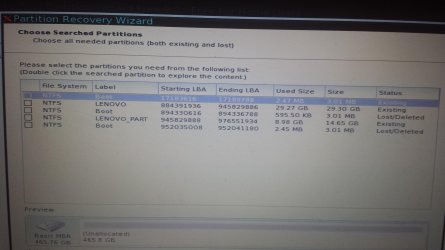
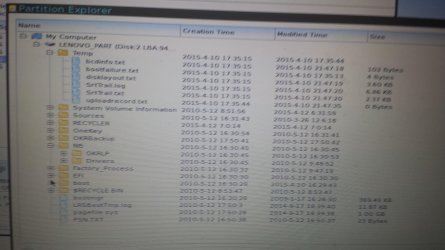
Here is the result of a full scan of disk 2.

Double clicking the first item, I see a system volume information and recycler folder

Item 2 partition explorer see attached

Item 3 has no files

Item 4 see attached

Item 5 has a system volume information folder

I do not see the contents I want to retrieve in this disk
 

Attachments

  • 20150515_183923.jpg
    20150515_183923.jpg
    633.3 KB · Views: 1
  • 20150515_184720.jpg
    20150515_184720.jpg
    953.9 KB · Views: 0
  • 20150515_184739.jpg
    20150515_184739.jpg
    886.5 KB · Views: 0

My Computer My Computer

At a glance

Windows 7 Home Premium 64 bitIntel Core i7 720QM (1.60GHz)4GB DDR3ATI Mobility Radeon HD 5730
Computer type
Laptop
Computer Manufacturer/Model Number
Lenovo Y560
OS
Windows 7 Home Premium 64 bit
CPU
Intel Core i7 720QM (1.60GHz)
Memory
4GB DDR3
Graphics Card(s)
ATI Mobility Radeon HD 5730
Hard Drives
HDD
500GB
HDD RPM
5400RPM
HDD Interface
SATA
I do not see any light. The major 400GB+ is not seen anywhere.

Just post a screenshot of how your disks appear in Partition Wizard now.. (like the one you posted in your post#14). Its just for the record and not going to resolve the issue.

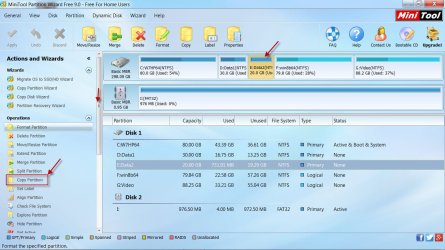
While on it, just select the major 400GB+ partition in it and see whether in the Left Pane under Operations you can see Copy Partition as shown in the screenshot below.We shall keep this as the next option if PhotoRec fails to give any desired result.( That Copy partition should not be greyed out if you have to do it.)

5-15-2015 9-08-34 PM.jpg

Now go ahead and run PhotoRec.

Go to the Topic Recovery: in the guide here http://www.sevenforums.com/software/193467-guide-using-photorec-recovery-software.html to familiarize yourself with PhotoRec.
(Skip what is stated above that topic Recovery: which just describes what I did to lose the photos to perform the recovery. You have already lost the photos and do the Recovery now)

Note: On Sunday the 17th, I am flying back to India. So tomorrow and day after I will be busy and there may be a break. I may still peep in tomorrow night but thereafter only after I reach India on 19th. if PhotoRec fails do the Partition Copy. Have an empty formatted 500GB drive connected before you boot into Partition Wizard. Good luck.
 

My Computer My Computer

At a glance

Windows 7 Home Premium 32 bit
OS
Windows 7 Home Premium 32 bit
Back
Top