Noisy tower

sbuxman

New member
Member
VIP
Local time
1:19 PM
Messages
194
Compaq Presario SR5010NX Desktop
Celeron D processor 360
Windows 7 Home Premium
1 GB RAM
120 GB HDD
Intel graphics media accelerator
DVD/CD w/Lightscribe
=================================
I recently performed a clean install of Win7 HP on this older tower and it's been running very well. Trouble is, it sounds like a vacuum cleaner on its last legs...very loud noises. I'm not qualified to identify a correlation between the upgrade and the outrageously noisy internals, but I've been given suggestions about poor heatsink mounting a la dried up thermal compound, or bad fans' bearings, or hard drive, etc.

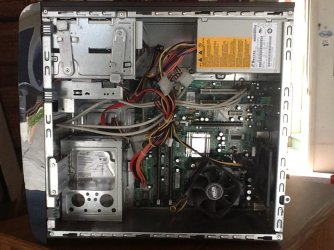
I took a snapshot of the inside of the chassis with the side panel removed for uploading of the jpeg here, because I'm not savvy enough to understand where the heatsink is :o I'm happy to replace fans and even the heatsink if someone will please just tell me how to find it :confused:

Thank you.

sbuxman
 

Attachments

  • old.samsung.JPG
    old.samsung.JPG
    116.7 KB · Views: 23

My Computer

Computer type
PC/Desktop
Computer Manufacturer/Model Number
Dell Inc. XPS 8300
OS
Microsoft Windows 7 Home Premium 64-bit 7601 Multiprocessor Free Service Pack 1
CPU
Intel(R) Core(TM) i7-2600 CPU @ 3.40GHz
Motherboard
Dell Inc. 0Y2MRG
Memory
8.00 GB
Graphics Card(s)
AMD Radeon HD 6450
Sound Card
(1) Realtek High Definition Audio (2) Intel(R) Display Aud
Monitor(s) Displays
Samsung SA300/SA350 [Monitor] (21.7"vis)
Screen Resolution
1920 x 1080 x 32 bits (4294967296 colors) @ 60 Hz
Hard Drives
(1) ST31500341AS ATA Device (2) Generic- Compact Flash USB Device (3) Generic- MS/MS-Pro USB Device (4) Generic- SD/MMC USB Device (5) Generic- SM/xD-Picture USB Device
PSU
Dell 460W for i7 configuration
Case
mid-size tower
Keyboard
Dell Inc. standard keyboard
Mouse
Dell Inc. wired mouse
Internet Speed
Verizon FIOS
Antivirus
Microsoft Security Essentials
Browser
I.E. 11 default/Chrome
Is it definitely louder than before the clean install, with no new components? That is, is this a new development?

The heatsink refers to the CPU cooler in the lower right portion of that picture. If the heatsink were mounted poorly, it might cause the CPU fan to speed up in an attempt to lower temperatures. It wouldn't be my first guess for the source of noise, but that fan may be working very hard or going bad.

Check your temperatures and fan speeds with a tool such as HWInfo.

Fans spinning above 1000 rpm are typically audible--some more than others.


Get your ear in there and listen. You can stop case fans or even the CPU fan for a second or two to see if the noise disappears---that's one way to determine if it is a fan issue.

Listen near the power supply, probably upper left in that pic. It has a fan also.

Does the noise sound like a wooshing? That's most likely fans or air turbulence.

Whines can be drives, power supply coils, or even motherboards.

Hard drives are probably lower left in your pic.

Cases can be noisy in general, some more than others. You might have a vibration component to the noise from the front bezel rattling a bit--or just from poor design where noise leaks out through gaps or vents.

It's not easy to quiet a noisy case. The best way to get a quiet PC is to assemble it from quiet components, rather than trying to quiet it after the fact.

Some fans are noisier than others, even if working properly. You'd have to replace them with known quiet fans--preferably of the largest diameter that will fit the mount.
 

My Computer

Computer type
PC/Desktop
Computer Manufacturer/Model Number
Ignatz Special; 4 speed manual gearbox; factory air conditioning; one of one
OS
Windows 7 Home Premium SP1, 64-bit
CPU
Intel Skylake i5-6600K, not overclocked
Motherboard
AsRock Z170M Extreme 4, micro ATX
Memory
8 GB HyperX DDR4-2666 (2 x 4 GB)
Graphics Card(s)
none; graphics are integrated on CPU
Sound Card
onboard: Realtek ALC1150; external: USB Behringer UF0-202
Monitor(s) Displays
Dell S2340M 23 inch IPS
Screen Resolution
1600 x 900
Hard Drives
System: Crucial MX100 series SSD, 128 GB;
Data: Samsung Spinpoint 103SJ, 1 TB;
Backup: WD Caviar Green WD30EZRX-00D8PB0, 3 TB
PSU
Rosewill SilentNight 500 watt fanless, semi-modular
Case
Antec Solo II
Cooling
Noctua NH-U12S; Noctua F12 intake, Noctua S12A exhaust
Keyboard
Microsoft 200 6JH-00001 USB
Mouse
Dell or Microsoft optical wired; USB
Antivirus
Microsoft Security Essentials and Malwarebytes Premium
Browser
Pale Moon
Other Info
All fans PWM; speeds at idle: CPU circa 500 rpm; intake circa 600 rpm; exhaust circa 600 rpm; CPU temps 27 idle and 47 C load in a warm room (27 C/81 F) when running Intel Extreme Tuning Utility stress test.
The heatsink refers to the CPU cooler in the lower right portion of that picture. If the heatsink were mounted poorly, it might cause the CPU fan to speed up in an attempt to lower temperatures. It wouldn't be my first guess for the source of noise.

Check your temperatures and fan speeds with a tool such as HWInfo.


Get your ear in there and listen. You can stop case fans or even the CPU fan for a second or two to see if the noise disappears---that's one way to determine if it is a fan issue.

Listen near the power supply, probably upper left in that pic. It has a fan also.

Does the noise sound like a wooshing? That's most likely fans or air turbulence.

Whines can be drives, power supply coils, or even motherboards.

Hard drives are probably lower left in your pic.

Cases can be noisy in general, some more that others. You might have a vibration component to the noise from the front bezel rattling a bit.

It's not easy to quiet a noisy case. The best way to get a quiet PC is to assemble it from quiet components, rather than trying to quiet it after the fact.

Some fans are noisier than others, even if working properly. You'd have to replace them with known quiet fans.

Thank you...what's a good means of stopping a fan for a second or two to see if it's the culprit? Would I damage the bearings if a fan already were whirring...and how would I safely (for the fan and for me) do so?
 

My Computer

Computer type
PC/Desktop
Computer Manufacturer/Model Number
Dell Inc. XPS 8300
OS
Microsoft Windows 7 Home Premium 64-bit 7601 Multiprocessor Free Service Pack 1
CPU
Intel(R) Core(TM) i7-2600 CPU @ 3.40GHz
Motherboard
Dell Inc. 0Y2MRG
Memory
8.00 GB
Graphics Card(s)
AMD Radeon HD 6450
Sound Card
(1) Realtek High Definition Audio (2) Intel(R) Display Aud
Monitor(s) Displays
Samsung SA300/SA350 [Monitor] (21.7"vis)
Screen Resolution
1920 x 1080 x 32 bits (4294967296 colors) @ 60 Hz
Hard Drives
(1) ST31500341AS ATA Device (2) Generic- Compact Flash USB Device (3) Generic- MS/MS-Pro USB Device (4) Generic- SD/MMC USB Device (5) Generic- SM/xD-Picture USB Device
PSU
Dell 460W for i7 configuration
Case
mid-size tower
Keyboard
Dell Inc. standard keyboard
Mouse
Dell Inc. wired mouse
Internet Speed
Verizon FIOS
Antivirus
Microsoft Security Essentials
Browser
I.E. 11 default/Chrome
Thank you...what's a good means of stopping a fan for a second or two to see if it's the culprit? Would I damage the bearings if a fan already were whirring...and how would I safely (for the fan and for me) do so?

You can use a finger on any spinning component of the fan--the axle or the blades. If you are worried about getting a finger hacked off, use an object.

I use fingers and still have 10 of them.

You could outright disconnect a case fan if you would rather just unplug it temporarily.

I wouldn't disconnect the CPU fan (heatsink) to test it---the PC might not start at all or might get quite hot very quickly if it did start. So I'd use a fingertip or object on that fan. Just for a second or two.

Get your ear within a couple of inches of all fans.
 

My Computer

Computer type
PC/Desktop
Computer Manufacturer/Model Number
Ignatz Special; 4 speed manual gearbox; factory air conditioning; one of one
OS
Windows 7 Home Premium SP1, 64-bit
CPU
Intel Skylake i5-6600K, not overclocked
Motherboard
AsRock Z170M Extreme 4, micro ATX
Memory
8 GB HyperX DDR4-2666 (2 x 4 GB)
Graphics Card(s)
none; graphics are integrated on CPU
Sound Card
onboard: Realtek ALC1150; external: USB Behringer UF0-202
Monitor(s) Displays
Dell S2340M 23 inch IPS
Screen Resolution
1600 x 900
Hard Drives
System: Crucial MX100 series SSD, 128 GB;
Data: Samsung Spinpoint 103SJ, 1 TB;
Backup: WD Caviar Green WD30EZRX-00D8PB0, 3 TB
PSU
Rosewill SilentNight 500 watt fanless, semi-modular
Case
Antec Solo II
Cooling
Noctua NH-U12S; Noctua F12 intake, Noctua S12A exhaust
Keyboard
Microsoft 200 6JH-00001 USB
Mouse
Dell or Microsoft optical wired; USB
Antivirus
Microsoft Security Essentials and Malwarebytes Premium
Browser
Pale Moon
Other Info
All fans PWM; speeds at idle: CPU circa 500 rpm; intake circa 600 rpm; exhaust circa 600 rpm; CPU temps 27 idle and 47 C load in a warm room (27 C/81 F) when running Intel Extreme Tuning Utility stress test.
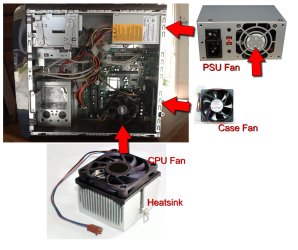
It's possible that one of the other fans is vibrating or is out of balance or even clogged with dirt, fluff, gunk etc. or is maybe seized/on it's way out and may need replacing.
It's not good practice to test your machine with fans disconnected or stopped and is usually best left to the professionals. Alternatively you could test it with fully functional working fans that you could maybe borrow from a friend, this way you could check which ones are causing problems ;)
 

Attachments

  • fans.jpg
    fans.jpg
    294.5 KB · Views: 7

My Computer

Computer type
PC/Desktop
Computer Manufacturer/Model Number
Self Built
OS
Windows 7 Ultimate 64bit
CPU
AMD Phenom Quad core 9950 black edition
Motherboard
Gigabyte
Memory
16Gb
Graphics Card(s)
2x XFX Radeon 5850
Sound Card
PCI Express X-Fi Titanium / Logitech G35
Monitor(s) Displays
2x HP 2410i
Screen Resolution
1920x1080
Hard Drives
2x 500Gb Seagate
1x 300Gb Seagate
1x 1Tb Seagate
2x 1Tb Hitatchi
PSU
Jean Tech Storm 700W
Case
Cooler Master COSMOS S
Cooling
Akasa Evo Blue Pro
Keyboard
Logitech G15
Mouse
Mad Catz M.M.O. 7
Internet Speed
12mb
Thank you...what's a good means of stopping a fan for a second or two to see if it's the culprit? Would I damage the bearings if a fan already were whirring...and how would I safely (for the fan and for me) do so?

You can use a finger on any spinning component of the fan--the axle or the blades. If you are worried about getting a finger hacked off, use an object.

I use fingers and still have 10 of them.

You could outright disconnect a case fan if you would rather just unplug it temporarily.

I wouldn't disconnect the CPU fan (heatsink) to test it---the PC might not start at all or might get quite hot very quickly if it did start. So I'd use a fingertip or object on that fan. Just for a second or two.

Get your ear within a couple of inches of all fans.

OK, so the heatsink is the cooler in the lower right, or what's under the cooler? You're talking about the ASUS component, right? What is the "box" in the upper right-hand corner with the orange/yellow sticker on it? It's a Bestec component and it continues on the outside of the case with an outlet for the plug. Isn't that the power supply? You say "Listen near the power supply, probably upper left in that pic." Did you mean upper right? Although there's a steel-type enclosure in the upper left-hand corner, it appear to me to only house a ribbon cable.

Thank you...I'm getting therec:)
 

My Computer

Computer type
PC/Desktop
Computer Manufacturer/Model Number
Dell Inc. XPS 8300
OS
Microsoft Windows 7 Home Premium 64-bit 7601 Multiprocessor Free Service Pack 1
CPU
Intel(R) Core(TM) i7-2600 CPU @ 3.40GHz
Motherboard
Dell Inc. 0Y2MRG
Memory
8.00 GB
Graphics Card(s)
AMD Radeon HD 6450
Sound Card
(1) Realtek High Definition Audio (2) Intel(R) Display Aud
Monitor(s) Displays
Samsung SA300/SA350 [Monitor] (21.7"vis)
Screen Resolution
1920 x 1080 x 32 bits (4294967296 colors) @ 60 Hz
Hard Drives
(1) ST31500341AS ATA Device (2) Generic- Compact Flash USB Device (3) Generic- MS/MS-Pro USB Device (4) Generic- SD/MMC USB Device (5) Generic- SM/xD-Picture USB Device
PSU
Dell 460W for i7 configuration
Case
mid-size tower
Keyboard
Dell Inc. standard keyboard
Mouse
Dell Inc. wired mouse
Internet Speed
Verizon FIOS
Antivirus
Microsoft Security Essentials
Browser
I.E. 11 default/Chrome
It's possible that one of the other fans is vibrating or is out of balance or even clogged with dirt, fluff, gunk etc. or is maybe seized/on it's way out and may need replacing.
It's not good practice to test your machine with fans disconnected or stopped and is usually best left to the professionals. Alternatively you could test it with fully functional working fans that you could maybe borrow from a friend, this way you could check which ones are causing problems ;)

Thank you...how much $$$ am I looking at to replace all 3 fans, probably wholesale prices...I don't want to invest more $$$ than this old guy is worth, but I'd love to honor the time investment I made while struggling with the clean install. :D
 

My Computer

Computer type
PC/Desktop
Computer Manufacturer/Model Number
Dell Inc. XPS 8300
OS
Microsoft Windows 7 Home Premium 64-bit 7601 Multiprocessor Free Service Pack 1
CPU
Intel(R) Core(TM) i7-2600 CPU @ 3.40GHz
Motherboard
Dell Inc. 0Y2MRG
Memory
8.00 GB
Graphics Card(s)
AMD Radeon HD 6450
Sound Card
(1) Realtek High Definition Audio (2) Intel(R) Display Aud
Monitor(s) Displays
Samsung SA300/SA350 [Monitor] (21.7"vis)
Screen Resolution
1920 x 1080 x 32 bits (4294967296 colors) @ 60 Hz
Hard Drives
(1) ST31500341AS ATA Device (2) Generic- Compact Flash USB Device (3) Generic- MS/MS-Pro USB Device (4) Generic- SD/MMC USB Device (5) Generic- SM/xD-Picture USB Device
PSU
Dell 460W for i7 configuration
Case
mid-size tower
Keyboard
Dell Inc. standard keyboard
Mouse
Dell Inc. wired mouse
Internet Speed
Verizon FIOS
Antivirus
Microsoft Security Essentials
Browser
I.E. 11 default/Chrome
Yes. The CPU cooler is at lower right. That fan you see blows down into a heatsink. The CPU itself is below the heatsink.

On closer look, it appears your power supply is upper right with the orange sticker. I'd assume your DVD drive is upper left. Hard drive lower left.

That's an odd case design. Maybe typical for a Compaq.
 

My Computer

Computer type
PC/Desktop
Computer Manufacturer/Model Number
Ignatz Special; 4 speed manual gearbox; factory air conditioning; one of one
OS
Windows 7 Home Premium SP1, 64-bit
CPU
Intel Skylake i5-6600K, not overclocked
Motherboard
AsRock Z170M Extreme 4, micro ATX
Memory
8 GB HyperX DDR4-2666 (2 x 4 GB)
Graphics Card(s)
none; graphics are integrated on CPU
Sound Card
onboard: Realtek ALC1150; external: USB Behringer UF0-202
Monitor(s) Displays
Dell S2340M 23 inch IPS
Screen Resolution
1600 x 900
Hard Drives
System: Crucial MX100 series SSD, 128 GB;
Data: Samsung Spinpoint 103SJ, 1 TB;
Backup: WD Caviar Green WD30EZRX-00D8PB0, 3 TB
PSU
Rosewill SilentNight 500 watt fanless, semi-modular
Case
Antec Solo II
Cooling
Noctua NH-U12S; Noctua F12 intake, Noctua S12A exhaust
Keyboard
Microsoft 200 6JH-00001 USB
Mouse
Dell or Microsoft optical wired; USB
Antivirus
Microsoft Security Essentials and Malwarebytes Premium
Browser
Pale Moon
Other Info
All fans PWM; speeds at idle: CPU circa 500 rpm; intake circa 600 rpm; exhaust circa 600 rpm; CPU temps 27 idle and 47 C load in a warm room (27 C/81 F) when running Intel Extreme Tuning Utility stress test.
Yes. The CPU cooler is at lower right. That fan you see blows down into a heatsink. The CPU itself is below the heatsink.

On closer look, it appears your power supply is upper right with the orange sticker. I'd assume your DVD drive is upper left. Hard drive lower left.

That's an odd case design. Maybe typical for a Compaq.

I've always heard how challenging Compaq made some of their hardware to make techs' lives miserable...looks like this is no exception. I have a couple of older computers taking up space and collecting dust and some components for same still in their packaging...maybe I can find some fan/power supply/heatsink goodies there?
 

My Computer

Computer type
PC/Desktop
Computer Manufacturer/Model Number
Dell Inc. XPS 8300
OS
Microsoft Windows 7 Home Premium 64-bit 7601 Multiprocessor Free Service Pack 1
CPU
Intel(R) Core(TM) i7-2600 CPU @ 3.40GHz
Motherboard
Dell Inc. 0Y2MRG
Memory
8.00 GB
Graphics Card(s)
AMD Radeon HD 6450
Sound Card
(1) Realtek High Definition Audio (2) Intel(R) Display Aud
Monitor(s) Displays
Samsung SA300/SA350 [Monitor] (21.7"vis)
Screen Resolution
1920 x 1080 x 32 bits (4294967296 colors) @ 60 Hz
Hard Drives
(1) ST31500341AS ATA Device (2) Generic- Compact Flash USB Device (3) Generic- MS/MS-Pro USB Device (4) Generic- SD/MMC USB Device (5) Generic- SM/xD-Picture USB Device
PSU
Dell 460W for i7 configuration
Case
mid-size tower
Keyboard
Dell Inc. standard keyboard
Mouse
Dell Inc. wired mouse
Internet Speed
Verizon FIOS
Antivirus
Microsoft Security Essentials
Browser
I.E. 11 default/Chrome
The case fans you have elsewhere might work in the Compaq IF they are the same diameter. But who's to say if they won't be noisy as well?

Less likely the CPU cooler laying around will fit.

I wouldn't be surprised if the Compaq power supply and motherboard have some oddball connectors as well, which would make it less likely a "standard" power supply would work.

That's why you try to stay with industry-standard parts, not stuff peculiar to an OEM.
 

My Computer

Computer type
PC/Desktop
Computer Manufacturer/Model Number
Ignatz Special; 4 speed manual gearbox; factory air conditioning; one of one
OS
Windows 7 Home Premium SP1, 64-bit
CPU
Intel Skylake i5-6600K, not overclocked
Motherboard
AsRock Z170M Extreme 4, micro ATX
Memory
8 GB HyperX DDR4-2666 (2 x 4 GB)
Graphics Card(s)
none; graphics are integrated on CPU
Sound Card
onboard: Realtek ALC1150; external: USB Behringer UF0-202
Monitor(s) Displays
Dell S2340M 23 inch IPS
Screen Resolution
1600 x 900
Hard Drives
System: Crucial MX100 series SSD, 128 GB;
Data: Samsung Spinpoint 103SJ, 1 TB;
Backup: WD Caviar Green WD30EZRX-00D8PB0, 3 TB
PSU
Rosewill SilentNight 500 watt fanless, semi-modular
Case
Antec Solo II
Cooling
Noctua NH-U12S; Noctua F12 intake, Noctua S12A exhaust
Keyboard
Microsoft 200 6JH-00001 USB
Mouse
Dell or Microsoft optical wired; USB
Antivirus
Microsoft Security Essentials and Malwarebytes Premium
Browser
Pale Moon
Other Info
All fans PWM; speeds at idle: CPU circa 500 rpm; intake circa 600 rpm; exhaust circa 600 rpm; CPU temps 27 idle and 47 C load in a warm room (27 C/81 F) when running Intel Extreme Tuning Utility stress test.
If the internals are relatively clean I would venture a guess to say Windows 7 might require more horsepower than that computer has to offer. Windows 7 requires much more power than XP, and while you can probably get by with what you have now, it could be why everything is running wide open.

I personally wouldn't put any money into that at all with any high expectations.........not with Windows 7 on it. Recently, my aunts old Dell Optiplex got replaced with a nice HP refurb and it was 100x the computer, and no amount of upgrades I could have made would have done that. It also sounded like a snow-blower sitting right next to you!
 

My Computer

Computer type
PC/Desktop
Computer Manufacturer/Model Number
Custom Built
OS
Windows 7 Professional 64bit SP1
CPU
Intel Core i5-3570K @ 4.5GHz
Motherboard
Asus Sabertooth Z77
Memory
Corsair Vengeance 16GB (4x4) @1866MHz CL 9-9-9-24 1T
Graphics Card(s)
EVGA GTX 750 Ti FTW
Sound Card
Onboard Audio
Monitor(s) Displays
Dell S2309W
Screen Resolution
1920x1080
Hard Drives
Samsung 830 128GB SSD - OS
(4) Seagate 5TB HDD
(1) Seagate 2TB HDD
PSU
Seasonic X750 80+ Gold Full Modular
Case
Antec Eleven Hundred Super Mid Tower
Cooling
Intel Liquid Cooler
Keyboard
Max Nighthawk X8 Mechanical keyboard
Mouse
Mionix Naos 7000
Internet Speed
50 Mbps Down / 10 Mbps Up
Antivirus
Microsoft Security Essentials/Malwarebytes Anti-Malware
Browser
Chrome/Firefox
Other Info
Klipsch ProMedia 2.1's
Asus RT-N66R Wireless Router
Could you run this on it and post the full specs of that dinosaur?

I have some experience in oldish hardware, and I'm betting on your CPU. (Celeron D processor 360)

It's a single core. A good one, but a single core. All times I tried to run win7 on a single core, fans would run like crazy.

Probably because they put it under load and lots of heat is generated.

I'd say to swap it for a dual core. Nothing fancy, even a Pentium D will do better (I find buckets of them used at 20-30 euros apiece).
But really, unless you can get at least 1 more gig of ram on that, I'd say it's not worth running Win 7 on it. (if you post specs I can have a look if you can or not)
Save the licence for something more worthy.
 

My Computer

Computer type
PC/Desktop
Computer Manufacturer/Model Number
custom built
OS
Win 7 Pro 64-bit 7601
CPU
AMD Phenom 9650 QuadCore, revision DR-B3
Motherboard
ASUS M4A78
Memory
5 GB yes I run 2x 2GB and 1x 1GB, different brand, spank me.
Graphics Card(s)
NVIDIA GeForce 9800 GT 512 Mb, unknown manufacturer.
Sound Card
Crappy Realtek Integrated Audio
Monitor(s) Displays
Fujitsu Siemens P19-3P
Screen Resolution
1280 x 1024 x 32 bits @ 60 Hz Oh yeah, 4:3 rocks!
Hard Drives
(1) MAXTOR S TM3320613AS SATA Disk Device (2) STM35004 18AS SATA Disk Device (3) TOSHIBA USB 2.5"-HDD
PSU
whatever, around 450w
Case
Scavenged from old company PC, 10+ years old
Cooling
CPU fan, GPU fan, case fan, nothing fancy
Keyboard
Microsoft, PS/2, white.
Mouse
Optical, logitec.
Internet Speed
effective max speeds: 70-ish kB/s down 30-ish kB/s up
Antivirus
Avira, free edition.
Browser
Firefox with FXChrome to make it look like Google Chrome :P
Other Info
Was discarded by previous owner due to "horrible performance".
Was running Win Xp from a IDE drive. Yeah. Was a pain.
SATA II drive and Win7 and it zips away! Yay!
Update re the heatsink and cooler fan: HP has a replacement cooler fan for $64.95, a lotta colada for such an old system. Not sure about that investment yet. In removing the fan to take a look at the chip and any problems with the old thermal compound, the latter was indeed dried out and barely evident, so I had purchased a new blister pack of the compound to redo what would be between the fan base and the chip. In examining the Celeron chip a little more closely to remove the old compound, I also noticed that the "bed" on which the processor lays when secure appeared to have some of the minutely small prongs missing. If that spells disaster for system stability and operability, why bother replacing the fan assembly and maybe even the chip (for a P4, for example)? Can anyone please tell me if a few prongs missing from the "bed" on which the chip lays spells doom for this dinosaur, or for that matter, for any system?

Thank you.
 

My Computer

Computer type
PC/Desktop
Computer Manufacturer/Model Number
Dell Inc. XPS 8300
OS
Microsoft Windows 7 Home Premium 64-bit 7601 Multiprocessor Free Service Pack 1
CPU
Intel(R) Core(TM) i7-2600 CPU @ 3.40GHz
Motherboard
Dell Inc. 0Y2MRG
Memory
8.00 GB
Graphics Card(s)
AMD Radeon HD 6450
Sound Card
(1) Realtek High Definition Audio (2) Intel(R) Display Aud
Monitor(s) Displays
Samsung SA300/SA350 [Monitor] (21.7"vis)
Screen Resolution
1920 x 1080 x 32 bits (4294967296 colors) @ 60 Hz
Hard Drives
(1) ST31500341AS ATA Device (2) Generic- Compact Flash USB Device (3) Generic- MS/MS-Pro USB Device (4) Generic- SD/MMC USB Device (5) Generic- SM/xD-Picture USB Device
PSU
Dell 460W for i7 configuration
Case
mid-size tower
Keyboard
Dell Inc. standard keyboard
Mouse
Dell Inc. wired mouse
Internet Speed
Verizon FIOS
Antivirus
Microsoft Security Essentials
Browser
I.E. 11 default/Chrome
Are the "missing" prongs under a contact point (golden dot) in the processor? That socket does not have a full series of prongs in some places if I remember well.

Usually if one of those $%&$%%&%$%%$ prongs is bent or damaged, the machine won't even boot. I'm quite mad at them because they are top reason why I have to trash used mobos.

As for the cooler, the mobo has standard fan connectors (as seen from HP site, see below the link) so you can use any cooler that fits on socket 775 (the CPU socket), which have more manageable costs, between 10 and 30 bucks (although there are premium ones for much more) and finding some that claim low noise isn't that hard.

Something you should try regardless is upgrading RAM (look at the "memory upgrade info to know what kinds of banks it can use), the thing can get up to 2 GB and they're pretty cheap but that make a lot of difference, as Win 7 needs around 700 mb for its stuff, on 1 GB even light tasks will require paging, thus more CPU load and sluggishness.

Also, that mobo does support up to pentium Ds which will make it a pretty nice old machine (if you buy used ones that's around 20-30 bucks for a respectable dualcore 3.4 Ghz pentium D 945 which with modern multi-threaded programs leaves the celeron in the dust), better than mine (the one in my specs) as you have a PCIe-x16 (it's a PCIE 1.0, so it won't be a gaming rig, but hell, you can still find good cheap cards to turn it in a good HTPC or play light games)
 

My Computer

Computer type
PC/Desktop
Computer Manufacturer/Model Number
custom built
OS
Win 7 Pro 64-bit 7601
CPU
AMD Phenom 9650 QuadCore, revision DR-B3
Motherboard
ASUS M4A78
Memory
5 GB yes I run 2x 2GB and 1x 1GB, different brand, spank me.
Graphics Card(s)
NVIDIA GeForce 9800 GT 512 Mb, unknown manufacturer.
Sound Card
Crappy Realtek Integrated Audio
Monitor(s) Displays
Fujitsu Siemens P19-3P
Screen Resolution
1280 x 1024 x 32 bits @ 60 Hz Oh yeah, 4:3 rocks!
Hard Drives
(1) MAXTOR S TM3320613AS SATA Disk Device (2) STM35004 18AS SATA Disk Device (3) TOSHIBA USB 2.5"-HDD
PSU
whatever, around 450w
Case
Scavenged from old company PC, 10+ years old
Cooling
CPU fan, GPU fan, case fan, nothing fancy
Keyboard
Microsoft, PS/2, white.
Mouse
Optical, logitec.
Internet Speed
effective max speeds: 70-ish kB/s down 30-ish kB/s up
Antivirus
Avira, free edition.
Browser
Firefox with FXChrome to make it look like Google Chrome :P
Other Info
Was discarded by previous owner due to "horrible performance".
Was running Win Xp from a IDE drive. Yeah. Was a pain.
SATA II drive and Win7 and it zips away! Yay!
Can anyone please tell me if a few prongs missing

Do you know that some pins have broken off?

Or is it possible some pins are missing by design and nothing is broken?

You need to compare to a known good instance. I know nothing about that particular processor.
 

My Computer

Computer type
PC/Desktop
Computer Manufacturer/Model Number
Ignatz Special; 4 speed manual gearbox; factory air conditioning; one of one
OS
Windows 7 Home Premium SP1, 64-bit
CPU
Intel Skylake i5-6600K, not overclocked
Motherboard
AsRock Z170M Extreme 4, micro ATX
Memory
8 GB HyperX DDR4-2666 (2 x 4 GB)
Graphics Card(s)
none; graphics are integrated on CPU
Sound Card
onboard: Realtek ALC1150; external: USB Behringer UF0-202
Monitor(s) Displays
Dell S2340M 23 inch IPS
Screen Resolution
1600 x 900
Hard Drives
System: Crucial MX100 series SSD, 128 GB;
Data: Samsung Spinpoint 103SJ, 1 TB;
Backup: WD Caviar Green WD30EZRX-00D8PB0, 3 TB
PSU
Rosewill SilentNight 500 watt fanless, semi-modular
Case
Antec Solo II
Cooling
Noctua NH-U12S; Noctua F12 intake, Noctua S12A exhaust
Keyboard
Microsoft 200 6JH-00001 USB
Mouse
Dell or Microsoft optical wired; USB
Antivirus
Microsoft Security Essentials and Malwarebytes Premium
Browser
Pale Moon
Other Info
All fans PWM; speeds at idle: CPU circa 500 rpm; intake circa 600 rpm; exhaust circa 600 rpm; CPU temps 27 idle and 47 C load in a warm room (27 C/81 F) when running Intel Extreme Tuning Utility stress test.
Are the "missing" prongs under a contact point (golden dot) in the processor? That socket does not have a full series of prongs in some places if I remember well.

Usually if one of those $%&$%%&%$%%$ prongs is bent or damaged, the machine won't even boot. I'm quite mad at them because they are top reason why I have to trash used mobos.

As for the cooler, the mobo has standard fan connectors (as seen from HP site, see below the link) so you can use any cooler that fits on socket 775 (the CPU socket), which have more manageable costs, between 10 and 30 bucks (although there are premium ones for much more) and finding some that claim low noise isn't that hard.

Something you should try regardless is upgrading RAM (look at the "memory upgrade info to know what kinds of banks it can use), the thing can get up to 2 GB and they're pretty cheap but that make a lot of difference, as Win 7 needs around 700 mb for its stuff, on 1 GB even light tasks will require paging, thus more CPU load and sluggishness.

Also, that mobo does support up to pentium Ds which will make it a pretty nice old machine (if you buy used ones that's around 20-30 bucks for a respectable dualcore 3.4 Ghz pentium D 945 which with modern multi-threaded programs leaves the celeron in the dust), better than mine (the one in my specs) as you have a PCIe-x16 (it's a PCIE 1.0, so it won't be a gaming rig, but hell, you can still find good cheap cards to turn it in a good HTPC or play light games)

Thank you!

I know what you mean by missing "by design." I think maybe some are b/c I was able to boot the system after removing/replacing the Celeron chip. Sometimes they can bend and "disappear," but they're still there -- I'll double-check... And yes, I thought there was a gold dot under each prong, save for those missing...

A quickie about the compound...I had quite a few "leftovers" after my first application and have labored to remove all traces of extra compound -- how much of this stuff is actually needed? The directions have the familiar ring of, "a thin coating." I had used a plastic collar stay the first time to try to spread it evenly, obviously with limited success.

Right on re the cooling fans -- I went to Frys, but became discouraged b/c all their socket 775 models seemed so huge, with what looked like brass tubing...very different from what I have, but I'll check again.

I meant to mention the memory: I have lots of experience buying/installing it, and I can upgrade this system to 2GB max -- IF I have no problem after installing the new fan.

Finally, with a chip change, I was reading offhandedly about how the BIOS settings have to be "reset?" when something that fundamental is changed. Am I needing to do something with settings if I get to that point...and how?

sbuxman
 

My Computer

Computer type
PC/Desktop
Computer Manufacturer/Model Number
Dell Inc. XPS 8300
OS
Microsoft Windows 7 Home Premium 64-bit 7601 Multiprocessor Free Service Pack 1
CPU
Intel(R) Core(TM) i7-2600 CPU @ 3.40GHz
Motherboard
Dell Inc. 0Y2MRG
Memory
8.00 GB
Graphics Card(s)
AMD Radeon HD 6450
Sound Card
(1) Realtek High Definition Audio (2) Intel(R) Display Aud
Monitor(s) Displays
Samsung SA300/SA350 [Monitor] (21.7"vis)
Screen Resolution
1920 x 1080 x 32 bits (4294967296 colors) @ 60 Hz
Hard Drives
(1) ST31500341AS ATA Device (2) Generic- Compact Flash USB Device (3) Generic- MS/MS-Pro USB Device (4) Generic- SD/MMC USB Device (5) Generic- SM/xD-Picture USB Device
PSU
Dell 460W for i7 configuration
Case
mid-size tower
Keyboard
Dell Inc. standard keyboard
Mouse
Dell Inc. wired mouse
Internet Speed
Verizon FIOS
Antivirus
Microsoft Security Essentials
Browser
I.E. 11 default/Chrome
BIOS settings can be set to "default" within the BIOS. I'd revert to default settings before changing a processor.

I think the approved method of thermal compound installation on a socket 775 processor is a single BB size dot in the middle, and then let the pressure of the mounting mechanism spread it out. If you apply the dot, mount the heastsink and then remove it, you can easily see the pattern left behind--typically an oval. You don't need to get it onto all 4 corners.

Take a look at arcticsilver.com for application instructions for each processor type.

Just use alcohol and a clean cloth and fingernails to get the old compound off. I wouldn't agonize over it at the microscopic level.
 

My Computer

Computer type
PC/Desktop
Computer Manufacturer/Model Number
Ignatz Special; 4 speed manual gearbox; factory air conditioning; one of one
OS
Windows 7 Home Premium SP1, 64-bit
CPU
Intel Skylake i5-6600K, not overclocked
Motherboard
AsRock Z170M Extreme 4, micro ATX
Memory
8 GB HyperX DDR4-2666 (2 x 4 GB)
Graphics Card(s)
none; graphics are integrated on CPU
Sound Card
onboard: Realtek ALC1150; external: USB Behringer UF0-202
Monitor(s) Displays
Dell S2340M 23 inch IPS
Screen Resolution
1600 x 900
Hard Drives
System: Crucial MX100 series SSD, 128 GB;
Data: Samsung Spinpoint 103SJ, 1 TB;
Backup: WD Caviar Green WD30EZRX-00D8PB0, 3 TB
PSU
Rosewill SilentNight 500 watt fanless, semi-modular
Case
Antec Solo II
Cooling
Noctua NH-U12S; Noctua F12 intake, Noctua S12A exhaust
Keyboard
Microsoft 200 6JH-00001 USB
Mouse
Dell or Microsoft optical wired; USB
Antivirus
Microsoft Security Essentials and Malwarebytes Premium
Browser
Pale Moon
Other Info
All fans PWM; speeds at idle: CPU circa 500 rpm; intake circa 600 rpm; exhaust circa 600 rpm; CPU temps 27 idle and 47 C load in a warm room (27 C/81 F) when running Intel Extreme Tuning Utility stress test.
I thought there was a gold dot under each prong, save for those missing...
If it's like this it's oK. the prongs are supposed to be in contact with such gold dots so the current can flow. If there is no dot, there is no need for a prong in that place. All socket-775 CPUs have the same dot scheme underside, so if the celeron works, all other will (as long as the mobo supports them anyway)

A quickie about the compound
Stop a second. Look at this video to learn how to do it right.

Also, always buy a thermal compound that is non-conductive and non-capacitive (it should be clearly stated). This way if some of it oozes around it won't short out contacts.

I went to Frys, but became discouraged b/c all their socket 775 models seemed so huge, with what looked like brass tubing
The "brass tubing" you see is actually a far more high-tech heat pipe. It carries around heat (much) more effectively than a solid lump of metal like the current one you have and allows them to design heat rejection systems that are far more effective without going to full watercooling.
What matters is the bottom part and the connection brackets. If that is the right size and locks in place, even if it looks funky it will do its job.
Just make sure it fits in the case, as some are designed for far bigger gaming cases.

Finally, with a chip change, I was reading offhandedly about how the BIOS settings have to be "reset?"
It's more a precaution though, in case someone was overclocking things or enabled whatever feature the other one doesn't have (although the BIOS should usually detect and auto-adjust).
Anyway, the board has a jumper to do it fast and easy, look at the page I linked above, the last entry called "clearing BIOS settings", and then "clearing CMOS"
 

My Computer

Computer type
PC/Desktop
Computer Manufacturer/Model Number
custom built
OS
Win 7 Pro 64-bit 7601
CPU
AMD Phenom 9650 QuadCore, revision DR-B3
Motherboard
ASUS M4A78
Memory
5 GB yes I run 2x 2GB and 1x 1GB, different brand, spank me.
Graphics Card(s)
NVIDIA GeForce 9800 GT 512 Mb, unknown manufacturer.
Sound Card
Crappy Realtek Integrated Audio
Monitor(s) Displays
Fujitsu Siemens P19-3P
Screen Resolution
1280 x 1024 x 32 bits @ 60 Hz Oh yeah, 4:3 rocks!
Hard Drives
(1) MAXTOR S TM3320613AS SATA Disk Device (2) STM35004 18AS SATA Disk Device (3) TOSHIBA USB 2.5"-HDD
PSU
whatever, around 450w
Case
Scavenged from old company PC, 10+ years old
Cooling
CPU fan, GPU fan, case fan, nothing fancy
Keyboard
Microsoft, PS/2, white.
Mouse
Optical, logitec.
Internet Speed
effective max speeds: 70-ish kB/s down 30-ish kB/s up
Antivirus
Avira, free edition.
Browser
Firefox with FXChrome to make it look like Google Chrome :P
Other Info
Was discarded by previous owner due to "horrible performance".
Was running Win Xp from a IDE drive. Yeah. Was a pain.
SATA II drive and Win7 and it zips away! Yay!
Being a tinkerer too, I set out this morning to use a perfectly good HP a1640n Pavilion socket-775 CPU, missing its long-gone XP HDD.. I took the Seagate Barracuda 160 GB drive from the "noisy-tower" Compaq and installed it into the HP Pavilion. The connection cables on the HP fit perfectly into the Seagate HDD, but I notice a 4-prong socket all the way on the right of the back of the Seagate empty. I'm pretty sure the same socket was empty on the noisy Compaq. I nevertheless mention it because, upon trying to boot the HP using the noisy Compaq Seagate HDD loaded with a fresh copy of Windows 7 HP, I get a 3-second beep, followed by a longer, maybe 5-second beep, but nothing else, as if the system's alerting me to something (missing)?

Does the above give you enough info to maybe hazard a guess or opinion what might be wrong? FWIW, I checked the chip under the heatsink and there's no damage to the "bed" on which the chip lays when clamped over.

Also, the HP originally came with a secondary, smaller bay for installation of a storage or misc flash drive, but since I never used it, I removed the "cable to nowhere," though one end was plugged into the mobo...the other end is a USB cable female end which was not connected to anything, but laying inside the bay.

Thanks.


I thought there was a gold dot under each prong, save for those missing...
If it's like this it's oK. the prongs are supposed to be in contact with such gold dots so the current can flow. If there is no dot, there is no need for a prong in that place. All socket-775 CPUs have the same dot scheme underside, so if the celeron works, all other will (as long as the mobo supports them anyway)

A quickie about the compound
Stop a second. Look at this video to learn how to do it right.

Also, always buy a thermal compound that is non-conductive and non-capacitive (it should be clearly stated). This way if some of it oozes around it won't short out contacts.

I went to Frys, but became discouraged b/c all their socket 775 models seemed so huge, with what looked like brass tubing
The "brass tubing" you see is actually a far more high-tech heat pipe. It carries around heat (much) more effectively than a solid lump of metal like the current one you have and allows them to design heat rejection systems that are far more effective without going to full watercooling.
What matters is the bottom part and the connection brackets. If that is the right size and locks in place, even if it looks funky it will do its job.
Just make sure it fits in the case, as some are designed for far bigger gaming cases.

Finally, with a chip change, I was reading offhandedly about how the BIOS settings have to be "reset?"
It's more a precaution though, in case someone was overclocking things or enabled whatever feature the other one doesn't have (although the BIOS should usually detect and auto-adjust).
Anyway, the board has a jumper to do it fast and easy, look at the page I linked above, the last entry called "clearing BIOS settings", and then "clearing CMOS"
 

My Computer

Computer type
PC/Desktop
Computer Manufacturer/Model Number
Dell Inc. XPS 8300
OS
Microsoft Windows 7 Home Premium 64-bit 7601 Multiprocessor Free Service Pack 1
CPU
Intel(R) Core(TM) i7-2600 CPU @ 3.40GHz
Motherboard
Dell Inc. 0Y2MRG
Memory
8.00 GB
Graphics Card(s)
AMD Radeon HD 6450
Sound Card
(1) Realtek High Definition Audio (2) Intel(R) Display Aud
Monitor(s) Displays
Samsung SA300/SA350 [Monitor] (21.7"vis)
Screen Resolution
1920 x 1080 x 32 bits (4294967296 colors) @ 60 Hz
Hard Drives
(1) ST31500341AS ATA Device (2) Generic- Compact Flash USB Device (3) Generic- MS/MS-Pro USB Device (4) Generic- SD/MMC USB Device (5) Generic- SM/xD-Picture USB Device
PSU
Dell 460W for i7 configuration
Case
mid-size tower
Keyboard
Dell Inc. standard keyboard
Mouse
Dell Inc. wired mouse
Internet Speed
Verizon FIOS
Antivirus
Microsoft Security Essentials
Browser
I.E. 11 default/Chrome
Being a tinkerer too, I set out this morning to use a perfectly good HP a1640n Pavilion socket-775 CPU
Much much better hardware. Checking the HP product page and getting finally to the mobo's specs it supports some better CPUs, but more interestingly, it can have up to 8 gb of ram.

I notice a 4-prong socket all the way on the right of the back of the Seagate empty
That isn't a socket, those are pins for a jumper, and it's actually pretty common in HDDs. In the old days when they were IDE it was there to tell the device if it was Master or Slave (that changed how it would interact with other devices connected to the same IDE cable), with SATA devices those slightly-fetish settings become unnecessary and that pins (if used at all) are used to decide if the HDD transfers data at 1.5 Gb/s (SATA I) or 3 Gb/s (SATA II) or more or something else.

Now, look at the HDD's sticker and see if it states something about jumper settings, since the mobo doesn't have an IDE connection (only a floppy drive IDE, different thing), it's probably a SATA HDD, probably set to run at SATA II speed while the mobo (as linked from above) does not support SATA II. Set it to run at 1.5 gb/s (SATA I) speed.

I hope you have free jumpers lying around, as removing them from mobos you want to use is usually the best way to kill them.

Does the above give you enough info to maybe hazard a guess or opinion what might be wrong?
Yes (see above), but I'm not a savant so I don't remember all hardware specs of this world, so I have to look them up from the net. The flip of the coin is that if you do some homework you can find the culprit on your own as well.

The beeps you hear are BIOS error beep codes. From the mobo's specs the BIOS brand is Award. Googling "award bios beep codes" you can find sites like this that help you figure out the issue.

If the motherboard did have a slightly more professional manual it would be stated there as well. Workstations and company-oriented stuff (HP, Dell) rarely have that, as they prefer you to call their customer support at any issue.

Still, that beep you described isn't in the list. Perform a bios reset (again from the mobo's page above) just in case and see if there are still issues.

Also, the HP originally came with a secondary, smaller bay for installation of a storage or misc flash drive, but since I never used it, I removed the "cable to nowhere," though one end was plugged into the mobo...the other end is a USB cable female end which was not connected to anything, but laying inside the bay.
Looking at the manual, that's an internal flash card multireader connector, which works over USB headers (pins that allow USB cables to be connected) as it is a USB device.
Those devices are pretty much never found in used computers (the users salvage it and mount it on their new machine before dumping the old one).

That cable and its header are a perfectly fine USB connection you can use for whatever you want though (hint: bluetooth dongles, wifi dongles).
 

My Computer

Computer type
PC/Desktop
Computer Manufacturer/Model Number
custom built
OS
Win 7 Pro 64-bit 7601
CPU
AMD Phenom 9650 QuadCore, revision DR-B3
Motherboard
ASUS M4A78
Memory
5 GB yes I run 2x 2GB and 1x 1GB, different brand, spank me.
Graphics Card(s)
NVIDIA GeForce 9800 GT 512 Mb, unknown manufacturer.
Sound Card
Crappy Realtek Integrated Audio
Monitor(s) Displays
Fujitsu Siemens P19-3P
Screen Resolution
1280 x 1024 x 32 bits @ 60 Hz Oh yeah, 4:3 rocks!
Hard Drives
(1) MAXTOR S TM3320613AS SATA Disk Device (2) STM35004 18AS SATA Disk Device (3) TOSHIBA USB 2.5"-HDD
PSU
whatever, around 450w
Case
Scavenged from old company PC, 10+ years old
Cooling
CPU fan, GPU fan, case fan, nothing fancy
Keyboard
Microsoft, PS/2, white.
Mouse
Optical, logitec.
Internet Speed
effective max speeds: 70-ish kB/s down 30-ish kB/s up
Antivirus
Avira, free edition.
Browser
Firefox with FXChrome to make it look like Google Chrome :P
Other Info
Was discarded by previous owner due to "horrible performance".
Was running Win Xp from a IDE drive. Yeah. Was a pain.
SATA II drive and Win7 and it zips away! Yay!
Back
Top