Solved Not Genuine

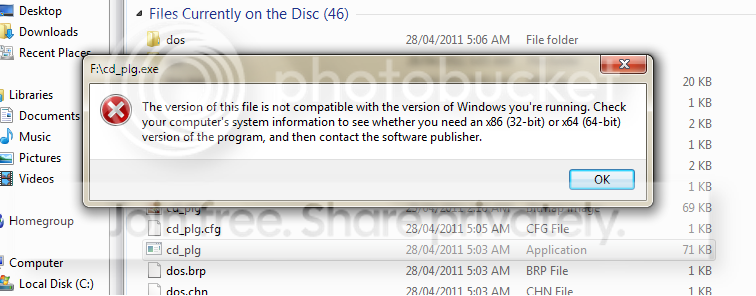
When I put in the DVD nothing happens and I tried opening it and run cd_plg it gives an error:
Untitled-4.png


and one thing that bothers me is that why can I only use 3.48 GB of RAM in my first OS even though I use 64-bit and the 32-bit one is the second OS.

1.png
 

My Computer

OS
Windows 7 64 bit
When I put in the DVD nothing happens and I tried opening it and run cd_plg it gives an error:
Untitled-4.png


and one thing that bothers me is that why can I only use 3.48 GB of RAM in my first OS even though I use 64-bit and the 32-bit one is the second OS.
1.png

I don't know how to run the Paradon with the DVD where I burned it.
 

My Computer

OS
Windows 7 64 bit
Im sorry but I can't see a setup key..
When I restart I just see Press Esc key to startup menu and redirects me to OS selections
 

My Computer

OS
Windows 7 64 bit
This is my first time booting a disk.

Hp Pavilion g6-1c60ca
 

My Computer

OS
Windows 7 64 bit
Im done changing the partition letters but I can still encounter the not genuine error and when Im using 64 bit it says it still says 3.48Gb usable
 

My Computer

OS
Windows 7 64 bit
Was the partition letter changed to another? What letter was it?

Reconfirm that the letter was changed back, then try inserting the key using the slmgr command again.

Next boot the Win7 32bit DVD System Recovery Options to run Startup Repair a few times.

If 32 bit still won't boot you may need to copy out your files from the 64 bit side and clean reinstall.
 
I tried to use the system recovery and it says Operating System: Windows 7 on (D) New Volume which is my recovery partition. I think my second OS is transfered at D in the resizing process
 

My Computer

OS
Windows 7 64 bit
You cannot judge by what the drive letters read in Recovery mode as they are often different.

I'll ask you again: Was the drive letter incorrect when you used Paragon to correct it? What letter was 32 bit Win7 showing? Did another partition have C? Did these correct OK and did you save it?

Boot into Recovery using the WIn7 32 bit DVD and run Startup Repair a few times to see if it will start.
 
the letters are not correct and it changed successfully
 

My Computer

OS
Windows 7 64 bit
right now Im on system recovery options and can't find the drive where I installed 32 bit I can only drive D and E
 

My Computer

OS
Windows 7 64 bit
As I said you cannot judge by letter in Recovery Mode as it uses different ones when viewed from WinRE.

Ignore the letters in Recovery mode.

Is there more than one OS listed after it scans for them? If so, choose the correct one by name and size, then click Recovery Tools list to run Startup Repair.


Windows will search for an Operating System to repair.


Hopefully there will be two OS"s listed here for you to
choose which is 32 bit. Judge by size, not letter.


Highlight the correct installation and choose the
the Recovery Tools, then Startup Repair.

 
drive D has 158508 and it's supposed to be the second OS and drive E supposed to be drive C
 

My Computer

OS
Windows 7 64 bit
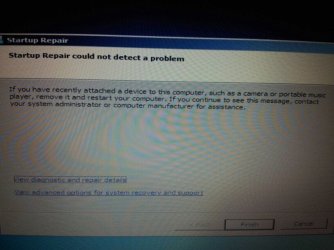
so I chose drive D and run startup repair but always says

uploadfromtaptalk1331177977291.jpg
 

My Computer

OS
Windows 7 64 bit
You are certain you are selecting the 32 bit installation judging by it's correct size or name? It is likely correct since it won't use a 64 bit installer for repair:

If so try Startup Repair again.

If still nothing to repair, return to Tools list to open a Command Line, type these folllowed by enter on each one:
bootrec.exe /fixboot
bootrec.exe /fixmbr

Now reboot, if WIn7 32 bit won't start boot back into DVD Repair console to see if it has found the installation to Repair to run Startup Repair.
 
win7 32bit still stuck up on the blue screen and I still receive the same error when running startup repair
 

My Computer

OS
Windows 7 64 bit
Back
Top