NTLDR on first SATA drive?

Webfairy

New member
Local time
11:47 AM
Messages
2
Location
New York City
Before installing Windows 7 on a fresh new empty 500 gig drive, I seem to have mixed up SATA1 and SATA2.
The drive accidentally sitting in SATA1 position was a Terabyte drive used on my last system, a Vista system I fried.

Once I noticed my mistake, after the Windows 7 install, I switched them so that the boot drive can be SATA1. When I went to reboot, the message was "can't find NTLDR", so I assume that important file is on the terabyte drive, which I want to format now that I've moved my files to the new drive.

IT won't let me format, which is another reason I think some important files landed on the terabyte drive.

What can I do to change this so the Western Digital Terabyte drive can be formatted, and the boot drive can sit at the SATA1 position?

Thank you in advance for any help.
 

My Computer My Computer

OS
Windows 7 Home Premium 64 bit
CPU
i5
Motherboard
Asus P7H55-M/CSM
Memory
8 gigs
Graphics Card(s)
Asus ENGT220

My Computer My Computer

Computer Manufacturer/Model Number
Samsung NP550P5C-S02IN
OS
Windows 7 Ultimate - 64-bit | Windows 8 Pro - 64-bit
CPU
Intel® Core™ i7 Processor 3,610QM (2.30Hz, 6MB L3 Cach
Memory
8 GB
Graphics Card(s)
NVIDIA® GeForce® GT 650M 2GB Graphics, Optimus™ techno
Sound Card
SoundAlive™ JBL 3 Speakers (With sub-Woofer)
Monitor(s) Displays
39.62cm (15.6) SuperBright 300nit HD+ LED Display
Screen Resolution
1,600 x 900, Anti-Reflective
Hard Drives
1TB S-ATA II Hard Drive (5,400RPM)

My Computer My Computer

Computer Manufacturer/Model Number
* BFK Customs *
OS
W 7 64-bit Ultimate
CPU
Intel Q9550 Yorkfield
Motherboard
ASUS P5Q Pro
Memory
8GB Dominator 8500C5D
Graphics Card(s)
ATI : XFX 5870
Sound Card
Realtek HD Audio 7-1
Monitor(s) Displays
1x 47" LCD HDMI & 3x 26" LCD HDMI
Screen Resolution
1920x1080P & 1920x1200
Hard Drives
1x 80GB Intel X25-M G2 SSD : 1x 500GB & 1x 640GB WD Caviar Black(s)
PSU
Corsair 620HX
Case
Cooler Master RC-690
Cooling
Tuniq Tower 120, 2x 140mm and 3x 120mm case fans
Keyboard
Microsoft 500
Mouse
Razer Diamondback 3G
Internet Speed
14 Mb/s
Other Info
1x Koutech 3Gb/s SATA HDD Hot Swap Rack
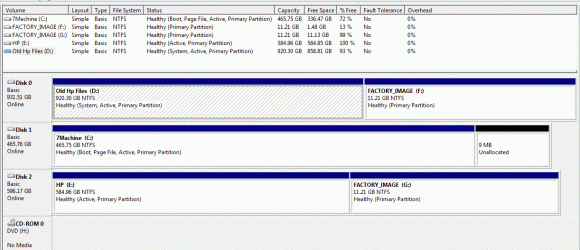
Please post back a screenshot of your full Disk Management drive map and listings, using SNipping TOol in Start Menu. Tell us what is on each partition and what you what to end up with.
 
Disk Management snip

diskmanagement.GIF

Here's what I've got going on.
I'm still studying the information presented in the thread before I do anything!

The C drive is meant to be the boot drive, the drive with Windows and program files.

I'd like to use the terabyte drive to capture video files, and then swap it out for a fresh one when it's full.
My guy has lots of hi-8 and old Digicam that needs to be digitized for archive.
My interest is 911, and I have several hundred gigs of video and related files I'd like to keep on the 640 gig drive.
 
Last edited:

My Computer My Computer

OS
Windows 7 Home Premium 64 bit
CPU
i5
Motherboard
Asus P7H55-M/CSM
Memory
8 gigs
Graphics Card(s)
Asus ENGT220
Hello again Webfairy.


Here's what to do.

Disconnect both the Hard Disk Drives (HDD) "Disk #0" and "Disk #2" because they are both marked as "Active" and that is the flag that tells WinRE (Windows Recovery Environment) where to do the repairs to and all the actives is confusing the matter.

Now with only the "Disk #1" connected, do the startup repairs, with the restarts to create the new boot files to that partition; out-lined in this tutorial at the link below.

Startup Repair - Run 3 Separate Times


BTW, the "System, Active" partition is where the boot files are presently stored. ;)
 

My Computer My Computer

Computer Manufacturer/Model Number
* BFK Customs *
OS
W 7 64-bit Ultimate
CPU
Intel Q9550 Yorkfield
Motherboard
ASUS P5Q Pro
Memory
8GB Dominator 8500C5D
Graphics Card(s)
ATI : XFX 5870
Sound Card
Realtek HD Audio 7-1
Monitor(s) Displays
1x 47" LCD HDMI & 3x 26" LCD HDMI
Screen Resolution
1920x1080P & 1920x1200
Hard Drives
1x 80GB Intel X25-M G2 SSD : 1x 500GB & 1x 640GB WD Caviar Black(s)
PSU
Corsair 620HX
Case
Cooler Master RC-690
Cooling
Tuniq Tower 120, 2x 140mm and 3x 120mm case fans
Keyboard
Microsoft 500
Mouse
Razer Diamondback 3G
Internet Speed
14 Mb/s
Other Info
1x Koutech 3Gb/s SATA HDD Hot Swap Rack
Make sure the WIn7 HD is set as first HD to boot in BIOS setup, or swap the cable from DISKO to it when you unplug DISK0, which contains the System Active boot files for Win7, and DISK2. THen boot your Win7 DVD to run Startup Repair up to 3 separate times as shown in tutorial above.

After Win7 boots, power down to plug back in the other two HD's, then boot the Win7 DVD press Shift F10 to open a Command Line to mark them Inactive using the Diskpart commands given in this tutorial: http://www.sevenforums.com/tutorials/71432-partition-mark-active.html The only difference from the steps given in tutorial is you will be marking the Active partitions on the two non-Win7 HD's Inactive instead of Active so that they can't derail your System MBR from Win7 again.
 

My Computer My Computer

Computer Manufacturer/Model Number
* BFK Customs *
OS
W 7 64-bit Ultimate
CPU
Intel Q9550 Yorkfield
Motherboard
ASUS P5Q Pro
Memory
8GB Dominator 8500C5D
Graphics Card(s)
ATI : XFX 5870
Sound Card
Realtek HD Audio 7-1
Monitor(s) Displays
1x 47" LCD HDMI & 3x 26" LCD HDMI
Screen Resolution
1920x1080P & 1920x1200
Hard Drives
1x 80GB Intel X25-M G2 SSD : 1x 500GB & 1x 640GB WD Caviar Black(s)
PSU
Corsair 620HX
Case
Cooler Master RC-690
Cooling
Tuniq Tower 120, 2x 140mm and 3x 120mm case fans
Keyboard
Microsoft 500
Mouse
Razer Diamondback 3G
Internet Speed
14 Mb/s
Other Info
1x Koutech 3Gb/s SATA HDD Hot Swap Rack
Back
Top