Odd Re-Installation Issue

thetinysambo

New member
Local time
8:50 PM
Messages
16
Hiya. Brand new laptop, with Windows 7 installed already.

Plugged in a USB device which somehow corrupted my USB drivers. Cue much faffing around, then decide to re-install Windows 7 from the CD provided. (Attempting a repair with the drivers CD did nothing.)

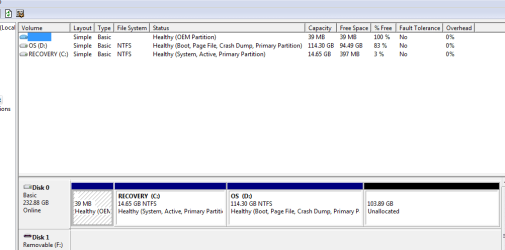
Re-installation complete but I now have a partitioned hard drive, one is labelled as C: Recovered and the other is D: OS.

I can use my USB ports and everything just fine on my C: drive, but the space is minimal. Can't use USB ports on my D: drive boot up, but have loads of space.

All I want to do is re-install Windows 7 and just have ONE drive, with working USB drivers.

Any thoughts? Help is most appreciated. (Am connected via my parents wireless internet, figure I corrupted my USB drivers by attempting to install my USB modem which I later found out isn't supported by Windows 7 - epic fail.)
 

My Computer

OS
windows 7
Hello, Welcome!

Can you try backing up everything to your D partition, then shrinking it as much as possible?

Then you can try a clean install onto your C partition.
 

My Computer

Computer Manufacturer/Model Number
Custom
OS
Windows 7 Professional x64
CPU
Intel i7 2600K OC'd @ 4620 MHz
Motherboard
Asus P8Z68-V Pro
Memory
16GB GSkill Sniper 2133 Mhz (4x4GB)
Graphics Card(s)
EVGA GeForce GTX 480 SuperClocked+
Sound Card
Realtek High Definition Audio
Monitor(s) Displays
2x Acer S273HLbmii 27"
Screen Resolution
2 x 1920x1080
Hard Drives
64GB Crucial M4 SSD

Storage: Hitachi 1TB 5400RPM, Samsung 1.5TB 5400RPM
PSU
Corsair HW Series 750w (modular)
Case
Cooler Master HAF 932 Advanced Blue Edition
Cooling
CM Hyper 212+ CPU cooler, 3x 230mm + 1x 140mm case fans
Keyboard
Logitech MK320 (wireless)
Mouse
Logitech MK320 (wireless)
Internet Speed
30 Mb/s : 2 Mb/s
If you reinstalled, I am assuming you have a Win7 DVD rather than recovery disks from your computer maker.

If so, back up your files and boot from the Win7 DVD, select Custom install, then use Drive Options (Advanced) to delete all partitions, Create new one(s) as you wish, then format at least the first partition before installing Win7 there.

Afterwards, find any favorite apps or driver missing in Device Manager via Windows Updates, drivers/apps disk or on the Support Downloads page for your model computer.
 
Looks like it's a Recovery CD from Dell, as the Custom Install wouldn't let me do anything except choose which Drive to install Windows 7 on.

I can't format either drive, Windows won't let me.
 

My Computer

OS
windows 7
Further info - USB slots now work on both partitions of my harddrive.

Essentially all I want to do now is combine my 2 harddrive partitions and just have one Windows 7 OS at bootup (ie so I don't have to choose between them!)
 

My Computer

OS
windows 7
Further info - USB slots now work on both partitions of my harddrive.

Essentially all I want to do now is combine my 2 harddrive partitions and just have one Windows 7 OS at bootup (ie so I don't have to choose between them!)


2 free applications to change partitions is partition wizard and gparted. Google, find the website and give it a try. You can also type search in by the search, and then go to create new partitions. But that may not work because you will be using the partition in questiion.

You can use our tutorial section and get information on partitions. They are very good.


http://www.sevenforums.com/tutorials/2674-partition-volume-create-new.html?ltr=P
 
Last edited:

My Computer

Computer type
PC/Desktop
Computer Manufacturer/Model Number
Dell XPS 420
OS
Windows 10, Home Clean Install
CPU
Intel Core2 processsor Q8200(2.33Ghz 1333FSB) Quad Core Tech
Motherboard
Dell
Memory
6 gb
Graphics Card(s)
ATI Radeon 256MB HD3650
Sound Card
Intergrated 7.1 Channel Audio
Monitor(s) Displays
Dell SP2009W 20"
Hard Drives
640 GB Serial ATA Hard drive
Cooling
Fan
Keyboard
Dell USB Keyboard
Mouse
Dell Premium Optical USB
Internet Speed
DSL 2.85
Partitions are all very well and good, but I don't want any - I just want one harddrive, no partitions at all! Thanks for your help thus far, it is most appreciated!
 

My Computer

OS
windows 7
Partitions are all very well and good, but I don't want any - I just want one harddrive, no partitions at all! Thanks for your help thus far, it is most appreciated!

Yes, but as far as I know the programs that I suggested can remove partions making just one. I have never tried, but it is my understanding.
 

My Computer

Computer type
PC/Desktop
Computer Manufacturer/Model Number
Dell XPS 420
OS
Windows 10, Home Clean Install
CPU
Intel Core2 processsor Q8200(2.33Ghz 1333FSB) Quad Core Tech
Motherboard
Dell
Memory
6 gb
Graphics Card(s)
ATI Radeon 256MB HD3650
Sound Card
Intergrated 7.1 Channel Audio
Monitor(s) Displays
Dell SP2009W 20"
Hard Drives
640 GB Serial ATA Hard drive
Cooling
Fan
Keyboard
Dell USB Keyboard
Mouse
Dell Premium Optical USB
Internet Speed
DSL 2.85
Ah ok - thank you very much Rich - I shall give it a go when I am actually sober - many thanks for your help :)
 

My Computer

OS
windows 7
You need to delete the partition that you dont want, then expand the other to take up all the free space.
 

My Computer

Computer Manufacturer/Model Number
Black_Box (homebuilt)
OS
windows 7 RTM x64
CPU
Phenom II 965 Quad Core 3.4Ghz
Motherboard
Asus M4A79T Deluxe
Memory
Mushkin Blackline 8GB (4x2gb)
Graphics Card(s)
XFX Radeon 5970 Black Edition
Sound Card
onboard
Monitor(s) Displays
Dell 2408WPF-main Dell E248WFP-secondary
Screen Resolution
1920x1200-main 1920x1200-secondary
Hard Drives
OCZ Vertex Limited Edition 100GB (OS)
x1 WD Black Edition 500GB drive (Storage)
PSU
XFX 850w Black Edition (Modular)
Case
Mountian Mods H2go
Cooling
CoolITSystems ECO A.L.C.
Keyboard
Logitech MX 5500 wireless keyboard
Mouse
Razor Copperhead
Internet Speed
16Mb down/2Mb up Wowway Cable Internet
Please post a screenshot of your full Disk Management drive map.

Use the cool Snipping Tool in the start menu, attach file using the paper clip in reply box.
 
Ok - picture attached, hopefully! :)
 

Attachments

  • disks.PNG
    disks.PNG
    11 KB · Views: 12

My Computer

OS
windows 7
Are you sure there is nothing on partition D that you want to save? If so, we can try force-deleting the partition.

Type diskpart into the start menu box and select what comes up.
Type list disk
select disk n n being the number of the disk in focus.
list partition
select partition n n being the D: partition
delete partition override

Either it works or it doesn't. Worth a shot.
 

My Computer

Computer Manufacturer/Model Number
Custom
OS
Windows 7 Professional x64
CPU
Intel i7 2600K OC'd @ 4620 MHz
Motherboard
Asus P8Z68-V Pro
Memory
16GB GSkill Sniper 2133 Mhz (4x4GB)
Graphics Card(s)
EVGA GeForce GTX 480 SuperClocked+
Sound Card
Realtek High Definition Audio
Monitor(s) Displays
2x Acer S273HLbmii 27"
Screen Resolution
2 x 1920x1080
Hard Drives
64GB Crucial M4 SSD

Storage: Hitachi 1TB 5400RPM, Samsung 1.5TB 5400RPM
PSU
Corsair HW Series 750w (modular)
Case
Cooler Master HAF 932 Advanced Blue Edition
Cooling
CM Hyper 212+ CPU cooler, 3x 230mm + 1x 140mm case fans
Keyboard
Logitech MK320 (wireless)
Mouse
Logitech MK320 (wireless)
Internet Speed
30 Mb/s : 2 Mb/s
First we need to verify that you have a bootable Win7 DVD there to use for Repairs.. It sounds as if you do if you got a Custom screen showing partitions to install to.

Put the DVD in the drive, restart the computer and select the F-key given on the first boot screen for Boot Menu -normally ESC, F10 or F12. Then attempt to boot the DVD.

You may need to Enter BIOS using the F-key given for that (usually F2) to set the DVD drive to boot first.

Just verify that the DVD will boot, then enter the Repair My Computer console to see what it finds, cancel out, restart the computer and post results.

If not browse the files on the DVD to see what is there.

If you do not have a bootable Win7 DVD with Repair console, then you will first need to make a System Repair CD in the Backup Center as it is used to repair or rewrite the MBR to the resized Win7 partition.

Now determine if the Recovery partition is still working, as it is normally disabled with a new install. Try opening it by typing Recover in start box. Then try rebooting the computer, selecting the F-key given on the first screen for Recovery to see if it starts up and wants to run.

Now at reboot tap the F8 key to see if there is a Repair my Computer link in the Menu there. If so, start it and see if it boots into the Win7 Repair console and that it is functional.

If neither work then you no longer need the Recov or EISA partitions at the beginning of your drive, but will use your Win7 DVD or Repair CD (created in Backup center) to do repairs or Recover Using a Backup Image.

The force override DISKPART commands Jon gives above will be needed to delete that EISA partition at the beginning of your HD which is also likely disabled if you clean reinstalled Win7.

The Recovery drive can be deleted and it's space recovered into your Windows 7 partition using the best tool for this, free Partition Wizard bootable CD. I will give you step-by-step.
 
Thanks Jonathon - there's nothing on this laptop as it's brand new! I haven't put anything on it as things were a bit wrong from the get go!
 

My Computer

OS
windows 7
Ok guys - just a few questions from my end.

Would it not be best to delete the C: partition as it's the smallest? (That and I can't actually appear to delete anything from it anyway)

The CD from Dell states that it's the Windows 7 Installation Disc and I've used it several times to re-install my Win7 - although each time I've only ever started the process within Windows itself.

And just to be doubly sure - it's the 'bootable CD' download I want right?
 

My Computer

OS
windows 7
If you deleted the first partition, things would get messy later on, because then you would have a chunk of unused space before your Windows installation. It is much easier to extend a partition than move it.
 

My Computer

Computer Manufacturer/Model Number
Custom
OS
Windows 7 Professional x64
CPU
Intel i7 2600K OC'd @ 4620 MHz
Motherboard
Asus P8Z68-V Pro
Memory
16GB GSkill Sniper 2133 Mhz (4x4GB)
Graphics Card(s)
EVGA GeForce GTX 480 SuperClocked+
Sound Card
Realtek High Definition Audio
Monitor(s) Displays
2x Acer S273HLbmii 27"
Screen Resolution
2 x 1920x1080
Hard Drives
64GB Crucial M4 SSD

Storage: Hitachi 1TB 5400RPM, Samsung 1.5TB 5400RPM
PSU
Corsair HW Series 750w (modular)
Case
Cooler Master HAF 932 Advanced Blue Edition
Cooling
CM Hyper 212+ CPU cooler, 3x 230mm + 1x 140mm case fans
Keyboard
Logitech MK320 (wireless)
Mouse
Logitech MK320 (wireless)
Internet Speed
30 Mb/s : 2 Mb/s
Ok guys - just a few questions from my end.

Would it not be best to delete the C: partition as it's the smallest? (That and I can't actually appear to delete anything from it anyway)

The CD from Dell states that it's the Windows 7 Installation Disc and I've used it several times to re-install my Win7 - although each time I've only ever started the process within Windows itself.

And just to be doubly sure - it's the 'bootable CD' download I want right?

Yes, you want the bootable Partition Wizard CD in order to delete the C Partition, mark Win7 Partition active, then Resize Win7 into the deleted space of EISA and Recovery.

Please try booting from the Win7 DVD using the steps given in my earlier post to determine if it can be used for repairs in this process.

And try accessing the recovery partition as given above to see if your reinstalls disabled it.

Are you wanting to reinstall Win7 again or is the current install ok?
 
Okedoke - no deleting the C drive part of the partition!

Will now attempt boot from the DVD!
 

My Computer

OS
windows 7
If you deleted the first partition, things would get messy later on, because then you would have a chunk of unused space before your Windows installation. It is much easier to extend a partition than move it.

This is what Partition Wizard is for.

Once OP confirms EISA and Recov partitions are disabled, as they normally are after clean reinstall, then deleting them frees up space for Win7 partition to occupy.

Bootable Partition Wizard can mark the Win7 active, then Resize it into the delete partitions' space.

Then you only need to boot Win7 DVD Repair console, or System Repair CD, to run Startup Repair 3 times to rewrite the MBR to the newly resized Win7 partition.
 
Last edited:
Back
Top