Okay to delete System Reserved on xp?

kirbymaster101

New member
Local time
11:26 PM
Messages
6
I'm sorry if this is the wrong forum, but I was wondering if it was fine to delete the system reserved partition because I decided to use windows xp after realizing Windows 7 had too much requirements. I changed my default boot to windows xp in easybcd and deleted the windows 7 boot entry.

Basically, I want to delete the System Reserved Drive and combine my windwos 7 drive with my windows xp since I decided to forgo Windows 7. Can I just use a partition manager to delete the system reserved drive and combine my windwos 7 drive to windows xip to get more space?
 

My Computer My Computer

Computer type
PC/Desktop
OS
Windows 8 64 bit
Post a screen capture of an expanded Disk Management window please.
 

My Computer My Computer

Computer type
PC/Desktop
Computer Manufacturer/Model Number
Lenovo IdeaCenter 450
OS
Windows 10 Pro X64
CPU
Intel Quad Core i7-4770 @ 3.4Ghz
Memory
16.0GB PC3-12800 DDR3 SDRAM 1600 MHz
Graphics Card(s)
Intel Integrated HD Graphics
Sound Card
Realtek HD Audio
Monitor(s) Displays
HP 22" LCD
Screen Resolution
1680 x 1050
Hard Drives
250GB Samsung EVO SATA-3 SSD
2TB Seagate ST2000DM001 SATA-2
1.5TB Seagate ST3150041AS SATA
Keyboard
Dell USB
Mouse
Lenovo USB
Internet Speed
Cable via Road Runner 3MB Upload, 30MB Download
Antivirus
Windows Defender, MBAM Pro, MBAE
Browser
Seamonkey
Other Info
UEFI/GPT
PLDS DVD-RW DH16AERSH
Basically, my d drive is the mian windwos xp drive. I wanna ditch and format the h dirve so I can combine with the widnwos xp drive for more space and hopefully be able to delete the c drive so I can change the letter of my current d drive to the default c drive.

P.S. and the usb partition is jsut the 32 gb usb I'm using to move things.
 

Attachments

  • untitled.PNG
    untitled.PNG
    41.3 KB · Views: 25

My Computer My Computer

Computer type
PC/Desktop
OS
Windows 8 64 bit
From this screenshot it is hard to tell. You have to open the 'Status' field completely so that we can read the full text.

If in doubt, leave the 100MB partition alone. You have acres of space on that disk. The 100 extra Megabytes are really not going to make any difference.
 

My Computer My Computer

Computer Manufacturer/Model Number
HP, Dell, Gateway, Toshiba - 4 laptops and 2 desktops
OS
Vista, Windows7, Mint Mate, Zorin, Windows 8
CPU
from 1.6GHz Duo to i7
Monitor(s) Displays
2x HP w2207
Hard Drives
5x HDD, 7x SSD, 12x Externals
Keyboard
with trackball - no mices
Mouse
Trackball mice
Internet Speed
DSL 6000
How did you get XP on D? It should be on C since it has to be installed from boot so claims C. I've seen Win7 be blocked from claiming C when installed from another OS, but not XP. How did you install both?

Perhaps you should explain more fully what changes you've made since there is not Active flag or even a Boot flag telling us what OS you're booted into (though we can tell by the GUI it's XP). Is WIn7 still booting? If so its likely booting off XP partition as signified by the System flag. It would help to see a Win7 screenshot if so.

It should be safe to delete Win7 partition, and System Reserved since it would be marked System if it held any boot files and was operable - same with Win7. But it would be good to see one other Disk mgmt screenshot from either Win7 or free Partition Wizard.

You can recover the disk space once the two partitions are deleted using Partition Wizard Resize Partition - Video Help. Use the boot CD which is safest.
 
1) The screenshot is from WinXP.
2) Windows 7 was installed first making the 100mb System Reserved partition.
3) Than WinXP was installed, making the 100mb System Reserved partition, it's boot partition.

Therefore deleting the C: partition, will make the Windows 7 & WinXP installs unbootable.
 

My Computer My Computer

OS
ME/XP/Vista/Win7
The System flag is on XP partition which signifies that system boot files are on XP partition unless Disk Mgmt is wrong.

This is why I asked for secondary screenshots from Win7 or Partition Wizard, to confirm this.

From what I've seen XP is not sophisticated enough to place its boot files on any other than its own partition.
 
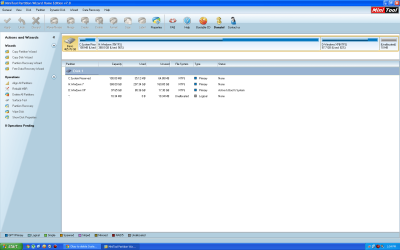
Here you guys. Basically, I installed Windwos xp first then 7. Change my easybcd to boot windos xp. and then booted windwos xp.
 

Attachments

  • Windows screenshot.PNG
    Windows screenshot.PNG
    62 KB · Views: 13

My Computer My Computer

Computer type
PC/Desktop
OS
Windows 8 64 bit
The second, PW screenshot confirms XP holds its own System Boot files and is in fact marked Active so everything is in order. The only way we could confirm this better is Partition Wizard boot CD.

What I would do is save a XP backup image to external or another HD of just the XP partition using Macrium - Image your system or your imaging app.

Then you can delete SySReserved and Win7 partitions using PW Boot CD to Resize XP into the space to its left. Partition Wizard Resize Partition - Video Help. Use the boot CD which will not fail as all others besides Disk Mgmt can.

However sometimes resizing on the boot sector can cause an OS to become unbootable requiring bootrec repairs from XP Repair command line, or even an XP Repair Install from booted CD. This is why I suggest saving a backup image first. You can also leave XP partition where it is.
 
Good screenshot and as Greg says, XP is self sufficient. You can recover the 100MB - but is it worth it.

But since you want to get rid of Windows 7 anyhow, you can delete the H partition and the 100MB partition to get a combined unallocated space. Then you can make a new partition there.
 

My Computer My Computer

Computer Manufacturer/Model Number
HP, Dell, Gateway, Toshiba - 4 laptops and 2 desktops
OS
Vista, Windows7, Mint Mate, Zorin, Windows 8
CPU
from 1.6GHz Duo to i7
Monitor(s) Displays
2x HP w2207
Hard Drives
5x HDD, 7x SSD, 12x Externals
Keyboard
with trackball - no mices
Mouse
Trackball mice
Internet Speed
DSL 6000
So, is it find to use Easeus partition manager to delete the c and h drive? Also, how would I go to changing my drive etter back to C:, making sure nothing breaks like my shortcuts?
 

My Computer My Computer

Computer type
PC/Desktop
OS
Windows 8 64 bit
Once XP is running, it will be C. EaseUS is probably as good as any other.
 

My Computer My Computer

Computer Manufacturer/Model Number
HP, Dell, Gateway, Toshiba - 4 laptops and 2 desktops
OS
Vista, Windows7, Mint Mate, Zorin, Windows 8
CPU
from 1.6GHz Duo to i7
Monitor(s) Displays
2x HP w2207
Hard Drives
5x HDD, 7x SSD, 12x Externals
Keyboard
with trackball - no mices
Mouse
Trackball mice
Internet Speed
DSL 6000
The xp installer will always assign C: to the active partition.

So installing windows 7 first, having system reserved as the active partition, will make it C when installing xp.
 

My Computer My Computer

OS
Windows
Normally when Win7 is installed second in a Dual Boot it should take the Active flag and install its boot files on XP partition, assigning itself C. The only way I see that XP could be D since it can't be installed from Win7 (while it's holding C), is if it was installed from another OS like 2000 first, which was later deleted and had Win7 installed in the space.

Regardless, you'd have to reinstall XP to have it on C now.

Use Partition Wizard boot CD as I've now mentioned twice because it will not fail while all others besides Disk Mgmt can fail with data loss during resizing.
 
Last edited:
I know he says that xp was installed first, but the partition table layout says otherwise. If xp was installed first, on a clean harddisk, the layout would have been different.
 

My Computer My Computer

OS
Windows
Would it affect my disk layout at all if I am currently using EasyBCD?
 

My Computer My Computer

Computer type
PC/Desktop
OS
Windows 8 64 bit
I'm not sure what you are asking. EasyBCD makes BCD edits to add or remove another OS for multi-booting, and can transfer your boot files to another partition. It has no effect on the disk layout which is a partitioning issue, not boot or BCD issue.

What exactly have you done with EasyBCD?
 
Just change Windows Xp to the default os.
 

My Computer My Computer

Computer type
PC/Desktop
OS
Windows 8 64 bit
Kirby you have the System Active flags on XP partition which means it is fully self-sufficient so you can delete System Reserved and Win7 in Disk mgmt to repartition the space, or use Partition Wizard if you want to resize XP to the preferred left side of the HD. I already gave you the steps.

Make an XP backup image if you want to have a backup, or at least save your files.
 
Back
Top