On My Home Network: "Windows cannot access ...Documents" in one direct

lgutai

New member
Local time
3:10 AM
Messages
26
On My Home Network: "Windows cannot access ...Documents" in one direct

Dear Forum,
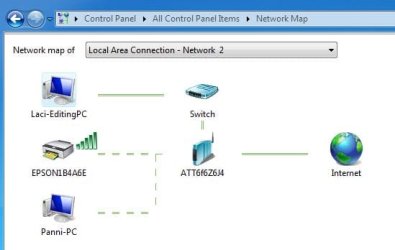
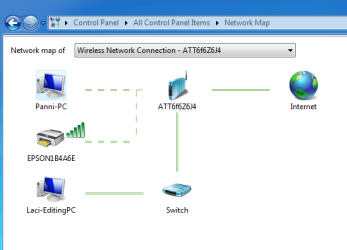
I am trying to set up a Home Network between two computers both running Windows 7 Pro 64-bit with SP1. I tried many suggestions but with no avail. The "LACI" computer used to work in a Workgroup (with a third computer) previously but now it doesn't work in the Home Network. Please see a detailed description of the situation in the attached documents and screen shots. I would greatly appreciate any suggestion.
Thank you very much,
Laszlo (Gutai).
 

Attachments
My Computer

Computer type
PC/Desktop
Computer Manufacturer/Model Number
Self built
OS
windows 7 64 bit professional
CPU
Intel Core i7 930
Motherboard
ASUS P6X58D
Memory
Corsair Core i7 XMS3 24 GB PC 12800 DDR3
Graphics Card(s)
ASUS GTX480
Sound Card
Integrated
Monitor(s) Displays
SAMSUNG SyncMaster 2443bwx
Hard Drives
5x SAMSUNG F3 (1 TB)
PSU
Cooler Master Silent Pro 1000 W
Case
Lian Li PC=A77B
Cooling
Noctua NH-D14
For transferring data from one computer to another computer, there are many ways suggested. Among those ways, using the basic Ethernet network is really an easiest way to transfer the data from one computer to another computer by making link between them. It can only be possible when both the computers contain network cards which are properly configured.
• First of all, you have to learn how to make a connection between two desktops, laptops, or desktop and laptop using the hub or switch, and the crossover cable.
• You need to get the crossover cable, hub, or switch. If you are using this type of crossover cable, you should remember that it has to be different from the standard Ethernet cable.
• Both transmitting and receiving are not running straight through this cable. Instead, the transmitting cables are just connected to the receiving cables in order to form one closed loop between two computers.
• After that, it is compulsory to plug this crossover cable into the network cards of both the computers or use it to make a connection to the switch or hub. It is essential to make sure that the link indicators on the network card show the connection.
• Now, you have to start both the computers and allow their Windows operating systems to boot.
• Then, you need to go Start - > Control Panel - > Network Connections
• Right click on the local area connection label and select the properties option.
• In the current window, you have to choose the internet protocol TCP/IP label and click on the properties.
• In the IP address field, you have to type 192.168.0.1, 255.255.255.0 is for the subnet mask.
• You must repeat all these steps in another computer and click on OK. Reboot both computers to establish the connection between them.
 

My Computer

Computer type
PC/Desktop
OS
Windows 7
Thanks for your suggestions. I am trying them out. - Laszlo.
 

My Computer

Computer type
PC/Desktop
Computer Manufacturer/Model Number
Self built
OS
windows 7 64 bit professional
CPU
Intel Core i7 930
Motherboard
ASUS P6X58D
Memory
Corsair Core i7 XMS3 24 GB PC 12800 DDR3
Graphics Card(s)
ASUS GTX480
Sound Card
Integrated
Monitor(s) Displays
SAMSUNG SyncMaster 2443bwx
Hard Drives
5x SAMSUNG F3 (1 TB)
PSU
Cooler Master Silent Pro 1000 W
Case
Lian Li PC=A77B
Cooling
Noctua NH-D14
Dear mihaelmedelano,

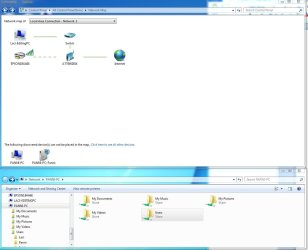
I apologize for (probably) not being perfectly clear in my original posting. Since I HAVE a home network and both of my computers are members of this network, and the two computers ARE connected, I didn't need to connect them, so I didn't use your directions for connecting computers.

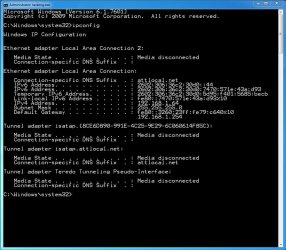
I have network cards, of course, and I have a U-verse combined router/modem, which is connected to one of my computers with a (twisted) LAN cable, and wirelessly to the other computer. Although I didn't use the IPv4 and IPv6 settings that you suggested (the TCP/IPv4 and TCP/IPv6 Properties are set to "Obtain an IP address automatically", and "Obtain DNS server address automatically"), the two computers see each other (as you can see on the attached Network Maps), and also they can ping each other (1 ms and 3 ms round trip times). (My IP configuration on both computers can also be seen on the attached "IPCONFIG - LACI" and "IPCONFIG - Panni" screen shots.)

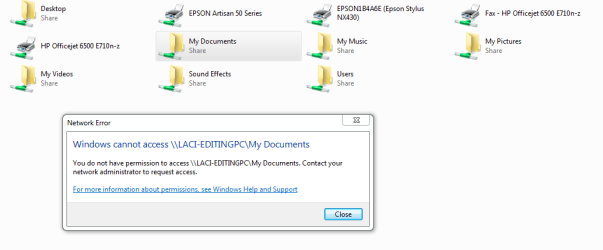
My problem is that while computer "LACI" can open folders on computer "Panni", computer "Panni"cannot open any folder on computer "LACI". (See attachment "Cannot Access".)Tried disable Windows Firewall for Privet Networks, but it didn't help either. I believe that I set all the share and privacy properties on both computers the same way, but this asymmetry still exists. (There might be some obscure ownership/privacy/share properties that I overlooked but unlikely.)

I hope, I gave clearer picture of my problem. Please, let me know if you can help.

Thanks,

Laszlo.
 

Attachments

  • Network Map Laci.JPG
    Network Map Laci.JPG
    30.7 KB · Views: 4
  • Network Map Panni.PNG
    Network Map Panni.PNG
    51.1 KB · Views: 4
  • IPCONFIG - LACI.JPG
    IPCONFIG - LACI.JPG
    144.5 KB · Views: 0
  • IPCONFIG - Panni.PNG
    IPCONFIG - Panni.PNG
    46.4 KB · Views: 4
  • Cannot Access.PNG
    Cannot Access.PNG
    40.5 KB · Views: 0

My Computer

Computer type
PC/Desktop
Computer Manufacturer/Model Number
Self built
OS
windows 7 64 bit professional
CPU
Intel Core i7 930
Motherboard
ASUS P6X58D
Memory
Corsair Core i7 XMS3 24 GB PC 12800 DDR3
Graphics Card(s)
ASUS GTX480
Sound Card
Integrated
Monitor(s) Displays
SAMSUNG SyncMaster 2443bwx
Hard Drives
5x SAMSUNG F3 (1 TB)
PSU
Cooler Master Silent Pro 1000 W
Case
Lian Li PC=A77B
Cooling
Noctua NH-D14
Back
Top