One Speaker not working

mike6623

New member
Member
VIP
Local time
9:28 PM
Messages
255
I have an HP Pavilion Elite HPE-510y. It has no "speakers" you have to plug them in, the computer is about a year old and sound only comes out of one of everything. Headphones, speakers, etc. and both speakers work while in other devices. I have never really done anything out of the ordinary that could have broke anything. Is there a way to scan to see a problem, or why sound is only coming out of one speaker???

This is the audio stuff from the computer. I am on Windows 7 ultimate 64bit

Sound/Audio
Integrated ALC888S-VD audio
*Integrated audio is not available if a sound card is installed.

  • Audio CODEC: ALC888S-VD
  • Number of channels: 8
  • Maximum sample rate: up to 192,000 Hz
  • Supports one SPDIF digital connection


Sound Cards


Hauppauge WinTV 723x (ATSC/NTSC)
AMD High Definition Audio Device
Realtek High Definition Audio
Playback Devices
Headphones (Realtek High Definition Audio) (default)
Realtek Digital Output (Realtek High Definition Audio)
 

My Computer

Computer Manufacturer/Model Number
HP
OS
Windows 8 Pro
Memory
8gb
Monitor(s) Displays
23 inch Acer
First, make sure you are inserting the plug for the speakers (or headphones) fully into the jack. If you are only inserting the plug partially you will only get one channel.

Second, check the panning for the speakers, if it is set to one side (left or right) you will only get the one channel.
 

My Computer

Computer type
PC/Desktop
Computer Manufacturer/Model Number
My Own Build
OS
Windows 10 64 bit
CPU
Intel i7 6700K
Motherboard
ASUS ROG Maximus VIII Hero
Memory
16GB Corsair Dominator
Graphics Card(s)
Intel CPU Graphics
Sound Card
RealTek
Monitor(s) Displays
27" Dell S2719dgf
Screen Resolution
2560X1440
Hard Drives
1 TB Samsung 850 EVO SSD for Win 10 Pro
500GB Samsung 850 EVO SSD for Win 10 Insider
2 TB drive for backup
PSU
EVGA Supernova 750G2
Case
BeQuiet Silent Base 600
Cooling
Deepcool Captain 120EX
Keyboard
Microsoft Wireless 2000
Mouse
Microsoft wireless
Internet Speed
100 MB/sec (Cable)
Antivirus
Microsoft Defender and Malwarebytes
Browser
Edge/Firefox
Other Info
Cakewalk (Sonar) by BandLab and Studio One 4.1 Pro recording studio software. MOTU 896Mk3 Hybrid recording interface, Frontier Tranzport wireless control unit, Behringer X-Touch Control Surface.
Five USB connected optical drives for CD Audio production using Nero BurningROM
And. I guess, make sure you're plugging into the correct jack...
 

My Computer

OS
Windows 7 Ultimate x64
First, make sure you are inserting the plug for the speakers (or headphones) fully into the jack. If you are only inserting the plug partially you will only get one channel.

Second, check the panning for the speakers, if it is set to one side (left or right) you will only get the one channel.
How do I do that?
 

My Computer

Computer Manufacturer/Model Number
HP
OS
Windows 8 Pro
Memory
8gb
Monitor(s) Displays
23 inch Acer
First, make sure you are inserting the plug for the speakers (or headphones) fully into the jack. If you are only inserting the plug partially you will only get one channel.

Second, check the panning for the speakers, if it is set to one side (left or right) you will only get the one channel.

And. I guess, make sure you're plugging into the correct jack...
I am plugging into the one with the headphones pictured next to it
 

My Computer

Computer Manufacturer/Model Number
HP
OS
Windows 8 Pro
Memory
8gb
Monitor(s) Displays
23 inch Acer
First, make sure you are inserting the plug for the speakers (or headphones) fully into the jack. If you are only inserting the plug partially you will only get one channel.

Second, check the panning for the speakers, if it is set to one side (left or right) you will only get the one channel.

And. I guess, make sure you're plugging into the correct jack...
I am plugging into the one with the headphones pictured next to it
Is that outlet on the front of the computer, the one with the picture of the headphones? If so, the outlet you want is in the back of the computer, possibly color coded probably green to match the color of the jack.
 

My Computer

Computer Manufacturer/Model Number
DELLXPS 8300
OS
WIN7 x64 Home Premium SP1
CPU
Intel Core i5-2400 processor(6MB Cache, 3.1GHz)
Memory
8 GB RAM
Hard Drives
1.5TB C Drive
First, make sure you are inserting the plug for the speakers (or headphones) fully into the jack. If you are only inserting the plug partially you will only get one channel.

Second, check the panning for the speakers, if it is set to one side (left or right) you will only get the one channel.

And. I guess, make sure you're plugging into the correct jack...
I am plugging into the one with the headphones pictured next to it
Is that outlet on the front of the computer, the one with the picture of the headphones? If so, the outlet you want is in the back of the computer, possibly color coded probably green to match the color of the jack.
You know what, it is plugged into the front. Hopefully this solves it, but I feel as if (not 100%) at one point, it worked in both speakers while plugged into the front. I could be wrong though.
 

My Computer

Computer Manufacturer/Model Number
HP
OS
Windows 8 Pro
Memory
8gb
Monitor(s) Displays
23 inch Acer
Okay this is weird, none of the inputs on the back would give me any sound, and when you said make sure the jack is plugged in all the way, I did, and it was but when I plug it in halfway, the sound only comes out of the speaker that it doesn't come out of when it is fully plugged in! There are like 6-8 jack inputs on the back and none gave me sound, it make a sound like when you plug something in, that is it.

Is there any scan or hardware check I can do to see if settings or something are off?? The PC is only a year old, not even
 

My Computer

Computer Manufacturer/Model Number
HP
OS
Windows 8 Pro
Memory
8gb
Monitor(s) Displays
23 inch Acer
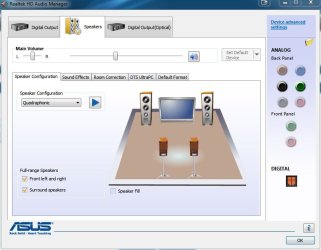
Look in the Realtek Audio software for speaker configuration. If you hover your mouse over the Analog section (see pic) it will tell you what the jacks are currently configured to do.

What kind of plug is at the end of your speaker cable and headphone cable? How many contacts are there on each?
 

Attachments

  • Realtek.JPG
    Realtek.JPG
    54.5 KB · Views: 234

My Computer

Computer Manufacturer/Model Number
Self
OS
Main - Windows 7 Pro SP1 64-Bit; 2nd - Windows Server 2008 R2
CPU
Main - Core i7 2600K; 2nd - Core i7 920
Motherboard
Main - Asus P8Z68-V Pro/Gen3; 2nd - Gigabyte GA-EX58-UDR3
Memory
Main - 16GB Corsair Vengeance; 2nd - 12GB Corsair Vengeance
Graphics Card(s)
Main - XFX Radeon 6870 1GB; 2nd - XFX Radeon 4870 1GB
Sound Card
Both: Onboard Realtek Azalia
Monitor(s) Displays
Main - Hann 25" + I-INC 25" + Acer 23"; 2nd - Upgrading Soon
Screen Resolution
Main - 1920x1080 (All Three Monitors); 2nd - Upgrading Soon
Hard Drives
Main - (1) Crucial M4 128GB (Boot)
Main - (1) Seagate 2TB 64MB Cache (Data)
Main - (1) Seagate 2TB 64MB Cache (Data Backup)
2nd - (1) Intel X25-M SSD 80GB (Boot)
2nd - (3) Seagate 1TB 32MB Cache (Data Backup)
2nd - (1) Seagate 320GB (Because)
PSU
Main - OCZ 600W Modular; 2nd - OCZ 600W
Case
Main - Thermaltake Element G; 2nd - NZXT something or other
Cooling
Main - Corsair H80; 2nd - Prolimatech Megahalems
Keyboard
Main - Razer Reclusa; 2nd - Old MS Keyboard
Mouse
Main - Logitech MX Revolution; 2nd - Old MS Mouse
Internet Speed
20Mbps Time-Warner Cable
I am still lost. Crazy, I just cannot seem to get both speakers to play at once. Tried the back, tried the front. Who knows. It is always something. There is no test I can run that will let me know if something is wrong, like the microsoft fix it or something?
 

My Computer

Computer Manufacturer/Model Number
HP
OS
Windows 8 Pro
Memory
8gb
Monitor(s) Displays
23 inch Acer
Look in the Realtek Audio software for speaker configuration. If you hover your mouse over the Analog section (see pic) it will tell you what the jacks are currently configured to do.

What kind of plug is at the end of your speaker cable and headphone cable? How many contacts are there on each?
Did you do any of this? Unfortunately, I was exposed to Kryptonite this morning and my mind-reading powers haven't returned yet.

The only way people who aren't in the same room as your computer can help you is if you answer the questions they ask. ;)
 

My Computer

Computer Manufacturer/Model Number
Self
OS
Main - Windows 7 Pro SP1 64-Bit; 2nd - Windows Server 2008 R2
CPU
Main - Core i7 2600K; 2nd - Core i7 920
Motherboard
Main - Asus P8Z68-V Pro/Gen3; 2nd - Gigabyte GA-EX58-UDR3
Memory
Main - 16GB Corsair Vengeance; 2nd - 12GB Corsair Vengeance
Graphics Card(s)
Main - XFX Radeon 6870 1GB; 2nd - XFX Radeon 4870 1GB
Sound Card
Both: Onboard Realtek Azalia
Monitor(s) Displays
Main - Hann 25" + I-INC 25" + Acer 23"; 2nd - Upgrading Soon
Screen Resolution
Main - 1920x1080 (All Three Monitors); 2nd - Upgrading Soon
Hard Drives
Main - (1) Crucial M4 128GB (Boot)
Main - (1) Seagate 2TB 64MB Cache (Data)
Main - (1) Seagate 2TB 64MB Cache (Data Backup)
2nd - (1) Intel X25-M SSD 80GB (Boot)
2nd - (3) Seagate 1TB 32MB Cache (Data Backup)
2nd - (1) Seagate 320GB (Because)
PSU
Main - OCZ 600W Modular; 2nd - OCZ 600W
Case
Main - Thermaltake Element G; 2nd - NZXT something or other
Cooling
Main - Corsair H80; 2nd - Prolimatech Megahalems
Keyboard
Main - Razer Reclusa; 2nd - Old MS Keyboard
Mouse
Main - Logitech MX Revolution; 2nd - Old MS Mouse
Internet Speed
20Mbps Time-Warner Cable
Look in the Realtek Audio software for speaker configuration. If you hover your mouse over the Analog section (see pic) it will tell you what the jacks are currently configured to do.

What kind of plug is at the end of your speaker cable and headphone cable? How many contacts are there on each?
Did you do any of this? Unfortunately, I was exposed to Kryptonite this morning and my mind-reading powers haven't returned yet.

The only way people who aren't in the same room as your computer can help you is if you answer the questions they ask. ;)
Yes, I hovered and it told me what is what, I have tried to plug it into every plug, to no avail. There is no test to run to see if something is wrong? Like I said, it semed like when I plugged it in halfway, I could hear it through both briefly, but I have had it plugged in to the front the whole time I have had it. When I try the back, nothing...
 

My Computer

Computer Manufacturer/Model Number
HP
OS
Windows 8 Pro
Memory
8gb
Monitor(s) Displays
23 inch Acer
You had stated:
... but I feel as if (not 100%) at one point, it worked in both speakers while plugged into the front. I could be wrong though.

So maybe you were wrong, after all, and it really has never worked.

Do the speakers work properly when connected to some other equipment you might have?

Have you tried a different set of speakers with the computer?

It may be that the speakers really are okay; it would be normal to suddenly hear the other speaker with the plug partially inserted into the jack.

But you never answer the question posed by profdlp:
What kind of plug is at the end of your speaker cable and headphone cable? How many contacts are there on each?
 

My Computer

OS
Windows 7 Ultimate x64
in addition to what sibbil and the kind Professor have asked/stated, try this;

right click the speaker icon on your taskbar> click on playback devices> Right click on your audio out device> select configure speakers> select stereo> make sure the box next to front left and right is checked> click next> Click finish> right click on audio device again> click test...if you hear audio now from both speakers, then you are done, if not> with your audio device highlighted, select properties, on the bottom right> select the tab that says levels> the first section has a balance button, click it> move sliders for both left and right speakers all the way to the left, then all the way to the right. Do you have sound yet?
 

My Computer

Computer Manufacturer/Model Number
Home Made
OS
Windows 7 Home Premium x64
CPU
Intel 2500k @4.5ghz 66deg max P95/IBT
Motherboard
Gigabyte Z68A-D3-B3
Memory
8 Gigs Patriot Viper 2 Extreme @1600
Graphics Card(s)
EVGA GTX 580 3 GIG 35degrees idle
Sound Card
Nvidia HD audio via HDMI to 7.1 Receiver
Monitor(s) Displays
32" Olevia hdtv
Screen Resolution
1080p
Hard Drives
64gig SSD(OS/Apps)
250gig (Files and Dox)
1tb (imaging and backup)
PSU
Corsair vx550w
Case
Thermaltake V3 black
Cooling
CM 212+(push n pull) 4 case fans
Keyboard
Logitech wireless Combo, G13
Mouse
G300
Internet Speed
40mps
Other Info
Two others up and running; C2D E5200/MSI G41M-P26/Corsair XMS3 8gb/GTS 250 1gb and C2D E8200/xFx 750sli/8gb Corsair Dominator/2x EVGA 550ti
Working on; i2600 Build...
HP DV6
@Work I use a Lenovo 5536B8U + Lenovo U300s
Solved?
 

My Computer

Computer Manufacturer/Model Number
Home Made
OS
Windows 7 Home Premium x64
CPU
Intel 2500k @4.5ghz 66deg max P95/IBT
Motherboard
Gigabyte Z68A-D3-B3
Memory
8 Gigs Patriot Viper 2 Extreme @1600
Graphics Card(s)
EVGA GTX 580 3 GIG 35degrees idle
Sound Card
Nvidia HD audio via HDMI to 7.1 Receiver
Monitor(s) Displays
32" Olevia hdtv
Screen Resolution
1080p
Hard Drives
64gig SSD(OS/Apps)
250gig (Files and Dox)
1tb (imaging and backup)
PSU
Corsair vx550w
Case
Thermaltake V3 black
Cooling
CM 212+(push n pull) 4 case fans
Keyboard
Logitech wireless Combo, G13
Mouse
G300
Internet Speed
40mps
Other Info
Two others up and running; C2D E5200/MSI G41M-P26/Corsair XMS3 8gb/GTS 250 1gb and C2D E8200/xFx 750sli/8gb Corsair Dominator/2x EVGA 550ti
Working on; i2600 Build...
HP DV6
@Work I use a Lenovo 5536B8U + Lenovo U300s
I literally registered for the forum just to thank you for that last set of advice. I was having the exact same problem and finally adjusting the balance levels did it. Thank you very much!
 

My Computer

OS
Windows 7 Home Premium
I literally registered for the forum just to thank you for that last set of advice. I was having the exact same problem and finally adjusting the balance levels did it. Thank you very much!

You're welcome! Welcome to the forum and thanks for posting!
 

My Computer

OS
Windows 7 Ultimate x64
Hi Guys I have the same problem as the OP.

My speakers work fine in another computer.
When I plug them into the rear jack on this computer only the left speaker works.
I hear faint sound coming out of the right hand speaker.
I can adjust the volume fine out of the left hand speaker.
I have checked the balance as detailed above and it set correctly.

I have followed the following procedures described above but still have no success "right click the speaker icon on your taskbar> click on playback devices> Right click on your audio out device> select configure speakers> select stereo> make sure the box next to front left and right is checked> click next> Click finish> right click on audio device again> click test...if you hear audio now from both speakers, then you are done, if not> with your audio device highlighted, select properties, on the bottom right> select the tab that says levels> the first section has a balance button, click it> move sliders for both left and right speakers all the way to the left, then all the way to the right. Do you have sound yet?"

I get exactly the same issue when I try pluggin a set of head phones I have into the jack on the front of the computer, so the problem is not with the speakers or the jack.

Can anyone tell me where to from here?
 

My Computer

Computer type
PC/Desktop
Computer Manufacturer/Model Number
Asus
OS
Windows 7
Back
Top