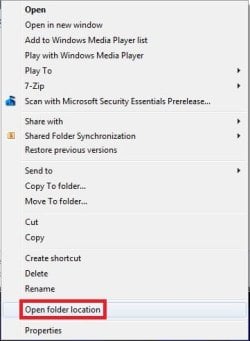
"Open File Location" - Add or Remove from Context Menu

How to Add or Remove "Open File Location" and "Open Folder Location" from the Context Menu

   Information
This will show you how to add or remove "Open File Location" and "Open Folder Location" from the context menu for all users in Windows 7 and Windows 8.

This is when you right click on a shortcut of a file or folder, or an included library folder.

You must be logged in as an administrator to be able to do the steps in this tutorial.


EXAMPLE: "Open File Location" and "Open Folder Location" in Context Menu
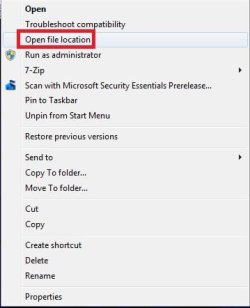
Shortcut.jpgLibrary.jpg


Here's How:
1. Do step 2 or 3 below for what you would like to do.

2. To Add "Open File/Folder Location" to Context Menu
NOTE: This is the default setting.
A) Click/tap on the Download button below to download the file below, and go to step 4 below.
Add_Open_File_Location.reg

Download


3. To Remove "Open File/Folder Location" from Context Menu
A) Click/tap on the Download button below to download the file below, and go to step 4 below.
Remove_Open_File_Location.reg

Download


4. Save the .reg file to your desktop.

5. Double click/tap on the downloaded .reg file to Merge it.

6. When prompted, click/tap on Run, Yes (UAC), Yes, and OK to approve merging the .reg file.

7. You can now delete the downloaded .reg file if you like.
That's it
Shawn
 

Attachments

Last edited:
your my angel shawn,, thank you o much..

and also thank you for the quick rply...

big big thanks mann,, which i could hug you to say how thankful i am...

T-H-A-N-K-Y-O-U-S-H-A-W-N
 

My Computer My Computer

Computer Manufacturer/Model Number
785 E-65
OS
windows 7 starter
CPU
AMD
Motherboard
MSI
Memory
2 gig
Graphics Card(s)
hd4200
Sound Card
built-in
Monitor(s) Displays
intex 18.5''
Hard Drives
WD 160 G
PSU
trendsonic
Case
trendsonic
Cooling
trendsonic
You're most welcome Fred. :)
 

My Computer My Computer

Computer type
PC/Desktop
Computer Manufacturer/Model Number
Self built custom
OS
64-bit Windows 11 Pro for Workstations
CPU
Intel i7-8700K OC'd to 5 GHz
Motherboard
ASUS ROG Maximus XI Formula Z390
Memory
64 GB (4x16GB) G.SKILL TridentZ RGB DDR4 3600 MHz
Graphics Card(s)
ASUS ROG-STRIX-GTX1080TI-O11G-GAMING
Sound Card
Integrated
Monitor(s) Displays
2 x Samsung Odyssey G7 27"
Screen Resolution
2560x1440
Hard Drives
1TB Samsung 990 PRO M.2,
4TB Samsung 990 PRO PRO M.2,
TerraMaster F8 SSD Plus NAS
PSU
Seasonic Prime Titanium 850W
Case
Thermaltake Core P3
Cooling
Corsair Hydro H115i
Keyboard
Logitech wireless K800
Mouse
Logitech MX Master 4
Internet Speed
2 Gb/s Download and 100 Mb/s Upload
Antivirus
Malwarebyte Anti-Malware Premium
Browser
Google Chrome
Other Info
Logitech Z625 speaker system,
Logitech BRIO 4K Pro webcam,
HP Color LaserJet Pro MFP M477fdn,
APC SMART-UPS RT 1000 XL - SURT1000XLI,
Galaxy S23 Plus phone
Hi Shawn,
I know I´m a few years late on this but I´ve just found your article about "To Add "Open File/Folder Location" to Context Menu". I wonder if you can tell me how to do the same thing, only for my Windows Task Manager?
From the Applications tab I can go to the correct process but in the process tab on the process just selected, the right click "open file location" does not work (anymore - it did a long time ago). I have scanned my registry but cannot find anything useful on "Taskmanager".
 

My Computer My Computer

Computer type
PC/Desktop
Computer Manufacturer/Model Number
HP
OS
Windows 7 Professional 64 bit
CPU
i5
Browser
Firefox
Hello Lateron, and welcome to Seven Forums.

I've searched, but so far I'm not able to find a reference for Task Manager in the registry either.

If this has just recently started, then you could do a system restore using a restore point dated before it started to hopefully fix it.
 

My Computer My Computer

Computer type
PC/Desktop
Computer Manufacturer/Model Number
Self built custom
OS
64-bit Windows 11 Pro for Workstations
CPU
Intel i7-8700K OC'd to 5 GHz
Motherboard
ASUS ROG Maximus XI Formula Z390
Memory
64 GB (4x16GB) G.SKILL TridentZ RGB DDR4 3600 MHz
Graphics Card(s)
ASUS ROG-STRIX-GTX1080TI-O11G-GAMING
Sound Card
Integrated
Monitor(s) Displays
2 x Samsung Odyssey G7 27"
Screen Resolution
2560x1440
Hard Drives
1TB Samsung 990 PRO M.2,
4TB Samsung 990 PRO PRO M.2,
TerraMaster F8 SSD Plus NAS
PSU
Seasonic Prime Titanium 850W
Case
Thermaltake Core P3
Cooling
Corsair Hydro H115i
Keyboard
Logitech wireless K800
Mouse
Logitech MX Master 4
Internet Speed
2 Gb/s Download and 100 Mb/s Upload
Antivirus
Malwarebyte Anti-Malware Premium
Browser
Google Chrome
Other Info
Logitech Z625 speaker system,
Logitech BRIO 4K Pro webcam,
HP Color LaserJet Pro MFP M477fdn,
APC SMART-UPS RT 1000 XL - SURT1000XLI,
Galaxy S23 Plus phone
"Open File Location" not working on Task manager

Hello Brink,
I wish it were that simple! No, this problem has been with me for quite a while. I don´t have a clue what caused it. On many occasions I have searched Internet for a solution but have not found one. Everyone just assumes the "open file location" works.
I have looked at my laptop´s register and found many more entries for task manager than on my tower. None of the entries refer to "open file location". What they are for is a mystery for me.

Thanks for your input.
 

My Computer My Computer

Computer type
PC/Desktop
Computer Manufacturer/Model Number
HP
OS
Windows 7 Professional 64 bit
CPU
i5
Browser
Firefox
Hello

Thanks, the regedit file added "open folder/file location" to my context menu when I right-click a shortcut.

However, I would like to have the option "open file location" when right-clicking a file itself. Is that possible?

This would be useful for me in search programs that present files in a list of results. I know most modern file search programs have the option "open file location" (or similar) in the context menu, but not the program I'm using (Wilbur).

Thanks
Samuel
 

My Computer My Computer

Computer type
PC/Desktop
Computer Manufacturer/Model Number
Acer Aspire X3470
OS
Windows 7 Home Premium 64 bit
CPU
AMD A6 3620
Memory
4 x 4 GB
Graphics Card(s)
AMD Radeon HD 6530D
Sound Card
AMD, Realtek
Monitor(s) Displays
iiyama ProLite B2209HDS full HD in portrait mode
Screen Resolution
1920x1080 or 1080x1920
Hard Drives
SSD 250 GB
WD Green 2 TB 5400 rpm
Antivirus
Avast
Browser
Opera (Blink)
Thanks for the tutorial,really helpful !
 

My Computer My Computer

Computer type
PC/Desktop
OS
Win7 Ultimate/X84
CPU
Intel Celeron 336/2.8Ghz
Motherboard
MS-7592
Memory
DDR3/2GB
Hard Drives
ATA-100/160GB
Browser
FirefoX
I'm glad it could help DarKnight. :)
 

My Computer My Computer

Computer type
PC/Desktop
Computer Manufacturer/Model Number
Self built custom
OS
64-bit Windows 11 Pro for Workstations
CPU
Intel i7-8700K OC'd to 5 GHz
Motherboard
ASUS ROG Maximus XI Formula Z390
Memory
64 GB (4x16GB) G.SKILL TridentZ RGB DDR4 3600 MHz
Graphics Card(s)
ASUS ROG-STRIX-GTX1080TI-O11G-GAMING
Sound Card
Integrated
Monitor(s) Displays
2 x Samsung Odyssey G7 27"
Screen Resolution
2560x1440
Hard Drives
1TB Samsung 990 PRO M.2,
4TB Samsung 990 PRO PRO M.2,
TerraMaster F8 SSD Plus NAS
PSU
Seasonic Prime Titanium 850W
Case
Thermaltake Core P3
Cooling
Corsair Hydro H115i
Keyboard
Logitech wireless K800
Mouse
Logitech MX Master 4
Internet Speed
2 Gb/s Download and 100 Mb/s Upload
Antivirus
Malwarebyte Anti-Malware Premium
Browser
Google Chrome
Other Info
Logitech Z625 speaker system,
Logitech BRIO 4K Pro webcam,
HP Color LaserJet Pro MFP M477fdn,
APC SMART-UPS RT 1000 XL - SURT1000XLI,
Galaxy S23 Plus phone
Back
Top