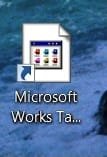
original Microsoft Works icon gone

estark13

New member
Local time
11:31 PM
Messages
5
I just got a new Gateway laptop with Windows 7 and Microsoft Works 9.0. The day I got it, Microsoft Works worked fine and displayed fine. I deleted the Works shortcut from the desktop, and then tried to put it back. Ever since, the icon does not have the original image (current icon that I do see is attached). It looks like this on the desktop and also anywhere the file is located. I have tried opening "properties" and going to "change icon" and the original icon is still there to select. So I select the original, but it doesn't change. The program works fine also, no problems there. Any suggestions on how to get the MS Works 9.0 icon back?
works%20icon.jpg
 

Attachments

  • works icon.jpg
    works icon.jpg
    4.5 KB · Views: 1,185

My Computer

OS
windows 7
Go to where you installed the program, locate the .exe choose send to desktop (create shortcut) reboot and post back.
 

My Computer

Computer Manufacturer/Model Number
Sony Vaio Z46GDU
OS
Windows 7 Ultimate x86-64
CPU
[email protected] 1066MHz FSB
Motherboard
Sony branded
Memory
6GB DDR3 1066MHz
Graphics Card(s)
9300M GS 256MB Dedicated (Speed) + Intel4500MHD (Stamina)
Sound Card
Realtek HD Audio
Monitor(s) Displays
13.1' WXGA
Screen Resolution
1600x900
Hard Drives
320GB 7200RPM w/ 16MB cache
Internet Speed
1MB/s
If the prior suggestion does not work, you can try a system image from the time prior to the problem.
 

My Computer

Computer type
PC/Desktop
Computer Manufacturer/Model Number
Dell XPS 420
OS
Windows 10, Home Clean Install
CPU
Intel Core2 processsor Q8200(2.33Ghz 1333FSB) Quad Core Tech
Motherboard
Dell
Memory
6 gb
Graphics Card(s)
ATI Radeon 256MB HD3650
Sound Card
Intergrated 7.1 Channel Audio
Monitor(s) Displays
Dell SP2009W 20"
Hard Drives
640 GB Serial ATA Hard drive
Cooling
Fan
Keyboard
Dell USB Keyboard
Mouse
Dell Premium Optical USB
Internet Speed
DSL 2.85

My Computer

Computer Manufacturer/Model Number
DIY
OS
W7x64 Pro, SuSe 12.1/** W7 x64 Pro, XP MCE
CPU
Phenom II 1090T w/Noctua NH-D14 /**4400+ X2 w/CM Hyper TX 3
Motherboard
ASRock 890FX Deluxe 4/**A8N-SLI
Memory
2 x 2GB Patriot PGS34g1600LLKA/**4x1GB Corsair VS
Graphics Card(s)
EVGA GTX460 SC/**EVGA 8800GTS
Sound Card
Asus Xonar D2X/**Xonar D1
Monitor(s) Displays
Acer X233H, Dell E152FPc /**LG M237-WD
Screen Resolution
1920x1080 & 1024x768/**1980x1080
Hard Drives
WDC 2TB, 1.5TB, 1TB, 500GB,Seagate 500GB , Maxtor 80GB /**500GB Seagate & WDC 1TB Black
PSU
CM RS600 w/ APC BX1000G/**Antec 500 TP w/ APC BX1000
Case
HAF922/**Antec 1040IIB
Cooling
3x200mm, 1x140 and 1x120mm/**5x80mm fans
Keyboard
Logitech Media USB/**Saitek Eclipse
Mouse
Cordless Trackman Wheel/**Ditto
Internet Speed
3.3Mbps
Other Info
SB 560 5.1 w/ Sennheiser RS140/**Creative T20 speakers, Dvico FusionHDTV7 Gold RT, Cisco E3000, HP 5510V AIO, Linksys E3000, Belkin F5U237 hub and **F5D8055 adapter
(** = 2nd rig)
None of the suggestions worked. The images looks the same still. Any other suggestions? If not, thanks for you prior messages.
 

My Computer

OS
windows 7
Why not insert your DVD for works. If it has a repair function it may bring back the icon. Does not work, maybe you can reinstall. Make an image of what you have now, first. If my suggestion goes wrong, you can always bring everything back with the image.
 

My Computer

Computer type
PC/Desktop
Computer Manufacturer/Model Number
Dell XPS 420
OS
Windows 10, Home Clean Install
CPU
Intel Core2 processsor Q8200(2.33Ghz 1333FSB) Quad Core Tech
Motherboard
Dell
Memory
6 gb
Graphics Card(s)
ATI Radeon 256MB HD3650
Sound Card
Intergrated 7.1 Channel Audio
Monitor(s) Displays
Dell SP2009W 20"
Hard Drives
640 GB Serial ATA Hard drive
Cooling
Fan
Keyboard
Dell USB Keyboard
Mouse
Dell Premium Optical USB
Internet Speed
DSL 2.85
I actually tried reinstalling already, and it is asking me for the install disk. The problem there is that Works was already installed when I bought the computer, so I don't have a Works disk. I have some recovery disks for the computer, but I didn't think that would help.

This icon thats broken is for the "Works Task Launcher", which brings up sort of a "home page" for Works, and from there I select if I want to open a spreadsheet or word processor. I was able to successfully create seperate shortcuts for each of these two programs, and also pin them to the taskbar. This is a good enough solution for me I guess:). Still bugs me though...:mad:
 

My Computer

OS
windows 7
Try this, I hate losing, go to the start icon, bring up the menu of programs. Find Microsoft works, right click, then send to desktop (if not available documents) lets see how that goes, unless that is the way you tried already. I know that there must be a way.
 

My Computer

Computer type
PC/Desktop
Computer Manufacturer/Model Number
Dell XPS 420
OS
Windows 10, Home Clean Install
CPU
Intel Core2 processsor Q8200(2.33Ghz 1333FSB) Quad Core Tech
Motherboard
Dell
Memory
6 gb
Graphics Card(s)
ATI Radeon 256MB HD3650
Sound Card
Intergrated 7.1 Channel Audio
Monitor(s) Displays
Dell SP2009W 20"
Hard Drives
640 GB Serial ATA Hard drive
Cooling
Fan
Keyboard
Dell USB Keyboard
Mouse
Dell Premium Optical USB
Internet Speed
DSL 2.85
I tried "sending to desktop" from multiple locations with no luck. I don't see the original icon anywhere. Wherever I see MS Works, it has that icon the I attached in my original post (whether in the Start menu, the .exe file, in the taskbar, on the desktop, etc).
 

My Computer

OS
windows 7
I actually tried reinstalling already, and it is asking me for the install disk. The problem there is that Works was already installed when I bought the computer, so I don't have a Works disk. I have some recovery disks for the computer, but I didn't think that would help.

This icon thats broken is for the "Works Task Launcher", which brings up sort of a "home page" for Works, and from there I select if I want to open a spreadsheet or word processor. I was able to successfully create seperate shortcuts for each of these two programs, and also pin them to the taskbar. This is a good enough solution for me I guess:). Still bugs me though...:mad:

I didn't see this in the thread, although I'm not optimistic that it'll help:

Right click on the shortcut. Go to the "shortcut" tab. Click the "change icon" button.

Is the proper icon displayed? If so, switch to it.
 

My Computer

Computer Manufacturer/Model Number
homegrown
OS
Windows 7 Pro X64 SP1
CPU
Intel Core I7-3930k
Motherboard
Asus P9X79 Pro
Memory
16 GB Gskill DDR3-2133
Graphics Card(s)
eVGA GTX680
Sound Card
Creative X-Fi Titanium
Monitor(s) Displays
As PA246Q
Screen Resolution
1920 X 1200
Hard Drives
Corsair Force GT, 120 GB
WDC 1.5TB Caviar Black
PSU
PCP&C Silencer 750 Crossfire
Case
Silverstone FT02
Cooling
Noctua NH-D14
Keyboard
cheap Logitech USB
Mouse
Microsoft Intellimouse Explorer (old optical) USB
Internet Speed
6Mb cable
Other Info
Pioneer BDR-205
Samsung SH-203B
Monsoon 5.1 speakers
It was years ago, but when I had an HP, the system disk that came with it had some programs such as Works on it, that you could select individually to install.
 

My Computer

Computer Manufacturer/Model Number
DIY
OS
W7x64 Pro, SuSe 12.1/** W7 x64 Pro, XP MCE
CPU
Phenom II 1090T w/Noctua NH-D14 /**4400+ X2 w/CM Hyper TX 3
Motherboard
ASRock 890FX Deluxe 4/**A8N-SLI
Memory
2 x 2GB Patriot PGS34g1600LLKA/**4x1GB Corsair VS
Graphics Card(s)
EVGA GTX460 SC/**EVGA 8800GTS
Sound Card
Asus Xonar D2X/**Xonar D1
Monitor(s) Displays
Acer X233H, Dell E152FPc /**LG M237-WD
Screen Resolution
1920x1080 & 1024x768/**1980x1080
Hard Drives
WDC 2TB, 1.5TB, 1TB, 500GB,Seagate 500GB , Maxtor 80GB /**500GB Seagate & WDC 1TB Black
PSU
CM RS600 w/ APC BX1000G/**Antec 500 TP w/ APC BX1000
Case
HAF922/**Antec 1040IIB
Cooling
3x200mm, 1x140 and 1x120mm/**5x80mm fans
Keyboard
Logitech Media USB/**Saitek Eclipse
Mouse
Cordless Trackman Wheel/**Ditto
Internet Speed
3.3Mbps
Other Info
SB 560 5.1 w/ Sennheiser RS140/**Creative T20 speakers, Dvico FusionHDTV7 Gold RT, Cisco E3000, HP 5510V AIO, Linksys E3000, Belkin F5U237 hub and **F5D8055 adapter
(** = 2nd rig)
I did do this, and the correct icon is displayed. I tried deslecting it then selecting it again in case it needed to be reset or something, but no luck. That is what bugs me is that I go to "change icon" and the correct icon is showing up there, but no where else.
 

My Computer

OS
windows 7
Create New Icon

I had the same problem when I upgraded from XP to Windows 7. What I did was create a new icon. Here's what to do.

1. Go to Google Images and search for "Microsoft Works"
2. Click Show Options, click Icon in the options sidebar.
3. Find the image of MS Works 9.0 click it and save it to your computer.
4. Go to Free software downloads and software reviews - CNET Download.com and download the free 30-day trial for Axialis Icon Workshop.
5. In Axialis Icon Workshop, go to Help - How to (perform specific task) - How to create an icon from an image file. Follow the steps listed.
6. go to Help - How to (perform specific task), click on the Index tab - Save - Windows Icon, and follow the steps listed.
7. Now right click the Works shortcut on your desktop, go to Properties - Shortcut - Cange Icon - Browse, and select the file location where you saved the icon you created.
8. Click Apply - OK

The Microsoft Works icon should now be visible on the shortcut and it can be pinned to the taskbar, if desired.
 

My Computer

Computer Manufacturer/Model Number
Dell
OS
Windows 7
Memory
4gb
Back
Top