
OS Win 7 Backup?

jonesnewton

New member
Member
VIP
Local time
3:09 AM
Messages
211
Location
Prague, Czech Rep
Hi,
if I want to do a back up of just my OS system, not any other data, can I use the Back Up facility in Windows? Will this copy all of the OS if I ever need to reinstall?

I have done an Image before, but now the HD is nearly full and my Ext HD is too small.

Sorry to ask but I just want to make sure I am copying the right thing?

Any help or advice grateful.
 

My Computer

Computer type
Laptop
Computer Manufacturer/Model Number
Acer 7738G
OS
Acer Aspire 7738G Win 7 X64 bit Home Premium
System Restore is just the OS

System Image will be the entire HD.

Does this answer your question?
 

My Computer

Computer type
PC/Desktop
Computer Manufacturer/Model Number
Dell XPS 420
OS
Windows 10, Home Clean Install
CPU
Intel Core2 processsor Q8200(2.33Ghz 1333FSB) Quad Core Tech
Motherboard
Dell
Memory
6 gb
Graphics Card(s)
ATI Radeon 256MB HD3650
Sound Card
Intergrated 7.1 Channel Audio
Monitor(s) Displays
Dell SP2009W 20"
Hard Drives
640 GB Serial ATA Hard drive
Cooling
Fan
Keyboard
Dell USB Keyboard
Mouse
Dell Premium Optical USB
Internet Speed
DSL 2.85
Hi,
if I want to do a back up of just my OS system, not any other data, can I use the Back Up facility in Windows? Will this copy all of the OS if I ever need to reinstall?

I have done an Image before, but now the HD is nearly full and my Ext HD is too small.

Sorry to ask but I just want to make sure I am copying the right thing?

Any help or advice grateful.

That depends on whether the data is on the same partition as the OS. Is it?

You can DO a partition instead of the entire drive but you cant just do OS folder and not date if it is on the same partition.

Ken
 

My Computer

Computer Manufacturer/Model Number
HP Pavillion dv-7 1005 Tx
OS
Win 8 Release candidate 8400
CPU
[email protected]
Memory
4 gigs
Graphics Card(s)
Nvidia 9600M
Sound Card
HD built-in
Monitor(s) Displays
17" Wxga
Screen Resolution
1440x900
Cooling
none
Internet Speed
45Mb down 5Mb up
System Restore is just the OS

System Image will be the entire HD.

Does this answer your question?

OK so if I do a Create new full back up that will just copy my OS?
Then if I need I just do a restore?
Can I send it to my Ext HD?
 

My Computer

Computer type
Laptop
Computer Manufacturer/Model Number
Acer 7738G
OS
Acer Aspire 7738G Win 7 X64 bit Home Premium
Hi,
if I want to do a back up of just my OS system, not any other data, can I use the Back Up facility in Windows? Will this copy all of the OS if I ever need to reinstall?

I have done an Image before, but now the HD is nearly full and my Ext HD is too small.

Sorry to ask but I just want to make sure I am copying the right thing?

Any help or advice grateful.

That depends on whether the data is on the same partition as the OS. Is it?

You can DO a partition instead of the entire drive but you cant just do OS folder and not date if it is on the same partition.

Ken

There is no partition.

I just want peace of mind if I ever need to reinstall that I have it on hand.

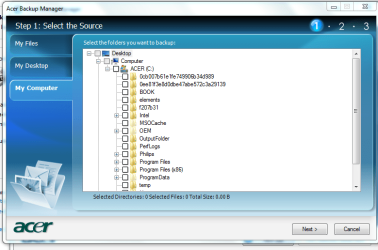
BTW, its an Acer and it has Acer Backup Manager, but I dont know which box(s) to tick as it says it cannot copy whole system, obviously.

Any idea?
 

Attachments

  • Capture Acer backup.PNG
    Capture Acer backup.PNG
    43 KB · Views: 40

My Computer

Computer type
Laptop
Computer Manufacturer/Model Number
Acer 7738G
OS
Acer Aspire 7738G Win 7 X64 bit Home Premium
Disk manager - vhd

Don't forget, you can access the data in your IMAGE file via 'DISK MANAGER'.
Just open DISK MANAGER, go to the menu: ACTIONS/ATTACH VHD and navigate to where your actual VHD image file is...Windows will load it as a drive. You can then enter that IMAGE and delete anything you want.

Remember that when you boot up again, the VHD will not be mounted. You can also manually UNMOUNT the mounted VHD by right clicking on the drive tab on the far left of the listed VHD drive in DISK MANAGER...then selecting option to unmount.

You can even fix it so that you can run an installer from that very IMAGE...but for that you will need some extra tools that Windows does not provide.

[email protected],
Sirius A Being
 
Hi,
if I want to do a back up of just my OS system, not any other data, can I use the Back Up facility in Windows? Will this copy all of the OS if I ever need to reinstall?

I have done an Image before, but now the HD is nearly full and my Ext HD is too small.

Sorry to ask but I just want to make sure I am copying the right thing?

Any help or advice grateful.

YES.

Simply in the left-hand pane of Backup And Restore choose: System Image.

Backup And Restore will list your Win 7 dirve and other drives that you might want to include. Simply check the ones you want.

Extremely simple. Easy, Works.

You can sleep easy.


Be sure to perform the backup to an external drive.

If you were to backup to your internal drive and the internal drive crashes then you have lost all.

Always backup to an external drive.

Also on that same Backup And Restore applet there is also an option for:
Create a system repair disk


Create that system repair disk. It's a CD which is bootable and which you can use when disaster strikes. Please create that disk.

The last time I used mine was last night when I cloned the backup I had made with Backup And Restore on to a 128GB SSD.
 

My Computer

Computer Manufacturer/Model Number
Toshiba Satellite S875D-S7239 laptop
OS
MS Windows 7 Ultimate SP1 64-bit
CPU
AMD A10-4600M
Motherboard
AMD Pumori (Socket FT1)
Memory
6.00 GB Dual-Channel DDR3 @ 798MHz (11-11-12-28)
Graphics Card(s)
AMD Radeon HD 7660G
Sound Card
High Definition Audio Device
Monitor(s) Displays
Generic PnP Monitor (1600x900@60Hz)
Screen Resolution
1600x900@60Hz
Hard Drives
SSD 119GB Corsair CSSD-V128GB2 ATA Device
Keyboard
Standard PS/2 Keyboard
Mouse
HP Wireless Optical Mobile Mouse Model FHA-3410
Internet Speed
What the local pub, local coffee shop offers.
Other Info
Optical Drive:MATSHITA BD-CMB UJ160B ATA Device


Also have an Asus ha1002xp netbook with Win 7 Ultimate installed.
Hi,
if I want to do a back up of just my OS system, not any other data, can I use the Back Up facility in Windows? Will this copy all of the OS if I ever need to reinstall?

I have done an Image before, but now the HD is nearly full and my Ext HD is too small.

Sorry to ask but I just want to make sure I am copying the right thing?

Any help or advice grateful.

YES.

Simply in the left-hand pane of Backup And Restore choose: System Image.

Backup And Restore will list your Win 7 dirve and other drives that you might want to include. Simply check the ones you want.

Extremely simple. Easy, Works.

You can sleep easy.


Be sure to perform the backup to an external drive.

If you were to backup to your internal drive and the internal drive crashes then you have lost all.

Always backup to an external drive.

Also on that same Backup And Restore applet there is also an option for:
Create a system repair disk


Create that system repair disk. It's a CD which is bootable and which you can use when disaster strikes. Please create that disk.

The last time I used mine was last night when I cloned the backup I had made with Backup And Restore on to a 128GB SSD.

I dont want to do an image, just copy the OS on C drive, but the thing is everything else in on C, so when I look there I have to select boxes?
But I dont know which boxes to select to copy just the OS??:huh:

And it will be to an Ext HD
 

My Computer

Computer type
Laptop
Computer Manufacturer/Model Number
Acer 7738G
OS
Acer Aspire 7738G Win 7 X64 bit Home Premium
You cannot "just" copy the OS. If you image you will get everything. System restore will restore your OS and leave your personal files untouched but will not copy the OS off the PC.

You need a Windows 7 install disk to have a copy of the OS seperate from all your installed programs and files.

Hope that settles it.
 

My Computer

Computer Manufacturer/Model Number
I trust nobody!
OS
Windows 7 Ultimate x64/x86 Windows 7 Pro x64/x86 Windows 7 Home Premium x64/x86
CPU
Intel C2Q 9650
Motherboard
Intel
Memory
8GB DDR2800 Corsair
Graphics Card(s)
NVIDIA 260 GTX
Sound Card
Onboard
Monitor(s) Displays
Dell 2409w
Screen Resolution
1920x1080
Hard Drives
10 of em!
PSU
600 Watt FSP Group
Case
Antec
Cooling
Fresh Air
Keyboard
Microsoft
Mouse
Razer
Internet Speed
Fast enough
@Jonesnewton: the answer to your question is, indeed, no. You can verify that by launching the system image option in the left pane and you will see that all drives containing data "necessary" for the OS will be checked and grayed out, i.e., you DO NOT have the option of selecting only OS components (in part because they are scattered all over the place).

You can use system restore but, if you have done so in the past, you know that it DOES NOT necessarily exactly restore your system to a previous state - and - you have undoubtedly had instances when you chose a restore point only to have Windows tell you that point could not be restored.

I accomplish what you want to do by creating an OS-only partition on which I only put the OS and "everyday" apps (utilities, Flash components, browser, Winamp, VLC, etc.). Everything else goes on different partitions and/or different HDDs.

Of course, for you to do that now, you would have to copy/backup all of your non-system stuff (docs, MP3s, JPEGs, etc) to a secure location, delete your existing OS partition and create a new smaller partition for the OS/apps and a second (third, fourth, etc) partition for your data files. You would then reinstall windows, and your apps.

It's a bit of a pain now but in the end, you get what you want and it is easier from then on to maintain your system.

Monk
 

My Computer

Computer Manufacturer/Model Number
Custom
OS
Dual boot XP Pro SP3x86 and Win7 Pro x64
CPU
AMD Phenom II x3 720 BE OCed to 3.3 GHz
Motherboard
Asus M3A79T Deluxe
Memory
2x2GB OCZ OCZ2RPR10664GK PC2-8500 DDR2
Graphics Card(s)
Sapphire ATi Radeon 4830 HD x2 (XFire)
Sound Card
Integrated (SoundMax)
Monitor(s) Displays
Dual: LG L227WTG/LG M237WD
Screen Resolution
1680 x 1050; 1920 x1280
Hard Drives
3 WDC WD7501AALS-00J7B0
PSU
Zalman 750HD Modular
Case
Antec 900
Cooling
4 120mm, 1 200mm fans
Keyboard
Black with lots of keys
Mouse
Razer Lachesis, Logitech RumbePad2, Logitech Marble
Internet Speed
Who counts
Other Info
7:1 SS
Jones,
Why don't you do this to answer your questions?

Do a system image backiup of the C.

When you do there will be, as part of that a backup a VHD file.

Using DISK MANAGEMENT, "mount" (attach) that VHD
You will then be able to view precisely what is in your backup.

Ii really think there is some confusion amongst the troops.

Just yesterday, as a part of some testing and cloning, I must have done ten backups and about four restores.

When I say all you need is your system image backup and the system repair disk, then that is all you need.

To help clarify any misunderstandings, if you were to make a snapshot of the disk managment output, that might clarify a couple of matters.

WIN key | type DISKMGMT.MSC | ENTER key

Maximize the resulting window and use the Snipping Tool to create a .PNG file.

WIN key | type Snipping Tool | Enter key to run the Snipping Tool

In your next post, attach that PNG file using the paper clip shown in the Seven message window of your reply.
 

My Computer

Computer Manufacturer/Model Number
Toshiba Satellite S875D-S7239 laptop
OS
MS Windows 7 Ultimate SP1 64-bit
CPU
AMD A10-4600M
Motherboard
AMD Pumori (Socket FT1)
Memory
6.00 GB Dual-Channel DDR3 @ 798MHz (11-11-12-28)
Graphics Card(s)
AMD Radeon HD 7660G
Sound Card
High Definition Audio Device
Monitor(s) Displays
Generic PnP Monitor (1600x900@60Hz)
Screen Resolution
1600x900@60Hz
Hard Drives
SSD 119GB Corsair CSSD-V128GB2 ATA Device
Keyboard
Standard PS/2 Keyboard
Mouse
HP Wireless Optical Mobile Mouse Model FHA-3410
Internet Speed
What the local pub, local coffee shop offers.
Other Info
Optical Drive:MATSHITA BD-CMB UJ160B ATA Device


Also have an Asus ha1002xp netbook with Win 7 Ultimate installed.
Thanks all for you time..
 

My Computer

Computer type
Laptop
Computer Manufacturer/Model Number
Acer 7738G
OS
Acer Aspire 7738G Win 7 X64 bit Home Premium
@Jonesnewton: the answer to your question is, indeed, no. You can verify that by launching the system image option in the left pane and you will see that all drives containing data "necessary" for the OS will be checked and grayed out, i.e., you DO NOT have the option of selecting only OS components (in part because they are scattered all over the place).

You can use system restore but, if you have done so in the past, you know that it DOES NOT necessarily exactly restore your system to a previous state - and - you have undoubtedly had instances when you chose a restore point only to have Windows tell you that point could not be restored.

I accomplish what you want to do by creating an OS-only partition on which I only put the OS and "everyday" apps (utilities, Flash components, browser, Winamp, VLC, etc.). Everything else goes on different partitions and/or different HDDs.

Of course, for you to do that now, you would have to copy/backup all of your non-system stuff (docs, MP3s, JPEGs, etc) to a secure location, delete your existing OS partition and create a new smaller partition for the OS/apps and a second (third, fourth, etc) partition for your data files. You would then reinstall windows, and your apps.

It's a bit of a pain now but in the end, you get what you want and it is easier from then on to maintain your system.

Monk

In reality, the procedure isn't that simple. Gone are the Win 3.1 days. The intertwining of various Win 7 elements is great. Even attempts to relocate folders to other locations is not without perils and this I know from experience. a complication is that MS doesn't even work correctly with their own software.
 

My Computer

Computer Manufacturer/Model Number
Toshiba Satellite S875D-S7239 laptop
OS
MS Windows 7 Ultimate SP1 64-bit
CPU
AMD A10-4600M
Motherboard
AMD Pumori (Socket FT1)
Memory
6.00 GB Dual-Channel DDR3 @ 798MHz (11-11-12-28)
Graphics Card(s)
AMD Radeon HD 7660G
Sound Card
High Definition Audio Device
Monitor(s) Displays
Generic PnP Monitor (1600x900@60Hz)
Screen Resolution
1600x900@60Hz
Hard Drives
SSD 119GB Corsair CSSD-V128GB2 ATA Device
Keyboard
Standard PS/2 Keyboard
Mouse
HP Wireless Optical Mobile Mouse Model FHA-3410
Internet Speed
What the local pub, local coffee shop offers.
Other Info
Optical Drive:MATSHITA BD-CMB UJ160B ATA Device


Also have an Asus ha1002xp netbook with Win 7 Ultimate installed.
Hi,
if I want to do a back up of just my OS system, not any other data, can I use the Back Up facility in Windows? Will this copy all of the OS if I ever need to reinstall?

I have done an Image before, but now the HD is nearly full and my Ext HD is too small.

Sorry to ask but I just want to make sure I am copying the right thing?

Any help or advice grateful.
No, you can either do an image, or back up data files. there is no way to "separate" just the OS. I understand your question, and your goal, but no, Windows backup, while not too bad at all, can not do what you are asking, and actually, neither can any of the other backup software programs. You just can't separate OS files/.dll's from other programs and data on the active partition.
 

My Computer

OS
Windows 7 Home Premium 64 bit
Thanks all for you time..

Jones,
Hope you come to an amiable solution.

On my laptop I have two partitions:
c: for windows and programs
d: for data such as documents, music, videos, pictures.

Presently, in fact, just 15 minutes ago, a "system image" backup of both
produced two VHD files.
The c image vhd is 9.15 GB
The d image vhd is 9.27 GB

The "Libraries" feature of Windows 7 allows me to create a DOC folder on D which I added to the Documents Library. My documents are all of D.

I followed an identical approach for the Music, Video, and Picture libraries.

An end result of this is that a system image backup of C gives me my windows and programs stuff. A system image backup of D: gives me my data files.

This permits me to make a system image backup just prior to trying out a major piece of software as a safety measure against a disaster.

I usually only use the "restore point" feature of Windows 7 but the true image backup gives me a warm puppy-dog feeling about the safety of my system.
 

My Computer

Computer Manufacturer/Model Number
Toshiba Satellite S875D-S7239 laptop
OS
MS Windows 7 Ultimate SP1 64-bit
CPU
AMD A10-4600M
Motherboard
AMD Pumori (Socket FT1)
Memory
6.00 GB Dual-Channel DDR3 @ 798MHz (11-11-12-28)
Graphics Card(s)
AMD Radeon HD 7660G
Sound Card
High Definition Audio Device
Monitor(s) Displays
Generic PnP Monitor (1600x900@60Hz)
Screen Resolution
1600x900@60Hz
Hard Drives
SSD 119GB Corsair CSSD-V128GB2 ATA Device
Keyboard
Standard PS/2 Keyboard
Mouse
HP Wireless Optical Mobile Mouse Model FHA-3410
Internet Speed
What the local pub, local coffee shop offers.
Other Info
Optical Drive:MATSHITA BD-CMB UJ160B ATA Device


Also have an Asus ha1002xp netbook with Win 7 Ultimate installed.
@Karlsnooks: Perhaps I misunderstand the goal.

I have three 750GB HDDs. On HDD 0, I created a 100GB "OS" (Win7) primary partition, a second primary partition for MP3s and JPEGs, a third primary partition for docs, and two logical partitions for games and archives. On HDD 1, I created two primary partitions, one for storing image backups of my OS partitons (XP and Win7) and one that I use for a "workshop" for manipulating archives and sundry SW testing. On HDD 2, I created two primary partitions, one OS (XP) and one for storing app image backups.

As we know, the OS partition is a "target" for malware, misbehaving patches/upgrades, and tweaking gone bad. Prior to any alterations of the contents of my OS partition, I perform image backups. Before doing so, however, I copy or backup individual files/directories that contain data that will not be available should I have to restore a previous image backup (because they were created after the image backup). For example, FireFox profile, IE favorites, Outlook *.pst (or an HTML copy), files I saved to the DT rather than on one of my other partitions. If my current OS installation bricks, I am able to restore the immediate prior image and I am at a point where I was prior to the bricking. This protocol preserves data on the other HDDs/partitions because it is not altered by the restore process because in the restore process, my "good" registry (that links to all of my HDDs and partitions) is also restored.

In the end, the restored image re-associates all of the OS files no matter where they were located because those not on the OS partition do not change (as a rule). Even if remote (to the OS partition) files do change, image backups of the other partitions return me to a stable environment for all of my HDDs and partitions.

To be sure, this process is a bit tedious/time consuming however, I, and I am sure most, have had occasion to have to reformat a HDD/partition because of seemingly incurable issues. Now that's tedious! Since adopting this protocol I have not had the occasion to have to reformat/reinstall my stuff.

Regardless of how one accomplishes same, it is, I think, good that we are talking backups; how many times do you read posts where someone laments the fact that they inadvertently lost data and need suggestions on how to get it back.

By the way, my HDDs are all WD and I use their free WD-Acronis SW to accomplish my image backups.

Monk
 

My Computer

Computer Manufacturer/Model Number
Custom
OS
Dual boot XP Pro SP3x86 and Win7 Pro x64
CPU
AMD Phenom II x3 720 BE OCed to 3.3 GHz
Motherboard
Asus M3A79T Deluxe
Memory
2x2GB OCZ OCZ2RPR10664GK PC2-8500 DDR2
Graphics Card(s)
Sapphire ATi Radeon 4830 HD x2 (XFire)
Sound Card
Integrated (SoundMax)
Monitor(s) Displays
Dual: LG L227WTG/LG M237WD
Screen Resolution
1680 x 1050; 1920 x1280
Hard Drives
3 WDC WD7501AALS-00J7B0
PSU
Zalman 750HD Modular
Case
Antec 900
Cooling
4 120mm, 1 200mm fans
Keyboard
Black with lots of keys
Mouse
Razer Lachesis, Logitech RumbePad2, Logitech Marble
Internet Speed
Who counts
Other Info
7:1 SS
The way to do thi, is to save a System Image externally immediately after installing Win7, and before copying in your files. You might first update, install your base programs, set it up as you like.

Then you have what you want: an image of just your OS and its functions which are OS related. You can keep your files in another folder on your external and you have everything separate. You never want to separate your programs from your OS anyway since once installed they are inextricably linked via the registry until uninstall.
 
The way to do thi, is to save a System Image externally immediately after installing Win7, and before copying in your files. You might first update, install your base programs, set it up as you like.

Then you have what you want: an image of just your OS and its functions which are OS related. You can keep your files in another folder on your external and you have everything separate. You never want to separate your programs from your OS anyway since once installed they are inextricably linked via the registry until uninstall.

Um!
Come to think of it,, I THINK I did do a back up when I first got the laptop new, well the machine asked to do it. Must look to see where they are?
So if I can find these they will be what I want? They would be on DVD, but thats ok?

As for the future I will take note of all of these comments you have ALL made. :D

Why dont the manufactures supply new machine partitions already installed, it really does make sense what has been described here..

Thanks
 

My Computer

Computer type
Laptop
Computer Manufacturer/Model Number
Acer 7738G
OS
Acer Aspire 7738G Win 7 X64 bit Home Premium
If you made DVD's then it is likely the Factory Recovery disks which will also reinstall any bloatware that came pre-installed at Factory. Most tech enthusiasts avoid bloatware reinstalls at all costs as it can corrupt as much to uninstall as to keep it.

To uninstall factory bloatware use the Revo Uninstaller which scours for leftover registry keys and files. Then run sfc /scannow to see if the uninstalls have left unfixable corruption of system files, as often happens.
 
Back
Top