Outlook 2003 does not recognize the My Pictures Library

Dalal

New member
Local time
9:02 AM
Messages
4
I'm using Windows 7 with Outlook 2003 - received photos in jpeg - cannot save to librairies "my pictures". "My pictures" is not listed in the librairies drop down menu.
The pictures open is Office Picture Manager. Is there way around this?
On my pc running XP, I simply click open, or save as, and the "my pictures" option is listed, I then choose the folder to save in. Cannot do this in Windows 7 directly from Outlook 2003.
I just tried saving a picture from the internet email (hotmail) rather than Outlook 2003 and it works fine. I open the attachment, click on "save" and my librairies are listed. So why can't I do this his directly through Outlook 2003 which is the email I use on a daily basis?
 

My Computer My Computer

At a glance

windows 7
Computer Manufacturer/Model Number
hp g60-530ca
OS
windows 7
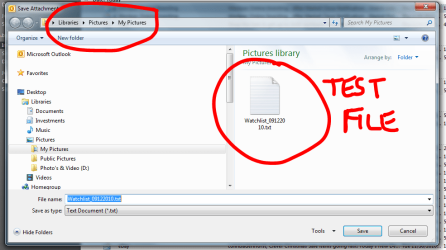
Thats odd, I can save to Libraries/My Pictures (albeit just a test txt file as seen below) using Outlook 2010. Irene will probably have an idea about this - she is good with Outlook.
 

Attachments

  • Capture.PNG
    Capture.PNG
    45.8 KB · Views: 4

My Computer My Computer

At a glance

Windows 10 Pro x64 ; Xubuntu x64Intel i7 860 @ 2.80 GHz O/C'ed to 4.0GHz16GB Corsair Vengance DDR3 @ 661 MHz Dual Cha...EVGA NVidia GTX 560 1024MB
Computer type
PC/Desktop
Computer Manufacturer/Model Number
Golden Mk. I.4
OS
Windows 10 Pro x64 ; Xubuntu x64
CPU
Intel i7 860 @ 2.80 GHz O/C'ed to 4.0GHz
Motherboard
Gigabyte P55A-UD3R Rev.1. Award BIOS F13
Memory
16GB Corsair Vengance DDR3 @ 661 MHz Dual Channel (9-9-9-24)
Graphics Card(s)
EVGA NVidia GTX 560 1024MB
Sound Card
Realtek Integrated
Monitor(s) Displays
Dual Samsung SyncMaster 2494HS
Screen Resolution
1920*1080 and 1920*1080
Hard Drives
1*Samsung 840 EVO 120GB SSD;
1*OCZ Vertex 2 60GB SSD;
2*Samsung F3 SpinPoint 1TB in RAID0;
1*Samsung F1 SpinPoint 1TB;
2*Western Digital 1TB External USB 3.0
1*Western Digital 500GB External USB 3.0
1*Seagate 500GB External USB 2.0
PSU
Thermaltake ToughPower QFan 750W
Case
Thermaltake Element S VK60001W2Z
Cooling
Corsair H60 Water Cooling, 2*230mm and 2*80mm case fans
Keyboard
Logitech G110
Mouse
Logitech MX518
I use Outllook 2007. However, I just came across the following in a search...

http://www.sevenforums.com/Empty Li...ons to the Office Places bar for easy access.
One functionality incompatibility that exists in Office/Outlook 2003 which can be annoying is that most of the Open/Save dialogs do not support the new Libraries function of Windows 7. This is because Office 2003 uses its own file browser dialogs instead of the ones of Windows.

A workaround for this is to add your favourite locations to the Office Places bar for easy access.


Add your own locations to Save and Open dialogs

When opening Save and Open dialogs in Outlook (and other Office applications), there is a space on the left with some default locations.
How can I add my own locations?

The solution would depend a bit on your version of Outlook and Windows and, to make it even more confusing, the combination of the two matter as well.
Eventually you’ll either end up with a browser dialog from Windows or a browser dialog from Office.
Browser dialog from Office
The browser dialog from Office holds a My Places bar on the left side of the dialog. You’re likely to see this dialog when using Outlook 2003 or previous or when using Outlook on a Windows XP computer. To add your custom folder to it, browse to the folder in the right pane and select it (but do not open it). Then right click in the My Places area to see the Add option.
If the Add option is not available to you, you’ll see a Tools menu button in the right top of this dialog. When you expand that menu button you’ll find an “Add to My Places” option to reach the same results.
placesbar-xp.png

The context menu also allows you to sort your locations and change icon size


Hope you find this helps. :)


My Computer My Computer

At a glance

Windows 7 Home Premium 64bitIntel(R) Core(TM) i3-2120 CPU @ 3.30GHz3.00 GB(1) Intel(R) HD Graphics (2) VNC Mirror Driver
Computer type
PC/Desktop
Computer Manufacturer/Model Number
Packard Bell
OS
Windows 7 Home Premium 64bit
CPU
Intel(R) Core(TM) i3-2120 CPU @ 3.30GHz
Motherboard
Packard Bell IPISB-AG
Memory
3.00 GB
Graphics Card(s)
(1) Intel(R) HD Graphics (2) VNC Mirror Driver
Sound Card
Realtek High Definition Audio
Monitor(s) Displays
AIO LCD
Screen Resolution
1920 x 1080
Hard Drives
WDC WD10EADX-22TDHB0 ATA Device
Fixed hard disk media
4 partitions
931.51 GB
Keyboard
Wireless
Mouse
Wireless
Antivirus
Microsoft Security Essentials
Browser
IE; Firefox
Other Info
Also:
Samsung N220 Plus Netbook - Windows 7 Home
HP laptop
iPad 5
Back
Top