

Does most of your day revolve around emails, calendar, and tasks that need your attention? Well, that’s true for most of us as well. Read on if you are looking for ways to help you efficiently organize your work.
Introducing My Day side-pane in Outlook Web
Context switching comes with a loss of efficiency. Every time you move between your emails, calendar, and tasks, you lose productive time returning back to where you were. In order to help you be more productive and save your time, we’re bringing you a side-by-side view of your mail, calendar, and tasks in Outlook Web as you navigate through your work.
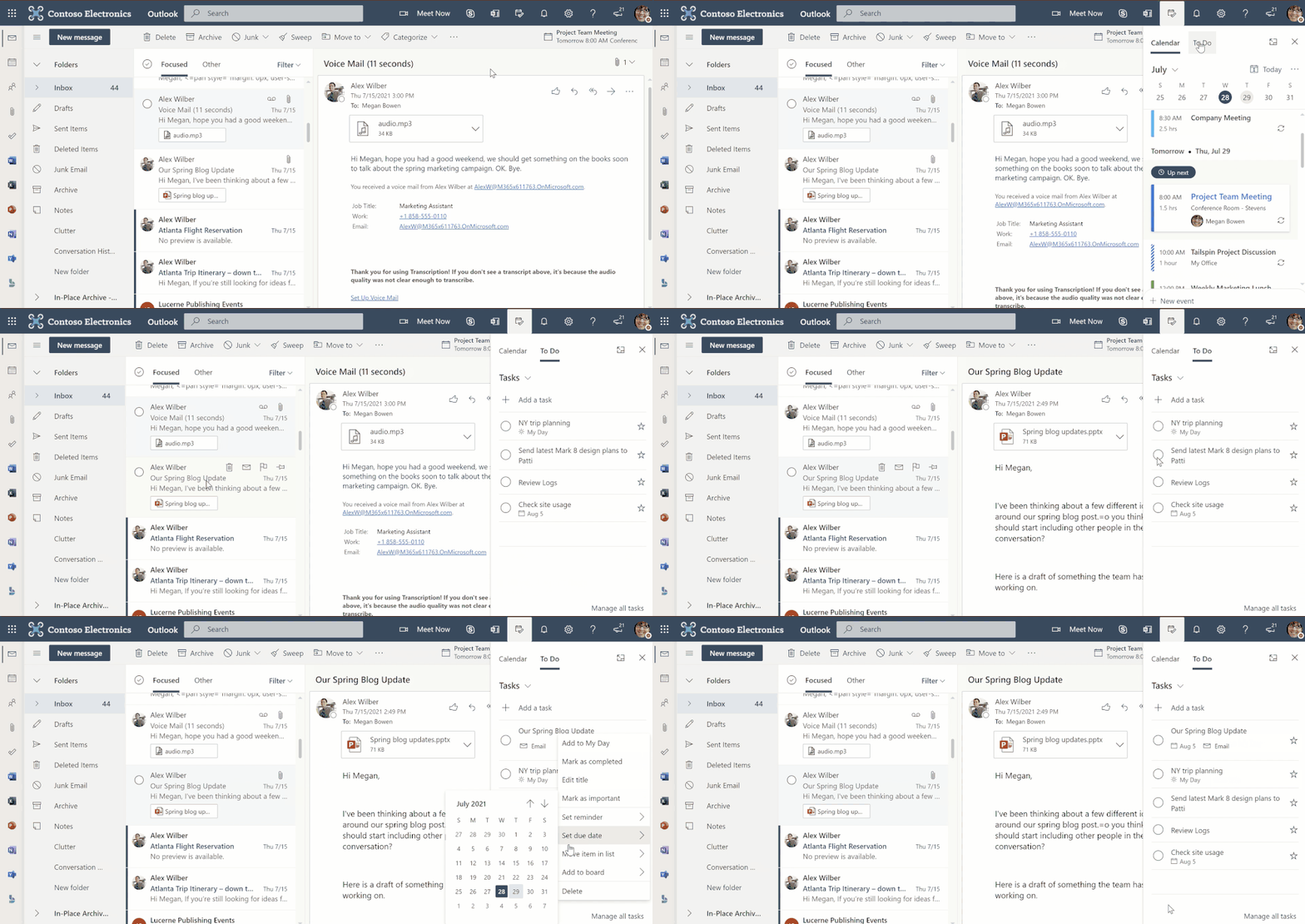
My Day side-pane in Outlook Web
Drag and drop your emails to My Day side-pane to create a task
Do most of your tasks come from emails? We’ve made it even easier to keep track. Simply drag and drop these emails to the My Day side-pane and add them as tasks in To Do or as events on your Calendar. Now you can create tasks from your emails without having to switch between multiple tabs and apps.
Tasks created this way will include a link to the relevant emails which can then be found in the task details.
Tasks created from dragged and dropped emails will be added to the default Tasks list in To Do. To add tasks to another list, select a list from the drop-down options in the To Do tab of the side-pane before dragging and dropping the email.
Drag and drop tasks to block time on your calendar
Time blocking is an effective way to get things done. With the introduction of the My Day side-pane, you now have an easy and intuitive way to block time for tasks on your calendar. Open calendar in Outlook Web, click on the My Day icon from the top header, click on To Do tab in the My Day side-pane, and simply drag and drop a task from there onto your calendar.
Select text in an email to create a task and edit it in the side-pane
Our customers also told us that dragging an entire email to create a task may not always serve their purpose, especially when the subject of the email doesn’t convey the actual task.
So we created a feature that allows you to create a task from selected text in emails. Simply select a part of the email that you want to add as a task, click on the To Do icon that will appear on top of the selected text and, voilà, a task gets created in To Do. The My Day side-pane will also open up to allow you to edit or add notes to the newly created task.
Other features of My Day side-pane
Other features available in the side-pane include the capability to:
You can access the same My Day side-pane from office.com as well!
- Add and view tasks that are due today from the Calendar tab of the side-pane.
- Right click any task in the side-pane to take additional actions such as adding a due date or a reminder to the task.
- Open the full To Do app experience on the web.
Try the feature now!
Head over to outlook.office.com and select My Day from the header. We hope this is a feature you find useful in managing your day-to-day work.
We’d love to hear your feedback. Let us know in the comments below or over on Twitter and Facebook. You can also write to us at [email protected].
Source: Stay organized in Outlook Web with a side-by-side view of your emails, calendar, and tasks - Microsoft Tech Community
My Computer
At a glance
64-bit Windows 11 Pro for WorkstationsIntel i7-8700K OC'd to 5 GHz64 GB (4x16GB) G.SKILL TridentZ RGB DDR4 3600...ASUS ROG-STRIX-GTX1080TI-O11G-GAMING
- Computer type
- PC/Desktop
- Computer Manufacturer/Model Number
- Self built custom
- OS
- 64-bit Windows 11 Pro for Workstations
- CPU
- Intel i7-8700K OC'd to 5 GHz
- Motherboard
- ASUS ROG Maximus XI Formula Z390
- Memory
- 64 GB (4x16GB) G.SKILL TridentZ RGB DDR4 3600 MHz
- Graphics Card(s)
- ASUS ROG-STRIX-GTX1080TI-O11G-GAMING
- Sound Card
- Integrated
- Monitor(s) Displays
- 2 x Samsung Odyssey G7 27"
- Screen Resolution
- 2560x1440
- Hard Drives
- 1TB Samsung 990 PRO M.2,
4TB Samsung 990 PRO PRO M.2,
TerraMaster F8 SSD Plus NAS
- PSU
- Seasonic Prime Titanium 850W
- Case
- Thermaltake Core P3
- Cooling
- Corsair Hydro H115i
- Keyboard
- Logitech wireless K800
- Mouse
- Logitech MX Master 4
- Internet Speed
- 2 Gb/s Download and 100 Mb/s Upload
- Antivirus
- Malwarebyte Anti-Malware Premium
- Browser
- Google Chrome
- Other Info
- Logitech Z625 speaker system,
Logitech BRIO 4K Pro webcam,
HP Color LaserJet Pro MFP M477fdn,
APC SMART-UPS RT 1000 XL - SURT1000XLI,
Galaxy S23 Plus phone

