Partition / disk for dual XP/ 7

Bobthebass

New member
Local time
1:44 PM
Messages
15
Location
Glasgow
I am currently running XP and want to retain it as a dual boot when I install Win7 (still phobic about leaving XP behind ;) )

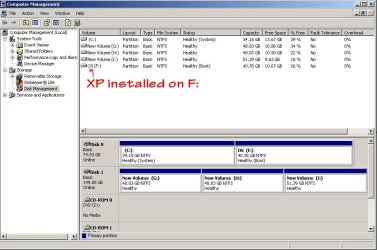
I currently have Disk 0 partitioned into C: (40 Gb) and F: (40 Gb)

XP is installed on F.

Disk management calls the c: partition a system partition (It once had 2000 installed on) and f: a boot partition.

My intention is to delete everything from c: and put Windows 7 on that.

Does that sound the right / sensible way to do it, and should it be straightforward if I follow the dual boot Win7 / XP guide from this site?

Any advice appreciated.
 

My Computer My Computer

OS
Win XP Home SP3 / Win7 Ultimate dual boot
CPU
INTEL CORE 2 DUO E6300
Motherboard
ASUS SKT-775 P5B-E PLUS
Memory
2GB DDR2 PC-5400
Graphics Card(s)
XpertVision 256MB GeF 7300GT
Sound Card
MOBO
Monitor(s) Displays
Benq V2220 21.5 LCD Monitor
Hard Drives
80 GB SATA HDD UDMA 300 7200 8MB
160 GB SATA HDD UDMA 300 7200 8MB
1Tb SATA HDD
500 Gb Western Digital MyBook Essential
Case
ThermalTake CASE MAMBO
Hello Bobthebass, welcome to Seven Forums!


Before we make any specific recommendations will you please post a snip/screen-shot of the entire disk management drive map with a full description as to which drive/partition is which, so we can see what you have going on as there may be a fairly simple way to resolve the situation.

In the Windows start menu right click computer and click manage, in the left pane of the "Computer Management" window that opens click disk management and post a maximized snip of that.


How to Upload and Post a Screenshot and File in Seven Forums
 

My Computer My Computer

Computer Manufacturer/Model Number
* BFK Customs *
OS
W 7 64-bit Ultimate
CPU
Intel Q9550 Yorkfield
Motherboard
ASUS P5Q Pro
Memory
8GB Dominator 8500C5D
Graphics Card(s)
ATI : XFX 5870
Sound Card
Realtek HD Audio 7-1
Monitor(s) Displays
1x 47" LCD HDMI & 3x 26" LCD HDMI
Screen Resolution
1920x1080P & 1920x1200
Hard Drives
1x 80GB Intel X25-M G2 SSD : 1x 500GB & 1x 640GB WD Caviar Black(s)
PSU
Corsair 620HX
Case
Cooler Master RC-690
Cooling
Tuniq Tower 120, 2x 140mm and 3x 120mm case fans
Keyboard
Microsoft 500
Mouse
Razer Diamondback 3G
Internet Speed
14 Mb/s
Other Info
1x Koutech 3Gb/s SATA HDD Hot Swap Rack
Image attached
 

Attachments

  • DiscManagement.jpg
    DiscManagement.jpg
    75.2 KB · Views: 16

My Computer My Computer

OS
Win XP Home SP3 / Win7 Ultimate dual boot
CPU
INTEL CORE 2 DUO E6300
Motherboard
ASUS SKT-775 P5B-E PLUS
Memory
2GB DDR2 PC-5400
Graphics Card(s)
XpertVision 256MB GeF 7300GT
Sound Card
MOBO
Monitor(s) Displays
Benq V2220 21.5 LCD Monitor
Hard Drives
80 GB SATA HDD UDMA 300 7200 8MB
160 GB SATA HDD UDMA 300 7200 8MB
1Tb SATA HDD
500 Gb Western Digital MyBook Essential
Case
ThermalTake CASE MAMBO
Boot the WIn7 installer to Custom install to C, using Drive Options to format the partition first as shown in these illustrated steps: Clean Install Windows 7

Since Win7 will overwrite the XP boot files which were placed on C during XP install, after WIn7 install you will need to install EasyBCD 2.02 to add XP on the Add OS tab: Accept offered XP boot files, let it autocomplete the XP drive letter, Save and restart to Dual Boot Menu. EasyBCD 2.0.2 - NeoSmart Technologies

 
Would be worth removing Disk 1, when installing Windows 7 & replace when finshed.
 

My Computer My Computer

OS
ME/XP/Vista/Win7
Back
Top