Solved Partition help - making a new system partition

thehobster

New member
Local time
1:54 AM
Messages
8
First, let me say there are many good guides here, but I'm having trouble finding the one for my situation. Any pointers to the right one would be appreciated.

I installed Windows 8 on a new hard drive some time ago. Finding I didn't like it, I created a new partition and installed Windows 7 so I could easily dual boot.

Now, I've decided I want to get rid of Windows 8 completely and recover that hard drive space.

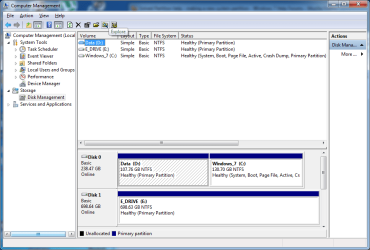
Here's what Diskmgr shows:


I want to keep C: and boot from it. I want to get rid of everything else and create a single partition of empty space. I don't mind completely deleting all the files on D: and F:. I assume I need to make C: a system partition.

Can someone point me to a guide that can assist?

Thanks!
 

My Computer My Computer

Computer type
PC/Desktop
OS
Windows 7 Ultimate 64
There are so many variables to see first that there is no tutorial but we give out the steps every day, so here they are for you:

Mark C Partition Active, boot into Win7 DVD or System Repair Disk to run http://www.sevenforums.com/tutorials/105541-startup-repair-run-3-separate-times.html until C is marked System Active Boot. This means it can now boot itself.

Now boot into http://www.partitionwizard.com/download.html bootable CD, delete all other partitions and Resize C to the left into the deleted space as shown in this video: How to Move/Resize Partition with partition manager? Partition Wizard Move/Resize Partition Video Help.. Have your DVD or Repair CD standing by as resizing on the boot sector sometimes requires Startup Repair.
 
Thanks!
 

My Computer My Computer

Computer type
PC/Desktop
OS
Windows 7 Ultimate 64
I'm obviously forgetting something. I've been through the repair process 3 times (well now about 7) and let it complete and nothing seems to be changing.

At this point, when I boot I get the error on
File: \boot\bcd
Status: 0xc0000098
Info ....valid OS entry

I launch the repair process and it completes. When I look at details, it says
Root Cause Found: Partition table does not have valid system partition.
Repair Action: Partition table repair
Result: Completed successfully. Error code 0x0

I've done the several times. This time on reboot, instead of repair I go straight to the command prompt to look at the disk.
Diskpart
Select disk 0 (I have 2 hard drives)
List Partition (shows the 3 partitions I expect from above.) They all show Primary (should one be boot or active?).
Select Partition 3 (which is C: from above)
Active
Exit
Exit
<select reboot>

Back to the 0xc0000098 error.

I assume now it's the boot partiiton not being found, but I can't figure out how to set the boot partition. I've tried
bootrec.exe /fixboot - Element not found
bootrec.exe /fixmbr - completed successfully
bootsect.exe /nt60 ALL /force - Successful

Reboot - still getting the 0xc0000098 error.

Run starup repair 3 more times in a row.

Same result - 0xc00098

Man I feel like a newb...
 

My Computer My Computer

Computer type
PC/Desktop
OS
Windows 7 Ultimate 64
Decided I'd try to get back to where I was. This time, I used Diskpart to set the D: partition as active. Then I went through repair 3 times, and I'm back up and running.

I must have missed a step along the way. When I set the C: as active, is there something I need to do to copy over the boot data? Keep in mind the I renamed the drives, so strictly speaking D: was partition 1 and c: was partition 3.
 
Last edited:

My Computer My Computer

Computer type
PC/Desktop
OS
Windows 7 Ultimate 64
Looks like I skipped the part where I actually copy the boot manager to the new drive.

bcdboot with /s option fixed me up.
 

My Computer My Computer

Computer type
PC/Desktop
OS
Windows 7 Ultimate 64
The repair utility should write the System boot files to the Active partition if it doesn't find them to repair first. So something else must have been interfering on the HD. Have you had GRUB on there before?

Now that C will boot itself and is labeled System Active, you can delete the other partitions to resize C to the left with Partition Wizard boot CD. Have the disk standing by as sometimes repairs are necessary during resizing on the boot sector. In your case with the earlier problems I'd also back up a Win7 System Image: Backup Complete Computer - Create an Image Backup
 
No other boot loaders or such, but there are 2 physical hard drives in the computer which may have been confusing it. None the less, I'm all set. Repartition worked easily and already had a system backup from yesterday before I started. Your help is appreciated.
 

My Computer My Computer

Computer type
PC/Desktop
OS
Windows 7 Ultimate 64
Often we can spot something to be considered. In this case it is that you took 100gb from the outside edge of your HD to place your data. This is the area which receives the fastest reads/writes since it is closest to where the reader parks, so it's optimal to place the OS on the outside edge, or left side in Disk Mgmt.

Had you told us you wanted to include a data partiition we would have advised to grab and slide the C partition over to the left in Partition Wizard to make space for your data drive on the right.

This is why I asked. We are thorough like that here. It's one of the reasons why we are the top tech forums on the web. :geek:
 
Wow. Never thought about that. But in this case I think it's going to work out well. The data partition actually is holding a virtual machine for my work desktop. So instead of traveling with 2 laptops (personal and work), I put a virtual desktop on the Data drive, and since it's there I guess it will perform better than on the other side which is all goodness.

You guys are pretty smart :D
 

My Computer My Computer

Computer type
PC/Desktop
OS
Windows 7 Ultimate 64
Back
Top