Partition or Volume - Delete

How to Delete a Partition or Volume in Windows 7 and Windows 8


   Information
This will show you how to delete a partition or volume on a hard disk using Disk Management or Diskpart in Windows 7 and Windows 8 to create empty unallocated space that you can use to create new partitions with.

   Note


  • You will not be able to delete the Windows partition that you are currently logged in to. The only way would be to delete it at boot or during a Windows installation.
  • You also can't delete the system partition, boot partition, or any partition that contains the virtual memory paging file, because Windows needs this information to startup and run properly.
   Warning

  • You must be logged on in an administrator account to be able to do this tutorial.
  • When you delete a partition, all data on the partition is erased.
  • If you disable the Disk Defragmenter service, then you will get the error below when you try to do anything in Disk Management. If you get this error, then make sure that the Disk Defragmenter service is set to only Manual.
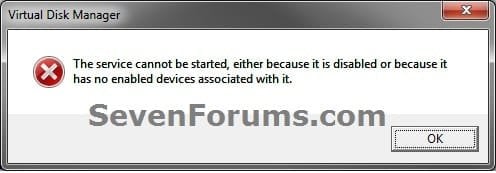
Error.jpg


OPTION ONE

To Delete Partition or Volume using Disk Management

1. Press the Windows + R keys to open the Run dialog, type diskmgmt.msc, and Press Enter.

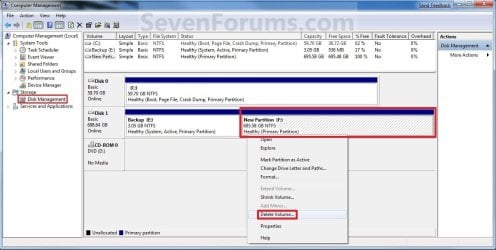
2. In the middle pane, right click on the partition of a disk that you want to delete, and click/tap on Delete Volume. (see screenshot below)
NOTE: If the partition is a logical partition, then you will need to delete the free space again to have it as unallocated space. Delete_Step1.jpg3. Click/tap on Yes to confirm deletion. (see screenshot below) Delete_Step2.jpg
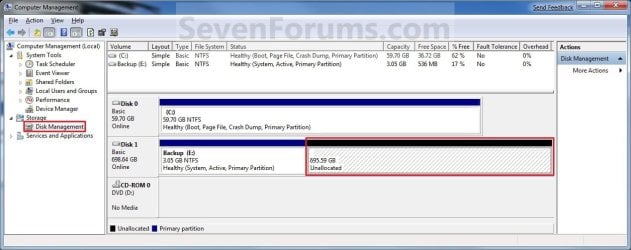
4. The selected partition (step 2) is now deleted and is unallocated space on the disk. If not, then delete the partition again until it displays as unallocated space like below. (see screenshot below)
NOTE: You can now use this unallocated space to create a new partition with, or extend another adjacent partition on that same hard disk into it. Delete_Step3.jpg
5. You can now close Disk Management if you like.


OPTION TWO

To Delete Partition or Volume using Diskpart Command

1. Open an elevated command prompt in Windows 7 or Windows 8, or a command prompt at boot in Windows 7 and Windows 8.

2. In the command prompt, type diskpart and press Enter. (See screenshot below) CMD_Delete_Step1.jpg
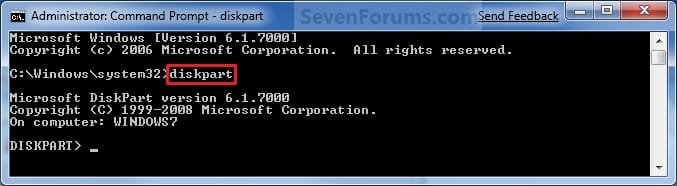
3. In the command prompt, type list volume and press Enter. (See screenshot below)
NOTE: This will give you a list of volume numbers to select from to delete. CMD_Delete_Step2.jpg
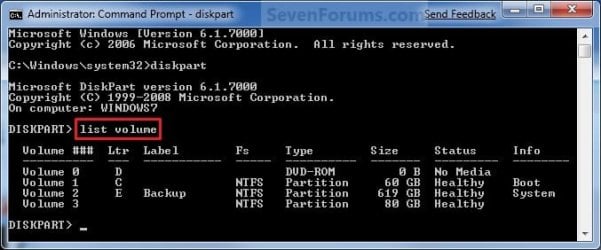
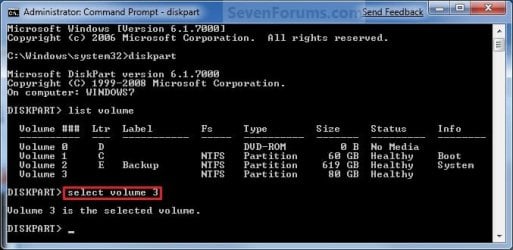
4. In the command prompt, type select volume # and press Enter. (See screenshot below)
NOTE: You would substitute # for the volume number listed that you want to delete. For example, I want to delete the listed volume 3, so I would type select volume 3 and press Enter. CMD_Delete_Step3.jpg
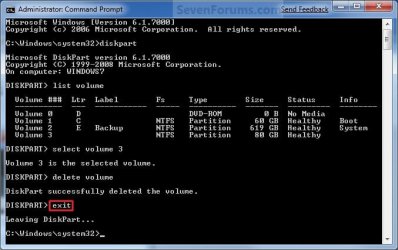
5. In the command prompt, type delete volume and press Enter. (See screenshot below)
NOTE: If it fails to delete, then use type delete volume override and press enter instead. CMD_Delete_Step4.jpg
6. In the command prompt, type exit and press Enter. (See screenshot below) CMD_Delete_Step5.jpg
7. Close the command prompt.

8. The selected partition (step 4) is now deleted and is unallocated space on the disk.
NOTE: You can use this unallocated space to create a new partition with, or extend another partition on that same hard disk into it.
That's it,
Shawn


Last edited:
Glad you got it sorted, thanks for the update.
 

My Computer

Computer Manufacturer/Model Number
* BFK Customs *
OS
W 7 64-bit Ultimate
CPU
Intel Q9550 Yorkfield
Motherboard
ASUS P5Q Pro
Memory
8GB Dominator 8500C5D
Graphics Card(s)
ATI : XFX 5870
Sound Card
Realtek HD Audio 7-1
Monitor(s) Displays
1x 47" LCD HDMI & 3x 26" LCD HDMI
Screen Resolution
1920x1080P & 1920x1200
Hard Drives
1x 80GB Intel X25-M G2 SSD : 1x 500GB & 1x 640GB WD Caviar Black(s)
PSU
Corsair 620HX
Case
Cooler Master RC-690
Cooling
Tuniq Tower 120, 2x 140mm and 3x 120mm case fans
Keyboard
Microsoft 500
Mouse
Razer Diamondback 3G
Internet Speed
14 Mb/s
Other Info
1x Koutech 3Gb/s SATA HDD Hot Swap Rack
no Problem! take care@!
 

My Computers

System One System Two

  • Computer type
    PC/Desktop
    Computer Manufacturer/Model Number
    PowerSpec G164
    OS
    WIN10
    CPU
    AMD Ryzen 5 3600 6-Core Processor 3.59 GHz
    Memory
    16.0 GB
    Internet Speed
    VERY FAST>>>!!!
  • Antivirus
    ESET Security Premium
Hi there,

Just got my new laptop with OS Windows 7 64-bit. Stumbled upon this thread when I was searching for more information on partition - this site is great for Win 7 newbies like me ;)

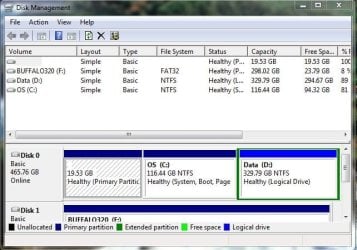
I have a question. When I am at the Disk Management page, I noticed that I have an empty partition with free space 19.53 GB.

partition.JPG

When I right-click the partition, the only options available are Delete volume and Help. If I click Delete, it shows me a dialog box as below.

partition 02.JPG

1) Is it safe for me to delete it?

2) After delete, will it become unallocated space? I would like to either create a new volume or extend it to my existing partitions.

Thanks! :cool:
 

My Computer

OS
Windows 7 Home Premium 64bit
Looks like a recovery partition. Used to re-install Windows if things go south.

Not a good Ideal to delete it. What's the brand/model number of that laptop.
 

My Computers

System One System Two

  • Computer type
    PC/Desktop
    Computer Manufacturer/Model Number
    PowerSpec G164
    OS
    WIN10
    CPU
    AMD Ryzen 5 3600 6-Core Processor 3.59 GHz
    Memory
    16.0 GB
    Internet Speed
    VERY FAST>>>!!!
  • Antivirus
    ESET Security Premium
Looks like a recovery partition. Used to re-install Windows if things go south.

Not a good Ideal to delete it. What's the brand/model number of that labtop.

Wow that was quick :p I am using ASUS A42JV. Is it a mirror image of my factory setting Windows 7, hence the large size? My laptop is equipped with AI Recovery Burner software, is that the source of my Windows backup?
 

My Computer

OS
Windows 7 Home Premium 64bit
You still want to delete it? I'm going to do some research on the recovery options for your labtop, never a good idea to remove backup stuff.

Did you get an installation disc of Windows with your laptop?
 

My Computers

System One System Two

  • Computer type
    PC/Desktop
    Computer Manufacturer/Model Number
    PowerSpec G164
    OS
    WIN10
    CPU
    AMD Ryzen 5 3600 6-Core Processor 3.59 GHz
    Memory
    16.0 GB
    Internet Speed
    VERY FAST>>>!!!
  • Antivirus
    ESET Security Premium
You still want to delete it? I'm going to do some research on the recovery options for your labtop, never a good idea to remove backup stuff.

Did you get an installation disc of Windows with your laptop?

I will only delete / extend the free space it if it's safe to do so ;) I did not get any installation disc for my Windows.
 

My Computer

OS
Windows 7 Home Premium 64bit
Well, since no one else has pass through I can't say for sure whether or not that's a recovery partition.

If it's a recovery partition and you delete it without having an installation disc, you will have no recovery options.

If you MUST delete that partition and gain that space, here's another option.

Do a FULL virus/malware scan and once you finish run a system defrag.

Then download and install Macrium Reflect Free Edition. Create a system image of your C Drive (OS) and save it to the DATA partition or better yet an external drive if possible. (KEEP it SAFE)
Imaging with free Macrium - Windows 7 Forums

Then using: Partition Wizard : Use the Bootable CD - Windows 7 Forums
Boot for CD delete that first partition (19.53GB) and move the C partition to the left to gain the space.

P.S. I really wouldn't recommend deleting that partition unless I knew it was safe too, or at the VERY least have an installation disc.
 

My Computers

System One System Two

  • Computer type
    PC/Desktop
    Computer Manufacturer/Model Number
    PowerSpec G164
    OS
    WIN10
    CPU
    AMD Ryzen 5 3600 6-Core Processor 3.59 GHz
    Memory
    16.0 GB
    Internet Speed
    VERY FAST>>>!!!
  • Antivirus
    ESET Security Premium
Well, since no one else has pass through I can't say for sure whether or not that's a recovery partition.

If it's a recovery partition and you delete it without having an installation disc, you will have no recovery options.

If you MUST delete that partition and gain that space, here's another option.

Do a FULL virus/malware scan and once you finish run a system defrag.

Then download and install Macrium Reflect Free Edition. Create a system image of your C Drive (OS) and save it to the DATA partition or better yet an external drive if possible. (KEEP it SAFE)
Imaging with free Macrium - Windows 7 Forums

Then using: Partition Wizard : Use the Bootable CD - Windows 7 Forums
Boot for CD delete that first partition (19.53GB) and move the C partition to the left to gain the space.

P.S. I really wouldn't recommend deleting that partition unless I knew it was safe too, or at the VERY least have an installation disc.

Thanks eldinv! :cool: I will image my OS first for backup before trying anything.
Another question, why do I need the recovery partition if I had imaged my OS and created a system repair disc?
 

My Computer

OS
Windows 7 Home Premium 64bit
It's an extra level of protection. It's like a backup to your backup image.

If you had done what I learn from WHS the creator of the tutorial: Imaging with free Macrium - Windows 7 Forums

Create an image, directly after installing the OS, before installing drivers, windows updates or even activation, then I would say go ahead and kill the recovery option/partition.

But since you will be imaging from a different point, post activation and application, possibly a virus- the image will carry all of this.

If you created an image with windows backup and created your system repair disc, then your fine. But won't have a "Clean" install image how I describe above.

If you lose the image then having a system repair disc won't let you re-install the OS.

Hope that helps,
Eldin
 

My Computers

System One System Two

  • Computer type
    PC/Desktop
    Computer Manufacturer/Model Number
    PowerSpec G164
    OS
    WIN10
    CPU
    AMD Ryzen 5 3600 6-Core Processor 3.59 GHz
    Memory
    16.0 GB
    Internet Speed
    VERY FAST>>>!!!
  • Antivirus
    ESET Security Premium
It's an extra level of protection. It's like a backup to your backup image.

If you had done what I learn from WHS the creator of the tutorial: Imaging with free Macrium - Windows 7 Forums

Create an image, directly after installing the OS, before installing drivers, windows updates or even activation, then I would say go ahead and kill the recovery option/partition.

But since you will be imaging from a different point, post activation and application, possibly a virus- the image will carry all of this.

If you created an image with windows backup and created your system repair disc, then your fine. But won't have a "Clean" install image how I describe above.

If you lose the image then having a system repair disc won't let you re-install the OS.

Hope that helps,
Eldin

OK I got it. I will create a clean install image next time if I happen to format my Windows. For now, I'll just leave the partition and image / backup my OS and files regularly. Thanks! :D
 

My Computer

OS
Windows 7 Home Premium 64bit
Love this thread! Has helped me with my new laptop purchase (with Windows 7 Home Premium!). Massive difference to the days of using Windows XP!

However, just with deleting the volume from one of my drives (I have an F and G drive that I wish to combine into just the one drive)... I click on "Yes" to delete volume from the G drive and it then comes up with a message saying:
"SDATA (G: ) Simple Volume is currently in use. To force the deletion click YES.
WARNING: Forcing a deletion might cause unexpected errors in the application that is using this partition. Do you want to continue?"

The same message appears when I try doing the same thing to the F drive.
I have nothing running in the background. I'm a bit cautious of proceeding so would like some help with whether it's ok to continue with deleting the volume or not.

Cheers!
 

My Computer

Computer Manufacturer/Model Number
ASUS K72JR
OS
Windows 7 Home Premium 64-bit
CPU
Intel Core i5
Love this thread! Has helped me with my new laptop purchase (with Windows 7 Home Premium!). Massive difference to the days of using Windows XP!

However, just with deleting the volume from one of my drives (I have an F and G drive that I wish to combine into just the one drive)... I click on "Yes" to delete volume from the G drive and it then comes up with a message saying:
"SDATA (G: ) Simple Volume is currently in use. To force the deletion click YES.
WARNING: Forcing a deletion might cause unexpected errors in the application that is using this partition. Do you want to continue?"

The same message appears when I try doing the same thing to the F drive.
I have nothing running in the background. I'm a bit cautious of proceeding so would like some help with whether it's ok to continue with deleting the volume or not.

Cheers!

I bit the bullet and proceeded (deleted volume from Drive G).
Followed it up by extending the volume of Drive F... appears to have worked.

While I'm here, and so as not to seem completely useless in this thread, I have a "DATA (D: )" drive that is a logical drive. It has nothing in it (329GB free space) except for an 884KB file called "msdia80.dll". Suggestions?
 

My Computer

Computer Manufacturer/Model Number
ASUS K72JR
OS
Windows 7 Home Premium 64-bit
CPU
Intel Core i5
Hello Mikey, and welcome to Seven Forums.

Here's some more information about the msdia.80.dll file at the link below.

The Msdia80.dll file is installed in the root folder of the boot drive when you install the Visual C++ 2005 Redistributable Package by using the Vcredist_x64.exe file or the Vcredist_ia64.exe file

Before doing anything with it, please post a screenshot of your Disk Management (diskmgmt.msc) window showing all of your drives layout. Due to the description at the link, I just wanted to make sure that this is not a boot drive before you delete it. :)

Hope this helps for now,
Shawn
 

My Computer

Computer type
PC/Desktop
Computer Manufacturer/Model Number
Self built custom
OS
64-bit Windows 11 Pro for Workstations
CPU
Intel i7-8700K OC'd to 5 GHz
Motherboard
ASUS ROG Maximus XI Formula Z390
Memory
64 GB (4x16GB) G.SKILL TridentZ RGB DDR4 3600 MHz
Graphics Card(s)
ASUS ROG-STRIX-GTX1080TI-O11G-GAMING
Sound Card
Integrated
Monitor(s) Displays
2 x Samsung Odyssey G7 27"
Screen Resolution
2560x1440
Hard Drives
1TB Samsung 990 PRO M.2,
4TB Samsung 990 PRO PRO M.2,
TerraMaster F8 SSD Plus NAS
PSU
Seasonic Prime Titanium 850W
Case
Thermaltake Core P3
Cooling
Corsair Hydro H115i
Keyboard
Logitech wireless K800
Mouse
Logitech MX Master 4
Internet Speed
2 Gb/s Download and 100 Mb/s Upload
Antivirus
Malwarebyte Anti-Malware Premium
Browser
Google Chrome
Other Info
Logitech Z625 speaker system,
Logitech BRIO 4K Pro webcam,
HP Color LaserJet Pro MFP M477fdn,
APC SMART-UPS RT 1000 XL - SURT1000XLI,
Galaxy S23 Plus phone
G'day Brink.
Here is the screenshot of my Disk Management (noting that I have since deleted a Drive G and subsequently extended the volume of Drive F).

Also I have NO PLANS on deleting Drive D at all. Just curious on its function as I made a Recovery DVD myself and nothing is stored on the D drive...
 

My Computer

Computer Manufacturer/Model Number
ASUS K72JR
OS
Windows 7 Home Premium 64-bit
CPU
Intel Core i5
It appears to be safe to delete the msdia80.dll file if you like. To be safe, leave it in the Recycle Bin for a few days to make sure that deleting it did not cause a issue. This way it will be easy to restore if so.
 

My Computer

Computer type
PC/Desktop
Computer Manufacturer/Model Number
Self built custom
OS
64-bit Windows 11 Pro for Workstations
CPU
Intel i7-8700K OC'd to 5 GHz
Motherboard
ASUS ROG Maximus XI Formula Z390
Memory
64 GB (4x16GB) G.SKILL TridentZ RGB DDR4 3600 MHz
Graphics Card(s)
ASUS ROG-STRIX-GTX1080TI-O11G-GAMING
Sound Card
Integrated
Monitor(s) Displays
2 x Samsung Odyssey G7 27"
Screen Resolution
2560x1440
Hard Drives
1TB Samsung 990 PRO M.2,
4TB Samsung 990 PRO PRO M.2,
TerraMaster F8 SSD Plus NAS
PSU
Seasonic Prime Titanium 850W
Case
Thermaltake Core P3
Cooling
Corsair Hydro H115i
Keyboard
Logitech wireless K800
Mouse
Logitech MX Master 4
Internet Speed
2 Gb/s Download and 100 Mb/s Upload
Antivirus
Malwarebyte Anti-Malware Premium
Browser
Google Chrome
Other Info
Logitech Z625 speaker system,
Logitech BRIO 4K Pro webcam,
HP Color LaserJet Pro MFP M477fdn,
APC SMART-UPS RT 1000 XL - SURT1000XLI,
Galaxy S23 Plus phone
It appears to be safe to delete the msdia80.dll file if you like. To be safe, leave it in the Recycle Bin for a few days to make sure that deleting it did not cause a issue. This way it will be easy to restore if so.
Cheers! I will do that :)

Any idea what the D Drive is for?? Is it there as a Recovery Drive? If so, seeing as I have created a Recovery DVD ( discs worth!!!), am I able to safely combine this with my Drive F partition?
 

My Computer

Computer Manufacturer/Model Number
ASUS K72JR
OS
Windows 7 Home Premium 64-bit
CPU
Intel Core i5
The D: partition looks like it was you OEM restore Drivers and Applications partition. The 19.53 GB partition looks like your OEM Windows 7 factory restore partition. I hope that you also created a "OEM Drivers and Applications Recovery" DVD as well since the D: partition looks like nothing is on it.


Since the D: partition is part of Disk 0, you will only be able to add it to C: if you wanted to delete the D: partition to unallocated space. However, it appears that you may need to use the free program Partition Wizard Home Edition instead of Disk Management to be able to add the unallocated space to the C: partition.
 

My Computer

Computer type
PC/Desktop
Computer Manufacturer/Model Number
Self built custom
OS
64-bit Windows 11 Pro for Workstations
CPU
Intel i7-8700K OC'd to 5 GHz
Motherboard
ASUS ROG Maximus XI Formula Z390
Memory
64 GB (4x16GB) G.SKILL TridentZ RGB DDR4 3600 MHz
Graphics Card(s)
ASUS ROG-STRIX-GTX1080TI-O11G-GAMING
Sound Card
Integrated
Monitor(s) Displays
2 x Samsung Odyssey G7 27"
Screen Resolution
2560x1440
Hard Drives
1TB Samsung 990 PRO M.2,
4TB Samsung 990 PRO PRO M.2,
TerraMaster F8 SSD Plus NAS
PSU
Seasonic Prime Titanium 850W
Case
Thermaltake Core P3
Cooling
Corsair Hydro H115i
Keyboard
Logitech wireless K800
Mouse
Logitech MX Master 4
Internet Speed
2 Gb/s Download and 100 Mb/s Upload
Antivirus
Malwarebyte Anti-Malware Premium
Browser
Google Chrome
Other Info
Logitech Z625 speaker system,
Logitech BRIO 4K Pro webcam,
HP Color LaserJet Pro MFP M477fdn,
APC SMART-UPS RT 1000 XL - SURT1000XLI,
Galaxy S23 Plus phone
The D: partition looks like it was you OEM restore Drivers and Applications partition. The 19.53 GB partition looks like your OEM Windows 7 factory restore partition. I hope that you also created a "OEM Drivers and Applications Recovery" DVD as well since the D: partition looks like nothing is on it.


Since the D: partition is part of Disk 0, you will only be able to add it to C: if you wanted to delete the D: partition to unallocated space. However, it appears that you may need to use the free program Partition Wizard Home Edition instead of Disk Management to be able to add the unallocated space to the C: partition.
All I did was create a backup system restore DVD ( 5 discs worth) as was suggested by my laptop as soon as it started up for the first time!
I have no clue about a "OEM Drivers and Applications Recovery" DVD... :/

I will try the Freeware program and use that to combine my D Drive with the C Drive. Thanks.

Is it appropriate to rename the blank partition (supposedly with the Windows 7 Restore) "RESTORE"?

Appreciating your help! I'm new to the partitioning concept.
 

My Computer

Computer Manufacturer/Model Number
ASUS K72JR
OS
Windows 7 Home Premium 64-bit
CPU
Intel Core i5
Unless you just really need the HDD space, I would recommend to leave the blank (no drive letter) 19.53 GB partition alone since this is your OEM recovery drive. Creating a set of recovery DVDs is great. However, DVD's are more likely to fail than a parition, so it's best to have both in case either one fails.
 

My Computer

Computer type
PC/Desktop
Computer Manufacturer/Model Number
Self built custom
OS
64-bit Windows 11 Pro for Workstations
CPU
Intel i7-8700K OC'd to 5 GHz
Motherboard
ASUS ROG Maximus XI Formula Z390
Memory
64 GB (4x16GB) G.SKILL TridentZ RGB DDR4 3600 MHz
Graphics Card(s)
ASUS ROG-STRIX-GTX1080TI-O11G-GAMING
Sound Card
Integrated
Monitor(s) Displays
2 x Samsung Odyssey G7 27"
Screen Resolution
2560x1440
Hard Drives
1TB Samsung 990 PRO M.2,
4TB Samsung 990 PRO PRO M.2,
TerraMaster F8 SSD Plus NAS
PSU
Seasonic Prime Titanium 850W
Case
Thermaltake Core P3
Cooling
Corsair Hydro H115i
Keyboard
Logitech wireless K800
Mouse
Logitech MX Master 4
Internet Speed
2 Gb/s Download and 100 Mb/s Upload
Antivirus
Malwarebyte Anti-Malware Premium
Browser
Google Chrome
Other Info
Logitech Z625 speaker system,
Logitech BRIO 4K Pro webcam,
HP Color LaserJet Pro MFP M477fdn,
APC SMART-UPS RT 1000 XL - SURT1000XLI,
Galaxy S23 Plus phone
Back
Top