Partition or Volume - Delete

How to Delete a Partition or Volume in Windows 7 and Windows 8


   Information
This will show you how to delete a partition or volume on a hard disk using Disk Management or Diskpart in Windows 7 and Windows 8 to create empty unallocated space that you can use to create new partitions with.

   Note


  • You will not be able to delete the Windows partition that you are currently logged in to. The only way would be to delete it at boot or during a Windows installation.
  • You also can't delete the system partition, boot partition, or any partition that contains the virtual memory paging file, because Windows needs this information to startup and run properly.
   Warning

  • You must be logged on in an administrator account to be able to do this tutorial.
  • When you delete a partition, all data on the partition is erased.
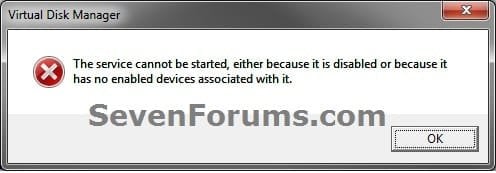
  • If you disable the Disk Defragmenter service, then you will get the error below when you try to do anything in Disk Management. If you get this error, then make sure that the Disk Defragmenter service is set to only Manual.
Error.jpg


OPTION ONE

To Delete Partition or Volume using Disk Management

1. Press the Windows + R keys to open the Run dialog, type diskmgmt.msc, and Press Enter.

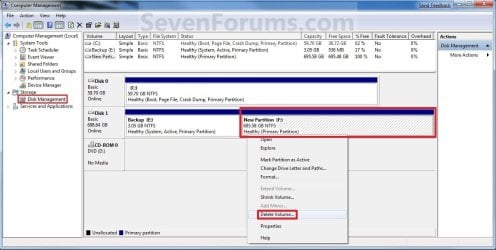
2. In the middle pane, right click on the partition of a disk that you want to delete, and click/tap on Delete Volume. (see screenshot below)
NOTE: If the partition is a logical partition, then you will need to delete the free space again to have it as unallocated space. Delete_Step1.jpg3. Click/tap on Yes to confirm deletion. (see screenshot below) Delete_Step2.jpg
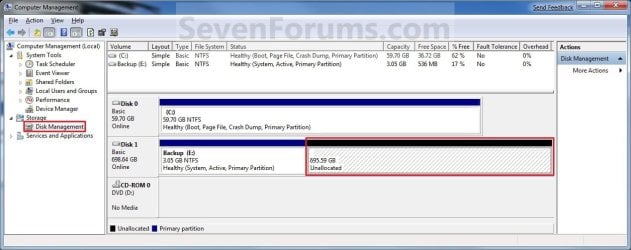
4. The selected partition (step 2) is now deleted and is unallocated space on the disk. If not, then delete the partition again until it displays as unallocated space like below. (see screenshot below)
NOTE: You can now use this unallocated space to create a new partition with, or extend another adjacent partition on that same hard disk into it. Delete_Step3.jpg
5. You can now close Disk Management if you like.


OPTION TWO

To Delete Partition or Volume using Diskpart Command

1. Open an elevated command prompt in Windows 7 or Windows 8, or a command prompt at boot in Windows 7 and Windows 8.

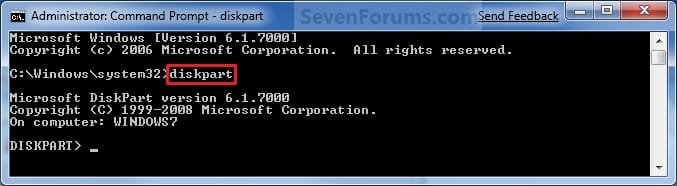
2. In the command prompt, type diskpart and press Enter. (See screenshot below) CMD_Delete_Step1.jpg
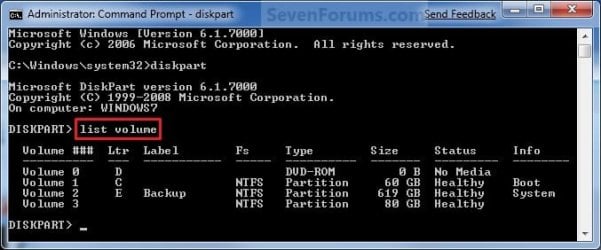
3. In the command prompt, type list volume and press Enter. (See screenshot below)
NOTE: This will give you a list of volume numbers to select from to delete. CMD_Delete_Step2.jpg
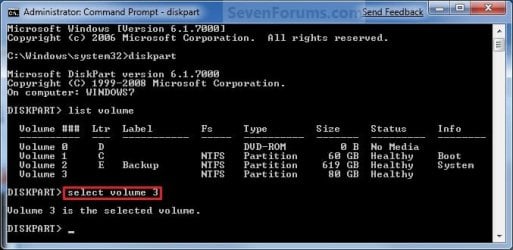
4. In the command prompt, type select volume # and press Enter. (See screenshot below)
NOTE: You would substitute # for the volume number listed that you want to delete. For example, I want to delete the listed volume 3, so I would type select volume 3 and press Enter. CMD_Delete_Step3.jpg
5. In the command prompt, type delete volume and press Enter. (See screenshot below)
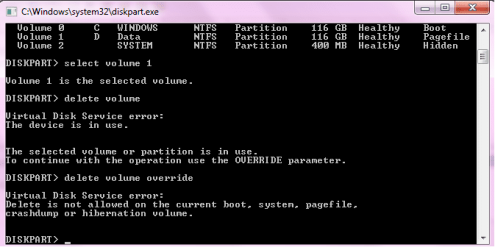
NOTE: If it fails to delete, then use type delete volume override and press enter instead. CMD_Delete_Step4.jpg
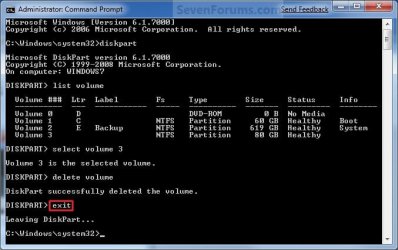
6. In the command prompt, type exit and press Enter. (See screenshot below) CMD_Delete_Step5.jpg
7. Close the command prompt.

8. The selected partition (step 4) is now deleted and is unallocated space on the disk.
NOTE: You can use this unallocated space to create a new partition with, or extend another partition on that same hard disk into it.
That's it,
Shawn


Last edited:
Hi Brink

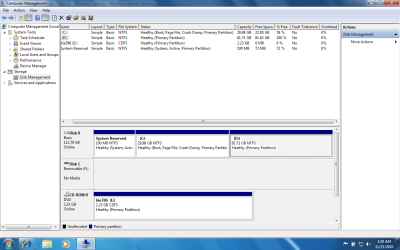
Hope you can help me. I'm running on a simmilar problem. After installing windows 7 (not the 1st time i did it w/ the same installation disc), i had a 0 MB unallocated space. Not too much of a problem actually, just annoying. Then after i tried to install it again, i had another 0 MB unallocated space..
problem is i can't delete it, even using disc management won't do cause they dont appear on the list.. very frustrated and very tired, sorry if similar question has been posted..thanx so much.
 

My Computer

OS
Windows 7 Ultimate x86
wow thanks for the quick reply, here it is..
 

Attachments

  • Untitled.png
    Untitled.png
    47.3 KB · Views: 460

My Computer

OS
Windows 7 Ultimate x86
So you want to extend your C partition, and gain the space in the D partition.
 

My Computers

System One System Two

  • Computer type
    PC/Desktop
    Computer Manufacturer/Model Number
    PowerSpec G164
    OS
    WIN10
    CPU
    AMD Ryzen 5 3600 6-Core Processor 3.59 GHz
    Memory
    16.0 GB
    Internet Speed
    VERY FAST>>>!!!
  • Antivirus
    ESET Security Premium
nope not really.. everything you saw in my screeny are fine.. exept there are 2 unallocated space with the size of 0 MB that is not present in the disc management tool..it only appears on the installation process where i have to pick what partition do i want to install windows 7.. i tried to delete it from there, but after i make a partition it appears again..
 

My Computer

OS
Windows 7 Ultimate x86
Oh, I see.

I could be wrong, but since your system reserve is in tact, then can I suggest you try deleting those empty spaces using a partition editor.

Partition Wizard : Use the Bootable CD
 

My Computers

System One System Two

  • Computer type
    PC/Desktop
    Computer Manufacturer/Model Number
    PowerSpec G164
    OS
    WIN10
    CPU
    AMD Ryzen 5 3600 6-Core Processor 3.59 GHz
    Memory
    16.0 GB
    Internet Speed
    VERY FAST>>>!!!
  • Antivirus
    ESET Security Premium
reading through, will try later.. thanks for the assistance eldinv.
 

My Computer

OS
Windows 7 Ultimate x86
Brink might have a more solid suggestions, he's the real pro and that's why he gets paid the big bucks. :D
 

My Computers

System One System Two

  • Computer type
    PC/Desktop
    Computer Manufacturer/Model Number
    PowerSpec G164
    OS
    WIN10
    CPU
    AMD Ryzen 5 3600 6-Core Processor 3.59 GHz
    Memory
    16.0 GB
    Internet Speed
    VERY FAST>>>!!!
  • Antivirus
    ESET Security Premium
Hello Ursuchascene,

I'm not sure what problem you may be having. I do not see any 0 MB partitions or unallocated space in your Disk Management screenshot. I see that you have 0 free space on your DVD E: drive though.
 

My Computer

Computer type
PC/Desktop
Computer Manufacturer/Model Number
Self built custom
OS
64-bit Windows 11 Pro for Workstations
CPU
Intel i7-8700K OC'd to 5 GHz
Motherboard
ASUS ROG Maximus XI Formula Z390
Memory
64 GB (4x16GB) G.SKILL TridentZ RGB DDR4 3600 MHz
Graphics Card(s)
ASUS ROG-STRIX-GTX1080TI-O11G-GAMING
Sound Card
Integrated
Monitor(s) Displays
2 x Samsung Odyssey G7 27"
Screen Resolution
2560x1440
Hard Drives
1TB Samsung 990 PRO M.2,
4TB Samsung 990 PRO PRO M.2,
TerraMaster F8 SSD Plus NAS
PSU
Seasonic Prime Titanium 850W
Case
Thermaltake Core P3
Cooling
Corsair Hydro H115i
Keyboard
Logitech wireless K800
Mouse
Logitech MX Master 4
Internet Speed
2 Gb/s Download and 100 Mb/s Upload
Antivirus
Malwarebyte Anti-Malware Premium
Browser
Google Chrome
Other Info
Logitech Z625 speaker system,
Logitech BRIO 4K Pro webcam,
HP Color LaserJet Pro MFP M477fdn,
APC SMART-UPS RT 1000 XL - SURT1000XLI,
Galaxy S23 Plus phone
Haha so it really does pay to do good deeds :D

Anyway eldinv, i think i've solved it. I'm not into reading last night and decided to play with reformatting and deleting my partitions using the install disc. Then after i tried to install windows 7 again the 0 MB partitions didn't persist anymore. Though i'm afraid i might be seeing these strange partitions in the future.

Hi Brink. My problem was after deleting all partitions making it a single unallocated partitions, a 0 MB unallocated space was made after i made a new 30 GB partition. At first i didn't mind it and went through with installing win 7. Then after i reformatted again and made partitions, another 0 MB unallocated space appeared. That's when it bothered me. My partitions looked like this.

Unallocated Space 0 MB
System Reserve 100 MB
Disc 1 30 GB
Disc 2 80 GB
Unallocated Space 0 MB

It doesn't look exactly like this, just wanted to show how the unallocated space appeared in this step of the installation.
 

My Computer

OS
Windows 7 Ultimate x86
Ah, I see. I'm happy to hear that you got it sorted though.
 

My Computer

Computer type
PC/Desktop
Computer Manufacturer/Model Number
Self built custom
OS
64-bit Windows 11 Pro for Workstations
CPU
Intel i7-8700K OC'd to 5 GHz
Motherboard
ASUS ROG Maximus XI Formula Z390
Memory
64 GB (4x16GB) G.SKILL TridentZ RGB DDR4 3600 MHz
Graphics Card(s)
ASUS ROG-STRIX-GTX1080TI-O11G-GAMING
Sound Card
Integrated
Monitor(s) Displays
2 x Samsung Odyssey G7 27"
Screen Resolution
2560x1440
Hard Drives
1TB Samsung 990 PRO M.2,
4TB Samsung 990 PRO PRO M.2,
TerraMaster F8 SSD Plus NAS
PSU
Seasonic Prime Titanium 850W
Case
Thermaltake Core P3
Cooling
Corsair Hydro H115i
Keyboard
Logitech wireless K800
Mouse
Logitech MX Master 4
Internet Speed
2 Gb/s Download and 100 Mb/s Upload
Antivirus
Malwarebyte Anti-Malware Premium
Browser
Google Chrome
Other Info
Logitech Z625 speaker system,
Logitech BRIO 4K Pro webcam,
HP Color LaserJet Pro MFP M477fdn,
APC SMART-UPS RT 1000 XL - SURT1000XLI,
Galaxy S23 Plus phone
E3Gbx.jpg


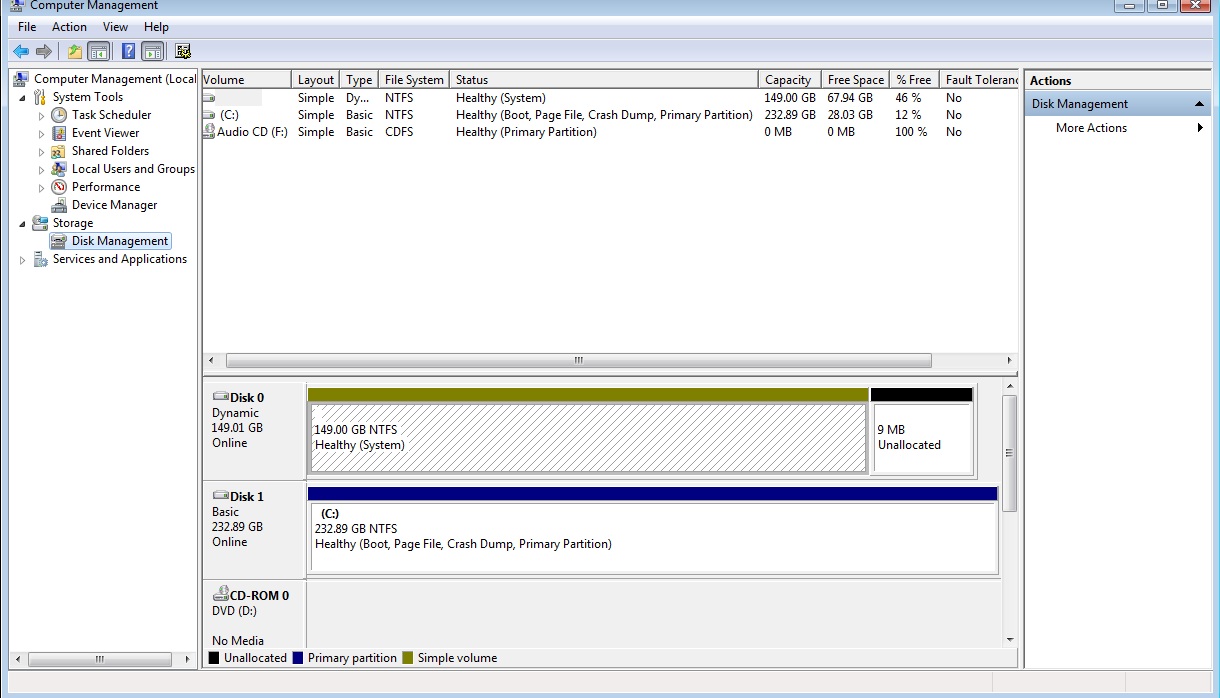
Hello, I am trying to delete disk 0. I cannot delete disk 0 because it set as a "system" disk. How can i remove this title from the disk in order to remove it. Thanks in advance for all your help. I sure hope someone still responds to this thread.
 
Last edited by a moderator:

My Computer

OS
7
hi.jpg
E3Gbx.jpg


Hello, I am trying to delete disk 0. I cannot delete disk 0 because it set as a "system" disk. How can i remove this title from the disk in order to remove it. Thanks in advance for all your help. I sure hope someone still responds to this thread.
Hello,

Yes, we are still active. :)

Try booting into a command prompt, and deleting the volume using Diskpart.

Boot to your Windows DVD or repair disc; if you don't have either, create one: http://www.sevenforums.com/tutorials/2083-system-repair-disc-create.html

Select "repair my computer", and open a command prompt. Enter the following commands:
Code:
diskpart
list disk
Make note of the number of the 150GB drive, and substitute that number for "n" in the commands below.
Code:
select disk n
clean
exit
exit
That should do the trick.
 

My Computer

Computer Manufacturer/Model Number
Custom
OS
Windows 7 Professional x64
CPU
Intel i7 2600K OC'd @ 4620 MHz
Motherboard
Asus P8Z68-V Pro
Memory
16GB GSkill Sniper 2133 Mhz (4x4GB)
Graphics Card(s)
EVGA GeForce GTX 480 SuperClocked+
Sound Card
Realtek High Definition Audio
Monitor(s) Displays
2x Acer S273HLbmii 27"
Screen Resolution
2 x 1920x1080
Hard Drives
64GB Crucial M4 SSD

Storage: Hitachi 1TB 5400RPM, Samsung 1.5TB 5400RPM
PSU
Corsair HW Series 750w (modular)
Case
Cooler Master HAF 932 Advanced Blue Edition
Cooling
CM Hyper 212+ CPU cooler, 3x 230mm + 1x 140mm case fans
Keyboard
Logitech MK320 (wireless)
Mouse
Logitech MK320 (wireless)
Internet Speed
30 Mb/s : 2 Mb/s
"Clean is not allowed on the disk containing the current boot, system, pagefile, crashdump or hibernation value."

WAT DO

thanks
 

My Computer

OS
7
Hello Holtlol, and welcome to Seven Forums.

It sounds like you may have tried to Clean "Disk 1" instead of "Disk 0" by mistake. Double check to make sure that you have the correct disk # selected compared to it's size.
 

My Computer

Computer type
PC/Desktop
Computer Manufacturer/Model Number
Self built custom
OS
64-bit Windows 11 Pro for Workstations
CPU
Intel i7-8700K OC'd to 5 GHz
Motherboard
ASUS ROG Maximus XI Formula Z390
Memory
64 GB (4x16GB) G.SKILL TridentZ RGB DDR4 3600 MHz
Graphics Card(s)
ASUS ROG-STRIX-GTX1080TI-O11G-GAMING
Sound Card
Integrated
Monitor(s) Displays
2 x Samsung Odyssey G7 27"
Screen Resolution
2560x1440
Hard Drives
1TB Samsung 990 PRO M.2,
4TB Samsung 990 PRO PRO M.2,
TerraMaster F8 SSD Plus NAS
PSU
Seasonic Prime Titanium 850W
Case
Thermaltake Core P3
Cooling
Corsair Hydro H115i
Keyboard
Logitech wireless K800
Mouse
Logitech MX Master 4
Internet Speed
2 Gb/s Download and 100 Mb/s Upload
Antivirus
Malwarebyte Anti-Malware Premium
Browser
Google Chrome
Other Info
Logitech Z625 speaker system,
Logitech BRIO 4K Pro webcam,
HP Color LaserJet Pro MFP M477fdn,
APC SMART-UPS RT 1000 XL - SURT1000XLI,
Galaxy S23 Plus phone
Following Brink's advice check that you are attempting to clean Disk 0. If no success then the following is likely to be the situation:

Disk 0 is still "System" meaning it contains boot files. The OS on C: is being booted through System on Disk 0 and hence the message you receive when trying to delete it.

Then
(1) make disk 1 Active.
(2) Disconnect the sata cable from disk 0 and connect it to disk 1, leaving the original disk 0 (the dynamic disk) disconnected.
(3) Run Startup repair 3 times.
"Disk 1, C:", now should then be (System, active, Boot...) and booting up by itself.
(4) Connect the old disk 0 by the sata disk 1 cable.
Then you can perform the operations on the "old Disk 0" now seen as Disk 1. I am guessing you want to make it a Basic disk again instead of dynamic.

Before sata cable changes make sure your PC is powered down.

You can always create a separate System Reserved partition on C: later if you want. In fact many people prefer not to have it.
 
Last edited:

My Computer

Computer type
PC/Desktop
Computer Manufacturer/Model Number
Own build
OS
Windows 7x64 Home Premium SP1
CPU
Intel i7 2600k
Motherboard
ASUS P8Z68 Deluxe
Memory
G.Skill Ripjaws (DDR3-1600) 2x4GB
Graphics Card(s)
Nvidia GeForce GTS 450; Intel HD Graphics 3000(GT2+)
Monitor(s) Displays
Dell Ultrasharp IPS panel U2311H, Samsung SyncMaster P2350
Screen Resolution
1920x1080
Hard Drives
Samsung 850 Pro SSD 256GB, Samsung SSD 840 120GB, Seagates 1TB Barracuda ST31000528AS x2
PSU
Seasonic M12II 520W
Case
Lian Li Lancool PC-K60
Cooling
Case: 1x120mm, 3x140mm CPU: Hyper 212+
Keyboard
Logitech MK520 (wireless)
Mouse
Logitech MK520
Internet Speed
6-7 Mbps
Antivirus
Norton Security Premium, Malwarebytes on 2 (MSE on 3rd PC)
Browser
FireFox
Other Info
Audio: Logitech Z523 2.1
If the issue has been resolved - feedback would be useful.
 

My Computer

Computer type
PC/Desktop
Computer Manufacturer/Model Number
Own build
OS
Windows 7x64 Home Premium SP1
CPU
Intel i7 2600k
Motherboard
ASUS P8Z68 Deluxe
Memory
G.Skill Ripjaws (DDR3-1600) 2x4GB
Graphics Card(s)
Nvidia GeForce GTS 450; Intel HD Graphics 3000(GT2+)
Monitor(s) Displays
Dell Ultrasharp IPS panel U2311H, Samsung SyncMaster P2350
Screen Resolution
1920x1080
Hard Drives
Samsung 850 Pro SSD 256GB, Samsung SSD 840 120GB, Seagates 1TB Barracuda ST31000528AS x2
PSU
Seasonic M12II 520W
Case
Lian Li Lancool PC-K60
Cooling
Case: 1x120mm, 3x140mm CPU: Hyper 212+
Keyboard
Logitech MK520 (wireless)
Mouse
Logitech MK520
Internet Speed
6-7 Mbps
Antivirus
Norton Security Premium, Malwarebytes on 2 (MSE on 3rd PC)
Browser
FireFox
Other Info
Audio: Logitech Z523 2.1
can i delete an empty extended partition using disk management? i only have 1 hard disk, and i keep getting an error.
 

My Computer

OS
Windows 7 Home Premium 64bit
Hello man, and welcome to Seven Forums.

Please post a screenshot of your Disk Management showing your drive layout. We will be happy to take a look at it to see if that may be possible for you. :)
 

My Computer

Computer type
PC/Desktop
Computer Manufacturer/Model Number
Self built custom
OS
64-bit Windows 11 Pro for Workstations
CPU
Intel i7-8700K OC'd to 5 GHz
Motherboard
ASUS ROG Maximus XI Formula Z390
Memory
64 GB (4x16GB) G.SKILL TridentZ RGB DDR4 3600 MHz
Graphics Card(s)
ASUS ROG-STRIX-GTX1080TI-O11G-GAMING
Sound Card
Integrated
Monitor(s) Displays
2 x Samsung Odyssey G7 27"
Screen Resolution
2560x1440
Hard Drives
1TB Samsung 990 PRO M.2,
4TB Samsung 990 PRO PRO M.2,
TerraMaster F8 SSD Plus NAS
PSU
Seasonic Prime Titanium 850W
Case
Thermaltake Core P3
Cooling
Corsair Hydro H115i
Keyboard
Logitech wireless K800
Mouse
Logitech MX Master 4
Internet Speed
2 Gb/s Download and 100 Mb/s Upload
Antivirus
Malwarebyte Anti-Malware Premium
Browser
Google Chrome
Other Info
Logitech Z625 speaker system,
Logitech BRIO 4K Pro webcam,
HP Color LaserJet Pro MFP M477fdn,
APC SMART-UPS RT 1000 XL - SURT1000XLI,
Galaxy S23 Plus phone
Partition.

I today noticed that there is a partition on my hardrive, i have tried to remove the partition using both of the above methods with no luck. when i try through the command prompt it shows an error message.

im stuck for ideas on what to try
 

Attachments

  • disk.png
    disk.png
    12.6 KB · Views: 485

My Computer

OS
windows 7
Back
Top