Partition or Volume - Delete

How to Delete a Partition or Volume in Windows 7 and Windows 8


   Information
This will show you how to delete a partition or volume on a hard disk using Disk Management or Diskpart in Windows 7 and Windows 8 to create empty unallocated space that you can use to create new partitions with.

   Note


  • You will not be able to delete the Windows partition that you are currently logged in to. The only way would be to delete it at boot or during a Windows installation.
  • You also can't delete the system partition, boot partition, or any partition that contains the virtual memory paging file, because Windows needs this information to startup and run properly.
   Warning

  • You must be logged on in an administrator account to be able to do this tutorial.
  • When you delete a partition, all data on the partition is erased.
  • If you disable the Disk Defragmenter service, then you will get the error below when you try to do anything in Disk Management. If you get this error, then make sure that the Disk Defragmenter service is set to only Manual.
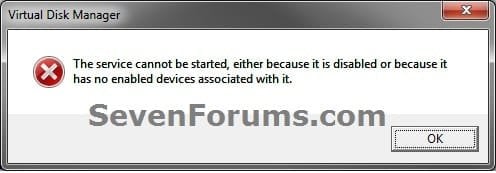
Error.jpg


OPTION ONE

To Delete Partition or Volume using Disk Management

1. Press the Windows + R keys to open the Run dialog, type diskmgmt.msc, and Press Enter.

2. In the middle pane, right click on the partition of a disk that you want to delete, and click/tap on Delete Volume. (see screenshot below)
NOTE: If the partition is a logical partition, then you will need to delete the free space again to have it as unallocated space. Delete_Step1.jpg3. Click/tap on Yes to confirm deletion. (see screenshot below) Delete_Step2.jpg
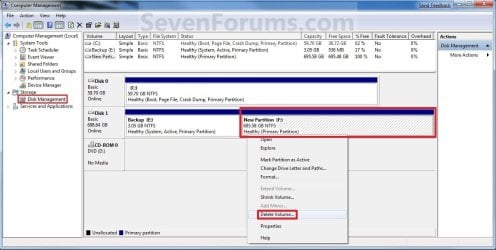
4. The selected partition (step 2) is now deleted and is unallocated space on the disk. If not, then delete the partition again until it displays as unallocated space like below. (see screenshot below)
NOTE: You can now use this unallocated space to create a new partition with, or extend another adjacent partition on that same hard disk into it. Delete_Step3.jpg
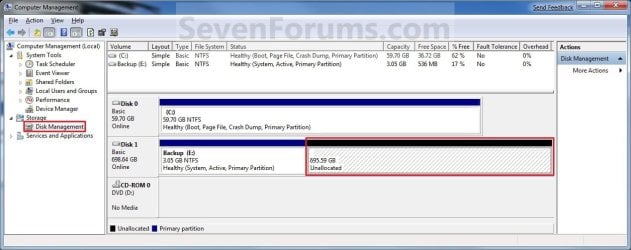
5. You can now close Disk Management if you like.


OPTION TWO

To Delete Partition or Volume using Diskpart Command

1. Open an elevated command prompt in Windows 7 or Windows 8, or a command prompt at boot in Windows 7 and Windows 8.

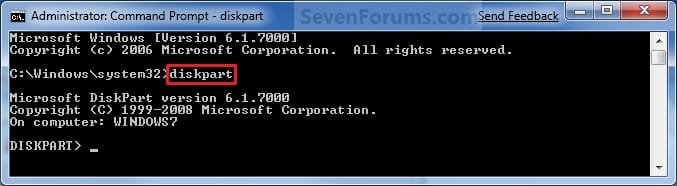
2. In the command prompt, type diskpart and press Enter. (See screenshot below) CMD_Delete_Step1.jpg
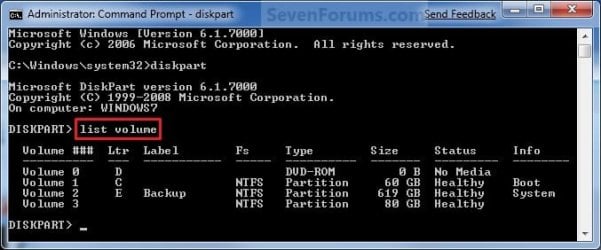
3. In the command prompt, type list volume and press Enter. (See screenshot below)
NOTE: This will give you a list of volume numbers to select from to delete. CMD_Delete_Step2.jpg
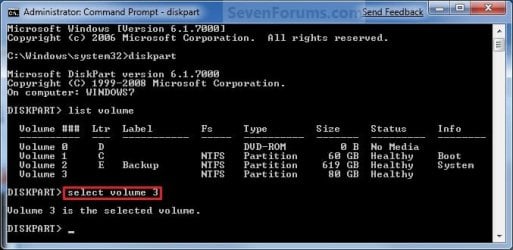
4. In the command prompt, type select volume # and press Enter. (See screenshot below)
NOTE: You would substitute # for the volume number listed that you want to delete. For example, I want to delete the listed volume 3, so I would type select volume 3 and press Enter. CMD_Delete_Step3.jpg
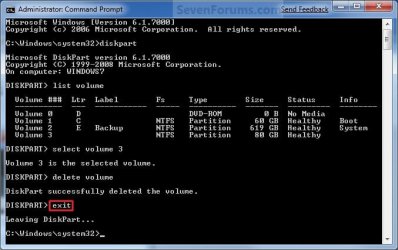
5. In the command prompt, type delete volume and press Enter. (See screenshot below)
NOTE: If it fails to delete, then use type delete volume override and press enter instead. CMD_Delete_Step4.jpg
6. In the command prompt, type exit and press Enter. (See screenshot below) CMD_Delete_Step5.jpg
7. Close the command prompt.

8. The selected partition (step 4) is now deleted and is unallocated space on the disk.
NOTE: You can use this unallocated space to create a new partition with, or extend another partition on that same hard disk into it.
That's it,
Shawn


Last edited:
Removing an old recovery partition

I currently have a partition labeled as a system partition by the command prompt. It is the recovery partition that was originally on my laptop but which has since been wiped. I have now installed windows 7 and would like to know if I should, or can, delete that partition
 

My Computer

Computer Manufacturer/Model Number
Acer Aspire Timeline X 5820TG
OS
Windows 7 home Premium x64
CPU
Intel Core i5 480M 2.66Ghz with Turbo Boost up to 2.93Ghz
Memory
4.00GB
Graphics Card(s)
AMD Radeon HD 6550M 2651MB HyperMemory/Intel HD Graphics
Sound Card
Conexant High Definition SmartAudio 221
Monitor(s) Displays
15.6" HD LCD
Screen Resolution
1366x768
Hard Drives
750GB HDD
Mouse
Verbatim Rapier V1
Hello Rurik,

Without that OEM recovery partition, you would not be able to reinstall your previous operating system that came with the computer unless you created a set of recovery discs from it.

If you have create a set of recovery disc, or have no plans of ever reinstalling the OS that came with your computer, then yes you can delete it. However, I would recommend leaving it unless you just really needed the hard drive space back.

Hope this helps,
Shawn
 

My Computer

Computer type
PC/Desktop
Computer Manufacturer/Model Number
Self built custom
OS
64-bit Windows 11 Pro for Workstations
CPU
Intel i7-8700K OC'd to 5 GHz
Motherboard
ASUS ROG Maximus XI Formula Z390
Memory
64 GB (4x16GB) G.SKILL TridentZ RGB DDR4 3600 MHz
Graphics Card(s)
ASUS ROG-STRIX-GTX1080TI-O11G-GAMING
Sound Card
Integrated
Monitor(s) Displays
2 x Samsung Odyssey G7 27"
Screen Resolution
2560x1440
Hard Drives
1TB Samsung 990 PRO M.2,
4TB Samsung 990 PRO PRO M.2,
TerraMaster F8 SSD Plus NAS
PSU
Seasonic Prime Titanium 850W
Case
Thermaltake Core P3
Cooling
Corsair Hydro H115i
Keyboard
Logitech wireless K800
Mouse
Logitech MX Master 4
Internet Speed
2 Gb/s Download and 100 Mb/s Upload
Antivirus
Malwarebyte Anti-Malware Premium
Browser
Google Chrome
Other Info
Logitech Z625 speaker system,
Logitech BRIO 4K Pro webcam,
HP Color LaserJet Pro MFP M477fdn,
APC SMART-UPS RT 1000 XL - SURT1000XLI,
Galaxy S23 Plus phone
Thanks mate, I dont particularly need the space, It has just been annoying me to have it there when I dont think there is anything in there. My harddrive had to be wiped, so I dont think it has anything in there despite it saying it has about 8gb taken
 

My Computer

Computer Manufacturer/Model Number
Acer Aspire Timeline X 5820TG
OS
Windows 7 home Premium x64
CPU
Intel Core i5 480M 2.66Ghz with Turbo Boost up to 2.93Ghz
Memory
4.00GB
Graphics Card(s)
AMD Radeon HD 6550M 2651MB HyperMemory/Intel HD Graphics
Sound Card
Conexant High Definition SmartAudio 221
Monitor(s) Displays
15.6" HD LCD
Screen Resolution
1366x768
Hard Drives
750GB HDD
Mouse
Verbatim Rapier V1
You're welcome. :)
 

My Computer

Computer type
PC/Desktop
Computer Manufacturer/Model Number
Self built custom
OS
64-bit Windows 11 Pro for Workstations
CPU
Intel i7-8700K OC'd to 5 GHz
Motherboard
ASUS ROG Maximus XI Formula Z390
Memory
64 GB (4x16GB) G.SKILL TridentZ RGB DDR4 3600 MHz
Graphics Card(s)
ASUS ROG-STRIX-GTX1080TI-O11G-GAMING
Sound Card
Integrated
Monitor(s) Displays
2 x Samsung Odyssey G7 27"
Screen Resolution
2560x1440
Hard Drives
1TB Samsung 990 PRO M.2,
4TB Samsung 990 PRO PRO M.2,
TerraMaster F8 SSD Plus NAS
PSU
Seasonic Prime Titanium 850W
Case
Thermaltake Core P3
Cooling
Corsair Hydro H115i
Keyboard
Logitech wireless K800
Mouse
Logitech MX Master 4
Internet Speed
2 Gb/s Download and 100 Mb/s Upload
Antivirus
Malwarebyte Anti-Malware Premium
Browser
Google Chrome
Other Info
Logitech Z625 speaker system,
Logitech BRIO 4K Pro webcam,
HP Color LaserJet Pro MFP M477fdn,
APC SMART-UPS RT 1000 XL - SURT1000XLI,
Galaxy S23 Plus phone
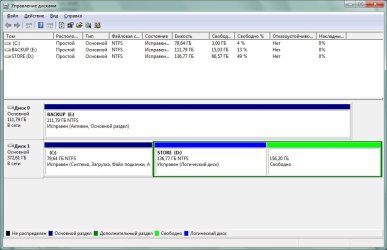
Hello everyone, hope you can help.

Stuck with one simple problem: how do i reallocate space between two partitions? I have shrunk one already - but it just created an empty volume on the same partition. How do i move it to another partition, which I want to become bigger?

Thanks for your help.

PS
Yep, it's russian OS in the screenshot, sorry :)

PPS
Oh, and BTW - I don't want to delete data on partitions! I just need to reallocate free space.
 

Attachments

  • discmanagement.jpg
    discmanagement.jpg
    143.4 KB · Views: 2,725

My Computer

OS
Windows 7
Hello Lec, and welcome to Seven Forums.

In your case, it would need to use a 3rd party program like Partition Wizard Home Edition to move free space around. Disk Management is limited and will not do that for you without having to delete the partitions.

Hope this helps,
Shawn
 

My Computer

Computer type
PC/Desktop
Computer Manufacturer/Model Number
Self built custom
OS
64-bit Windows 11 Pro for Workstations
CPU
Intel i7-8700K OC'd to 5 GHz
Motherboard
ASUS ROG Maximus XI Formula Z390
Memory
64 GB (4x16GB) G.SKILL TridentZ RGB DDR4 3600 MHz
Graphics Card(s)
ASUS ROG-STRIX-GTX1080TI-O11G-GAMING
Sound Card
Integrated
Monitor(s) Displays
2 x Samsung Odyssey G7 27"
Screen Resolution
2560x1440
Hard Drives
1TB Samsung 990 PRO M.2,
4TB Samsung 990 PRO PRO M.2,
TerraMaster F8 SSD Plus NAS
PSU
Seasonic Prime Titanium 850W
Case
Thermaltake Core P3
Cooling
Corsair Hydro H115i
Keyboard
Logitech wireless K800
Mouse
Logitech MX Master 4
Internet Speed
2 Gb/s Download and 100 Mb/s Upload
Antivirus
Malwarebyte Anti-Malware Premium
Browser
Google Chrome
Other Info
Logitech Z625 speaker system,
Logitech BRIO 4K Pro webcam,
HP Color LaserJet Pro MFP M477fdn,
APC SMART-UPS RT 1000 XL - SURT1000XLI,
Galaxy S23 Plus phone
Thanks for help, Brink, I've already downloaded that wizard - will try it tonight.
 

My Computer

OS
Windows 7
Ok. Please let us know how it went for you. :)
 

My Computer

Computer type
PC/Desktop
Computer Manufacturer/Model Number
Self built custom
OS
64-bit Windows 11 Pro for Workstations
CPU
Intel i7-8700K OC'd to 5 GHz
Motherboard
ASUS ROG Maximus XI Formula Z390
Memory
64 GB (4x16GB) G.SKILL TridentZ RGB DDR4 3600 MHz
Graphics Card(s)
ASUS ROG-STRIX-GTX1080TI-O11G-GAMING
Sound Card
Integrated
Monitor(s) Displays
2 x Samsung Odyssey G7 27"
Screen Resolution
2560x1440
Hard Drives
1TB Samsung 990 PRO M.2,
4TB Samsung 990 PRO PRO M.2,
TerraMaster F8 SSD Plus NAS
PSU
Seasonic Prime Titanium 850W
Case
Thermaltake Core P3
Cooling
Corsair Hydro H115i
Keyboard
Logitech wireless K800
Mouse
Logitech MX Master 4
Internet Speed
2 Gb/s Download and 100 Mb/s Upload
Antivirus
Malwarebyte Anti-Malware Premium
Browser
Google Chrome
Other Info
Logitech Z625 speaker system,
Logitech BRIO 4K Pro webcam,
HP Color LaserJet Pro MFP M477fdn,
APC SMART-UPS RT 1000 XL - SURT1000XLI,
Galaxy S23 Plus phone
Sorry, forgot to answer on time.

Partition Wizard Home Edition did the job well, thanks a lot! :)
 

My Computer

OS
Windows 7
You're welcome Lec. I'm happy to hear that you got it sorted. :)
 

My Computer

Computer type
PC/Desktop
Computer Manufacturer/Model Number
Self built custom
OS
64-bit Windows 11 Pro for Workstations
CPU
Intel i7-8700K OC'd to 5 GHz
Motherboard
ASUS ROG Maximus XI Formula Z390
Memory
64 GB (4x16GB) G.SKILL TridentZ RGB DDR4 3600 MHz
Graphics Card(s)
ASUS ROG-STRIX-GTX1080TI-O11G-GAMING
Sound Card
Integrated
Monitor(s) Displays
2 x Samsung Odyssey G7 27"
Screen Resolution
2560x1440
Hard Drives
1TB Samsung 990 PRO M.2,
4TB Samsung 990 PRO PRO M.2,
TerraMaster F8 SSD Plus NAS
PSU
Seasonic Prime Titanium 850W
Case
Thermaltake Core P3
Cooling
Corsair Hydro H115i
Keyboard
Logitech wireless K800
Mouse
Logitech MX Master 4
Internet Speed
2 Gb/s Download and 100 Mb/s Upload
Antivirus
Malwarebyte Anti-Malware Premium
Browser
Google Chrome
Other Info
Logitech Z625 speaker system,
Logitech BRIO 4K Pro webcam,
HP Color LaserJet Pro MFP M477fdn,
APC SMART-UPS RT 1000 XL - SURT1000XLI,
Galaxy S23 Plus phone
This may be going back over older material so I'll apologise in advance.

Just to explain my problem.

I have recently installed windows 7 onto a PC with two hard drives, a 40GB and an 80GB. One drive now contains Windows 7 and the second Windows XP. I want to remove all of the info from the second drive as I no longer need to be able to boot up with both operating systems. The problem is that no matter what I try I cant seem to format the drive or remove the volume. I just get messages telling me I cant do it when I try. I've tried carrying out the steps in this thread, but they don't work either. Any suggestions would be very welcome.
 

My Computer

Computer Manufacturer/Model Number
Fujitsu Siemans
OS
Windows 7
CPU
Intel(R) Pentium(R) 4 CPU 3.00GHz, 2992 Mhz, 1 Cor
Motherboard
Fujitsu Siemans
Memory
2.5GB
Graphics Card(s)
RADEON X600/X550 Series (Microsoft Corporation - WDDM)
Sound Card
Realtek High Definition Audio
Monitor(s) Displays
Dell P790
Hard Drives
Size 37.24 GB (39,991,275,520 bytes)
Size 74.53 GB (80,023,121,920 bytes)
Hello Diarmuid, and welcome to Seven Forums.

Which OS was installed first?
 

My Computer

Computer type
PC/Desktop
Computer Manufacturer/Model Number
Self built custom
OS
64-bit Windows 11 Pro for Workstations
CPU
Intel i7-8700K OC'd to 5 GHz
Motherboard
ASUS ROG Maximus XI Formula Z390
Memory
64 GB (4x16GB) G.SKILL TridentZ RGB DDR4 3600 MHz
Graphics Card(s)
ASUS ROG-STRIX-GTX1080TI-O11G-GAMING
Sound Card
Integrated
Monitor(s) Displays
2 x Samsung Odyssey G7 27"
Screen Resolution
2560x1440
Hard Drives
1TB Samsung 990 PRO M.2,
4TB Samsung 990 PRO PRO M.2,
TerraMaster F8 SSD Plus NAS
PSU
Seasonic Prime Titanium 850W
Case
Thermaltake Core P3
Cooling
Corsair Hydro H115i
Keyboard
Logitech wireless K800
Mouse
Logitech MX Master 4
Internet Speed
2 Gb/s Download and 100 Mb/s Upload
Antivirus
Malwarebyte Anti-Malware Premium
Browser
Google Chrome
Other Info
Logitech Z625 speaker system,
Logitech BRIO 4K Pro webcam,
HP Color LaserJet Pro MFP M477fdn,
APC SMART-UPS RT 1000 XL - SURT1000XLI,
Galaxy S23 Plus phone
Hi, sorry for not getting back sooner - powercut knocked out my connection for a while. XP was installed first on the 80GB drive in the PC. The second 40GB drive came from another PC and that is now the one that has Windows 7.
 

My Computer

Computer Manufacturer/Model Number
Fujitsu Siemans
OS
Windows 7
CPU
Intel(R) Pentium(R) 4 CPU 3.00GHz, 2992 Mhz, 1 Cor
Motherboard
Fujitsu Siemans
Memory
2.5GB
Graphics Card(s)
RADEON X600/X550 Series (Microsoft Corporation - WDDM)
Sound Card
Realtek High Definition Audio
Monitor(s) Displays
Dell P790
Hard Drives
Size 37.24 GB (39,991,275,520 bytes)
Size 74.53 GB (80,023,121,920 bytes)
Ah, that would be why then since it's the boot drive.

You might see if you can restore the MBR for Windows 7 on the Windows 7 drive first, then see if you can delete only the XP drive at boot using your Windows 7 installation disc in the Custom - Drive options (advanced) section, then just back out of the installation and restart to Windows 7.
 

My Computer

Computer type
PC/Desktop
Computer Manufacturer/Model Number
Self built custom
OS
64-bit Windows 11 Pro for Workstations
CPU
Intel i7-8700K OC'd to 5 GHz
Motherboard
ASUS ROG Maximus XI Formula Z390
Memory
64 GB (4x16GB) G.SKILL TridentZ RGB DDR4 3600 MHz
Graphics Card(s)
ASUS ROG-STRIX-GTX1080TI-O11G-GAMING
Sound Card
Integrated
Monitor(s) Displays
2 x Samsung Odyssey G7 27"
Screen Resolution
2560x1440
Hard Drives
1TB Samsung 990 PRO M.2,
4TB Samsung 990 PRO PRO M.2,
TerraMaster F8 SSD Plus NAS
PSU
Seasonic Prime Titanium 850W
Case
Thermaltake Core P3
Cooling
Corsair Hydro H115i
Keyboard
Logitech wireless K800
Mouse
Logitech MX Master 4
Internet Speed
2 Gb/s Download and 100 Mb/s Upload
Antivirus
Malwarebyte Anti-Malware Premium
Browser
Google Chrome
Other Info
Logitech Z625 speaker system,
Logitech BRIO 4K Pro webcam,
HP Color LaserJet Pro MFP M477fdn,
APC SMART-UPS RT 1000 XL - SURT1000XLI,
Galaxy S23 Plus phone
Thanks - I'll give it a go and then get back to you.
 

My Computer

Computer Manufacturer/Model Number
Fujitsu Siemans
OS
Windows 7
CPU
Intel(R) Pentium(R) 4 CPU 3.00GHz, 2992 Mhz, 1 Cor
Motherboard
Fujitsu Siemans
Memory
2.5GB
Graphics Card(s)
RADEON X600/X550 Series (Microsoft Corporation - WDDM)
Sound Card
Realtek High Definition Audio
Monitor(s) Displays
Dell P790
Hard Drives
Size 37.24 GB (39,991,275,520 bytes)
Size 74.53 GB (80,023,121,920 bytes)
I have a problem. I do not have the "Administrative tools" option. Does it exist in a specific windows 7?
 

My Computer

OS
Windows 7 Home Premium
Hello Kampinas, and welcome to Seven Forums.

Double check to make sure that you have the Control Panel (All Items view) (click on link) opened with icons showing in the Control Panel. However, you can also open Disk Management by typing diskmgmt.msc in the Start Menu search box and pressing enter.

Hope this helps,
Shawn
 

My Computer

Computer type
PC/Desktop
Computer Manufacturer/Model Number
Self built custom
OS
64-bit Windows 11 Pro for Workstations
CPU
Intel i7-8700K OC'd to 5 GHz
Motherboard
ASUS ROG Maximus XI Formula Z390
Memory
64 GB (4x16GB) G.SKILL TridentZ RGB DDR4 3600 MHz
Graphics Card(s)
ASUS ROG-STRIX-GTX1080TI-O11G-GAMING
Sound Card
Integrated
Monitor(s) Displays
2 x Samsung Odyssey G7 27"
Screen Resolution
2560x1440
Hard Drives
1TB Samsung 990 PRO M.2,
4TB Samsung 990 PRO PRO M.2,
TerraMaster F8 SSD Plus NAS
PSU
Seasonic Prime Titanium 850W
Case
Thermaltake Core P3
Cooling
Corsair Hydro H115i
Keyboard
Logitech wireless K800
Mouse
Logitech MX Master 4
Internet Speed
2 Gb/s Download and 100 Mb/s Upload
Antivirus
Malwarebyte Anti-Malware Premium
Browser
Google Chrome
Other Info
Logitech Z625 speaker system,
Logitech BRIO 4K Pro webcam,
HP Color LaserJet Pro MFP M477fdn,
APC SMART-UPS RT 1000 XL - SURT1000XLI,
Galaxy S23 Plus phone
Hi Brink, I replaced my OEM C: drive on a Sony Vaio F Series notebook. I installed the old HDD in a external enclosure & it works fine.

I tried to delete the hidden recovery partition (8GB) using Disk Management but when right clicking, all I get is "Help" while it works fine for the other partitions & lets me delete them. I then tried elevated command & diskpart following your tutorial, same problem! Diskpart deleted my other partitions but quits when I try to delete the recovery partition.

That Sony recovery partition is really protected. :(

This is nuts! Thanks for your help.
 

My Computer

Computer Manufacturer/Model Number
Vaio F Series Notebook VPCF115FM
OS
windows 7 64-bit
CPU
i7-720QM
Memory
6GB
Graphics Card(s)
Nvidia GT 330M 1gb
Screen Resolution
1080p
Hard Drives
Seagate Momentus 500gb
Hello Joe, and welcome to Seven Forums.

You may be able to during the next installation using the Drive Options (advanced) during setup to delete it. If not, you should be able to use the clean command to completely wipe out the hard drive using a command prompt at boot.

Hope this helps,
Shawn
 

My Computer

Computer type
PC/Desktop
Computer Manufacturer/Model Number
Self built custom
OS
64-bit Windows 11 Pro for Workstations
CPU
Intel i7-8700K OC'd to 5 GHz
Motherboard
ASUS ROG Maximus XI Formula Z390
Memory
64 GB (4x16GB) G.SKILL TridentZ RGB DDR4 3600 MHz
Graphics Card(s)
ASUS ROG-STRIX-GTX1080TI-O11G-GAMING
Sound Card
Integrated
Monitor(s) Displays
2 x Samsung Odyssey G7 27"
Screen Resolution
2560x1440
Hard Drives
1TB Samsung 990 PRO M.2,
4TB Samsung 990 PRO PRO M.2,
TerraMaster F8 SSD Plus NAS
PSU
Seasonic Prime Titanium 850W
Case
Thermaltake Core P3
Cooling
Corsair Hydro H115i
Keyboard
Logitech wireless K800
Mouse
Logitech MX Master 4
Internet Speed
2 Gb/s Download and 100 Mb/s Upload
Antivirus
Malwarebyte Anti-Malware Premium
Browser
Google Chrome
Other Info
Logitech Z625 speaker system,
Logitech BRIO 4K Pro webcam,
HP Color LaserJet Pro MFP M477fdn,
APC SMART-UPS RT 1000 XL - SURT1000XLI,
Galaxy S23 Plus phone
Back
Top