Partition or Volume - Delete

How to Delete a Partition or Volume in Windows 7 and Windows 8


   Information
This will show you how to delete a partition or volume on a hard disk using Disk Management or Diskpart in Windows 7 and Windows 8 to create empty unallocated space that you can use to create new partitions with.

   Note


  • You will not be able to delete the Windows partition that you are currently logged in to. The only way would be to delete it at boot or during a Windows installation.
  • You also can't delete the system partition, boot partition, or any partition that contains the virtual memory paging file, because Windows needs this information to startup and run properly.
   Warning

  • You must be logged on in an administrator account to be able to do this tutorial.
  • When you delete a partition, all data on the partition is erased.
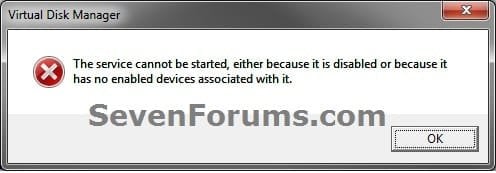
  • If you disable the Disk Defragmenter service, then you will get the error below when you try to do anything in Disk Management. If you get this error, then make sure that the Disk Defragmenter service is set to only Manual.
Error.jpg


OPTION ONE

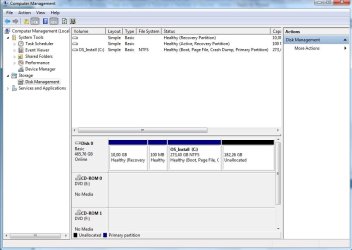
To Delete Partition or Volume using Disk Management

1. Press the Windows + R keys to open the Run dialog, type diskmgmt.msc, and Press Enter.

2. In the middle pane, right click on the partition of a disk that you want to delete, and click/tap on Delete Volume. (see screenshot below)
NOTE: If the partition is a logical partition, then you will need to delete the free space again to have it as unallocated space. Delete_Step1.jpg3. Click/tap on Yes to confirm deletion. (see screenshot below) Delete_Step2.jpg
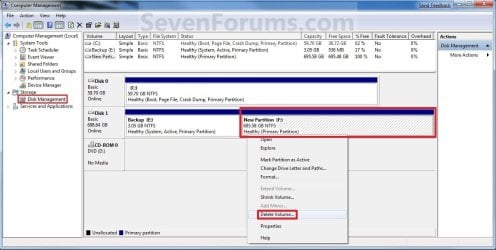
4. The selected partition (step 2) is now deleted and is unallocated space on the disk. If not, then delete the partition again until it displays as unallocated space like below. (see screenshot below)
NOTE: You can now use this unallocated space to create a new partition with, or extend another adjacent partition on that same hard disk into it. Delete_Step3.jpg
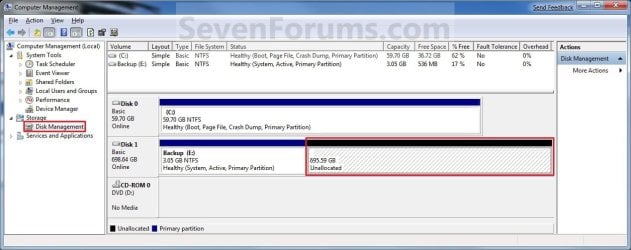
5. You can now close Disk Management if you like.


OPTION TWO

To Delete Partition or Volume using Diskpart Command

1. Open an elevated command prompt in Windows 7 or Windows 8, or a command prompt at boot in Windows 7 and Windows 8.

2. In the command prompt, type diskpart and press Enter. (See screenshot below) CMD_Delete_Step1.jpg
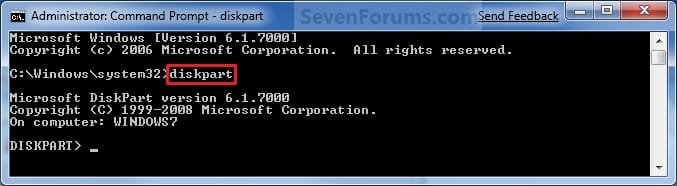
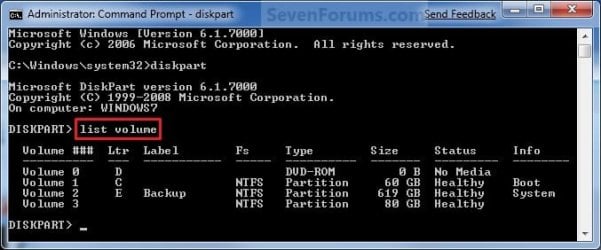
3. In the command prompt, type list volume and press Enter. (See screenshot below)
NOTE: This will give you a list of volume numbers to select from to delete. CMD_Delete_Step2.jpg
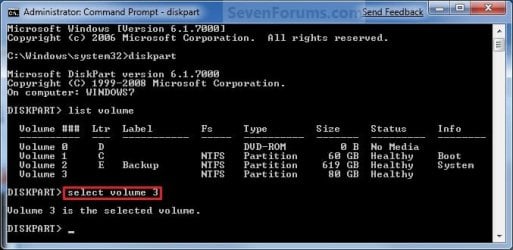
4. In the command prompt, type select volume # and press Enter. (See screenshot below)
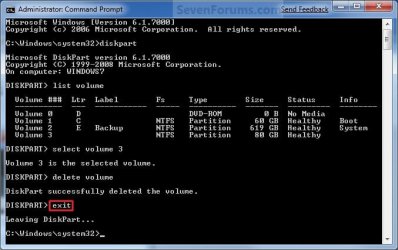
NOTE: You would substitute # for the volume number listed that you want to delete. For example, I want to delete the listed volume 3, so I would type select volume 3 and press Enter. CMD_Delete_Step3.jpg
5. In the command prompt, type delete volume and press Enter. (See screenshot below)
NOTE: If it fails to delete, then use type delete volume override and press enter instead. CMD_Delete_Step4.jpg
6. In the command prompt, type exit and press Enter. (See screenshot below) CMD_Delete_Step5.jpg
7. Close the command prompt.

8. The selected partition (step 4) is now deleted and is unallocated space on the disk.
NOTE: You can use this unallocated space to create a new partition with, or extend another partition on that same hard disk into it.
That's it,
Shawn


Last edited:
Already have 3 primary drives...

Hi

I want to make a dual boot with windows 7 and XP. But when i create a new drive, it's logical and not primary. Apparently because there already are three primary drives. The problem is, that i can't delete them!

How to i solve this?!

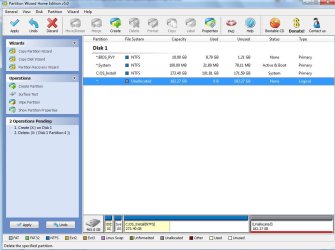
I've tried both methods as listed above plus the partition wizard manager-thing.. and i'm able to to it from there, but it says that i might not be able to boot if i do.
 

Attachments

  • asd.jpg
    asd.jpg
    140.7 KB · Views: 98
  • saddd.jpg
    saddd.jpg
    169.3 KB · Views: 102
Last edited:

My Computer

OS
Windows 7
Hello KmD, and welcome to Seven Forums.

You can still install a OS on a logical partition the same as you would on a primary though.

When you delete a partition, it becomes Unallocated space as you see in your Disk Management screenshot above. To get rid of the unallocated space, you would then need to extend the C: drive into all of the unallocated space to have it all added back to the C: drive.

Hope this helps,
Shawn
 

My Computer

Computer type
PC/Desktop
Computer Manufacturer/Model Number
Self built custom
OS
64-bit Windows 11 Pro for Workstations
CPU
Intel i7-8700K OC'd to 5 GHz
Motherboard
ASUS ROG Maximus XI Formula Z390
Memory
64 GB (4x16GB) G.SKILL TridentZ RGB DDR4 3600 MHz
Graphics Card(s)
ASUS ROG-STRIX-GTX1080TI-O11G-GAMING
Sound Card
Integrated
Monitor(s) Displays
2 x Samsung Odyssey G7 27"
Screen Resolution
2560x1440
Hard Drives
1TB Samsung 990 PRO M.2,
4TB Samsung 990 PRO PRO M.2,
TerraMaster F8 SSD Plus NAS
PSU
Seasonic Prime Titanium 850W
Case
Thermaltake Core P3
Cooling
Corsair Hydro H115i
Keyboard
Logitech wireless K800
Mouse
Logitech MX Master 4
Internet Speed
2 Gb/s Download and 100 Mb/s Upload
Antivirus
Malwarebyte Anti-Malware Premium
Browser
Google Chrome
Other Info
Logitech Z625 speaker system,
Logitech BRIO 4K Pro webcam,
HP Color LaserJet Pro MFP M477fdn,
APC SMART-UPS RT 1000 XL - SURT1000XLI,
Galaxy S23 Plus phone
Hello KmD, and welcome to Seven Forums.

You can still install a OS on a logical partition the same as you would on a primary though.

When you delete a partition, it becomes Unallocated space as you see in your Disk Management screenshot above. To get rid of the unallocated space, you would then need to extend the C: drive into all of the unallocated space to have it all added back to the C: drive.

Hope this helps,
Shawn

Thank you very much. So there's no difference of using a primary drive or a logical drive?

But the system recovery thing on 10 gb... can't i move it to an external hard drive instead?

Oh and btw - the last you're writing is not a problem at all. I'm going to make the unallocated space into a new partition where i'm going to install my XP... the only problem is, that i'm not able to make it primary due to the fact that there already are three primary drives.
 

My Computer

OS
Windows 7
good one brink..
 

My Computer

Computer Manufacturer/Model Number
aspire 5920
OS
Windows 8 Professional x64
CPU
core 2 duo T5550
Memory
4 GB
Graphics Card(s)
GMA X3100
Hard Drives
160 GB + 320 GB
Internet Speed
2 mbps
KmD,

I would recommend to not touch your recovery partition. This is what is used to do a factory restore with to reinstall Windows 7 with. If you mess with it, you may lose the ability to reinstall Windows 7.

You will be able to install XP on the new logical partition just the same as a primary partition.


Bagavan,

Thank you. :)
 

My Computer

Computer type
PC/Desktop
Computer Manufacturer/Model Number
Self built custom
OS
64-bit Windows 11 Pro for Workstations
CPU
Intel i7-8700K OC'd to 5 GHz
Motherboard
ASUS ROG Maximus XI Formula Z390
Memory
64 GB (4x16GB) G.SKILL TridentZ RGB DDR4 3600 MHz
Graphics Card(s)
ASUS ROG-STRIX-GTX1080TI-O11G-GAMING
Sound Card
Integrated
Monitor(s) Displays
2 x Samsung Odyssey G7 27"
Screen Resolution
2560x1440
Hard Drives
1TB Samsung 990 PRO M.2,
4TB Samsung 990 PRO PRO M.2,
TerraMaster F8 SSD Plus NAS
PSU
Seasonic Prime Titanium 850W
Case
Thermaltake Core P3
Cooling
Corsair Hydro H115i
Keyboard
Logitech wireless K800
Mouse
Logitech MX Master 4
Internet Speed
2 Gb/s Download and 100 Mb/s Upload
Antivirus
Malwarebyte Anti-Malware Premium
Browser
Google Chrome
Other Info
Logitech Z625 speaker system,
Logitech BRIO 4K Pro webcam,
HP Color LaserJet Pro MFP M477fdn,
APC SMART-UPS RT 1000 XL - SURT1000XLI,
Galaxy S23 Plus phone
KmD,

I would recommend to not touch your recovery partition. This is what is used to do a factory restore with to reinstall Windows 7 with. If you mess with it, you may lose the ability to reinstall Windows 7.

You will be able to install XP on the new logical partition just the same as a primary partition.


Bagavan,

Thank you. :)


Okay thanks.. I'll see what i can do.
 

My Computer

OS
Windows 7
You're welcome KmD. Pleae let us know how it went. :)
 

My Computer

Computer type
PC/Desktop
Computer Manufacturer/Model Number
Self built custom
OS
64-bit Windows 11 Pro for Workstations
CPU
Intel i7-8700K OC'd to 5 GHz
Motherboard
ASUS ROG Maximus XI Formula Z390
Memory
64 GB (4x16GB) G.SKILL TridentZ RGB DDR4 3600 MHz
Graphics Card(s)
ASUS ROG-STRIX-GTX1080TI-O11G-GAMING
Sound Card
Integrated
Monitor(s) Displays
2 x Samsung Odyssey G7 27"
Screen Resolution
2560x1440
Hard Drives
1TB Samsung 990 PRO M.2,
4TB Samsung 990 PRO PRO M.2,
TerraMaster F8 SSD Plus NAS
PSU
Seasonic Prime Titanium 850W
Case
Thermaltake Core P3
Cooling
Corsair Hydro H115i
Keyboard
Logitech wireless K800
Mouse
Logitech MX Master 4
Internet Speed
2 Gb/s Download and 100 Mb/s Upload
Antivirus
Malwarebyte Anti-Malware Premium
Browser
Google Chrome
Other Info
Logitech Z625 speaker system,
Logitech BRIO 4K Pro webcam,
HP Color LaserJet Pro MFP M477fdn,
APC SMART-UPS RT 1000 XL - SURT1000XLI,
Galaxy S23 Plus phone

My Computer

Computer Manufacturer/Model Number
* BFK Customs *
OS
W 7 64-bit Ultimate
CPU
Intel Q9550 Yorkfield
Motherboard
ASUS P5Q Pro
Memory
8GB Dominator 8500C5D
Graphics Card(s)
ATI : XFX 5870
Sound Card
Realtek HD Audio 7-1
Monitor(s) Displays
1x 47" LCD HDMI & 3x 26" LCD HDMI
Screen Resolution
1920x1080P & 1920x1200
Hard Drives
1x 80GB Intel X25-M G2 SSD : 1x 500GB & 1x 640GB WD Caviar Black(s)
PSU
Corsair 620HX
Case
Cooler Master RC-690
Cooling
Tuniq Tower 120, 2x 140mm and 3x 120mm case fans
Keyboard
Microsoft 500
Mouse
Razer Diamondback 3G
Internet Speed
14 Mb/s
Other Info
1x Koutech 3Gb/s SATA HDD Hot Swap Rack
You're welcome KmD. Pleae let us know how it went. :)

Well i figured out how to make a fourth primary drive - through the partition wizard.

Now i'm stuck here: http://www.sevenforums.com/tutorial...ipstream-into-windows-xp-cd-4.html#post900662

My comment is on the link


Hello KmD.


All of Option One has just been added to show how to accomplish this.

Partition Wizard : Use the Bootable CD

Hi!

Good idea - the more of these guides the better. And if it's possible to simplify them, it's worth doing it. At least in respect of newbies like me! ;)
 

My Computer

OS
Windows 7
Need help

i just bought a eee pc netbook, and apparently it had two partitions, c: where windows 7 is installed and another partition d: where there is nothing/free space.

I have tried many thing and cannot combine both together, grab d: and combine it with c:, if anyone can help, please. thank you.

xbebsm.jpg
 

My Computer

Computer type
PC/Desktop
Computer Manufacturer/Model Number
HP
OS
Windows Seven Ultimate x64 SP1
CPU
Intel Core i7 x980 @ 3.33GHz
Memory
12.0 GB
Graphics Card(s)
Nvidia GeForce GTX 260
Make sure nothing is installed on that 15GB partition and on the 117GB partition. I like a recovery program to restore computer.

If not go a head and right click on the two partitions and hit delete volume. You should be left with something like 132GB worth of unallocated space.

Then right click on the C partition and hit extend volume, click Next, next again and then finish. This should extend the C partition to that empty unallocated space.

It that doesn't work then you need a partition program like Paragon to do it for you.
 

My Computers

System One System Two

  • Computer type
    PC/Desktop
    Computer Manufacturer/Model Number
    PowerSpec G164
    OS
    WIN10
    CPU
    AMD Ryzen 5 3600 6-Core Processor 3.59 GHz
    Memory
    16.0 GB
    Internet Speed
    VERY FAST>>>!!!
  • Antivirus
    ESET Security Premium
Make sure nothing is installed on that 15GB partition and on the 117GB partition. I like a recovery program to restore computer.

If not go a head and right click on the two partitions and hit delete volume. You should be left with something like 132GB worth of unallocated space.

Then right click on the C partition and hit extend volume, click Next, next again and then finish. This should extend the C partition to that empty unallocated space.

It that doesn't work then you need a partition program like Paragon to do it for you.


Edit: sorry, how can i check what i have inside, because when i go to my computer, i only see c: and d:, i tried showing hidden folders and still cannot see anything. Thanks
 

My Computer

Computer type
PC/Desktop
Computer Manufacturer/Model Number
HP
OS
Windows Seven Ultimate x64 SP1
CPU
Intel Core i7 x980 @ 3.33GHz
Memory
12.0 GB
Graphics Card(s)
Nvidia GeForce GTX 260
I got some progress, i merged the 15 gb with my c:, but now i still have another partition with 117 gb i want to merge with the c: and it wont let me.

2d2mut.jpg


i have tried the deleting the partition with 117gb and it changed to free space, but still could not merge with c:
 

My Computer

Computer type
PC/Desktop
Computer Manufacturer/Model Number
HP
OS
Windows Seven Ultimate x64 SP1
CPU
Intel Core i7 x980 @ 3.33GHz
Memory
12.0 GB
Graphics Card(s)
Nvidia GeForce GTX 260
Hello BTNH108464, welcome to Seven Forums!


Are you trying to right click, delete the D: then trying to merge it, it has to be unallocated space before it can be merged?
 

My Computer

Computer Manufacturer/Model Number
* BFK Customs *
OS
W 7 64-bit Ultimate
CPU
Intel Q9550 Yorkfield
Motherboard
ASUS P5Q Pro
Memory
8GB Dominator 8500C5D
Graphics Card(s)
ATI : XFX 5870
Sound Card
Realtek HD Audio 7-1
Monitor(s) Displays
1x 47" LCD HDMI & 3x 26" LCD HDMI
Screen Resolution
1920x1080P & 1920x1200
Hard Drives
1x 80GB Intel X25-M G2 SSD : 1x 500GB & 1x 640GB WD Caviar Black(s)
PSU
Corsair 620HX
Case
Cooler Master RC-690
Cooling
Tuniq Tower 120, 2x 140mm and 3x 120mm case fans
Keyboard
Microsoft 500
Mouse
Razer Diamondback 3G
Internet Speed
14 Mb/s
Other Info
1x Koutech 3Gb/s SATA HDD Hot Swap Rack
Hello BTNH108464, welcome to Seven Forums!


Are you trying to right click, delete the D: then trying to merge it, it has to be unallocated space before it can be merged?

i delete it and it becomes free space like the picture below

2mmg1a8.jpg


thank you very much
 

My Computer

Computer type
PC/Desktop
Computer Manufacturer/Model Number
HP
OS
Windows Seven Ultimate x64 SP1
CPU
Intel Core i7 x980 @ 3.33GHz
Memory
12.0 GB
Graphics Card(s)
Nvidia GeForce GTX 260
Have you tried to delete the free space?
 

My Computer

Computer Manufacturer/Model Number
* BFK Customs *
OS
W 7 64-bit Ultimate
CPU
Intel Q9550 Yorkfield
Motherboard
ASUS P5Q Pro
Memory
8GB Dominator 8500C5D
Graphics Card(s)
ATI : XFX 5870
Sound Card
Realtek HD Audio 7-1
Monitor(s) Displays
1x 47" LCD HDMI & 3x 26" LCD HDMI
Screen Resolution
1920x1080P & 1920x1200
Hard Drives
1x 80GB Intel X25-M G2 SSD : 1x 500GB & 1x 640GB WD Caviar Black(s)
PSU
Corsair 620HX
Case
Cooler Master RC-690
Cooling
Tuniq Tower 120, 2x 140mm and 3x 120mm case fans
Keyboard
Microsoft 500
Mouse
Razer Diamondback 3G
Internet Speed
14 Mb/s
Other Info
1x Koutech 3Gb/s SATA HDD Hot Swap Rack
Have you tried to delete the free space?

no, i did not want to delete something i did not know anything about. but i will delete it if you tell me to try it.
 

My Computer

Computer type
PC/Desktop
Computer Manufacturer/Model Number
HP
OS
Windows Seven Ultimate x64 SP1
CPU
Intel Core i7 x980 @ 3.33GHz
Memory
12.0 GB
Graphics Card(s)
Nvidia GeForce GTX 260
As long as there's no data there you want to keep. ;)
 

My Computer

Computer Manufacturer/Model Number
* BFK Customs *
OS
W 7 64-bit Ultimate
CPU
Intel Q9550 Yorkfield
Motherboard
ASUS P5Q Pro
Memory
8GB Dominator 8500C5D
Graphics Card(s)
ATI : XFX 5870
Sound Card
Realtek HD Audio 7-1
Monitor(s) Displays
1x 47" LCD HDMI & 3x 26" LCD HDMI
Screen Resolution
1920x1080P & 1920x1200
Hard Drives
1x 80GB Intel X25-M G2 SSD : 1x 500GB & 1x 640GB WD Caviar Black(s)
PSU
Corsair 620HX
Case
Cooler Master RC-690
Cooling
Tuniq Tower 120, 2x 140mm and 3x 120mm case fans
Keyboard
Microsoft 500
Mouse
Razer Diamondback 3G
Internet Speed
14 Mb/s
Other Info
1x Koutech 3Gb/s SATA HDD Hot Swap Rack

My Computer

Computer type
PC/Desktop
Computer Manufacturer/Model Number
HP
OS
Windows Seven Ultimate x64 SP1
CPU
Intel Core i7 x980 @ 3.33GHz
Memory
12.0 GB
Graphics Card(s)
Nvidia GeForce GTX 260
Back
Top