
Partition or Volume - Extend

How to Extend a Partition or Volume in Windows 7

   Information
This will show you how to extend a hard disk partition or volume into a empty unallocated space on the same hard disk to make it larger using Disk Management or Diskpart in Windows 7.
   Warning
You must be logged on in an administrator account to do this tutorial.

If you disable the Disk Defragmenter service, then you will get the error below when you try to do anything in Disk Management. If you get this error, then make sure that the Disk Defragmenter service is set to only Manual.
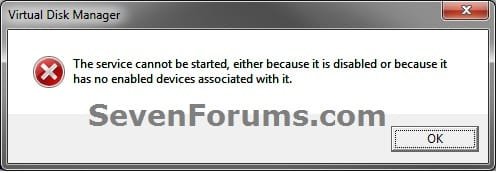
Error.jpg


OPTION ONE

Using Disk Management


1. If you have not already, you will first need to delete the partition or volume that you want to extend into to make it unallocated space.

2. Open the Control Panel (icons view), and click on the Administrative Tools icon. then close the Control Panel window.

3. Click on Computer Management in Administrative Tools, then close the Administrative Tools window.

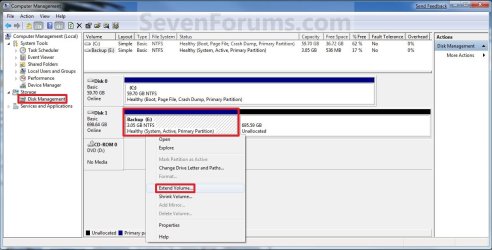
4. In the left pane under Storage, click on Disk Management. (See screenshot below)
Extend_Step1.jpg
5. In the middle pane, right click on the partition or volume directly adjacent (left) of the unallocated space that you want to extend into, and click on Extend Volume. (See screenshot above)

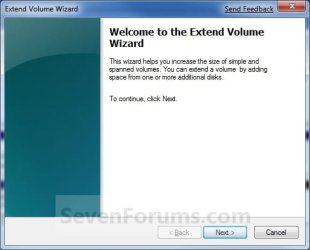
6. Click on the Next button. (See screenshot below)
Extend_Step2.jpg
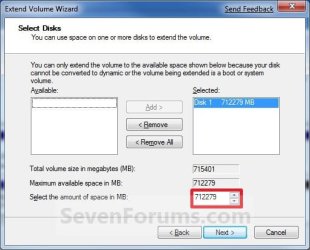
7. Type in how many MB (1 GB = 1024 MB) you want to use from the unallocated space to extend the selected partition (step 5) into, then click on the Next button. (See screenshot below)
NOTE: If you want to use all of the unallocated space to extend into, then type in the maximum available space shown for the unallocated space.
Extend_Step3.jpg
8. Click on the Finish button. (See screenshot below)
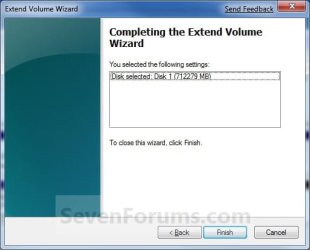
Extend_Step4.jpg
9. The partition or volume has now been extended into the assigned unallocted space (step 7). (See screenshot below)
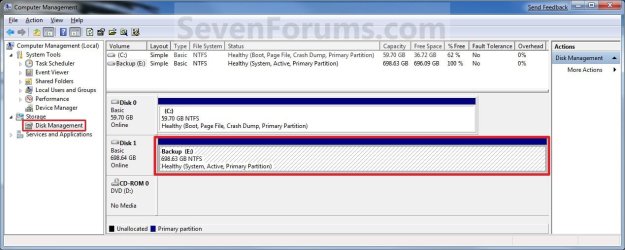
Extend_Step5.jpg
10. Close the Computer Management window. (See screenshot above)


OPTION TWO

Using Diskpart in a Elevated Command Prompt


1. If you have not already, you will first need to delete the partition or volume that you want to extend into to make it unallocated space.

2. Open a elevated command prompt, or a command prompt at boot.

3. In the elevated command prompt, type diskpart and press Enter. (See screenshot below)
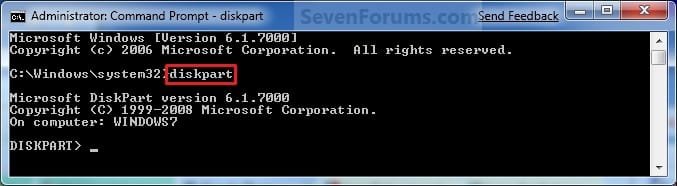
CMD_Extend_Step1.jpg
4. In the elevated command prompt, type list disk and press Enter. (See screenshot below)
NOTE: This is to help you ID the disk that has Free space that you want to extend into, and to see the disk size to make it easier to ID it's volume number in step 5. For example, Disk 1.
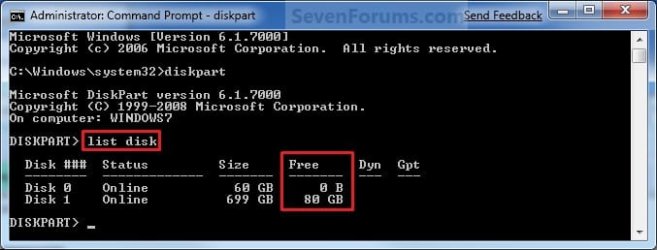
CMD_Extend_Step2.jpg
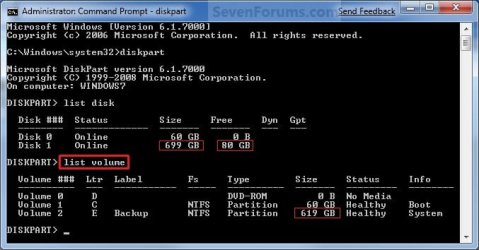
5. In the elevated command prompt, type list volume and press Enter. (See screenshot below)
NOTE: Look for the volume number that has the same Size as from the size in step 4 minus the Free space. For example, Volume 2.
CMD_Extend_Step3.jpg
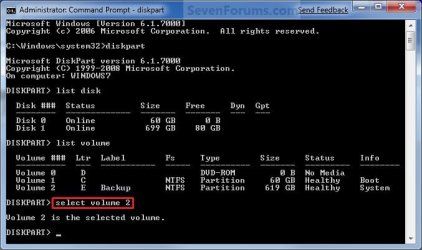
6. In the elevated command prompt, type select volume # and press Enter. (See screenshot below)
NOTE: You would substitute # for the volume number listed that you want to extend. For example, I want to extend the listed volume 2 since, so I would type select volume 2 and press Enter.
CMD_Extend_Step4.jpg
7. To Extend into All of the Unallocated Space
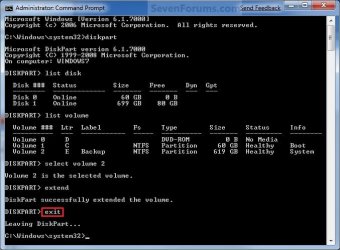
A) In the elevated command prompt, type extend and press Enter. (See screenshot below)
NOTE: The unallocated space will be removed and added completely to the selected partiton or volume (step 6).
CMD_Extend_Step5.jpg
B) Go to step 9.
8. To Extend into the Unallocated Space by a Specified Size
A) In the elevated command prompt, type extend size=(# in MB) and press Enter.
NOTE: You would substitute (# in MB) for how many MB (1 GB = 1024 MB) you want to use of the unallocated space (free space shown in step 4) to be extended into. For example, if I only wanted to extend into 5 GB of the unallocated space, then I would type extend size=5120 and press Enter.
9. In the elevated command prompt, type exit and press Enter. (See screenshot below)
CMD_Extend_Step6.jpg
10. Close the elevated command prompt.

11. The selected partition or volume (step 6) has now been extended into the unallocated space to make it larger.
NOTE: If you did step 8 instead of 7, then you can use the rest of the unallocated space to create a new partition with if you like.
That's it,
Shawn


Last edited:
So i could have just left the 11GB partition to itself and not messed around with it and still have had the same amount of free space as I do now? That makes no sense to me, even considering formatting. Something is fishy. But thanks for your help.
 

My Computer

Computer Manufacturer/Model Number
HP Pavilion dv5t Entertainment Notebook PC
OS
Windows 7 Home Prm.
CPU
2GHz
Memory
3GB
Hard Drives
160GB
You would have been 11GB short on the C: drive if you didn't. Only when you extended into that 11GB unallocated space did the C: partition gain the space to be able to use it.
 

My Computer

Computer type
PC/Desktop
Computer Manufacturer/Model Number
Self built custom
OS
64-bit Windows 11 Pro for Workstations
CPU
Intel i7-8700K OC'd to 5 GHz
Motherboard
ASUS ROG Maximus XI Formula Z390
Memory
64 GB (4x16GB) G.SKILL TridentZ RGB DDR4 3600 MHz
Graphics Card(s)
ASUS ROG-STRIX-GTX1080TI-O11G-GAMING
Sound Card
Integrated
Monitor(s) Displays
2 x Samsung Odyssey G7 27"
Screen Resolution
2560x1440
Hard Drives
1TB Samsung 990 PRO M.2,
4TB Samsung 990 PRO PRO M.2,
TerraMaster F8 SSD Plus NAS
PSU
Seasonic Prime Titanium 850W
Case
Thermaltake Core P3
Cooling
Corsair Hydro H115i
Keyboard
Logitech wireless K800
Mouse
Logitech MX Master 4
Internet Speed
2 Gb/s Download and 100 Mb/s Upload
Antivirus
Malwarebyte Anti-Malware Premium
Browser
Google Chrome
Other Info
Logitech Z625 speaker system,
Logitech BRIO 4K Pro webcam,
HP Color LaserJet Pro MFP M477fdn,
APC SMART-UPS RT 1000 XL - SURT1000XLI,
Galaxy S23 Plus phone
Can anyone help me to extend C to an unallocated space but the problem that this space isn't in the right of C
like this

C then D then Unallocated space

please I need your help
 

Attachments

  • Untitled.jpg
    Untitled.jpg
    198.3 KB · Views: 675

My Computer

OS
windows 7 x86

My Computer

Computer Manufacturer/Model Number
Gateway FX-510X
OS
Windows 7 Ultimate x64 RTM
CPU
Intel(R) Pentium(R) D CPU 3.00GHz
Motherboard
Intel OEMD975XW2G1
Memory
6 GB dual channel DDR2 333 MHz
Graphics Card(s)
NVIDIA GeForce 7800 GTX 256 MB
Sound Card
Creative X-Fi Fatal1ty Extreme Gamer
Monitor(s) Displays
15" Planar PL170 LCD, 17" Gateway FPD1965 LCD
Screen Resolution
1280 x 1024
Hard Drives
64 GB SSD Crucial
2000 GB internal WDC
500 GB internal WDC
I tried it but unfortunately I can't move the unallocated space to be in the right of Partition C so I can extend it.
any other solution ??


Can anyone help me to extend C to an unallocated space but the problem that this space isn't in the right of C
like this

C then D then Unallocated space

please I need your help

Use Easeus Partion Master...
Free Download Partition Manager software.
The free Home Edition will work with x86.
 

My Computer

OS
windows 7 x86
Hello Mostafaassem, and welcome to Seven Forums.

You would want to Extend C: into the unallocated space using that program instead of trying to move the unallocated space.

If you used Windows 7 Disk Management, then you would only be able to extend D into the unallocated space.

Hope this helps,
Shawn
 

My Computer

Computer type
PC/Desktop
Computer Manufacturer/Model Number
Self built custom
OS
64-bit Windows 11 Pro for Workstations
CPU
Intel i7-8700K OC'd to 5 GHz
Motherboard
ASUS ROG Maximus XI Formula Z390
Memory
64 GB (4x16GB) G.SKILL TridentZ RGB DDR4 3600 MHz
Graphics Card(s)
ASUS ROG-STRIX-GTX1080TI-O11G-GAMING
Sound Card
Integrated
Monitor(s) Displays
2 x Samsung Odyssey G7 27"
Screen Resolution
2560x1440
Hard Drives
1TB Samsung 990 PRO M.2,
4TB Samsung 990 PRO PRO M.2,
TerraMaster F8 SSD Plus NAS
PSU
Seasonic Prime Titanium 850W
Case
Thermaltake Core P3
Cooling
Corsair Hydro H115i
Keyboard
Logitech wireless K800
Mouse
Logitech MX Master 4
Internet Speed
2 Gb/s Download and 100 Mb/s Upload
Antivirus
Malwarebyte Anti-Malware Premium
Browser
Google Chrome
Other Info
Logitech Z625 speaker system,
Logitech BRIO 4K Pro webcam,
HP Color LaserJet Pro MFP M477fdn,
APC SMART-UPS RT 1000 XL - SURT1000XLI,
Galaxy S23 Plus phone
Hello Brink
Thanks for your reply
but can you explain me how could I use this program to do that as I tried to use it but I couldn't success :)
I am sorry for disturbing you
Thanks again and I hope we can be friends :)


Hello Mostafaassem, and welcome to Seven Forums.

You would want to Extend C: into the unallocated space using that program instead of trying to move the unallocated space.

If you used Windows 7 Disk Management, then you would only be able to extend D into the unallocated space.

Hope this helps,
Shawn
 

My Computer

OS
windows 7 x86
I'm afraid that I'm not familiar with how that program works, but you might see if the free program Partition Wizard may work better.
 

My Computer

Computer type
PC/Desktop
Computer Manufacturer/Model Number
Self built custom
OS
64-bit Windows 11 Pro for Workstations
CPU
Intel i7-8700K OC'd to 5 GHz
Motherboard
ASUS ROG Maximus XI Formula Z390
Memory
64 GB (4x16GB) G.SKILL TridentZ RGB DDR4 3600 MHz
Graphics Card(s)
ASUS ROG-STRIX-GTX1080TI-O11G-GAMING
Sound Card
Integrated
Monitor(s) Displays
2 x Samsung Odyssey G7 27"
Screen Resolution
2560x1440
Hard Drives
1TB Samsung 990 PRO M.2,
4TB Samsung 990 PRO PRO M.2,
TerraMaster F8 SSD Plus NAS
PSU
Seasonic Prime Titanium 850W
Case
Thermaltake Core P3
Cooling
Corsair Hydro H115i
Keyboard
Logitech wireless K800
Mouse
Logitech MX Master 4
Internet Speed
2 Gb/s Download and 100 Mb/s Upload
Antivirus
Malwarebyte Anti-Malware Premium
Browser
Google Chrome
Other Info
Logitech Z625 speaker system,
Logitech BRIO 4K Pro webcam,
HP Color LaserJet Pro MFP M477fdn,
APC SMART-UPS RT 1000 XL - SURT1000XLI,
Galaxy S23 Plus phone
You're most welcome. :)
 

My Computer

Computer type
PC/Desktop
Computer Manufacturer/Model Number
Self built custom
OS
64-bit Windows 11 Pro for Workstations
CPU
Intel i7-8700K OC'd to 5 GHz
Motherboard
ASUS ROG Maximus XI Formula Z390
Memory
64 GB (4x16GB) G.SKILL TridentZ RGB DDR4 3600 MHz
Graphics Card(s)
ASUS ROG-STRIX-GTX1080TI-O11G-GAMING
Sound Card
Integrated
Monitor(s) Displays
2 x Samsung Odyssey G7 27"
Screen Resolution
2560x1440
Hard Drives
1TB Samsung 990 PRO M.2,
4TB Samsung 990 PRO PRO M.2,
TerraMaster F8 SSD Plus NAS
PSU
Seasonic Prime Titanium 850W
Case
Thermaltake Core P3
Cooling
Corsair Hydro H115i
Keyboard
Logitech wireless K800
Mouse
Logitech MX Master 4
Internet Speed
2 Gb/s Download and 100 Mb/s Upload
Antivirus
Malwarebyte Anti-Malware Premium
Browser
Google Chrome
Other Info
Logitech Z625 speaker system,
Logitech BRIO 4K Pro webcam,
HP Color LaserJet Pro MFP M477fdn,
APC SMART-UPS RT 1000 XL - SURT1000XLI,
Galaxy S23 Plus phone
An error message coming up while I tried to extend C:

Hello guys,I really want to extend my partition which is C: that consist windows on it.I follow all the tweak that you have given:Command Prompt ways,but i faced one problems;an error that said I have not enough space to extend.What does it mean?

here is a screen shot.
 
Last edited by a moderator:

My Computer

OS
Windows 7
CPU
Intel Core 2 Duo T5550 @1.83GHz
Memory
2.00Gb RAM
Graphics Card(s)
Intel Media Accelarator
Hello Nudinsenin, and welcome to Seven Forums.

Looking at you screenshot above, I do not see any unallocated space available for you to extend C: into. Could you also post a screenshot of your Disk Management to help see what you drive layout is?
 

My Computer

Computer type
PC/Desktop
Computer Manufacturer/Model Number
Self built custom
OS
64-bit Windows 11 Pro for Workstations
CPU
Intel i7-8700K OC'd to 5 GHz
Motherboard
ASUS ROG Maximus XI Formula Z390
Memory
64 GB (4x16GB) G.SKILL TridentZ RGB DDR4 3600 MHz
Graphics Card(s)
ASUS ROG-STRIX-GTX1080TI-O11G-GAMING
Sound Card
Integrated
Monitor(s) Displays
2 x Samsung Odyssey G7 27"
Screen Resolution
2560x1440
Hard Drives
1TB Samsung 990 PRO M.2,
4TB Samsung 990 PRO PRO M.2,
TerraMaster F8 SSD Plus NAS
PSU
Seasonic Prime Titanium 850W
Case
Thermaltake Core P3
Cooling
Corsair Hydro H115i
Keyboard
Logitech wireless K800
Mouse
Logitech MX Master 4
Internet Speed
2 Gb/s Download and 100 Mb/s Upload
Antivirus
Malwarebyte Anti-Malware Premium
Browser
Google Chrome
Other Info
Logitech Z625 speaker system,
Logitech BRIO 4K Pro webcam,
HP Color LaserJet Pro MFP M477fdn,
APC SMART-UPS RT 1000 XL - SURT1000XLI,
Galaxy S23 Plus phone
Before that,after i shrunk D: is that necessary to format the unallocated disk?


This is after i shrunk D: partition.
I tried to extend it,but still got error message as my previous post.
 
Last edited by a moderator:

My Computer

OS
Windows 7
CPU
Intel Core 2 Duo T5550 @1.83GHz
Memory
2.00Gb RAM
Graphics Card(s)
Intel Media Accelarator
Nudinsenin,

For this, you will need to use a 3rd party program like Gparted to extend the partition into the unallocated space. You can read more on how to use the program at this link.
 

My Computer

Computer type
PC/Desktop
Computer Manufacturer/Model Number
Self built custom
OS
64-bit Windows 11 Pro for Workstations
CPU
Intel i7-8700K OC'd to 5 GHz
Motherboard
ASUS ROG Maximus XI Formula Z390
Memory
64 GB (4x16GB) G.SKILL TridentZ RGB DDR4 3600 MHz
Graphics Card(s)
ASUS ROG-STRIX-GTX1080TI-O11G-GAMING
Sound Card
Integrated
Monitor(s) Displays
2 x Samsung Odyssey G7 27"
Screen Resolution
2560x1440
Hard Drives
1TB Samsung 990 PRO M.2,
4TB Samsung 990 PRO PRO M.2,
TerraMaster F8 SSD Plus NAS
PSU
Seasonic Prime Titanium 850W
Case
Thermaltake Core P3
Cooling
Corsair Hydro H115i
Keyboard
Logitech wireless K800
Mouse
Logitech MX Master 4
Internet Speed
2 Gb/s Download and 100 Mb/s Upload
Antivirus
Malwarebyte Anti-Malware Premium
Browser
Google Chrome
Other Info
Logitech Z625 speaker system,
Logitech BRIO 4K Pro webcam,
HP Color LaserJet Pro MFP M477fdn,
APC SMART-UPS RT 1000 XL - SURT1000XLI,
Galaxy S23 Plus phone
Thanks

i used partition wizard and it works for me..what i did is,copy the D: to unallocated which is to the right and delete D: after i copied all the file.So the unallocated disk already to the right of C: and i just simply expend it.
 

My Computer

OS
Windows 7
CPU
Intel Core 2 Duo T5550 @1.83GHz
Memory
2.00Gb RAM
Graphics Card(s)
Intel Media Accelarator
I'm happy to hear that you got it sorted out Nudinsenin. :)
 

My Computer

Computer type
PC/Desktop
Computer Manufacturer/Model Number
Self built custom
OS
64-bit Windows 11 Pro for Workstations
CPU
Intel i7-8700K OC'd to 5 GHz
Motherboard
ASUS ROG Maximus XI Formula Z390
Memory
64 GB (4x16GB) G.SKILL TridentZ RGB DDR4 3600 MHz
Graphics Card(s)
ASUS ROG-STRIX-GTX1080TI-O11G-GAMING
Sound Card
Integrated
Monitor(s) Displays
2 x Samsung Odyssey G7 27"
Screen Resolution
2560x1440
Hard Drives
1TB Samsung 990 PRO M.2,
4TB Samsung 990 PRO PRO M.2,
TerraMaster F8 SSD Plus NAS
PSU
Seasonic Prime Titanium 850W
Case
Thermaltake Core P3
Cooling
Corsair Hydro H115i
Keyboard
Logitech wireless K800
Mouse
Logitech MX Master 4
Internet Speed
2 Gb/s Download and 100 Mb/s Upload
Antivirus
Malwarebyte Anti-Malware Premium
Browser
Google Chrome
Other Info
Logitech Z625 speaker system,
Logitech BRIO 4K Pro webcam,
HP Color LaserJet Pro MFP M477fdn,
APC SMART-UPS RT 1000 XL - SURT1000XLI,
Galaxy S23 Plus phone
yeah but i cant make it without your help.one more thing,how can i edit start up programs?i searched through in control panel menu and i didn't see it.
 
Last edited:

My Computer

OS
Windows 7
CPU
Intel Core 2 Duo T5550 @1.83GHz
Memory
2.00Gb RAM
Graphics Card(s)
Intel Media Accelarator

My Computer

Computer type
PC/Desktop
Computer Manufacturer/Model Number
Self built custom
OS
64-bit Windows 11 Pro for Workstations
CPU
Intel i7-8700K OC'd to 5 GHz
Motherboard
ASUS ROG Maximus XI Formula Z390
Memory
64 GB (4x16GB) G.SKILL TridentZ RGB DDR4 3600 MHz
Graphics Card(s)
ASUS ROG-STRIX-GTX1080TI-O11G-GAMING
Sound Card
Integrated
Monitor(s) Displays
2 x Samsung Odyssey G7 27"
Screen Resolution
2560x1440
Hard Drives
1TB Samsung 990 PRO M.2,
4TB Samsung 990 PRO PRO M.2,
TerraMaster F8 SSD Plus NAS
PSU
Seasonic Prime Titanium 850W
Case
Thermaltake Core P3
Cooling
Corsair Hydro H115i
Keyboard
Logitech wireless K800
Mouse
Logitech MX Master 4
Internet Speed
2 Gb/s Download and 100 Mb/s Upload
Antivirus
Malwarebyte Anti-Malware Premium
Browser
Google Chrome
Other Info
Logitech Z625 speaker system,
Logitech BRIO 4K Pro webcam,
HP Color LaserJet Pro MFP M477fdn,
APC SMART-UPS RT 1000 XL - SURT1000XLI,
Galaxy S23 Plus phone
Hello everybody. I have the same problem as ccchan has. I've read your posts but couldn't get it. Using which program did ccchan solve this issue?

To be more concrete, I want to extend system drive C, but the methods I read there didn't work. Will Gparted livecd help me? Here's the screenshot of my disk space configuration:


Hope you will help me : )
Thanks in advance
 
Last edited by a moderator:

My Computer

OS
Windows 7
Motherboard
MSI
Memory
240GB
Graphics Card(s)
Nvidia Geforce 9400 1GB
Monitor(s) Displays
SyncMaster 931BF
You could try Partition Wizard which is free. It will move and join partition which is exactly what you want to do.

And thanks to those that introduced me to Partition Wizard.
 

My Computer

Computer Manufacturer/Model Number
Dell Latitude 1570
OS
win 7
CPU
Intel dual
Memory
4 GB
Back
Top