Partition or Volume - Shrink

How to Shrink a Partition or Volume in Windows 7

   Information
This will show you how to shrink an existing partition or volume using Disk Management or Diskpart in Windows 7 to create unallocated disk space, from which you can create a new partition or volume with.
   Warning
You must be logged on in an administrator account to be able to do this tutorial.

If while shrinking a partition below, you get a Convert to Dynamic disks? type prompt, do not do so.

If you disable the Disk Defragmenter service, then you will get the error below when you try to do anything in Disk Management. If you get this error, then make sure that the Disk Defragmenter service is set to only Manual.
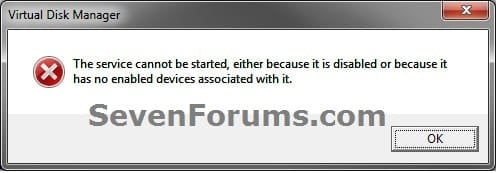
Error.jpg


OPTION ONE

Using Disk Management


1. Open the Control Panel (icons view), and click on the Administrative Tools icon. then close the Control Panel window.

2. Click on Computer Management in Administrative Tools, then close the Administrative Tools window.

3. In the left pane under Storage, click on Disk Management. (See screenshot below)
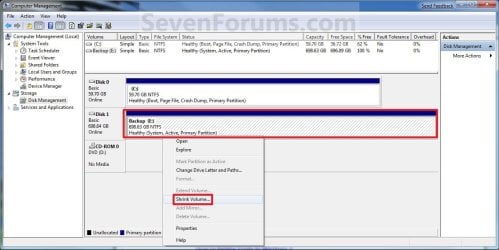
Shrink_Step1.jpg
4. In the middle pane, right click on the partition that you want to shrink and click on Shrink Volume. (See screenshot above)

5. Type in how many MB (1 GB = 1024 MB) of the available shrink space shown that you want to shrink the partition or volume by to be used for the new unallocated space, then click on the Shrink button. (See screenshot below)
   Warning
The size of the available shrink space can be restricted by the amount of space currently allocated to on the hard drive for the virtual memory page file, System Protection maximum storage space size, and hibernation files. The location of the files on the hard drive plays a big part here because these files are marked as unmovable, and Disk Management is unable to relocate them. As such, if these unmovable files are located in the middle of the total amount of free space on the disk, then only the amount of free space on the other side (to the right) of these files will actually be available for the new partition. This will result in you showing that you have x amount of free space, but not being able to use it for your partition. The only way around this is to use a 3rd party hard drive partition management program, or setup the partition when installing Vista.

Shrink_Step2.jpg
6. The selected partition (step 4) has now been shrunk to create a new empty unallocated space. You can use this new unallocated space to create a new partition with. (See screenshot below)
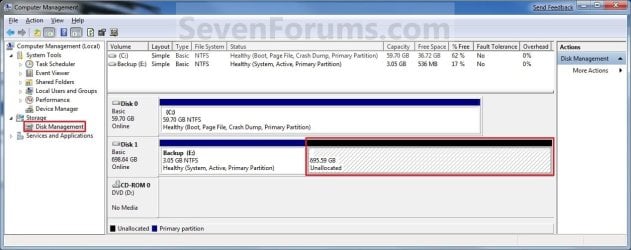
Shrink_Step3.jpg
7. Close the Computer Management window. (See screenshot above)


OPTION TWO

Using Diskpart in a Elevated Command Prompt


1. Open a elevated command prompt, or a command prompt at boot.

2. In the elevated command prompt, type diskpart and press Enter. (See screenshot below)
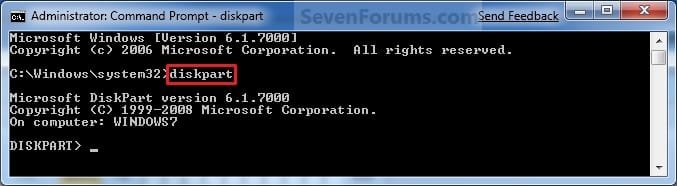
CMD_Shrink_Step1.jpg
3. In the elevated command prompt, type list volume and press Enter. (See screenshot below)
NOTE: This will give you a list of volume numbers to select from to shrink.
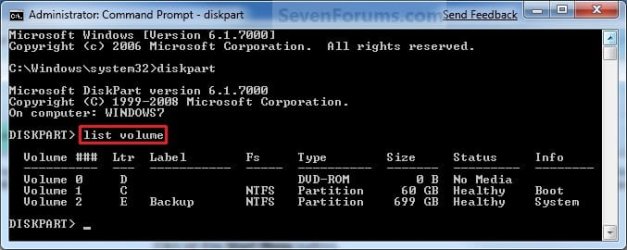
CMD_Shrink_Step2.jpg
4. In the elevated command prompt, type select volume # and press Enter. (See screenshot below)
NOTE: You would substitute # for the volume number listed that you want to shrink. For example, I want to shrink the listed volume 2, so I would type select volume 2 and press Enter.
CMD_Shrink_Step3.jpg
5. In the elevated command prompt, type shrink querymax and press Enter. (See screenshot below)
NOTE: This will give you the maximum amount of size in MB that you can shrink the selected partition or volume (step 4) by to be used as the new unallocated space. For example, I have 696 GB available to shrink.
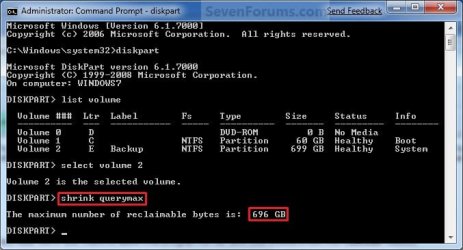
CMD_Shrink_Step4.jpg
6. To Shrink All of the Available Space
A) In the elevated command prompt, type shrink and press Enter.
NOTE: This will shrink the selected partition or volume by all of the maximum number of reclaimable bytes (step 4) to be used for the new unallocated space.

B) Go to step 8.
7. To Shrink the Available Space by a Specified Size
A) In the elevated command prompt, type shrink desired=(# in MB) and press Enter. (See screenshot below)
NOTE: You would substitute (# in MB) for how many MB (1 GB = 1024 MB) you want to shrink the selected partition or volume (step 4) by to be used for the new unallocated space. For example, if I only wanted to shrink the partition or volume by 81920 MB (80 GB), then I would type shrink desired=81920 and press Enter.
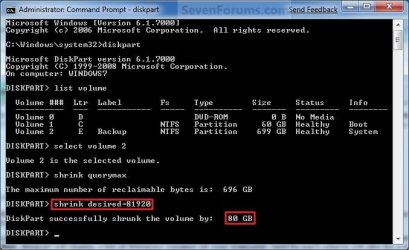
CMD_Shrink_Step5.jpg
8. In the elevated command prompt, type exit and press Enter. (See screenshot below)
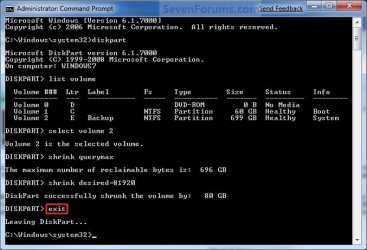
CMD_Shrink_Step6.jpg
9. Close the elevated command prompt.

10. The selected partition (step 4) has now been shrunk to create a new empty unallocated space. You can use this new unallocated space to create a new partition with.
That's it,
Shawn


Last edited:
Hi,

I'd like to shrink my C:/ on a HP laptop from 447 Go down to 70 Go. diskmgmt.msc only allowed me to shrink it down to 234 Go.

Based on what they said there, I:
didn't run the Disk Cleanup Wizard, making sure to remove the hibernation file and all restore points > there was nothing to remove
didn't remove the hibernation file > didn't know how/why/if dangerous
didn't remove all restore points > didn't want to!
didn't disable System Restore > same
did disable the pagefile
did change the Write debugging information drop-down to “None” to disable the kernel memory dump in the same Advanced Settings, go to Startup and Recovery \ Settings
didn't disable Hibernation mode in the power options \ advanced power options screen > couldn't find it
didn't delete the c:\pagefile.sys file after rebooting > got some message along the lines of "The file is open in another program"

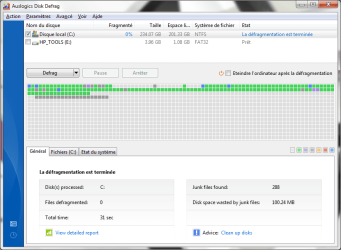
So basically I didn't do much of it... Anyway, I then installed Auslogics, ticked "Move the system files to the beginning of the disk", ran it, but it didn't seem to work... There are still many huge files in C:\System Volume Information at the end of the volume, plus bits and pieces here and there... And I'm not sure what to do! Not sure at all.

What would you recommand?
 

My Computer

Computer type
Laptop
Computer Manufacturer/Model Number
HP Pavilion
OS
Windows 7 Home Premium 64 bits
Antivirus
Antivir
Browser
Firefox
Hello Annaa,

Please go ahead and post back with a screenshot of your Disk Management window showing the full layout of your hard drive first to help make sure that we can give the proper advice. :)
 

My Computer

Computer type
PC/Desktop
Computer Manufacturer/Model Number
Self built custom
OS
64-bit Windows 11 Pro for Workstations
CPU
Intel i7-8700K OC'd to 5 GHz
Motherboard
ASUS ROG Maximus XI Formula Z390
Memory
64 GB (4x16GB) G.SKILL TridentZ RGB DDR4 3600 MHz
Graphics Card(s)
ASUS ROG-STRIX-GTX1080TI-O11G-GAMING
Sound Card
Integrated
Monitor(s) Displays
2 x Samsung Odyssey G7 27"
Screen Resolution
2560x1440
Hard Drives
1TB Samsung 990 PRO M.2,
4TB Samsung 990 PRO PRO M.2,
TerraMaster F8 SSD Plus NAS
PSU
Seasonic Prime Titanium 850W
Case
Thermaltake Core P3
Cooling
Corsair Hydro H115i
Keyboard
Logitech wireless K800
Mouse
Logitech MX Master 4
Internet Speed
2 Gb/s Download and 100 Mb/s Upload
Antivirus
Malwarebyte Anti-Malware Premium
Browser
Google Chrome
Other Info
Logitech Z625 speaker system,
Logitech BRIO 4K Pro webcam,
HP Color LaserJet Pro MFP M477fdn,
APC SMART-UPS RT 1000 XL - SURT1000XLI,
Galaxy S23 Plus phone

My Computer

Computer type
PC/Desktop
Computer Manufacturer/Model Number
Ignatz Special; 4 speed manual gearbox; factory air conditioning; one of one
OS
Windows 7 Home Premium SP1, 64-bit
CPU
Intel Skylake i5-6600K, not overclocked
Motherboard
AsRock Z170M Extreme 4, micro ATX
Memory
8 GB HyperX DDR4-2666 (2 x 4 GB)
Graphics Card(s)
none; graphics are integrated on CPU
Sound Card
onboard: Realtek ALC1150; external: USB Behringer UF0-202
Monitor(s) Displays
Dell S2340M 23 inch IPS
Screen Resolution
1600 x 900
Hard Drives
System: Crucial MX100 series SSD, 128 GB;
Data: Samsung Spinpoint 103SJ, 1 TB;
Backup: WD Caviar Green WD30EZRX-00D8PB0, 3 TB
PSU
Rosewill SilentNight 500 watt fanless, semi-modular
Case
Antec Solo II
Cooling
Noctua NH-U12S; Noctua F12 intake, Noctua S12A exhaust
Keyboard
Microsoft 200 6JH-00001 USB
Mouse
Dell or Microsoft optical wired; USB
Antivirus
Microsoft Security Essentials and Malwarebytes Premium
Browser
Pale Moon
Other Info
All fans PWM; speeds at idle: CPU circa 500 rpm; intake circa 600 rpm; exhaust circa 600 rpm; CPU temps 27 idle and 47 C load in a warm room (27 C/81 F) when running Intel Extreme Tuning Utility stress test.
Thanks for the answers!

Okay, I posted some screencaps and burnt the Partition Wizard bootable disk.

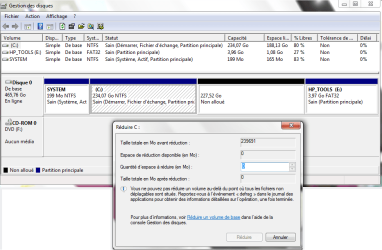
Some context: Where you see unallocated space, there used to be Recovery (D: ). I deleted it to install Linux and have a separate partition for my data.
 

Attachments

  • Auslogics20120907.png
    Auslogics20120907.png
    80.4 KB · Views: 339
  • diskmgmt20120907.png
    diskmgmt20120907.png
    88 KB · Views: 361

My Computer

Computer type
Laptop
Computer Manufacturer/Model Number
HP Pavilion
OS
Windows 7 Home Premium 64 bits
Antivirus
Antivir
Browser
Firefox
Annaa,

From what I can tell, it appears that you will be unable to shrink C any further. Even though is says you still have 188.13 Go of free space (espace libre), it has been allocated to be used by the hiberfil.sys file (hibernate), system protection (restore points and shadow copies), etc... as in your first post, and will not allow the size to be reduced in case you need it for these system items.

You might consider to get a second internal HDD to use to install Linux and a data partition on instead.

If not, then you would need to either turn off or reduce the max usage size of system protection, and/or disable hibernate to free up some more space after restarting the computer to possible shrink C some more.
 

My Computer

Computer type
PC/Desktop
Computer Manufacturer/Model Number
Self built custom
OS
64-bit Windows 11 Pro for Workstations
CPU
Intel i7-8700K OC'd to 5 GHz
Motherboard
ASUS ROG Maximus XI Formula Z390
Memory
64 GB (4x16GB) G.SKILL TridentZ RGB DDR4 3600 MHz
Graphics Card(s)
ASUS ROG-STRIX-GTX1080TI-O11G-GAMING
Sound Card
Integrated
Monitor(s) Displays
2 x Samsung Odyssey G7 27"
Screen Resolution
2560x1440
Hard Drives
1TB Samsung 990 PRO M.2,
4TB Samsung 990 PRO PRO M.2,
TerraMaster F8 SSD Plus NAS
PSU
Seasonic Prime Titanium 850W
Case
Thermaltake Core P3
Cooling
Corsair Hydro H115i
Keyboard
Logitech wireless K800
Mouse
Logitech MX Master 4
Internet Speed
2 Gb/s Download and 100 Mb/s Upload
Antivirus
Malwarebyte Anti-Malware Premium
Browser
Google Chrome
Other Info
Logitech Z625 speaker system,
Logitech BRIO 4K Pro webcam,
HP Color LaserJet Pro MFP M477fdn,
APC SMART-UPS RT 1000 XL - SURT1000XLI,
Galaxy S23 Plus phone
Even though is says you still have 188.13 Go of free space (espace libre), it has been allocated
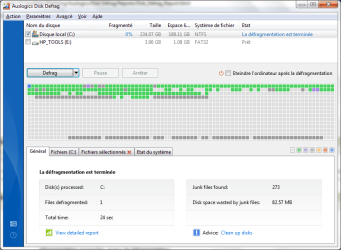
No, on the Auslogics Disk Defrag screencap I provided, the pale gray squares are supposed to be free space, and the darker gray ones are "MFT" or "Unmoveable files". See http://www.auslogics.com/en/software/disk-defrag/images/features/consolidation.png.

I personnally couldn't see the difference between the two shades of darker gray... But, it turns out:
1) the MFT was supposed to be in purple, but that wasn't displayed at that point
2) I had not used the right option to achieve the result I wanted!

I'd used "Defrag"; that took only two minutes, and had not moved the unmoveable files. The first screengrab here, "20h35", was after disabling hibernate: some unmoveable files ended up in the middle of the partition!

Then I noticed the option labelled "Defragment & Optimize", and ran it; I had to do it twice.

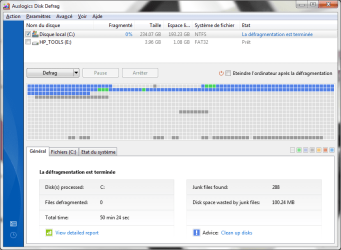
The first time took almost an hour, moved pretty much everything (that's why all the "squares" - sorry, are they supposed to be representing clusters? sectors? - on "21h44" are blue), but not the unmoveable files.

The second time took less than a minute, and honestly, it felt like a bit of a miracle! - EDIT a few minutes later (see post below): Or it felt über-fishy... You decide!
That's when it moved the files from the middle and the end of the partition to the beginning - or deleted those files, maybe?
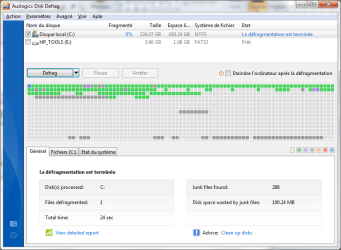
And now, there are three non-contiguous purple squares that host the MFT (see "21h46"). I guess before, they were gray because they were hosting the MFT plus some other stuff.

Anyway, after moving those files, I was able to shrink C: down to 70 Go! (It allowed me to shrink it up to 50.)

I'm happy! :party: - Not so much anymore... :(
 

Attachments

  • Auslogics20120907_20h35.png
    Auslogics20120907_20h35.png
    94.1 KB · Views: 348
  • Auslogics20120907_21h44.png
    Auslogics20120907_21h44.png
    86.3 KB · Views: 303
  • Auslogics20120907_21h46.png
    Auslogics20120907_21h46.png
    86 KB · Views: 380
Last edited:

My Computer

Computer type
Laptop
Computer Manufacturer/Model Number
HP Pavilion
OS
Windows 7 Home Premium 64 bits
Antivirus
Antivir
Browser
Firefox
That's great news Annaa. I'm happy to hear that you got it sorted. :)
 

My Computer

Computer type
PC/Desktop
Computer Manufacturer/Model Number
Self built custom
OS
64-bit Windows 11 Pro for Workstations
CPU
Intel i7-8700K OC'd to 5 GHz
Motherboard
ASUS ROG Maximus XI Formula Z390
Memory
64 GB (4x16GB) G.SKILL TridentZ RGB DDR4 3600 MHz
Graphics Card(s)
ASUS ROG-STRIX-GTX1080TI-O11G-GAMING
Sound Card
Integrated
Monitor(s) Displays
2 x Samsung Odyssey G7 27"
Screen Resolution
2560x1440
Hard Drives
1TB Samsung 990 PRO M.2,
4TB Samsung 990 PRO PRO M.2,
TerraMaster F8 SSD Plus NAS
PSU
Seasonic Prime Titanium 850W
Case
Thermaltake Core P3
Cooling
Corsair Hydro H115i
Keyboard
Logitech wireless K800
Mouse
Logitech MX Master 4
Internet Speed
2 Gb/s Download and 100 Mb/s Upload
Antivirus
Malwarebyte Anti-Malware Premium
Browser
Google Chrome
Other Info
Logitech Z625 speaker system,
Logitech BRIO 4K Pro webcam,
HP Color LaserJet Pro MFP M477fdn,
APC SMART-UPS RT 1000 XL - SURT1000XLI,
Galaxy S23 Plus phone
Arrgggghhhhh... I was talking about being happy a few minutes ago, and now, looking back at my screencaps, I realize that at 21h44 (or 9:44 pm in my timezone if you prefer :p), the free disk space was 193,23 Go... Then at 21h46, it was 201,33 Go!

Thing is, I didn't do anything between those two screencaps, other that run "Defragment & Optimize" again! I did nothing else, I can guarantee it! This has me worried now...

I did a CHKDSK before shrinking C:, and it went fine...

What could have happened?? Do you think the defragmenter took the liberty to get rid of some stuff? Say, the files in C:\System Volume Information at the end of the partition? As for the files in the middle of the partition, I didn't even take the time to look at what they were, and now it's too late...

ETA: so... What's the worst-case scenario here??

:shock:
 

My Computer

Computer type
Laptop
Computer Manufacturer/Model Number
HP Pavilion
OS
Windows 7 Home Premium 64 bits
Antivirus
Antivir
Browser
Firefox
A little help please... I'm freaking out here!

Could someone make an educated guess of what might have been lost, and how bad it would be for each item?

Also, what tests can I conduct to check if everything is still in working order?
 

My Computer

Computer type
Laptop
Computer Manufacturer/Model Number
HP Pavilion
OS
Windows 7 Home Premium 64 bits
Antivirus
Antivir
Browser
Firefox
Annaa,

It may have just freed up some allocated space when you defragged and optimized it.

Have you noticed anything missing while going through your files, partitions, etc...?
 

My Computer

Computer type
PC/Desktop
Computer Manufacturer/Model Number
Self built custom
OS
64-bit Windows 11 Pro for Workstations
CPU
Intel i7-8700K OC'd to 5 GHz
Motherboard
ASUS ROG Maximus XI Formula Z390
Memory
64 GB (4x16GB) G.SKILL TridentZ RGB DDR4 3600 MHz
Graphics Card(s)
ASUS ROG-STRIX-GTX1080TI-O11G-GAMING
Sound Card
Integrated
Monitor(s) Displays
2 x Samsung Odyssey G7 27"
Screen Resolution
2560x1440
Hard Drives
1TB Samsung 990 PRO M.2,
4TB Samsung 990 PRO PRO M.2,
TerraMaster F8 SSD Plus NAS
PSU
Seasonic Prime Titanium 850W
Case
Thermaltake Core P3
Cooling
Corsair Hydro H115i
Keyboard
Logitech wireless K800
Mouse
Logitech MX Master 4
Internet Speed
2 Gb/s Download and 100 Mb/s Upload
Antivirus
Malwarebyte Anti-Malware Premium
Browser
Google Chrome
Other Info
Logitech Z625 speaker system,
Logitech BRIO 4K Pro webcam,
HP Color LaserJet Pro MFP M477fdn,
APC SMART-UPS RT 1000 XL - SURT1000XLI,
Galaxy S23 Plus phone
It may have just freed up some allocated space when you defragged and optimized it.
That would be nice... But I doubt it, because I had defragmented (the regular Defrag) more than 10 times at that point! I don't see why it would have freed up space on the 2nd "Defrag & Optimize"? Plus, that only lasted 30 secondes... And the screencaps, with the gray areas completely wiped, are a bit incriminating... :confused:

Have you noticed anything missing while going through your files, partitions, etc...?
I honestly have no idea. The laptop is new, and is my first encounter with Seven (I still use Windows XP on my older computer). I just have a few screencaps and text documents on it, plus the system files, which I am not familiar with at all...
 

My Computer

Computer type
Laptop
Computer Manufacturer/Model Number
HP Pavilion
OS
Windows 7 Home Premium 64 bits
Antivirus
Antivir
Browser
Firefox
Has anything changed in Disk Management?

The gray areas are for the "Unmovable Files" such as the hiberfil.sys (hibernate) file and page file. If these had become fragmented or you reduced the size of them, then the defrag would have freed up the trapped allocated space used by them.

I don't know what that program's optimization feature all includes or what it may delete, but it does say it will clean up your disks from junk files and fix system errors to make your PC run as fast as new from here.

I'm afraid that I can't tell you if you anything has actually been deleted or not since I have no idea what was on there before and after. However, I don't think that it would have deleted any of your files though, just the usual temp file junk.
 

My Computer

Computer type
PC/Desktop
Computer Manufacturer/Model Number
Self built custom
OS
64-bit Windows 11 Pro for Workstations
CPU
Intel i7-8700K OC'd to 5 GHz
Motherboard
ASUS ROG Maximus XI Formula Z390
Memory
64 GB (4x16GB) G.SKILL TridentZ RGB DDR4 3600 MHz
Graphics Card(s)
ASUS ROG-STRIX-GTX1080TI-O11G-GAMING
Sound Card
Integrated
Monitor(s) Displays
2 x Samsung Odyssey G7 27"
Screen Resolution
2560x1440
Hard Drives
1TB Samsung 990 PRO M.2,
4TB Samsung 990 PRO PRO M.2,
TerraMaster F8 SSD Plus NAS
PSU
Seasonic Prime Titanium 850W
Case
Thermaltake Core P3
Cooling
Corsair Hydro H115i
Keyboard
Logitech wireless K800
Mouse
Logitech MX Master 4
Internet Speed
2 Gb/s Download and 100 Mb/s Upload
Antivirus
Malwarebyte Anti-Malware Premium
Browser
Google Chrome
Other Info
Logitech Z625 speaker system,
Logitech BRIO 4K Pro webcam,
HP Color LaserJet Pro MFP M477fdn,
APC SMART-UPS RT 1000 XL - SURT1000XLI,
Galaxy S23 Plus phone
Has anything changed in Disk Management?
No. C: is at 70 Go, and there's 391,7 Go unallocated.

I don't know what that program's optimization feature all includes or what it may delete, but it does say it will clean up your disks from junk files and fix system errors to make your PC run as fast as new from here.
(...) However, I don't think that it would have deleted any of your files though, just the usual temp file junk.
That's a feature of Auslogics Bootspeed, which I haven't installed. Although the free version of the defragmenter does tell you about the registry errors and junk files it finds in order to encourage you to purchase that product...

I've investigated a bit, and it looks like it's probably, hopefully, only my restore points that disappeared into thin air. Case in point:

1) There are only 3, and I think there used to be more...

2) Under 'Protection Settings', it says "Current use: 1,02 Go", "Max use: 5% = 3,5 Go"

3) I've looked at the entire event logs, and the only thing that seemed out of the ordinary were 12 volsnap events:
* the first 11, Information events with ID Event 33, said "The oldest shadow copy of volume C: was deleted to keep disk space usage for shadow copies of volume C: below the user defined limit."
* the twelfth, an Error event with Event ID 36, said "The shadow copies of volume C: were aborted because the shadow copy storage could not grow due to a user imposed limit."

Here's some stuff I've found about those events:

Event ID: 33 Source: VolSnap says:
When you run Disk Defragmenter on a volume with shadow copies activated, all or some of your shadow copies may be lost, starting with the oldest shadow copies
Same website for Event ID: 36 Source: VolSnap

And at MS: Event ID 33 and Event ID 36

The last message on The case of the missing System Restore Points: Windows 7 64-bit 7100 links to a MS article about Event IDs 25, 22 and 8183 and explains:
My problem was solved by kb article 2506576. Relates to IO bootup problems. Summary is to delete hyberfil.sys and pagefile.sys as well. Then defrag,restore,reboot. That was my problem - hyberfil.sys was somehow fragmented or corrupted.....
As for my own case... The timeline is still weird. The volsnap events occurred between 5:41 pm and 9:28 pm; but according to Auslogics Disk Defrag, those 8 Go were miraculously freed at 9:46 pm. Hmmm... :huh:

And I don't know what the actual culprit is... The use of Auslogics Disk Defrag, or my messing with the pagefile.sys and hiberfil.sys...

Well... I hope after I restore those two, I won't run into this problem again. And I'm certainly never using that defragmenter again!

I'm not completely done investigating anyway. Next, I'm gonna try to check if the various applications still work.

To be continued! :p
 

My Computer

Computer type
Laptop
Computer Manufacturer/Model Number
HP Pavilion
OS
Windows 7 Home Premium 64 bits
Antivirus
Antivir
Browser
Firefox
Well, good. It doesn't appear that you lost anything other than that. :)
 

My Computer

Computer type
PC/Desktop
Computer Manufacturer/Model Number
Self built custom
OS
64-bit Windows 11 Pro for Workstations
CPU
Intel i7-8700K OC'd to 5 GHz
Motherboard
ASUS ROG Maximus XI Formula Z390
Memory
64 GB (4x16GB) G.SKILL TridentZ RGB DDR4 3600 MHz
Graphics Card(s)
ASUS ROG-STRIX-GTX1080TI-O11G-GAMING
Sound Card
Integrated
Monitor(s) Displays
2 x Samsung Odyssey G7 27"
Screen Resolution
2560x1440
Hard Drives
1TB Samsung 990 PRO M.2,
4TB Samsung 990 PRO PRO M.2,
TerraMaster F8 SSD Plus NAS
PSU
Seasonic Prime Titanium 850W
Case
Thermaltake Core P3
Cooling
Corsair Hydro H115i
Keyboard
Logitech wireless K800
Mouse
Logitech MX Master 4
Internet Speed
2 Gb/s Download and 100 Mb/s Upload
Antivirus
Malwarebyte Anti-Malware Premium
Browser
Google Chrome
Other Info
Logitech Z625 speaker system,
Logitech BRIO 4K Pro webcam,
HP Color LaserJet Pro MFP M477fdn,
APC SMART-UPS RT 1000 XL - SURT1000XLI,
Galaxy S23 Plus phone
Me again! Okay, all the software seems to be working fine.

Any tests I forgot?
 

My Computer

Computer type
Laptop
Computer Manufacturer/Model Number
HP Pavilion
OS
Windows 7 Home Premium 64 bits
Antivirus
Antivir
Browser
Firefox
Great news. None that I can think of. :)
 

My Computer

Computer type
PC/Desktop
Computer Manufacturer/Model Number
Self built custom
OS
64-bit Windows 11 Pro for Workstations
CPU
Intel i7-8700K OC'd to 5 GHz
Motherboard
ASUS ROG Maximus XI Formula Z390
Memory
64 GB (4x16GB) G.SKILL TridentZ RGB DDR4 3600 MHz
Graphics Card(s)
ASUS ROG-STRIX-GTX1080TI-O11G-GAMING
Sound Card
Integrated
Monitor(s) Displays
2 x Samsung Odyssey G7 27"
Screen Resolution
2560x1440
Hard Drives
1TB Samsung 990 PRO M.2,
4TB Samsung 990 PRO PRO M.2,
TerraMaster F8 SSD Plus NAS
PSU
Seasonic Prime Titanium 850W
Case
Thermaltake Core P3
Cooling
Corsair Hydro H115i
Keyboard
Logitech wireless K800
Mouse
Logitech MX Master 4
Internet Speed
2 Gb/s Download and 100 Mb/s Upload
Antivirus
Malwarebyte Anti-Malware Premium
Browser
Google Chrome
Other Info
Logitech Z625 speaker system,
Logitech BRIO 4K Pro webcam,
HP Color LaserJet Pro MFP M477fdn,
APC SMART-UPS RT 1000 XL - SURT1000XLI,
Galaxy S23 Plus phone
Excellent! Thank you, Brink. Leaving you alone now! ;)
 

My Computer

Computer type
Laptop
Computer Manufacturer/Model Number
HP Pavilion
OS
Windows 7 Home Premium 64 bits
Antivirus
Antivir
Browser
Firefox
Anytime. :)
 

My Computer

Computer type
PC/Desktop
Computer Manufacturer/Model Number
Self built custom
OS
64-bit Windows 11 Pro for Workstations
CPU
Intel i7-8700K OC'd to 5 GHz
Motherboard
ASUS ROG Maximus XI Formula Z390
Memory
64 GB (4x16GB) G.SKILL TridentZ RGB DDR4 3600 MHz
Graphics Card(s)
ASUS ROG-STRIX-GTX1080TI-O11G-GAMING
Sound Card
Integrated
Monitor(s) Displays
2 x Samsung Odyssey G7 27"
Screen Resolution
2560x1440
Hard Drives
1TB Samsung 990 PRO M.2,
4TB Samsung 990 PRO PRO M.2,
TerraMaster F8 SSD Plus NAS
PSU
Seasonic Prime Titanium 850W
Case
Thermaltake Core P3
Cooling
Corsair Hydro H115i
Keyboard
Logitech wireless K800
Mouse
Logitech MX Master 4
Internet Speed
2 Gb/s Download and 100 Mb/s Upload
Antivirus
Malwarebyte Anti-Malware Premium
Browser
Google Chrome
Other Info
Logitech Z625 speaker system,
Logitech BRIO 4K Pro webcam,
HP Color LaserJet Pro MFP M477fdn,
APC SMART-UPS RT 1000 XL - SURT1000XLI,
Galaxy S23 Plus phone
I am having problems with the command line. After I type diskpart in an elevated command line, it gives me the diskpart version, copyright, and the version but it doesnt give me:
DISKPART>

I wonder what's wrong. I am trying to shrink my C drive and then partition it so I can install Ubuntu and then dual boot with already installed windows 7. I am having a hard time in shrinking C drive from Disk Management also.
 

Attachments

  • diskpart.JPG
    diskpart.JPG
    110.1 KB · Views: 339

My Computer

Computer Manufacturer/Model Number
Dell Inspiron E 1505
OS
Windows 7 Professional 32 Bit
CPU
Genuine Intel(R) CPU T2080 @ 1.73GHz 1.73 GHz
Motherboard
DELL
Memory
2GB
Graphics Card(s)
ATI Mobility Radeon X1400
Sound Card
High Definition Audio Device
Screen Resolution
1280 by 800
Hard Drives
136 GB
Recovery 10 GB
Actually, I was able to get this working by going into the regular command line, and then typing diskpart which prompted me to open a elevated command prompt and it opened it with DISKPART>
 

My Computer

Computer Manufacturer/Model Number
Dell Inspiron E 1505
OS
Windows 7 Professional 32 Bit
CPU
Genuine Intel(R) CPU T2080 @ 1.73GHz 1.73 GHz
Motherboard
DELL
Memory
2GB
Graphics Card(s)
ATI Mobility Radeon X1400
Sound Card
High Definition Audio Device
Screen Resolution
1280 by 800
Hard Drives
136 GB
Recovery 10 GB
Back
Top