
Partition or Volume - Shrink

How to Shrink a Partition or Volume in Windows 7

   Information
This will show you how to shrink an existing partition or volume using Disk Management or Diskpart in Windows 7 to create unallocated disk space, from which you can create a new partition or volume with.
   Warning
You must be logged on in an administrator account to be able to do this tutorial.

If while shrinking a partition below, you get a Convert to Dynamic disks? type prompt, do not do so.

If you disable the Disk Defragmenter service, then you will get the error below when you try to do anything in Disk Management. If you get this error, then make sure that the Disk Defragmenter service is set to only Manual.
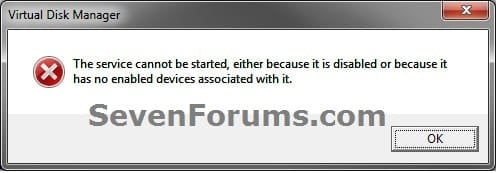
Error.jpg


OPTION ONE

Using Disk Management


1. Open the Control Panel (icons view), and click on the Administrative Tools icon. then close the Control Panel window.

2. Click on Computer Management in Administrative Tools, then close the Administrative Tools window.

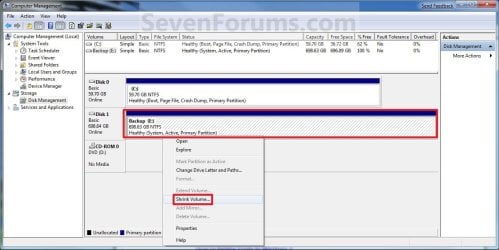
3. In the left pane under Storage, click on Disk Management. (See screenshot below)
Shrink_Step1.jpg
4. In the middle pane, right click on the partition that you want to shrink and click on Shrink Volume. (See screenshot above)

5. Type in how many MB (1 GB = 1024 MB) of the available shrink space shown that you want to shrink the partition or volume by to be used for the new unallocated space, then click on the Shrink button. (See screenshot below)
   Warning
The size of the available shrink space can be restricted by the amount of space currently allocated to on the hard drive for the virtual memory page file, System Protection maximum storage space size, and hibernation files. The location of the files on the hard drive plays a big part here because these files are marked as unmovable, and Disk Management is unable to relocate them. As such, if these unmovable files are located in the middle of the total amount of free space on the disk, then only the amount of free space on the other side (to the right) of these files will actually be available for the new partition. This will result in you showing that you have x amount of free space, but not being able to use it for your partition. The only way around this is to use a 3rd party hard drive partition management program, or setup the partition when installing Vista.

Shrink_Step2.jpg
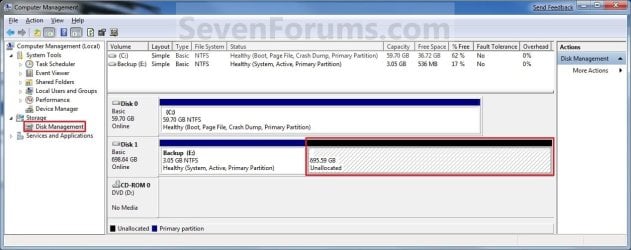
6. The selected partition (step 4) has now been shrunk to create a new empty unallocated space. You can use this new unallocated space to create a new partition with. (See screenshot below)
Shrink_Step3.jpg
7. Close the Computer Management window. (See screenshot above)


OPTION TWO

Using Diskpart in a Elevated Command Prompt


1. Open a elevated command prompt, or a command prompt at boot.

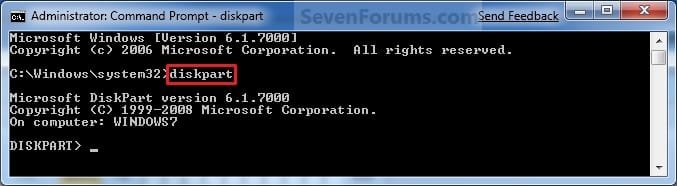
2. In the elevated command prompt, type diskpart and press Enter. (See screenshot below)
CMD_Shrink_Step1.jpg
3. In the elevated command prompt, type list volume and press Enter. (See screenshot below)
NOTE: This will give you a list of volume numbers to select from to shrink.
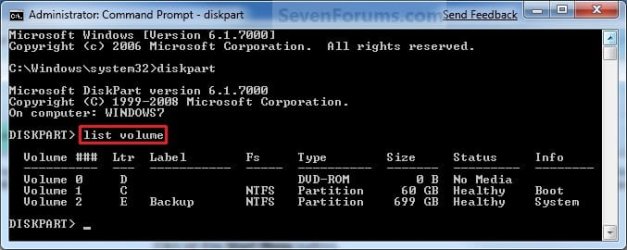
CMD_Shrink_Step2.jpg
4. In the elevated command prompt, type select volume # and press Enter. (See screenshot below)
NOTE: You would substitute # for the volume number listed that you want to shrink. For example, I want to shrink the listed volume 2, so I would type select volume 2 and press Enter.
CMD_Shrink_Step3.jpg
5. In the elevated command prompt, type shrink querymax and press Enter. (See screenshot below)
NOTE: This will give you the maximum amount of size in MB that you can shrink the selected partition or volume (step 4) by to be used as the new unallocated space. For example, I have 696 GB available to shrink.
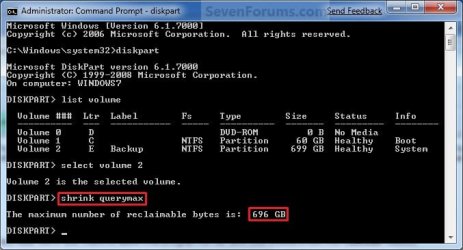
CMD_Shrink_Step4.jpg
6. To Shrink All of the Available Space
A) In the elevated command prompt, type shrink and press Enter.
NOTE: This will shrink the selected partition or volume by all of the maximum number of reclaimable bytes (step 4) to be used for the new unallocated space.

B) Go to step 8.
7. To Shrink the Available Space by a Specified Size
A) In the elevated command prompt, type shrink desired=(# in MB) and press Enter. (See screenshot below)
NOTE: You would substitute (# in MB) for how many MB (1 GB = 1024 MB) you want to shrink the selected partition or volume (step 4) by to be used for the new unallocated space. For example, if I only wanted to shrink the partition or volume by 81920 MB (80 GB), then I would type shrink desired=81920 and press Enter.
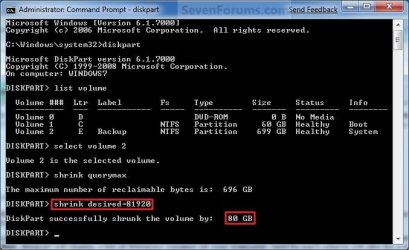
CMD_Shrink_Step5.jpg
8. In the elevated command prompt, type exit and press Enter. (See screenshot below)
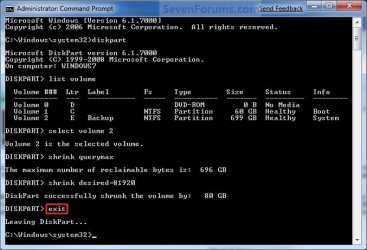
CMD_Shrink_Step6.jpg
9. Close the elevated command prompt.

10. The selected partition (step 4) has now been shrunk to create a new empty unallocated space. You can use this new unallocated space to create a new partition with.
That's it,
Shawn


Last edited:
I would check to see what Partition Manager reports it as to see if you can remove it from there since it appeared after using it.
 

My Computer

Computer type
PC/Desktop
Computer Manufacturer/Model Number
Self built custom
OS
64-bit Windows 11 Pro for Workstations
CPU
Intel i7-8700K OC'd to 5 GHz
Motherboard
ASUS ROG Maximus XI Formula Z390
Memory
64 GB (4x16GB) G.SKILL TridentZ RGB DDR4 3600 MHz
Graphics Card(s)
ASUS ROG-STRIX-GTX1080TI-O11G-GAMING
Sound Card
Integrated
Monitor(s) Displays
2 x Samsung Odyssey G7 27"
Screen Resolution
2560x1440
Hard Drives
1TB Samsung 990 PRO M.2,
4TB Samsung 990 PRO PRO M.2,
TerraMaster F8 SSD Plus NAS
PSU
Seasonic Prime Titanium 850W
Case
Thermaltake Core P3
Cooling
Corsair Hydro H115i
Keyboard
Logitech wireless K800
Mouse
Logitech MX Master 4
Internet Speed
2 Gb/s Download and 100 Mb/s Upload
Antivirus
Malwarebyte Anti-Malware Premium
Browser
Google Chrome
Other Info
Logitech Z625 speaker system,
Logitech BRIO 4K Pro webcam,
HP Color LaserJet Pro MFP M477fdn,
APC SMART-UPS RT 1000 XL - SURT1000XLI,
Galaxy S23 Plus phone
No, it appeared before. When I created a partition using shrink but could not format it, I saw that drive appeared there. The Partition Wizard is same as Disk Management. No such drive in the Disk Management or Partition Wizard, only on my Computer.
Suranjit
 
Last edited:

My Computer

Computer Manufacturer/Model Number
HP
OS
Windows 7 64 bit
CPU
Inter Core 2 Duo T6600
Memory
4GB DDR3
Graphics Card(s)
ATI Radeon
Sound Card
Altec Lansing
You might see if doing a system restore using a restore point dated before this Q drive appeared to see if it may be able to remove it for you since it does not appear in Disk Management. If not, then a repair install may be able to.
 

My Computer

Computer type
PC/Desktop
Computer Manufacturer/Model Number
Self built custom
OS
64-bit Windows 11 Pro for Workstations
CPU
Intel i7-8700K OC'd to 5 GHz
Motherboard
ASUS ROG Maximus XI Formula Z390
Memory
64 GB (4x16GB) G.SKILL TridentZ RGB DDR4 3600 MHz
Graphics Card(s)
ASUS ROG-STRIX-GTX1080TI-O11G-GAMING
Sound Card
Integrated
Monitor(s) Displays
2 x Samsung Odyssey G7 27"
Screen Resolution
2560x1440
Hard Drives
1TB Samsung 990 PRO M.2,
4TB Samsung 990 PRO PRO M.2,
TerraMaster F8 SSD Plus NAS
PSU
Seasonic Prime Titanium 850W
Case
Thermaltake Core P3
Cooling
Corsair Hydro H115i
Keyboard
Logitech wireless K800
Mouse
Logitech MX Master 4
Internet Speed
2 Gb/s Download and 100 Mb/s Upload
Antivirus
Malwarebyte Anti-Malware Premium
Browser
Google Chrome
Other Info
Logitech Z625 speaker system,
Logitech BRIO 4K Pro webcam,
HP Color LaserJet Pro MFP M477fdn,
APC SMART-UPS RT 1000 XL - SURT1000XLI,
Galaxy S23 Plus phone
I don't want to do a system restore. A lot of things will be changed. Let me keep this since nothing else can be done.

Thanks,
Suranjit
 

My Computer

Computer Manufacturer/Model Number
HP
OS
Windows 7 64 bit
CPU
Inter Core 2 Duo T6600
Memory
4GB DDR3
Graphics Card(s)
ATI Radeon
Sound Card
Altec Lansing
You might consider the repair install option above since you will not lose anything doing it except hopefully this mystery Q drive.
 

My Computer

Computer type
PC/Desktop
Computer Manufacturer/Model Number
Self built custom
OS
64-bit Windows 11 Pro for Workstations
CPU
Intel i7-8700K OC'd to 5 GHz
Motherboard
ASUS ROG Maximus XI Formula Z390
Memory
64 GB (4x16GB) G.SKILL TridentZ RGB DDR4 3600 MHz
Graphics Card(s)
ASUS ROG-STRIX-GTX1080TI-O11G-GAMING
Sound Card
Integrated
Monitor(s) Displays
2 x Samsung Odyssey G7 27"
Screen Resolution
2560x1440
Hard Drives
1TB Samsung 990 PRO M.2,
4TB Samsung 990 PRO PRO M.2,
TerraMaster F8 SSD Plus NAS
PSU
Seasonic Prime Titanium 850W
Case
Thermaltake Core P3
Cooling
Corsair Hydro H115i
Keyboard
Logitech wireless K800
Mouse
Logitech MX Master 4
Internet Speed
2 Gb/s Download and 100 Mb/s Upload
Antivirus
Malwarebyte Anti-Malware Premium
Browser
Google Chrome
Other Info
Logitech Z625 speaker system,
Logitech BRIO 4K Pro webcam,
HP Color LaserJet Pro MFP M477fdn,
APC SMART-UPS RT 1000 XL - SURT1000XLI,
Galaxy S23 Plus phone
Thanks Brink.
I will try that.

Thanks,
Suranjit
 

My Computer

Computer Manufacturer/Model Number
HP
OS
Windows 7 64 bit
CPU
Inter Core 2 Duo T6600
Memory
4GB DDR3
Graphics Card(s)
ATI Radeon
Sound Card
Altec Lansing
Dear all,

Sorry if repost, I’ve problem when try to partition my hdd (500gb) at first time since bought this notebook. I can’t partition first drive (C) less than 100 gb (or less) and finally it just success with a half of whole size (250gb), but it still spacious size for one drive. I wanna take no more than 100 gb per drive so I’ll have 5 drive. But finally I just could built 4 drive (C as primary: 250gb, D~F:83gb each). I’ve try with partition magic but error in some step.
Could any one help me to make first drive less than 100gb, please?
Many thanks for your assist.
 

My Computer

Computer Manufacturer/Model Number
Acer Timeline 4810TZ-4120
OS
Windows 7 Home Premium 64 bit
CPU
Inter Pentium SU1400 1.3ghz
Memory
4 gb DDR3
Graphics Card(s)
Intel GMA 4500M
Hard Drives
500 GB SATA
Hello Yulistana, and welcome to Seven Forums.

Could you post a screenshot of your Disk Management showing your drive layout. This will help make sure that we advise you correctly. :)
 

My Computer

Computer type
PC/Desktop
Computer Manufacturer/Model Number
Self built custom
OS
64-bit Windows 11 Pro for Workstations
CPU
Intel i7-8700K OC'd to 5 GHz
Motherboard
ASUS ROG Maximus XI Formula Z390
Memory
64 GB (4x16GB) G.SKILL TridentZ RGB DDR4 3600 MHz
Graphics Card(s)
ASUS ROG-STRIX-GTX1080TI-O11G-GAMING
Sound Card
Integrated
Monitor(s) Displays
2 x Samsung Odyssey G7 27"
Screen Resolution
2560x1440
Hard Drives
1TB Samsung 990 PRO M.2,
4TB Samsung 990 PRO PRO M.2,
TerraMaster F8 SSD Plus NAS
PSU
Seasonic Prime Titanium 850W
Case
Thermaltake Core P3
Cooling
Corsair Hydro H115i
Keyboard
Logitech wireless K800
Mouse
Logitech MX Master 4
Internet Speed
2 Gb/s Download and 100 Mb/s Upload
Antivirus
Malwarebyte Anti-Malware Premium
Browser
Google Chrome
Other Info
Logitech Z625 speaker system,
Logitech BRIO 4K Pro webcam,
HP Color LaserJet Pro MFP M477fdn,
APC SMART-UPS RT 1000 XL - SURT1000XLI,
Galaxy S23 Plus phone
Hello Yulistana, and welcome to Seven Forums.

Could you post a screenshot of your Disk Management showing your drive layout. This will help make sure that we advise you correctly. :)

Hi Brink,
Please, see below layout.
MypartitionSize.png
.
I've spacious size just for C Drive and want to shrink in less than 100gb.
Many thanks for your assist.
 

My Computer

Computer Manufacturer/Model Number
Acer Timeline 4810TZ-4120
OS
Windows 7 Home Premium 64 bit
CPU
Inter Pentium SU1400 1.3ghz
Memory
4 gb DDR3
Graphics Card(s)
Intel GMA 4500M
Hard Drives
500 GB SATA
Yulistana,

You're not going to be able to using Disk Management, but you might see if you can with Partition Wizard. Just do not convert the disk to a dynamic disk if that option should come up.
 

My Computer

Computer type
PC/Desktop
Computer Manufacturer/Model Number
Self built custom
OS
64-bit Windows 11 Pro for Workstations
CPU
Intel i7-8700K OC'd to 5 GHz
Motherboard
ASUS ROG Maximus XI Formula Z390
Memory
64 GB (4x16GB) G.SKILL TridentZ RGB DDR4 3600 MHz
Graphics Card(s)
ASUS ROG-STRIX-GTX1080TI-O11G-GAMING
Sound Card
Integrated
Monitor(s) Displays
2 x Samsung Odyssey G7 27"
Screen Resolution
2560x1440
Hard Drives
1TB Samsung 990 PRO M.2,
4TB Samsung 990 PRO PRO M.2,
TerraMaster F8 SSD Plus NAS
PSU
Seasonic Prime Titanium 850W
Case
Thermaltake Core P3
Cooling
Corsair Hydro H115i
Keyboard
Logitech wireless K800
Mouse
Logitech MX Master 4
Internet Speed
2 Gb/s Download and 100 Mb/s Upload
Antivirus
Malwarebyte Anti-Malware Premium
Browser
Google Chrome
Other Info
Logitech Z625 speaker system,
Logitech BRIO 4K Pro webcam,
HP Color LaserJet Pro MFP M477fdn,
APC SMART-UPS RT 1000 XL - SURT1000XLI,
Galaxy S23 Plus phone
Yulistana,

You're not going to be able to using Disk Management, but you might see if you can with Partition Wizard. Just do not convert the disk to a dynamic disk if that option should come up.

I've downloaded and inform you later for the progress.
Many thanks for your assist.
 

My Computer

Computer Manufacturer/Model Number
Acer Timeline 4810TZ-4120
OS
Windows 7 Home Premium 64 bit
CPU
Inter Pentium SU1400 1.3ghz
Memory
4 gb DDR3
Graphics Card(s)
Intel GMA 4500M
Hard Drives
500 GB SATA
You're most welcome. Ok. :)
 

My Computer

Computer type
PC/Desktop
Computer Manufacturer/Model Number
Self built custom
OS
64-bit Windows 11 Pro for Workstations
CPU
Intel i7-8700K OC'd to 5 GHz
Motherboard
ASUS ROG Maximus XI Formula Z390
Memory
64 GB (4x16GB) G.SKILL TridentZ RGB DDR4 3600 MHz
Graphics Card(s)
ASUS ROG-STRIX-GTX1080TI-O11G-GAMING
Sound Card
Integrated
Monitor(s) Displays
2 x Samsung Odyssey G7 27"
Screen Resolution
2560x1440
Hard Drives
1TB Samsung 990 PRO M.2,
4TB Samsung 990 PRO PRO M.2,
TerraMaster F8 SSD Plus NAS
PSU
Seasonic Prime Titanium 850W
Case
Thermaltake Core P3
Cooling
Corsair Hydro H115i
Keyboard
Logitech wireless K800
Mouse
Logitech MX Master 4
Internet Speed
2 Gb/s Download and 100 Mb/s Upload
Antivirus
Malwarebyte Anti-Malware Premium
Browser
Google Chrome
Other Info
Logitech Z625 speaker system,
Logitech BRIO 4K Pro webcam,
HP Color LaserJet Pro MFP M477fdn,
APC SMART-UPS RT 1000 XL - SURT1000XLI,
Galaxy S23 Plus phone
Dear Bring,
I’ve installing the Partition wizard as your advice, it seems works theoretically but I need to register first.
I want to know about some partition created (automatically maybe) when I change C: Drive to be 100gb as below, it spend about 7.84mb unallocated size and I can’t join these size in another drive. The warning said no MBR free of slot etc… Is it okay to let the size unallocated?
pARTITIONwIZARDS.png

Thanks,
 

My Computer

Computer Manufacturer/Model Number
Acer Timeline 4810TZ-4120
OS
Windows 7 Home Premium 64 bit
CPU
Inter Pentium SU1400 1.3ghz
Memory
4 gb DDR3
Graphics Card(s)
Intel GMA 4500M
Hard Drives
500 GB SATA
Hello Yullistana,

The free free 7.84 MB of unallocated space is normal. I can't remember exactly what it is for, but it's used for system and HDD partition management purposes.
 

My Computer

Computer type
PC/Desktop
Computer Manufacturer/Model Number
Self built custom
OS
64-bit Windows 11 Pro for Workstations
CPU
Intel i7-8700K OC'd to 5 GHz
Motherboard
ASUS ROG Maximus XI Formula Z390
Memory
64 GB (4x16GB) G.SKILL TridentZ RGB DDR4 3600 MHz
Graphics Card(s)
ASUS ROG-STRIX-GTX1080TI-O11G-GAMING
Sound Card
Integrated
Monitor(s) Displays
2 x Samsung Odyssey G7 27"
Screen Resolution
2560x1440
Hard Drives
1TB Samsung 990 PRO M.2,
4TB Samsung 990 PRO PRO M.2,
TerraMaster F8 SSD Plus NAS
PSU
Seasonic Prime Titanium 850W
Case
Thermaltake Core P3
Cooling
Corsair Hydro H115i
Keyboard
Logitech wireless K800
Mouse
Logitech MX Master 4
Internet Speed
2 Gb/s Download and 100 Mb/s Upload
Antivirus
Malwarebyte Anti-Malware Premium
Browser
Google Chrome
Other Info
Logitech Z625 speaker system,
Logitech BRIO 4K Pro webcam,
HP Color LaserJet Pro MFP M477fdn,
APC SMART-UPS RT 1000 XL - SURT1000XLI,
Galaxy S23 Plus phone
Bring,
One more time advice.
Last night after I registering partition wizard, try to partition C Drive, but it doesn't successfully due to C Drive is being used by system. It should be restart the laptop and application will be continuing remaining partition task. But I still worry to partition C Drive with previous warning, please advice.
Thanks,
 

My Computer

Computer Manufacturer/Model Number
Acer Timeline 4810TZ-4120
OS
Windows 7 Home Premium 64 bit
CPU
Inter Pentium SU1400 1.3ghz
Memory
4 gb DDR3
Graphics Card(s)
Intel GMA 4500M
Hard Drives
500 GB SATA
Yullistana,

I thought that you have partitioned C: to be about 100 GB already from your previous post. :confused:

If you want another partition, you may need to shrink a differen partition for it instead of C: . :(
 

My Computer

Computer type
PC/Desktop
Computer Manufacturer/Model Number
Self built custom
OS
64-bit Windows 11 Pro for Workstations
CPU
Intel i7-8700K OC'd to 5 GHz
Motherboard
ASUS ROG Maximus XI Formula Z390
Memory
64 GB (4x16GB) G.SKILL TridentZ RGB DDR4 3600 MHz
Graphics Card(s)
ASUS ROG-STRIX-GTX1080TI-O11G-GAMING
Sound Card
Integrated
Monitor(s) Displays
2 x Samsung Odyssey G7 27"
Screen Resolution
2560x1440
Hard Drives
1TB Samsung 990 PRO M.2,
4TB Samsung 990 PRO PRO M.2,
TerraMaster F8 SSD Plus NAS
PSU
Seasonic Prime Titanium 850W
Case
Thermaltake Core P3
Cooling
Corsair Hydro H115i
Keyboard
Logitech wireless K800
Mouse
Logitech MX Master 4
Internet Speed
2 Gb/s Download and 100 Mb/s Upload
Antivirus
Malwarebyte Anti-Malware Premium
Browser
Google Chrome
Other Info
Logitech Z625 speaker system,
Logitech BRIO 4K Pro webcam,
HP Color LaserJet Pro MFP M477fdn,
APC SMART-UPS RT 1000 XL - SURT1000XLI,
Galaxy S23 Plus phone
Dear Bring,
Not yet, I didn't registered at that time so my task partition could't be run 'till last night.
I still stuck in my spacious C Drive, but honestly I'm happy that I can build another partition which is Win 7 Disk management couldn't do it (more than 5 drive).
 

My Computer

Computer Manufacturer/Model Number
Acer Timeline 4810TZ-4120
OS
Windows 7 Home Premium 64 bit
CPU
Inter Pentium SU1400 1.3ghz
Memory
4 gb DDR3
Graphics Card(s)
Intel GMA 4500M
Hard Drives
500 GB SATA
"Shrink" Button will not activate

I have a new issue, I think. I am in the disk management, but am unable to click the "shrink" button. I have plenty of free space, but it will not let me click!:cry:
Please help!
 

Attachments

  • Cant Shrink.PNG
    Cant Shrink.PNG
    13.9 KB · Views: 406
  • Cant Shrink CMD.PNG
    Cant Shrink CMD.PNG
    19.6 KB · Views: 232

My Computer

OS
Windows 7 Home Premium x64
Hello NostalgicStone, and welcome to Seven Forums.

Could you post a screenshot of your Disk Management window to help see what your drive layout is? This will help us better determine what may be wrong. :)
 

My Computer

Computer type
PC/Desktop
Computer Manufacturer/Model Number
Self built custom
OS
64-bit Windows 11 Pro for Workstations
CPU
Intel i7-8700K OC'd to 5 GHz
Motherboard
ASUS ROG Maximus XI Formula Z390
Memory
64 GB (4x16GB) G.SKILL TridentZ RGB DDR4 3600 MHz
Graphics Card(s)
ASUS ROG-STRIX-GTX1080TI-O11G-GAMING
Sound Card
Integrated
Monitor(s) Displays
2 x Samsung Odyssey G7 27"
Screen Resolution
2560x1440
Hard Drives
1TB Samsung 990 PRO M.2,
4TB Samsung 990 PRO PRO M.2,
TerraMaster F8 SSD Plus NAS
PSU
Seasonic Prime Titanium 850W
Case
Thermaltake Core P3
Cooling
Corsair Hydro H115i
Keyboard
Logitech wireless K800
Mouse
Logitech MX Master 4
Internet Speed
2 Gb/s Download and 100 Mb/s Upload
Antivirus
Malwarebyte Anti-Malware Premium
Browser
Google Chrome
Other Info
Logitech Z625 speaker system,
Logitech BRIO 4K Pro webcam,
HP Color LaserJet Pro MFP M477fdn,
APC SMART-UPS RT 1000 XL - SURT1000XLI,
Galaxy S23 Plus phone
Mystery Q: Partition

Have same issue as Suranjit. Did complete reinstall of Windows and Q: partition appeared again. Cannot access partition and cannot see partition in Partition Master or Computer Management. How can I delete this partition? Please help!
 

My Computer

OS
Windows 7
Back
Top