Partition Problems in Windows 7

seekerb

New member
Local time
11:18 AM
Messages
8
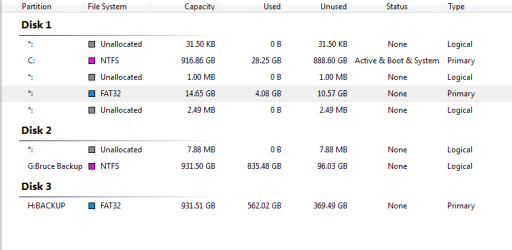
I have a new ASUS Desktop with windows 7 stored on an OEM Partition on the 1tb Hard drive. Before doing anything else I tried to partion the drive. Renamed DVD Drive E and created the Partion D, which was about 800g, leaving about 200g for OS and programs. When I rebooted the computer I had the OS partion of 200 G and 2 OEm partitons, one as per the manufactures default of about 14g and one of 800g. Could not change it in Windows Disk Management. Obtaioned a 3rd Party disk mangement program Spotmau and was able to return to more or less orig state. Found I cannot partion the drive even when assign other dirve letters such as E or F each time the partion becomes OEM. Have been left with two unreachable logical partitions of 1mb and 2.37
see attachment. Has anyone else had this problem How do I solve?
 

Attachments

  • Partitions.PNG
    Partitions.PNG
    3.8 KB · Views: 39

My Computer

Computer Manufacturer/Model Number
ASUS Desktop
OS
Windows 7
CPU
Intel Core 2 Quad Q9550 2.83ghz
Memory
4 Gb
Monitor(s) Displays
Samsung 24"
Hard Drives
1 Tb WD
Do you have a screen shot of the 200GB and 800GB partitions? When it was wrong?
 

My Computer

Computer type
PC/Desktop
Computer Manufacturer/Model Number
Dell OP7010
OS
Windows 7 Enterprise (x64); Windows Server 2008 R2 (x64)
Memory
16GB
Monitor(s) Displays
4 Dell 24" LCD
Screen Resolution
1280x1024
Keyboard
Dell
Mouse
Dell Optical
Internet Speed
40meg
Dp not have a screen shot just getting into forum usage. it appeared as curent screen shot with a partition of 800 g marked healthy and with OEM in brackets i.e two OEM partitions
 

My Computer

Computer Manufacturer/Model Number
ASUS Desktop
OS
Windows 7
CPU
Intel Core 2 Quad Q9550 2.83ghz
Memory
4 Gb
Monitor(s) Displays
Samsung 24"
Hard Drives
1 Tb WD
Current problem is that I cannot partion the drive without the new partion becoming a second oem partition and thanks for your interest
 

My Computer

Computer Manufacturer/Model Number
ASUS Desktop
OS
Windows 7
CPU
Intel Core 2 Quad Q9550 2.83ghz
Memory
4 Gb
Monitor(s) Displays
Samsung 24"
Hard Drives
1 Tb WD
What do you mean you have Win7 stored on an OEM partition? I see C; drive which looks like your Win7 installation? What is on the OEM drive visible in screenshot?

From what I see, you should be able to back up any data and delete everything to the right of C:, then shrink C: in Disk Management and create any logical data partitions you desire using Disk Management.

If this is not what you want, let us know exactly what you would like to do, and post a full Disk Management screenshot so we can advise you the steps needed. Use Snipping Tool in Start Menu, attach file with paper clip in reply box.

We recommend free Partition Wizard bootable CD which has been used here to help with over 100+ dual boot removals since release date. But this looks like something which risk-free Disk Mgmt. can handle.
 
Cannot acces the OEM Partition to see what is on it. I understand that it is the equivalent of having a windows 7 installation disk. Have made a recovery disk, which I understand means that I could delete the OEm section but I am not sure of that. Have just downloaded the suggsted CD
 

My Computer

Computer Manufacturer/Model Number
ASUS Desktop
OS
Windows 7
CPU
Intel Core 2 Quad Q9550 2.83ghz
Memory
4 Gb
Monitor(s) Displays
Samsung 24"
Hard Drives
1 Tb WD
A CD would not be large enough to reinstall the OS, so it may only be a repair disk. You can boot it to be sure. If it is instead a DVD, then that could be a full recovery disk, boot it to see.

Since the Win7 on there may still be linked to that OEM recov partition (unlike when Win7 is fresh installed from it's DVD) then you should probably keep it so you can activate it from the first boot screen in case Win7 won't start up, and your Recovery disk won't work. It is only 15 gb so you can afford it on a drive that size.

So what is happening now when you try to shrink the C: partition in Disk Mgmt? Try using Auslogics Disk Defragger first to see if it will help - check the defrag map after running it to see if any files are way out in right field that may be blocking shrinkage as that can be remedied.
 
Recovery is DVD Do not have a problem leaveing the OEm sense of tidiness does not like those fragments will try suggested defrag program attached is a screen shot from Partition Wizard Home edition. Fundamental problem that remains is that newly created partitons become a second oem partition.
 

Attachments

  • Partitions alt.PNG
    Partitions alt.PNG
    9.4 KB · Views: 68

My Computer

Computer Manufacturer/Model Number
ASUS Desktop
OS
Windows 7
CPU
Intel Core 2 Quad Q9550 2.83ghz
Memory
4 Gb
Monitor(s) Displays
Samsung 24"
Hard Drives
1 Tb WD
See if you can use Partition Wizard to shrink C:, then Create New Logical partition in the space.

That unallocated space is logical, you want a data partition to be logical anyway, so choose Logical and see if it takes.
 
Ok Have tried all suggestions and appreciate contributors help. Used Partition wizard bootable disk and ended up with the OEM partition visible but no longer as OEM and 700 odd G of OEM see screen shot.
Have srunk C drive and created logical drive but it ended up as OEM and inaccessable. Right now I am back to an upartioned C Drive with seeming no way of partioning. Thought others might have ahd teh problem as well. Will contact ASUS Tech Support tomorrow to see if they have a solution other wise migth do a complete recovery and see if I can resolve formatting isseus in that proces.
 

Attachments

  • Partitions 3.PNG
    Partitions 3.PNG
    4.9 KB · Views: 40
  • Partitions alt 2.PNG
    Partitions alt 2.PNG
    4.1 KB · Views: 35

My Computer

Computer Manufacturer/Model Number
ASUS Desktop
OS
Windows 7
CPU
Intel Core 2 Quad Q9550 2.83ghz
Memory
4 Gb
Monitor(s) Displays
Samsung 24"
Hard Drives
1 Tb WD
Problem with partioning C drive with an OEM partion has been solved.
Whether it was my own incompetence or a glitch with the process, but I caannot boot from OEM now. Have left it there as it is possibly accessed as part of recovery. But could delete if I want to with Partion Wizard.
Problem was solved by using Partition Wizard Home edition, which is more powerful and flexible than Disk manager in Windows 7. Also used the bootable version which allows you to work more easily on the C drive. In process used Spotmau Power Suite Bootcarte. Had to pay for it. Prob not worth it.
OEm does not work because whilst it was operative the partion would be changed fro logical into Om on reboot. Once it was disabled (or deleted) was able to download windows 7 image from : http://www.sevenforums.com/installat...tml#post446664
Following is instructions from Greg Rocker that lead to solution
"
If your Recov partition is disabled then you can delete it when you clean install. Back up all your files, boot from Windows 7 DVD, select CUstom then Drive Tools to delete all, create new partition(s) as you wish, then format before installing Windows 7 to first partition.
Did you try Disk Management?

If you have made your Recov disks you can delete that OEM partition. There is a link to Windows 7 installer on the forums tonight where you can download a preferred clean copy DVD of Windows 7 which will activate with the license on your machine: http://www.sevenforums.com/installat...tml#post446664

That way you could either delete the OEM and create new in Disk Mgmt, or just wipe the whole drive by booting from a clean-copy Windows 7 DVD. You would only need to find any wanted apps on your computer maker's Support Downloads page for your model. All drivers are in the installer and via Windows Updates."

Hope this helps someone else
Thansk for all who contrib and especially Greg Rocker
Bruce


My Computer

Computer Manufacturer/Model Number
ASUS Desktop
OS
Windows 7
CPU
Intel Core 2 Quad Q9550 2.83ghz
Memory
4 Gb
Monitor(s) Displays
Samsung 24"
Hard Drives
1 Tb WD
I'm not clear enough on it to give you detailed information, but I believe that the reason that you can't shrink the size of C: any more than you have, is because Windows 7 tends to scatter itself across most of the available space on the partition on which it is installed. This is particularly problematic in how it places unmovable files, such as System Volume Infomation and the pagefile. There is a way to disable the SVI via vssadmin command prompts, but I will leave it to someone more familiar to give the syntax. If you disable both of these, you should be able to shrink the size of C: considerably.
 

My Computer

Computer Manufacturer/Model Number
DIY
OS
W7x64 Pro, SuSe 12.1/** W7 x64 Pro, XP MCE
CPU
Phenom II 1090T w/Noctua NH-D14 /**4400+ X2 w/CM Hyper TX 3
Motherboard
ASRock 890FX Deluxe 4/**A8N-SLI
Memory
2 x 2GB Patriot PGS34g1600LLKA/**4x1GB Corsair VS
Graphics Card(s)
EVGA GTX460 SC/**EVGA 8800GTS
Sound Card
Asus Xonar D2X/**Xonar D1
Monitor(s) Displays
Acer X233H, Dell E152FPc /**LG M237-WD
Screen Resolution
1920x1080 & 1024x768/**1980x1080
Hard Drives
WDC 2TB, 1.5TB, 1TB, 500GB,Seagate 500GB , Maxtor 80GB /**500GB Seagate & WDC 1TB Black
PSU
CM RS600 w/ APC BX1000G/**Antec 500 TP w/ APC BX1000
Case
HAF922/**Antec 1040IIB
Cooling
3x200mm, 1x140 and 1x120mm/**5x80mm fans
Keyboard
Logitech Media USB/**Saitek Eclipse
Mouse
Cordless Trackman Wheel/**Ditto
Internet Speed
3.3Mbps
Other Info
SB 560 5.1 w/ Sennheiser RS140/**Creative T20 speakers, Dvico FusionHDTV7 Gold RT, Cisco E3000, HP 5510V AIO, Linksys E3000, Belkin F5U237 hub and **F5D8055 adapter
(** = 2nd rig)
Being an amateur, I shrank the C drive of a 1tb drive to 200g being conservative because of the factors that you mention and becuase I am not sure how virtual memory works and I did want to impede that. Speed is the essence for me
I have two logical drives of 480 and 230g respectively. As soon as I had installed some programs Windows 7 disk manger would not let me shrink below 450g. Used partition wizard home edition in its bootable form to do this.
Thanks
Bruce
 

My Computer

Computer Manufacturer/Model Number
ASUS Desktop
OS
Windows 7
CPU
Intel Core 2 Quad Q9550 2.83ghz
Memory
4 Gb
Monitor(s) Displays
Samsung 24"
Hard Drives
1 Tb WD
Back
Top