
Partition

timlab1955

New member
Member
VIP
Local time
7:34 PM
Messages
186
I'm not sure how to do this and frankly I'm learning alot from this board and I do appricate it. Here's my question:

I have one USB drive (32GB's) and I would like to do is partition it so that on one side is my boot drive (in case the computers crashes) and on the other side I would like to use it for storage/data backup. Is this possible? If it is possible, how would I go about doing it.

Thanks.
 

My Computer

Computer Manufacturer/Model Number
Dell XPS 17
OS
Windows Professional 64bit
CPU
Intel Core i7 2820QM @ 2.30GHz, Sandy Bridge 32nm
Motherboard
03RG89, Intel Ver: A12
Memory
16GB
Graphics Card(s)
Generic PnP Monitor (1600x900@60Hz), NVIDIA GeForce GT 555m
Sound Card
High Definition Audio Device
Monitor(s) Displays
NVIDIA 3D
Screen Resolution
1600 x 900 3d
Hard Drives
250GB SAMSUNG SAMSUNG SSD PM810 2.5" 256GB ATA Device (SATA-SSD)
625GB SAMSUNG SAMSUNG HM640JJ ATA Device (SATA)
Other Info
Transend 64GB Memory Card, Lexar Echo ZE 32GB USB 2.0 Backup DriveLEHZE32GASBNA <---Newest thing and very small.
I wouldn't bother partitioning a 32 GB drive, aside from one large partition. It might not fit, but you could try storing a system image on it, with something like Acronis or Macrium...as long as it offered compression. You can't boot and run Windows from a USB drive anyway (just the installer). Acronis has a bootable CD, so you could boot from that and point it to your USB drive to pull back the image. However, you would need to update this image often.

My method is to not both with backing up the actual OS or programs, because they can all be reinstalled quickly (under 2 hours). My data is what's important to me, so I only worry about backing that up.

That all being said, if this is a flash drive, you don't want to use that as a backup method. You would be much better off with a regula hard drive in a USB or eSATA carrier.
 

My Computer

OS
Windows 7 Ultimate x64 SP1
CPU
Intel Core i7-2600
Motherboard
Gigabyte GA-P67A-UD3P-B3
Memory
12 GB Patriot Extreme DDR3-1333
Graphics Card(s)
Nvidia GTX 470
Monitor(s) Displays
Dell UltraSharp 2209WA
Hard Drives
OCZ Agility3 240 GB, WD5001AALS, WD7501AALS
PSU
OCZ ModStream 700W
Case
CoolerMaster HAF 912 Advanced
Cooling
CoolerMaster Hyper 212 Plus
Thank you for your responds, as I guess I should of been more clear on what I want to do.

I want to put the installer on the usb and not the image of the system/programs on the other partition. I agree that personal data is the most important thing as with me. So my thinking (if it can be done) is this. On 32GB USB stick, on partition A, put the installer for windows. On partition B, put my data that is sync with various programs throughout the day. The disk image of "C" is on my large internal D drive (only place where it would fit). So now if my system does crash or something like that, I could tell the computer to boot windows from my USB drive, go to my "D" drive and pull the image and reload it.

I've been playing with Macrium alot as the other software you mention I don't like as I've played with it. Seems like they want to give you the software, try it for 30 days and in the meantime put things in their cloud. Forget it, what's on my computer stays on my computer.
 

My Computer

Computer Manufacturer/Model Number
Dell XPS 17
OS
Windows Professional 64bit
CPU
Intel Core i7 2820QM @ 2.30GHz, Sandy Bridge 32nm
Motherboard
03RG89, Intel Ver: A12
Memory
16GB
Graphics Card(s)
Generic PnP Monitor (1600x900@60Hz), NVIDIA GeForce GT 555m
Sound Card
High Definition Audio Device
Monitor(s) Displays
NVIDIA 3D
Screen Resolution
1600 x 900 3d
Hard Drives
250GB SAMSUNG SAMSUNG SSD PM810 2.5" 256GB ATA Device (SATA-SSD)
625GB SAMSUNG SAMSUNG HM640JJ ATA Device (SATA)
Other Info
Transend 64GB Memory Card, Lexar Echo ZE 32GB USB 2.0 Backup DriveLEHZE32GASBNA <---Newest thing and very small.
Ah, yes, then that can be done easily. You could probably use Disk Management to create a partition, maybe 6 GB in size to give it plenty of room. Then, you can use any .iso file along with the Microsoft USB/DVD Tool to create a bootable installer. We have tutorials here that will let you create one installer that does every version of Windows 7, including both platforms.

Once that's complete, Disk Management should let you create a second partition to store your data.

http://www.sevenforums.com/printthread.php?t=85813
 

My Computer

OS
Windows 7 Ultimate x64 SP1
CPU
Intel Core i7-2600
Motherboard
Gigabyte GA-P67A-UD3P-B3
Memory
12 GB Patriot Extreme DDR3-1333
Graphics Card(s)
Nvidia GTX 470
Monitor(s) Displays
Dell UltraSharp 2209WA
Hard Drives
OCZ Agility3 240 GB, WD5001AALS, WD7501AALS
PSU
OCZ ModStream 700W
Case
CoolerMaster HAF 912 Advanced
Cooling
CoolerMaster Hyper 212 Plus
I knew that would make better sense now. If this works out ok I will purchase the program, but I'm wondering how much smaller their program can make a let's say a 100GB file into an image?

What is the differences between an image and cloning a drive?

Why doesn't windows see an SD Card and can't boot from it?
 

My Computer

Computer Manufacturer/Model Number
Dell XPS 17
OS
Windows Professional 64bit
CPU
Intel Core i7 2820QM @ 2.30GHz, Sandy Bridge 32nm
Motherboard
03RG89, Intel Ver: A12
Memory
16GB
Graphics Card(s)
Generic PnP Monitor (1600x900@60Hz), NVIDIA GeForce GT 555m
Sound Card
High Definition Audio Device
Monitor(s) Displays
NVIDIA 3D
Screen Resolution
1600 x 900 3d
Hard Drives
250GB SAMSUNG SAMSUNG SSD PM810 2.5" 256GB ATA Device (SATA-SSD)
625GB SAMSUNG SAMSUNG HM640JJ ATA Device (SATA)
Other Info
Transend 64GB Memory Card, Lexar Echo ZE 32GB USB 2.0 Backup DriveLEHZE32GASBNA <---Newest thing and very small.
1. There's no program to purchase. Everything I listed is free, including the MyDigitalLife site to download the .iso files you need, if you don't have them already. As for the compression, that depends largely on what type of data you have stored in that image. Differently file types can be compressed in different percentages.

2. Imaging is creating a file that can be used at a later date or repeatedly to restore a system. Cloning creates no file, but copies directly from a source disk to the target disk.

3. That is most likely because of the interface. A flash drive connects directly to a USB port. An SD Card connects directly to a card reader, which is connected to the USB port.
 

My Computer

OS
Windows 7 Ultimate x64 SP1
CPU
Intel Core i7-2600
Motherboard
Gigabyte GA-P67A-UD3P-B3
Memory
12 GB Patriot Extreme DDR3-1333
Graphics Card(s)
Nvidia GTX 470
Monitor(s) Displays
Dell UltraSharp 2209WA
Hard Drives
OCZ Agility3 240 GB, WD5001AALS, WD7501AALS
PSU
OCZ ModStream 700W
Case
CoolerMaster HAF 912 Advanced
Cooling
CoolerMaster Hyper 212 Plus
I knew that would make better sense now. If this works out ok I will purchase the program, but I'm wondering how much smaller their program can make a let's say a 100GB file into an image?

What is the differences between an image and cloning a drive?

Why doesn't windows see an SD Card and can't boot from it?

When you want to carry out a backup you create a system image, and then use that image to recover your computer to a previous state as and when necessary.

When you clone a drive you are just moving ort copying the entire contents of one drive to another.

Difference between Backup and Disk Clone | Knowledge Base
 

My Computer

Computer Manufacturer/Model Number
HP Pavilion Elite 495UK
OS
Windows 7 Ultimate SP1 64-Bit
CPU
Intel Core i7 870 @ 2.93GHz
Motherboard
MSI 2A9C (CPU1)
Memory
8Gb Dual-Channel DDR3 @ 664MHz
Graphics Card(s)
nVidia GeForce GTX 460 1024MB dedicated RAM
Sound Card
Realtek HD Audio
Monitor(s) Displays
HP2310i
Screen Resolution
1920 x 1080
Hard Drives
1x1954GB Hitachi HDS22020ALA 330 (RAID), 1x1954GB Hitachi External for backup and storage
PSU
460W
Case
HP Elite
Cooling
Air cooled
Keyboard
Logitech K750 solar-powered keyboard
Mouse
Logitech Wireless M180 mouse
Internet Speed
2Mb
Other Info
Pure Avanti Flow Internet Radio with iPod Dock, 64Gb iPod, HP USB Speakers, Sony MDR-V500 Headphones, Sony Vaio F-Series Laptop
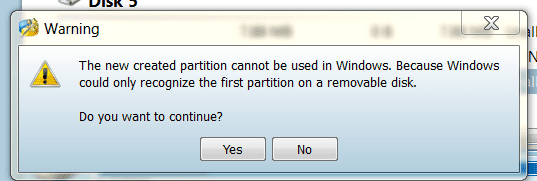
Okay got the cloning and image part. Now I ran into a problem. I'm trying to partition a USB, but according to a program I'm using it states that windows will not allow it, is this true?
 

Attachments

  • Capture4.PNG
    Capture4.PNG
    9.9 KB · Views: 7

My Computer

Computer Manufacturer/Model Number
Dell XPS 17
OS
Windows Professional 64bit
CPU
Intel Core i7 2820QM @ 2.30GHz, Sandy Bridge 32nm
Motherboard
03RG89, Intel Ver: A12
Memory
16GB
Graphics Card(s)
Generic PnP Monitor (1600x900@60Hz), NVIDIA GeForce GT 555m
Sound Card
High Definition Audio Device
Monitor(s) Displays
NVIDIA 3D
Screen Resolution
1600 x 900 3d
Hard Drives
250GB SAMSUNG SAMSUNG SSD PM810 2.5" 256GB ATA Device (SATA-SSD)
625GB SAMSUNG SAMSUNG HM640JJ ATA Device (SATA)
Other Info
Transend 64GB Memory Card, Lexar Echo ZE 32GB USB 2.0 Backup DriveLEHZE32GASBNA <---Newest thing and very small.
Interesting. I'll have to wait for someone else to comment. I've never tried partitioning a flash drive before.

I have one 8 GB drive I use for my Windows 7 installer, and then a second, 16 GB drive I use for all my common programs and driver files.
 

My Computer

OS
Windows 7 Ultimate x64 SP1
CPU
Intel Core i7-2600
Motherboard
Gigabyte GA-P67A-UD3P-B3
Memory
12 GB Patriot Extreme DDR3-1333
Graphics Card(s)
Nvidia GTX 470
Monitor(s) Displays
Dell UltraSharp 2209WA
Hard Drives
OCZ Agility3 240 GB, WD5001AALS, WD7501AALS
PSU
OCZ ModStream 700W
Case
CoolerMaster HAF 912 Advanced
Cooling
CoolerMaster Hyper 212 Plus
I will wait on this and do some research as well. In the meantime I can just create another folder and store my stuff there.

After I make this image of my system/program I would like to test it. There by inserting my usb into the port, boot off the usb and then see what happens. I don't want to over write anything as this is for testing only. Do I need to do this or just take the word of the software that it is good?
 

My Computer

Computer Manufacturer/Model Number
Dell XPS 17
OS
Windows Professional 64bit
CPU
Intel Core i7 2820QM @ 2.30GHz, Sandy Bridge 32nm
Motherboard
03RG89, Intel Ver: A12
Memory
16GB
Graphics Card(s)
Generic PnP Monitor (1600x900@60Hz), NVIDIA GeForce GT 555m
Sound Card
High Definition Audio Device
Monitor(s) Displays
NVIDIA 3D
Screen Resolution
1600 x 900 3d
Hard Drives
250GB SAMSUNG SAMSUNG SSD PM810 2.5" 256GB ATA Device (SATA-SSD)
625GB SAMSUNG SAMSUNG HM640JJ ATA Device (SATA)
Other Info
Transend 64GB Memory Card, Lexar Echo ZE 32GB USB 2.0 Backup DriveLEHZE32GASBNA <---Newest thing and very small.
I tested mine two ways. The process in our tutorial results in a .iso file. I booted that in a VM to make sure it was bootable and that it ran without issue through the entire install process. Once that was complete, I used the Microsoft USB/DVD tool to turn the .iso file into a bootable flash drive. I then booted my computer off of the flash drive to make sure that worked and that it brought me to the Windows installer.
 

My Computer

OS
Windows 7 Ultimate x64 SP1
CPU
Intel Core i7-2600
Motherboard
Gigabyte GA-P67A-UD3P-B3
Memory
12 GB Patriot Extreme DDR3-1333
Graphics Card(s)
Nvidia GTX 470
Monitor(s) Displays
Dell UltraSharp 2209WA
Hard Drives
OCZ Agility3 240 GB, WD5001AALS, WD7501AALS
PSU
OCZ ModStream 700W
Case
CoolerMaster HAF 912 Advanced
Cooling
CoolerMaster Hyper 212 Plus
Great! Any news on turning your USB flash drive into two partitions?
 

My Computer

Computer Manufacturer/Model Number
Dell XPS 17
OS
Windows Professional 64bit
CPU
Intel Core i7 2820QM @ 2.30GHz, Sandy Bridge 32nm
Motherboard
03RG89, Intel Ver: A12
Memory
16GB
Graphics Card(s)
Generic PnP Monitor (1600x900@60Hz), NVIDIA GeForce GT 555m
Sound Card
High Definition Audio Device
Monitor(s) Displays
NVIDIA 3D
Screen Resolution
1600 x 900 3d
Hard Drives
250GB SAMSUNG SAMSUNG SSD PM810 2.5" 256GB ATA Device (SATA-SSD)
625GB SAMSUNG SAMSUNG HM640JJ ATA Device (SATA)
Other Info
Transend 64GB Memory Card, Lexar Echo ZE 32GB USB 2.0 Backup DriveLEHZE32GASBNA <---Newest thing and very small.
It isn't necessary to partition an installer stick. You can write the installer ISO to it using Universal USB Installer then just add any files, apps, tools, etc.

Just make sure you don't bother the seven extracted Win7 folders which need to remain in the root in order to boot. However I put mine into a folder when I'm not booting the stick so they are out of the way and can't get accidentally deleted.

BTW you can do the same with Vista on the same stick, just spill its extracted folders out into the root to boot it once the stick is bootsected by Univeral Installer for Win7 or Vista. I keep all of my tools, XP ISO's (tho not bootable by the stick), apps installers, etc. on a stick I carry in a baggy in my pocket. Sometimes I forget and take it in the ocean but since it's Kingston it lasts and lasts..
 
Back
Top