Hi Verean.
You can move the entire user, program files and program data folders to another partition. With this you can actually get away with C: being 16 GB in size.
Note: I have a bunch of programs installed including iTunes and my free space on C: is 7.86 GB. My computer is however running without a pagefile and a hibernation file, System protection is also turned off.
Tip: Copy the command lines into a notepad file onto a USB thumb drive for easy access.
What you will need to do First:
After a clean install of Windows but before creating a user profile you will need to press sift F10, this will open the command prompt. From within the command prompt type 'notepad' to open up notepad; with in notepad go to file then open. In the navigation pane right mouse click on computer and select from the menu 'manage'. From here you can setup your partitions, assigning drive letters and formatting them.
Now for the commands:
Where I have E: - this is my partition where I move the folders to, you can use any drive letter you want so long as the partition has the same drive letter. Execute one command at a time. When you get to this command rmdir "C:\Program Files" /S /Q - it will delete program files from C: but before you do you will need to close out of notepad in order to fully delete program files form C:. You can re-open notepad when the command has finished.
you cannot fully delete program data yet but don't let that stop you from running all the commands.
robocopy "C:\Users" "E:\Users" /E /COPYALL /XJ
robocopy "C:\Program Files" "E:\Program Files" /E /COPYALL /XJ
robocopy "C:\Program Files (x86)" "E:\Program Files (x86)" /E /COPYALL /XJ
robocopy "C:\ProgramData" "E:\ProgramData" /E /COPYALL /XJ
rmdir "C:\Program Files" /S /Q
mklink /J "C:\Program Files" "E:\Program Files"
rmdir "C:\Program Files (x86)" /S /Q
mklink /J "C:\Program Files (x86)" "E:\Program Files (x86)"
rmdir "C:\users" /S /Q
mklink /J "C:\users" "E:\users"
rmdir "C:\ProgramData" /S /Q
mklink /J "C:\ProgramData "E:\ProgramData"
Once you have finished executing all the commands you will need to perform some registry edits. From the command prompt type 'regedit' and press enter.
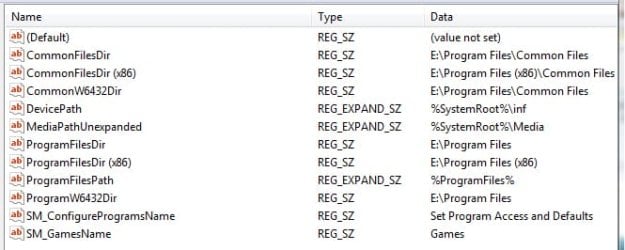
First: within the registry editor you need to navigate to HKEY_LOCAL_MACHINE/SOFTWARE/Microsoft/Windows then high light CurrentVersion. From there make it look like this but replace E: with whatever drive letter you chose earlier.
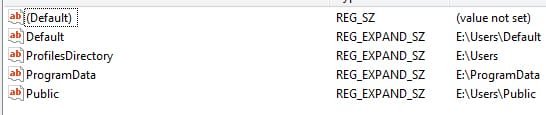
Then go to HKEY_LOCAL_MACHINE/SOFTWARE/Microsoft/Windows NT/CurrentVersion and high light ProfileList , then replace C: with whatever drive letter you chose earlier.
When the registry edits are done proceed with creating your user profile. Once you're at your desktop restart your computer, you will then be able to fully delete program data from C:.
Some program installations will still place things like .dlls into the C: drive but it wont be nearly as drastic has having them place all of their bloat into the C: drive. When installing programs some will still show C: as the location to install to but they will not be truly installed on the C: drive.



