Partitioning unallocated space

dualbootguy1

New member
Local time
8:10 PM
Messages
15
Hello,

I downloaded a copy of Partition Wizard.

Disk 1 shows Drive C (OS) and Drive E (Recovery), having 200 gb and 10 gb respectively.

Disk 2 does not have a drive letter, but has unallocated space (200 gb).

I can't seem to allocate this extra 200 gb to Drive C. In Partition Wizard, the option to move the space is greyed out. I also can't seem to "extend" the space in Drive C through Window's Disk Management. Please help, thanks.
 

My Computer

OS
Windows Vista
You can't add space from a hard drive to a partition on another hard drive.

Do you have 2 hard drives, or just a partition using 200 GB and a partition using 10 GB on the same drive with 200GB left over?
 
Last edited:

My Computer

Computer Manufacturer/Model Number
Homebuilt
OS
Windows 7 x64
CPU
i7-2600K
Motherboard
Asus P8Z77-v Pro
Memory
8 G
Graphics Card(s)
GTX 480
Sound Card
Onboard
Monitor(s) Displays
LG W2753V
Screen Resolution
1920x1080
Hard Drives
Crucial M4 128 G SSD
I have separate drives because when I installed Seven it asked me what drive to put it on.

The drive that is now unallocated space (200 gb) was originally named Drive D.

How would I go about removing this drive and putting it all on C?

Thanks
 

My Computer

OS
Windows Vista
That's correct I installed Seven on C. I did remove D from Disk Management - the letter was removed and it became Unallocated Space. But I can't seem to allocate the space now. Thanks
 

My Computer

OS
Windows Vista
If they are seperate, like in this pic you can't add it to your other one.
Can you post a screenshot of yours?
 

Attachments

  • disc manager.jpg
    disc manager.jpg
    81.1 KB · Views: 689

My Computer

Computer type
PC/Desktop
Computer Manufacturer/Model Number
Self Built
OS
Win 10 Pro x64
CPU
Intel I5-2500K @3.3GHz
Motherboard
Asrock P67 Extreme4
Memory
16GB G.Skill Ripjaws X (4x4GB)
Graphics Card(s)
EVGA GeForce 750 Ti SC 2GB
Sound Card
ASUS Xonar DG 5.1 Channels 24-bit 96KHz PCI Interface Sound
Monitor(s) Displays
auria eq2367
Screen Resolution
1920 x 1080
Hard Drives
250GB Samsung 850 EVO SSD
1TB WD Blue
1TB Hitachi
PSU
SeaSonic X 650W 80 Plus Gold
Case
Corsair Obsidian 750D
Cooling
Corsair H60, Three 140mm case fans
Keyboard
Logitech Wireless Keyboard K520
Mouse
Logitech Wireless Mouse M310
Internet Speed
Wave Broadband ~ 100 dn 5 up
Antivirus
Windows Defender, Malwarebytes Premium
Browser
Edge, IE11, Chrome
Other Info
Laptop specs: HP g7-1365dx /
CPU: AMD A6-3420M APU with Radeon(tm) HD Graphics /
RAM: Crucial 8Gb (2x4Gb) /
SSD: Crucial M4-CT128M4SSD2 ATA Device/ FW 000F /
GFX: AMD Radeon HD 6520G /
OS: Windows 10 Pro x64
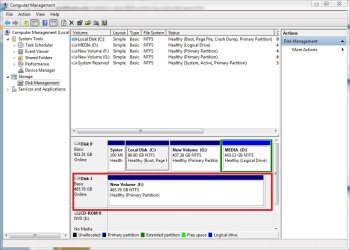
This is what they are like... the drive with the unallocated space appears below the other ones (not to the right of them)
 

My Computer

OS
Windows Vista
Did you follow the tutorial posted above to create a new partition from your unallocated space in Disk management?
 
This is what they are like... the drive with the unallocated space appears below the other ones (not to the right of them)

Follow that tutorial gregrocker posted and you'll have access to it.
 

My Computer

Computer type
PC/Desktop
Computer Manufacturer/Model Number
Self Built
OS
Win 10 Pro x64
CPU
Intel I5-2500K @3.3GHz
Motherboard
Asrock P67 Extreme4
Memory
16GB G.Skill Ripjaws X (4x4GB)
Graphics Card(s)
EVGA GeForce 750 Ti SC 2GB
Sound Card
ASUS Xonar DG 5.1 Channels 24-bit 96KHz PCI Interface Sound
Monitor(s) Displays
auria eq2367
Screen Resolution
1920 x 1080
Hard Drives
250GB Samsung 850 EVO SSD
1TB WD Blue
1TB Hitachi
PSU
SeaSonic X 650W 80 Plus Gold
Case
Corsair Obsidian 750D
Cooling
Corsair H60, Three 140mm case fans
Keyboard
Logitech Wireless Keyboard K520
Mouse
Logitech Wireless Mouse M310
Internet Speed
Wave Broadband ~ 100 dn 5 up
Antivirus
Windows Defender, Malwarebytes Premium
Browser
Edge, IE11, Chrome
Other Info
Laptop specs: HP g7-1365dx /
CPU: AMD A6-3420M APU with Radeon(tm) HD Graphics /
RAM: Crucial 8Gb (2x4Gb) /
SSD: Crucial M4-CT128M4SSD2 ATA Device/ FW 000F /
GFX: AMD Radeon HD 6520G /
OS: Windows 10 Pro x64
Hello,

I followed the tutorial so the Unallocated Space has become "New Volume (D)"

Disk 0 has "OS (C)" and "Recovery (E)"

Disk 1 has "New Volume (D)". This appears below Disk 0 in Disk Management.

How to I get rid of New Volume (D) and transfer all of its space over to OS (C)?

Thanks
 

My Computer

OS
Windows Vista
I have access to it... but I want to transfer the space in it.
 

My Computer

OS
Windows Vista
Well, once again you can't add the space to the C: partition like you could if the space was on the same hard drive.

Something you might do, if it would help, is to create an empty folder on the C: partition where you want the space. Name the folder and then go to the D: partition (in disk Managment) and instead of using a drive letter, map it to the empty folder.

Then anything you placed in the folder would really be put in the empty space you want to use.

I am assuming you do not want to move the data in the Recovery partition to the other hard drive, or if it is even large enough to make a difference.
 

My Computer

Computer Manufacturer/Model Number
Homebuilt
OS
Windows 7 x64
CPU
i7-2600K
Motherboard
Asus P8Z77-v Pro
Memory
8 G
Graphics Card(s)
GTX 480
Sound Card
Onboard
Monitor(s) Displays
LG W2753V
Screen Resolution
1920x1080
Hard Drives
Crucial M4 128 G SSD
Ok, thanks for everyone's support. Is it possible to do this if I were to re-install windows?
 

My Computer

OS
Windows Vista
Back
Top