Partitions

Sleepy 1

New member
Local time
7:23 PM
Messages
21
Location
Tenerife
I made a mistake when installing Windows 7 on a 150GB hard drive which previously had three partitions.I formatted all three and chose to install the OS to a 75 gb partition.
Everything installed ok but I am 75 GB down on hard disc space.
Is there any simple ways to amalgamate the other 75GB partiton to give me back my original size of 150GB?
 

My Computer

OS
Windows 7 Ultimate
If they are empty and located next to each other then you can use the built in application to delete the rightmost partition and extend the other into the empty space created.

If the partitions are complete with data and or not next to each other then you can still combine the two partitions but would need a 3rd party application with more advanced functionality
 

My Computers

System One System Two

  • Computer type
    PC/Desktop
    Computer Manufacturer/Model Number
    ChillBlast - Custom to my design
    OS
    Windows 11 Pro x64 [Latest Release and Release Preview]
    CPU
    Ryzen 9 5950X, 3.8 - 5.2 MHz
    Motherboard
    Asus Prime X570-Pro
    Memory
    64GB [2 x 32GB] DDR4 3200MHz
    Graphics Card(s)
    4GB NVIDIA GEFORCE GTX 1650 Ti
    Sound Card
    On-board SPDIF to 5.1 System + HDMI [5.1 system]
    Monitor(s) Displays
    32" UHD 32 Bit HDR Monitor + 43" UHD 4K 32Bit HDR TV
    Screen Resolution
    2 x 3840 x 2160 @60Hz
    Hard Drives
    1TB M2 SSD OS, 500GB Fast Access SSD, 2 x 8TB Data + Various Externals from 1TB to 4TB, 10TB NAS
    PSU
    NZXT C750 80 PLUS Gold 750W Modular PSU
    Case
    Workstation Case [Matt Black]
    Cooling
    NZXT Kraken X63 280mm CPU Cooler +2x Quiet Case fans
    Keyboard
    Logitech Wireless MX Keys & K400 + others
    Mouse
    Logitech Wireless MX Master 3S
    Internet Speed
    920 MB Down 50 MB Up
    Antivirus
    BitDefender Total Security Pro
    Browser
    Chrome (always run latest Non-Beta)
    Other Info
    Also run ...
    Laptop - Quad 8GB - Windows 10 Pro x64
    Nexus 7 Android tablet x2
    Samsung 10.2" tablet
    Blackview TAB 8 4G Android Tablet c/w Keyboard
    Wacom Intuos Pro Medium Pen Pad
    Wacom Intuos Pro Small Pen Pad
    Wacom Expresskeys Remote
    Loopdeck+ Graphics Controller
    Shuttle Pro v2 Control
  • Computer type
    Laptop
    System Manufacturer/Model Number
    Dell XPS 17 10750H
    OS
    Windows 11 Pro x64 Latest RP
    CPU
    Intel I7 10750H 5.0GHz
    Motherboard
    Dell XPS
    Memory
    32GB [2x16GB] DDR4 2933 MHz
    Graphics Card(s)
    nVidia GTX1650Ti 4 GB GDDR6
    Sound Card
    Stock [Realtek] 4 Speaker
    Monitor(s) Displays
    17" IPS UHD+ Infinity Edge Touchscreen
    Screen Resolution
    3840 x 2400
    Hard Drives
    2TB M2 NVMe, 4TB External + various 500GB & 1TB External NVMe (also have access to spinner HDD from
    PSU
    Stock
    Case
    Stock XPS Aluminium & Carbon Fibre
    Cooling
    Stock - Active Fan Control
    Keyboard
    Backlit + Various Logitech
    Mouse
    Stock Track Pad + Logitech MX Trackball
    Internet Speed
    72 MB Down 18MB Up
    Browser
    Chrome
    Other Info
    Also run ...
    Laptop - Quad 8GB - Windows 10 Pro x64
    Nexus 7 Android tablet x2
    10.2" tablet
    Sony Z3 Android Smartphone
    Wacom Intuos Pro Medium Pen Pad
    Wacom Intuos Pro Small Pen Pad
    Wacom Expresskeys Remote
    Loopdeck+ Graphics Controller
    Shuttle Pro v2 Control Pad
    10TB NAS
If they are empty and located next to each other then you can use the built in application to delete the rightmost partition and extend the other into the empty space created.

If the partitions are complete with data and or not next to each other then you can still combine the two partitions but would need a 3rd party application with more advanced functionality

Thanks for that Barman58.
Where would I find the built in application and what would be the name of the program?
My apologies as I'm not very technical with all this.:D
 

My Computer

OS
Windows 7 Ultimate
Hi Sleepy 1, I believe he's referring to Start - Control Panel - Administrative Tools - Computer Management - Disk Management (under the storage heading)
 

My Computer

OS
XP Pro/Vista Ultimate (64)/Windows 7 Ultimate Signature Edition(64)
CPU
Core 2 Duo E8500 @ stock
Motherboard
Gigabyte EP45-UD3R
Memory
8Gb (4 X 2Gb) Corsair Dominator 1066Mhz DDR2
Graphics Card(s)
XFX ATI Radeon 4870 1Gb
Sound Card
Onboard 7.1
Monitor(s) Displays
BenQ E2200Hd, Asus VW161D, HP L1506
Screen Resolution
1920 X 1080
Hard Drives
Seagate 7200.12 500Gb
2 X Hitachi 1Tb
PSU
CoolerMaster 650 EPD
Case
Thermaltake
Cooling
2 X Noctua 120mm's, Stock Intel
Keyboard
Logitech
Mouse
Logitech
If you open the start menu (admin user ;) ), and right click on the computer link you should have a manage option.

Click on this (ok UAC if asked) and you should then have a management console - one item here is disk management.

If you want someone to confirm that what you want to do is possible take a screenshot of this app showing the actual partitions you have and post it here.

We'll take a look and advise further

@Orpheous

Hi Sleepy 1, I believe he's referring to Start - Control Panel - Administrative Tools - Computer Management - Disk Management (under the storage heading)

Same destination different route ;) :D
 

My Computers

System One System Two

  • Computer type
    PC/Desktop
    Computer Manufacturer/Model Number
    ChillBlast - Custom to my design
    OS
    Windows 11 Pro x64 [Latest Release and Release Preview]
    CPU
    Ryzen 9 5950X, 3.8 - 5.2 MHz
    Motherboard
    Asus Prime X570-Pro
    Memory
    64GB [2 x 32GB] DDR4 3200MHz
    Graphics Card(s)
    4GB NVIDIA GEFORCE GTX 1650 Ti
    Sound Card
    On-board SPDIF to 5.1 System + HDMI [5.1 system]
    Monitor(s) Displays
    32" UHD 32 Bit HDR Monitor + 43" UHD 4K 32Bit HDR TV
    Screen Resolution
    2 x 3840 x 2160 @60Hz
    Hard Drives
    1TB M2 SSD OS, 500GB Fast Access SSD, 2 x 8TB Data + Various Externals from 1TB to 4TB, 10TB NAS
    PSU
    NZXT C750 80 PLUS Gold 750W Modular PSU
    Case
    Workstation Case [Matt Black]
    Cooling
    NZXT Kraken X63 280mm CPU Cooler +2x Quiet Case fans
    Keyboard
    Logitech Wireless MX Keys & K400 + others
    Mouse
    Logitech Wireless MX Master 3S
    Internet Speed
    920 MB Down 50 MB Up
    Antivirus
    BitDefender Total Security Pro
    Browser
    Chrome (always run latest Non-Beta)
    Other Info
    Also run ...
    Laptop - Quad 8GB - Windows 10 Pro x64
    Nexus 7 Android tablet x2
    Samsung 10.2" tablet
    Blackview TAB 8 4G Android Tablet c/w Keyboard
    Wacom Intuos Pro Medium Pen Pad
    Wacom Intuos Pro Small Pen Pad
    Wacom Expresskeys Remote
    Loopdeck+ Graphics Controller
    Shuttle Pro v2 Control
  • Computer type
    Laptop
    System Manufacturer/Model Number
    Dell XPS 17 10750H
    OS
    Windows 11 Pro x64 Latest RP
    CPU
    Intel I7 10750H 5.0GHz
    Motherboard
    Dell XPS
    Memory
    32GB [2x16GB] DDR4 2933 MHz
    Graphics Card(s)
    nVidia GTX1650Ti 4 GB GDDR6
    Sound Card
    Stock [Realtek] 4 Speaker
    Monitor(s) Displays
    17" IPS UHD+ Infinity Edge Touchscreen
    Screen Resolution
    3840 x 2400
    Hard Drives
    2TB M2 NVMe, 4TB External + various 500GB & 1TB External NVMe (also have access to spinner HDD from
    PSU
    Stock
    Case
    Stock XPS Aluminium & Carbon Fibre
    Cooling
    Stock - Active Fan Control
    Keyboard
    Backlit + Various Logitech
    Mouse
    Stock Track Pad + Logitech MX Trackball
    Internet Speed
    72 MB Down 18MB Up
    Browser
    Chrome
    Other Info
    Also run ...
    Laptop - Quad 8GB - Windows 10 Pro x64
    Nexus 7 Android tablet x2
    10.2" tablet
    Sony Z3 Android Smartphone
    Wacom Intuos Pro Medium Pen Pad
    Wacom Intuos Pro Small Pen Pad
    Wacom Expresskeys Remote
    Loopdeck+ Graphics Controller
    Shuttle Pro v2 Control Pad
    10TB NAS
If you open the start menu (admin user ;) ), and right click on the computer link you should have a manage option.

Click on this (ok UAC if asked) and you should then have a management console - one item here is disk management.

If you want someone to confirm that what you want to do is possible take a screenshot of this app showing the actual partitions you have and post it here.

We'll take a look and advise further

@Orpheous

Hi Sleepy 1, I believe he's referring to Start - Control Panel - Administrative Tools - Computer Management - Disk Management (under the storage heading)

Same destination different route ;) :D

Most helpful Barman thank you so much for that.
 

My Computer

OS
Windows 7 Ultimate
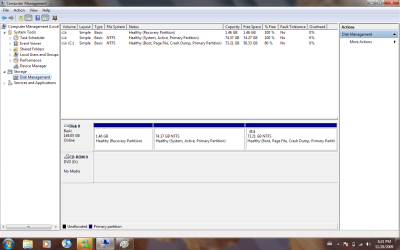
This is what I'm seeing under'Disc Management' as requested.
 

Attachments

  • picture.png
    picture.png
    45.1 KB · Views: 44

My Computer

OS
Windows 7 Ultimate
Ok looking at the partition layout there, you can do various things

The c: partition is self contained which is a good thing - the boot files are there so and it is the active partition so that any work with the other partitions will not effect the install :)

The bad news is that the partitions are in the wrong order for use with the built-in application - except for a non ideal result which I will explain.

Using the built in application you can right click on the two empty partitions and delete them. This will leave you space of 75GB that you can then right click and create a new partition and allocate a drive letter to, which will work from within windows and show as the c: and another, (D?), drive.

The issue with this is that it is not optimal to have the system partition at the end, (right side), of the drive.

If you wish to move the system partition to the start of the drive, (left side), you will need to use a 3rd party tool to delete the two empty partitions, move the system drive to the start of the drive, and then create the new partition at the end.

The tool I use is partition wizard ( the bootable disk version, as this makes things easier to move system partitions), which is free and has a good help section on the site with step by step tutorials for using the software

Partition Wizard is a Windows based FREE Partition Manager. It works as partition magic and supports Windows 2000/XP/2003/Vista/2008 server and Windows 7. FREE for Home and Business user.

Which method you use is of course your choice - the first method will work but the second is better if you later need to adjust sizes.

 

My Computers

System One System Two

  • Computer type
    PC/Desktop
    Computer Manufacturer/Model Number
    ChillBlast - Custom to my design
    OS
    Windows 11 Pro x64 [Latest Release and Release Preview]
    CPU
    Ryzen 9 5950X, 3.8 - 5.2 MHz
    Motherboard
    Asus Prime X570-Pro
    Memory
    64GB [2 x 32GB] DDR4 3200MHz
    Graphics Card(s)
    4GB NVIDIA GEFORCE GTX 1650 Ti
    Sound Card
    On-board SPDIF to 5.1 System + HDMI [5.1 system]
    Monitor(s) Displays
    32" UHD 32 Bit HDR Monitor + 43" UHD 4K 32Bit HDR TV
    Screen Resolution
    2 x 3840 x 2160 @60Hz
    Hard Drives
    1TB M2 SSD OS, 500GB Fast Access SSD, 2 x 8TB Data + Various Externals from 1TB to 4TB, 10TB NAS
    PSU
    NZXT C750 80 PLUS Gold 750W Modular PSU
    Case
    Workstation Case [Matt Black]
    Cooling
    NZXT Kraken X63 280mm CPU Cooler +2x Quiet Case fans
    Keyboard
    Logitech Wireless MX Keys & K400 + others
    Mouse
    Logitech Wireless MX Master 3S
    Internet Speed
    920 MB Down 50 MB Up
    Antivirus
    BitDefender Total Security Pro
    Browser
    Chrome (always run latest Non-Beta)
    Other Info
    Also run ...
    Laptop - Quad 8GB - Windows 10 Pro x64
    Nexus 7 Android tablet x2
    Samsung 10.2" tablet
    Blackview TAB 8 4G Android Tablet c/w Keyboard
    Wacom Intuos Pro Medium Pen Pad
    Wacom Intuos Pro Small Pen Pad
    Wacom Expresskeys Remote
    Loopdeck+ Graphics Controller
    Shuttle Pro v2 Control
  • Computer type
    Laptop
    System Manufacturer/Model Number
    Dell XPS 17 10750H
    OS
    Windows 11 Pro x64 Latest RP
    CPU
    Intel I7 10750H 5.0GHz
    Motherboard
    Dell XPS
    Memory
    32GB [2x16GB] DDR4 2933 MHz
    Graphics Card(s)
    nVidia GTX1650Ti 4 GB GDDR6
    Sound Card
    Stock [Realtek] 4 Speaker
    Monitor(s) Displays
    17" IPS UHD+ Infinity Edge Touchscreen
    Screen Resolution
    3840 x 2400
    Hard Drives
    2TB M2 NVMe, 4TB External + various 500GB & 1TB External NVMe (also have access to spinner HDD from
    PSU
    Stock
    Case
    Stock XPS Aluminium & Carbon Fibre
    Cooling
    Stock - Active Fan Control
    Keyboard
    Backlit + Various Logitech
    Mouse
    Stock Track Pad + Logitech MX Trackball
    Internet Speed
    72 MB Down 18MB Up
    Browser
    Chrome
    Other Info
    Also run ...
    Laptop - Quad 8GB - Windows 10 Pro x64
    Nexus 7 Android tablet x2
    10.2" tablet
    Sony Z3 Android Smartphone
    Wacom Intuos Pro Medium Pen Pad
    Wacom Intuos Pro Small Pen Pad
    Wacom Expresskeys Remote
    Loopdeck+ Graphics Controller
    Shuttle Pro v2 Control Pad
    10TB NAS
Ok looking at the partition layout there, you can do various things

The c: partition is self contained which is a good thing - the boot files are there so and it is the active partition so that any work with the other partitions will not effect the install :)

The bad news is that the partitions are in the wrong order for use with the built-in application - except for a non ideal result which I will explain.

Using the built in application you can right click on the two empty partitions and delete them. This will leave you space of 75GB that you can then right click and create a new partition and allocate a drive letter to, which will work from within windows and show as the c: and another, (D?), drive.

The issue with this is that it is not optimal to have the system partition at the end, (right side), of the drive.

If you wish to move the system partition to the start of the drive, (left side), you will need to use a 3rd party tool to delete the two empty partitions, move the system drive to the start of the drive, and then create the new partition at the end.

The tool I use is partition wizard ( the bootable disk version, as this makes things easier to move system partitions), which is free and has a good help section on the site with step by step tutorials for using the software

Partition Wizard is a Windows based FREE Partition Manager. It works as partition magic and supports Windows 2000/XP/2003/Vista/2008 server and Windows 7. FREE for Home and Business user.

Which method you use is of course your choice - the first method will work but the second is better if you later need to adjust sizes.

Thank you for your time and detailed explanation Barman58, most helpful.
I must apologize for my technical inability.
If I were to use the first method would it still allow me to store/ access/read any saved files that were created from the main Windows 7 partition apart from the drawbacks that you suggested?

Many thanks again
Rob
 

My Computer

OS
Windows 7 Ultimate
Hi Rob,

Yes from the operating system point of view (inside Win7) you would see a C: drive with your system files and another drive, (assume D:), which to start with would be empty

I forgot to mention that in order to use the D: drive you will need to format the new drive after creation, The option will be presented in the drive management application.

Also when you actually create the new partition you will be asked to select the type of drive you want - as you are only having a total of two the easiest is a primary.

The only advice I would give is to take your time and if you're not sure of anything either try the built in help on the Drive management app or post back here with specifics :)
 

My Computers

System One System Two

  • Computer type
    PC/Desktop
    Computer Manufacturer/Model Number
    ChillBlast - Custom to my design
    OS
    Windows 11 Pro x64 [Latest Release and Release Preview]
    CPU
    Ryzen 9 5950X, 3.8 - 5.2 MHz
    Motherboard
    Asus Prime X570-Pro
    Memory
    64GB [2 x 32GB] DDR4 3200MHz
    Graphics Card(s)
    4GB NVIDIA GEFORCE GTX 1650 Ti
    Sound Card
    On-board SPDIF to 5.1 System + HDMI [5.1 system]
    Monitor(s) Displays
    32" UHD 32 Bit HDR Monitor + 43" UHD 4K 32Bit HDR TV
    Screen Resolution
    2 x 3840 x 2160 @60Hz
    Hard Drives
    1TB M2 SSD OS, 500GB Fast Access SSD, 2 x 8TB Data + Various Externals from 1TB to 4TB, 10TB NAS
    PSU
    NZXT C750 80 PLUS Gold 750W Modular PSU
    Case
    Workstation Case [Matt Black]
    Cooling
    NZXT Kraken X63 280mm CPU Cooler +2x Quiet Case fans
    Keyboard
    Logitech Wireless MX Keys & K400 + others
    Mouse
    Logitech Wireless MX Master 3S
    Internet Speed
    920 MB Down 50 MB Up
    Antivirus
    BitDefender Total Security Pro
    Browser
    Chrome (always run latest Non-Beta)
    Other Info
    Also run ...
    Laptop - Quad 8GB - Windows 10 Pro x64
    Nexus 7 Android tablet x2
    Samsung 10.2" tablet
    Blackview TAB 8 4G Android Tablet c/w Keyboard
    Wacom Intuos Pro Medium Pen Pad
    Wacom Intuos Pro Small Pen Pad
    Wacom Expresskeys Remote
    Loopdeck+ Graphics Controller
    Shuttle Pro v2 Control
  • Computer type
    Laptop
    System Manufacturer/Model Number
    Dell XPS 17 10750H
    OS
    Windows 11 Pro x64 Latest RP
    CPU
    Intel I7 10750H 5.0GHz
    Motherboard
    Dell XPS
    Memory
    32GB [2x16GB] DDR4 2933 MHz
    Graphics Card(s)
    nVidia GTX1650Ti 4 GB GDDR6
    Sound Card
    Stock [Realtek] 4 Speaker
    Monitor(s) Displays
    17" IPS UHD+ Infinity Edge Touchscreen
    Screen Resolution
    3840 x 2400
    Hard Drives
    2TB M2 NVMe, 4TB External + various 500GB & 1TB External NVMe (also have access to spinner HDD from
    PSU
    Stock
    Case
    Stock XPS Aluminium & Carbon Fibre
    Cooling
    Stock - Active Fan Control
    Keyboard
    Backlit + Various Logitech
    Mouse
    Stock Track Pad + Logitech MX Trackball
    Internet Speed
    72 MB Down 18MB Up
    Browser
    Chrome
    Other Info
    Also run ...
    Laptop - Quad 8GB - Windows 10 Pro x64
    Nexus 7 Android tablet x2
    10.2" tablet
    Sony Z3 Android Smartphone
    Wacom Intuos Pro Medium Pen Pad
    Wacom Intuos Pro Small Pen Pad
    Wacom Expresskeys Remote
    Loopdeck+ Graphics Controller
    Shuttle Pro v2 Control Pad
    10TB NAS
Hi Rob,

Yes from the operating system point of view (inside Win7) you would see a C: drive with your system files and another drive, (assume D:), which to start with would be empty

I forgot to mention that in order to use the D: drive you will need to format the new drive after creation, The option will be presented in the drive management application.

Also when you actually create the new partition you will be asked to select the type of drive you want - as you are only having a total of two the easiest is a primary.

The only advice I would give is to take your time and if you're not sure of anything either try the built in help on the Drive management app or post back here with specifics :)

Ok that all makes a little more sense to me now.

Cheers Nigel
 

My Computer

OS
Windows 7 Ultimate
Back
Top