Password Expiration - Enable or Disable

How to Enable or Disable Password Expiration for a User in Windows 7 and Windows 8


   Information
Password expiration allows you to set a maximum password age in days (42 by default) of a user account before it expires and they must change their password.

By default, password expiration is disabled. This will show you how to enable or disable password expiration for a user in Windows 7.

   Note
You can only do this while logged in as an administrator.

In Windows 8, this only applies to local accounts, and not Microsoft accounts.


EXAMPLE: Password Expiration
NOTE: This is what a user will see at log on when the maximum password age is reached and they are required to change their password.
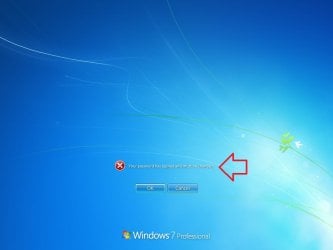
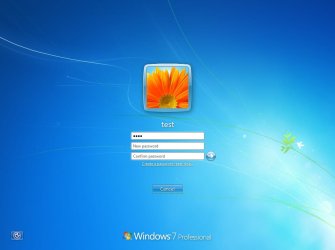
Expired1.jpg

Expired2.jpg

Expired3.jpg


OPTION ONE

Through Local Users and Groups Manager


1. Open the Local Users and Groups Manager.

2. In the left pane, click on Users, then double click on the name of the user account that you want to enable or disable password expiration for. (see screenshot below)
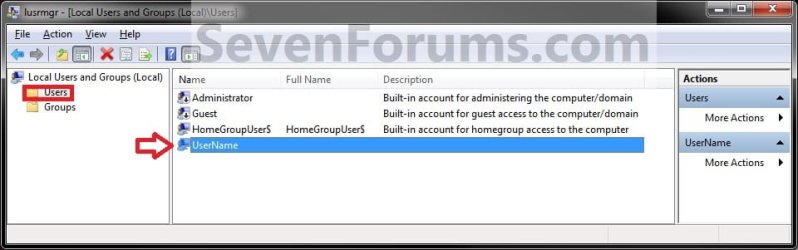
LUSRMGR-1.jpg
3. To Enable Password Expiration for this User Account
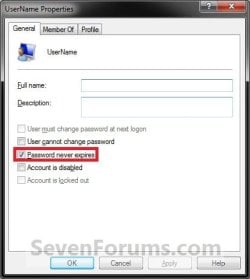
A) Uncheck the password never expires box, then click on OK. (see screenshot below)
LUSRMGR-2.jpg
B) You will now need to change the maximum and minimum password age of this user account for what you would like.

C) Go to step 5.
4. To Disable Password Expiration for this User Account
A) Check the password never expires box, then click on OK. (see screenshot above)
NOTE: If password never expires is grayed out, then this means that this user account as reached it's set maximum password age. You will need to either change the maximum password age to more days so that it has not expired yet, or change the password for the user account in Windows 7 or Windows 8.
5. Repeat steps 2 to 3/4 for any other user account that you want to enable or disable password expiration for.

6. When done, close the Local Users and Groups Manager.


OPTION TWO

Through an Elevated Command Prompt


1. Open an elevated command prompt in Windows 7 or Windows 8.

2. Do step 3, 4, 5, or 6 below for what you would like to do.


3. To Disable Password Expiration for a User Account
A) In the elevated command prompt, type the command below, press Enter, and go to step 7 below. (see screenshot below)
NOTE: Substitute username in the command below with the actual user account name that you want to disable password expiration for.

Code:
wmic UserAccount where Name='[B][COLOR=red]username[/COLOR][/B]' set PasswordExpires=False
FOR EXAMPLE: I would type in this command exactly for a user account named Brink, and press enter.

Code:
wmic UserAccount where Name='Brink' set PasswordExpires=False
B) Go to step 4.
4. To Disable Password Expiration for All User Accounts on PC
A) In the elevated command prompt, type the command below, press Enter, and go to step 7 below. (see screenshot below)

Code:
wmic UserAccount set PasswordExpires=False
5. To Enable Password Expiration for a User Account
A) In the elevated command prompt, type the command below, press Enter, and go to step 7 below. (see screenshot below)
NOTE: Substitute username in the command below with the actual user account name that you want to enable password expiration for.

Code:
wmic UserAccount where Name='[B][COLOR=red]username[/COLOR][/B]' set PasswordExpires=True
FOR EXAMPLE: I would type in this command exactly for a user account named Brink, and press enter.

Code:
wmic UserAccount where Name='Brink' set PasswordExpires=True
B) You will now need to change the maximum and minimum password age of this user account for what you would like.
6. To Enable Password Expiration for All User Accounts on PC
A) In the elevated command prompt, type the command below, press Enter, and go to step 7 below. (see screenshot below)

Code:
wmic UserAccount set PasswordExpires=True

B) You can now change the maximum and minimum password age of each user account for what you would like.
7. Close the elevated command prompt.

That's it,
Shawn


Last edited:
It doesn't seem to be listed as an option in win32_userAccount Set, does the command reside somewhere else?

There's not a direct command for that AFAIK. PowerShell, however, has the ability to force a user to change their password at next logon... And if PowerShell can do that, the Command Prompt can too. So I guess there is a command for that.

PowerShell command
Code:
[adsi]'WinNT://./[COLOR="Red"]Pyprohly[/COLOR]' | %{$_.PasswordExpired = 1; $_.SetInfo()}

Command Prompt command
Code:
powershell "[adsi]'WinNT://./[COLOR="red"]Pyprohly[/COLOR]' | %{$_.PasswordExpired = 1; $_.SetInfo()}"

N.B. For the above commands to work, the user account's password must, of course, be set to expire. And your Shell must be elevated.
 
Last edited:

My Computer My Computer

Computer type
PC/Desktop
OS
Windows 10, Windows 8.1 Pro, Windows 7 Professional, OS X El Capitan
That would be a one time option for forcing a password change, but in a password policy situation we would need that to happen every time the password expires. Does this mean that I would have to manually remove the checkmark on each client.

Sorry I should have mentioned we are not in a domain environment as our endpoint computers are spread out all over multiple states and joining them to a domain is a problem because of distance and bandwidth. I would love to have them in AD with the ability to control them better.

I am using Kaseya to push out scripts to the machines, and what I am trying to do is as follows:
User must change password at next logon.
Minimum Password Length
Password Expiry warning 10 days
MaxPasswordAge 90 Days
Alphanum Pwds
Password History

Some of these settings I am changing the registry and some I am using script or power shell, I can't seem to find all the settings in on place in windows 7 Pro, unless I make changes manually.
Am I shooting myself in the foot?
 

My Computer My Computer

Computer type
PC/Desktop
Computer Manufacturer/Model Number
Dell
OS
Windows 7 Pro
CPU
E8400
Memory
8GB
I must admit I'm a little lost with what you are asking. Are you shooting yourself in the foot? I don't know. What problem exactly are you facing?

That would be a one time option for forcing a password change, but in a password policy situation we would need that to happen every time the password expires.
When a user's password expires, that user will be forced to change their password upon the next login they make. This behaviour already is already enabled and can't be set differently.

Sorry I should have mentioned we are not in a domain environment [...]
Sorry, I should have mentioned that the commands in my post above do not work for a domain environment. Only on local accounts to a machine.

I am using Kaseya to push out scripts to the machines, and what I am trying to do is as follows:
User must change password at next logon.
Minimum Password Length
Password Expiry warning 10 days
MaxPasswordAge 90 Days
Alphanum Pwds
Password History
What you are trying to do isn't clear to me. Are you in search of the command equivalent to each of the above?
 

My Computer My Computer

Computer type
PC/Desktop
OS
Windows 10, Windows 8.1 Pro, Windows 7 Professional, OS X El Capitan
Sorry, I was away taking some classes last week.
I am able to push out some password policy scripts, but it seems I have to do this from multiple locations. Some I am pushing out by changing registry settings, and others I am changing using PowerShell. Is there a way of using a script to perform all the changes from one common location? Above was a small list of the things I'm pushing out, and they work, I'm sure there is a much easier way to accomplish this. I would love to be able to do this from AD but because of the distance between all of the locations, we cannot join our systems to a domain which limits me to workgroup configurations.
 

My Computer My Computer

Computer type
PC/Desktop
Computer Manufacturer/Model Number
Dell
OS
Windows 7 Pro
CPU
E8400
Memory
8GB
Sorry for my delay. It's difficult to keep track of members' issues that reside within the threads of tutorials.

As what you're asking no longer relates to the topic of this tutorial, I recommend you describe your issue in a new thread of it's own. Your chance of receiving an answer there, and the rate at which you'll receive replies will triple.
 

My Computer My Computer

Computer type
PC/Desktop
OS
Windows 10, Windows 8.1 Pro, Windows 7 Professional, OS X El Capitan
Password change enable/disable in Win 7 Home Premium

Hi,

All explanation here are for Windows Professional but do not work with Home Premium.

This is a new embarassing option that I didn't have before.

Please tell me how to stop it?

Thanks,
Bernard :cry:
 

My Computer My Computer

Computer type
Laptop
Computer Manufacturer/Model Number
Dell
OS
Windows 7, 64 bits, Home Premium
CPU
Core i7 quad
Antivirus
Bitdefender
Browser
Chrome
Hello Bernard, and welcome to Seven Forums. :)

You could use OPTION TWO in the tutorial in any edition of Windows.
 

My Computer My Computer

Computer type
PC/Desktop
Computer Manufacturer/Model Number
Self built custom
OS
64-bit Windows 11 Pro for Workstations
CPU
Intel i7-8700K OC'd to 5 GHz
Motherboard
ASUS ROG Maximus XI Formula Z390
Memory
64 GB (4x16GB) G.SKILL TridentZ RGB DDR4 3600 MHz
Graphics Card(s)
ASUS ROG-STRIX-GTX1080TI-O11G-GAMING
Sound Card
Integrated
Monitor(s) Displays
2 x Samsung Odyssey G7 27"
Screen Resolution
2560x1440
Hard Drives
1TB Samsung 990 PRO M.2,
4TB Samsung 990 PRO PRO M.2,
TerraMaster F8 SSD Plus NAS
PSU
Seasonic Prime Titanium 850W
Case
Thermaltake Core P3
Cooling
Corsair Hydro H115i
Keyboard
Logitech wireless K800
Mouse
Logitech MX Master 4
Internet Speed
2 Gb/s Download and 100 Mb/s Upload
Antivirus
Malwarebyte Anti-Malware Premium
Browser
Google Chrome
Other Info
Logitech Z625 speaker system,
Logitech BRIO 4K Pro webcam,
HP Color LaserJet Pro MFP M477fdn,
APC SMART-UPS RT 1000 XL - SURT1000XLI,
Galaxy S23 Plus phone
Thank you Brink, I did it and I get :

C:\Users\Bernard>wmic path Win32_UserAccount set PasswordExpires=False
Updating property(s) of '\\BERNARD-PC\root\cimv2:Win32_UserAccount.Domain="Berna
rd-PC",Name="Administrator"'
Property(s) update successful.
Updating property(s) of '\\BERNARD-PC\root\cimv2:Win32_UserAccount.Domain="Berna
rd-PC",Name="Bernard"'
ERROR:
Description = Generic failure

So what is it?

Regards,
Bernard
 

My Computer My Computer

Computer type
Laptop
Computer Manufacturer/Model Number
Dell
OS
Windows 7, 64 bits, Home Premium
CPU
Core i7 quad
Antivirus
Bitdefender
Browser
Chrome

My Computer My Computer

Computer type
PC/Desktop
Computer Manufacturer/Model Number
Self built custom
OS
64-bit Windows 11 Pro for Workstations
CPU
Intel i7-8700K OC'd to 5 GHz
Motherboard
ASUS ROG Maximus XI Formula Z390
Memory
64 GB (4x16GB) G.SKILL TridentZ RGB DDR4 3600 MHz
Graphics Card(s)
ASUS ROG-STRIX-GTX1080TI-O11G-GAMING
Sound Card
Integrated
Monitor(s) Displays
2 x Samsung Odyssey G7 27"
Screen Resolution
2560x1440
Hard Drives
1TB Samsung 990 PRO M.2,
4TB Samsung 990 PRO PRO M.2,
TerraMaster F8 SSD Plus NAS
PSU
Seasonic Prime Titanium 850W
Case
Thermaltake Core P3
Cooling
Corsair Hydro H115i
Keyboard
Logitech wireless K800
Mouse
Logitech MX Master 4
Internet Speed
2 Gb/s Download and 100 Mb/s Upload
Antivirus
Malwarebyte Anti-Malware Premium
Browser
Google Chrome
Other Info
Logitech Z625 speaker system,
Logitech BRIO 4K Pro webcam,
HP Color LaserJet Pro MFP M477fdn,
APC SMART-UPS RT 1000 XL - SURT1000XLI,
Galaxy S23 Plus phone
Thank you Brink for this very helpful tutorial.
 

My Computer My Computer

Computer type
Laptop
Computer Manufacturer/Model Number
Acer Aspire M
OS
windows 7 home premium 64 bit
Memory
6 gb
Hard Drives
250 gb ssd
Antivirus
AVG
Browser
Firefox
Back
Top