Phantom Unidentified Network making Internet slow

matt777

New member
Local time
3:53 PM
Messages
7
Hi there,

My laptop always connects to an unidentified public LAN network as well as my wifi internet (so connected to 2 networks) which does not exist, my internet is a lot slower than every other laptop in the house and I am pretty sure it is because of the unidentified network. Could anyone help me get rid of this unidentified network?

Thanks
 

My Computer

OS
Windows 7 Home Premium 64bit
I'd have to see a screen shot of the ipconfig/all from this machine in order to help figure out what the problem is. :)
 

My Computer

Computer type
PC/Desktop
Computer Manufacturer/Model Number
Home built
OS
Windows 7 Ult, Windows 8.1 Pro,
CPU
Q9650-4.275GHz, E8600 4.5GHz, E6750-3.8GHz
Motherboard
Evga 780i FTW
Memory
G.Skill PC2 9600 1200Mhz 5 5 5 15 2T
Graphics Card(s)
GTX480
Sound Card
Asus Xonar D2
Monitor(s) Displays
HannsG
Screen Resolution
1680X1050
Hard Drives
GSkill Phoenix Pro 120GB SSD
PSU
ThermalTake Toughpower 1000Watt modular
Case
ThermalTake XaserV
Cooling
Xigmatek S1283
Keyboard
Logitech G15
Mouse
Logitech G9
Internet Speed
T1
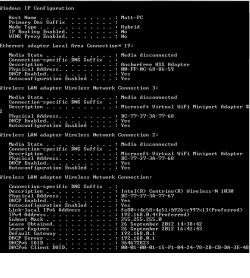
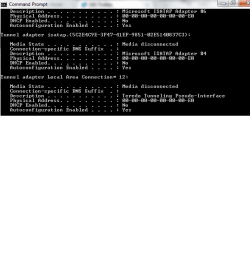
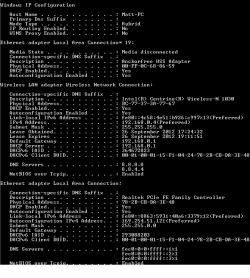
Thanks chev65, here they are
 

Attachments

  • ipconfig1.png
    ipconfig1.png
    9.8 KB · Views: 8
  • ipconfig2.png
    ipconfig2.png
    16.4 KB · Views: 6
  • ipconfig3.png
    ipconfig3.png
    8.8 KB · Views: 5

My Computer

OS
Windows 7 Home Premium 64bit
A few problems in the ipconfig but I can't say if they are causing the problem you are describing here.

You should first go into Device Manager and disable the two Microsoft Virtual WiFi mini port adaptors which are only used for creating a hosted wireless network but can cause issues if they are enabled.

You are also showing too many tunnel adaptors which can also cause problems. When you are in Device Manager try going to the View tab then choose "show hidden devices" after that you should be able to see all the tunnel adaptors at which point you should uninstall them all, Windows will make a new one automatically.

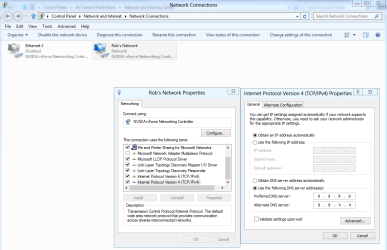
Another problem I see is that you are showing some incorrect addresses for your DNS server. I should be seeing either the default gateway "192.168.0.1" which points back to the router as the DNS relay, or a proper DNS server IP address, for instance Google's DNS 8.8.8.8 and 8.8.4.4.

You might try to manually enter those DNS addresses into your IPv4 properties of the wireless adaptor for DNS servers, picture below.
 

Attachments

  • Googles DNS IPv4.PNG
    Googles DNS IPv4.PNG
    36.8 KB · Views: 13

My Computer

Computer type
PC/Desktop
Computer Manufacturer/Model Number
Home built
OS
Windows 7 Ult, Windows 8.1 Pro,
CPU
Q9650-4.275GHz, E8600 4.5GHz, E6750-3.8GHz
Motherboard
Evga 780i FTW
Memory
G.Skill PC2 9600 1200Mhz 5 5 5 15 2T
Graphics Card(s)
GTX480
Sound Card
Asus Xonar D2
Monitor(s) Displays
HannsG
Screen Resolution
1680X1050
Hard Drives
GSkill Phoenix Pro 120GB SSD
PSU
ThermalTake Toughpower 1000Watt modular
Case
ThermalTake XaserV
Cooling
Xigmatek S1283
Keyboard
Logitech G15
Mouse
Logitech G9
Internet Speed
T1
I have done what you have suggested and disabled the wifi port adapter, deleted the tunnel adapters and changed the DNS to Google's DNS, but still much slower with the unidentified network
 

My Computer

OS
Windows 7 Home Premium 64bit
I have done what you have suggested and disabled the wifi port adapter, deleted the tunnel adapters and changed the DNS to Google's DNS, but still much slower with the unidentified network

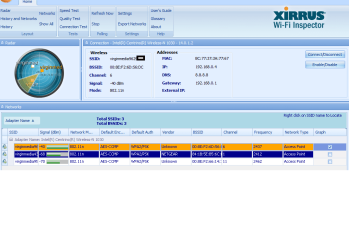
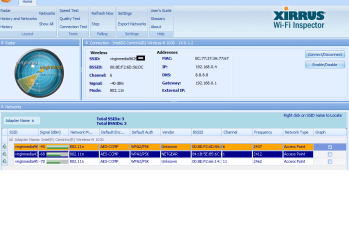
Can you post the ipconfig/all again and also post a screen shot of the read out from Xirrus WiFi inspector which you can get from the link below.

Is there only one router in this network?

http://www.xirrus.com/Products/Wi-Fi-Inspector
 

My Computer

Computer type
PC/Desktop
Computer Manufacturer/Model Number
Home built
OS
Windows 7 Ult, Windows 8.1 Pro,
CPU
Q9650-4.275GHz, E8600 4.5GHz, E6750-3.8GHz
Motherboard
Evga 780i FTW
Memory
G.Skill PC2 9600 1200Mhz 5 5 5 15 2T
Graphics Card(s)
GTX480
Sound Card
Asus Xonar D2
Monitor(s) Displays
HannsG
Screen Resolution
1680X1050
Hard Drives
GSkill Phoenix Pro 120GB SSD
PSU
ThermalTake Toughpower 1000Watt modular
Case
ThermalTake XaserV
Cooling
Xigmatek S1283
Keyboard
Logitech G15
Mouse
Logitech G9
Internet Speed
T1
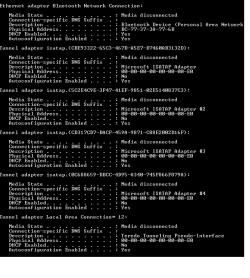
no problem, here is the screenshots
 

Attachments

  • ipconfig12.png
    ipconfig12.png
    4.9 KB · Views: 3
  • ipconfig11.png
    ipconfig11.png
    8.7 KB · Views: 4
  • xirrus.png
    xirrus.png
    35.9 KB · Views: 8

My Computer

OS
Windows 7 Home Premium 64bit
and the xirrus wifi inspector screenshot
 

Attachments

  • xirrus.png
    xirrus.png
    35.9 KB · Views: 3

My Computer

OS
Windows 7 Home Premium 64bit
Ok it's looking better now and the wireless channel, signal strength and encryption looks good so no problems there.

The only possible problem I see now is that your ipconfig is suddenly showing the Ethernet connection as connected by not getting anything from the router where before it didn't show up at all, or maybe it was accidently left out of the ipconfig? I think maybe the bottom of the wireless connection was left out in the ipconfig and the last part of the Ethernet connection was showing on the next ipconfig which confused me. :confused:

Can you go into Device Manager and disable the Ethernet connection just as a test.

Do you have iTunes installed on this system?
 

My Computer

Computer type
PC/Desktop
Computer Manufacturer/Model Number
Home built
OS
Windows 7 Ult, Windows 8.1 Pro,
CPU
Q9650-4.275GHz, E8600 4.5GHz, E6750-3.8GHz
Motherboard
Evga 780i FTW
Memory
G.Skill PC2 9600 1200Mhz 5 5 5 15 2T
Graphics Card(s)
GTX480
Sound Card
Asus Xonar D2
Monitor(s) Displays
HannsG
Screen Resolution
1680X1050
Hard Drives
GSkill Phoenix Pro 120GB SSD
PSU
ThermalTake Toughpower 1000Watt modular
Case
ThermalTake XaserV
Cooling
Xigmatek S1283
Keyboard
Logitech G15
Mouse
Logitech G9
Internet Speed
T1
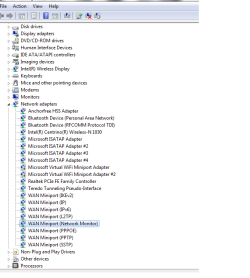
maybe i accidently skipped it on the ipconfig but not sure as did check it, I do have iTunes installed. Also to disable the Ethernet connection which device do I disable on device manager?(I have included a screenshot of the network adapters device manager)
 

Attachments

  • dm.png
    dm.png
    17.3 KB · Views: 7

My Computer

OS
Windows 7 Home Premium 64bit
maybe i accidently skipped it on the ipconfig but not sure as did check it, I do have iTunes installed. Also to disable the Ethernet connection which device do I disable on device manager?(I have included a screenshot of the network adapters device manager)

That would be the RealTec that you would disable for the Ethernet. But that may not be required it was just for a test, most likely disabling the Bonjour service will fix this problem.

More importantly about the iTunes. You see iTunes installs a secondary network interface called Bonjour which tends to cause problems with Windows machines.

You will want to go into services.msc find the Bonjour service and disable it then see if you have the Unidentified network problem still.

The link below shows you more about this problem.
http://www.howtogeek.com/howto/6456...bonjour-and-how-can-i-uninstall-or-remove-it/
 
Last edited:

My Computer

Computer type
PC/Desktop
Computer Manufacturer/Model Number
Home built
OS
Windows 7 Ult, Windows 8.1 Pro,
CPU
Q9650-4.275GHz, E8600 4.5GHz, E6750-3.8GHz
Motherboard
Evga 780i FTW
Memory
G.Skill PC2 9600 1200Mhz 5 5 5 15 2T
Graphics Card(s)
GTX480
Sound Card
Asus Xonar D2
Monitor(s) Displays
HannsG
Screen Resolution
1680X1050
Hard Drives
GSkill Phoenix Pro 120GB SSD
PSU
ThermalTake Toughpower 1000Watt modular
Case
ThermalTake XaserV
Cooling
Xigmatek S1283
Keyboard
Logitech G15
Mouse
Logitech G9
Internet Speed
T1
Yeah, I had read about Bonjour before when researching the problem but didn't make any difference, I disabled RealTec and it got rid of the unidentified network but came back as I re-enabled it. I found out that when I charge my laptop the internet does speed up a bit but still slower than the other Laptops on the network, if that helps
 

My Computer

OS
Windows 7 Home Premium 64bit
Yeah, I had read about Bonjour before when researching the problem but didn't make any difference, I disabled RealTec and it got rid of the unidentified network but came back as I re-enabled it. I found out that when I charge my laptop the internet does speed up a bit but still slower than the other Laptops on the network, if that helps

Ok so disabling RealTec adaptor got rid of the Unidentified network problem, not sure why just having it enabled would do that but I would uninstall the driver for it and reinstall the most updated driver version you can find. I'm pretty sure Bonjour had something to do with this problem so leave it disabled.

I have no idea why this laptop seems a little slower than the other ones but it could be a problem with the network stack or Winsock.

Save the file below, unzip and run the file, your machine will reboot automatically, this will fix any problems related to the network stack or Winsock. ;)
 

Attachments

My Computer

Computer type
PC/Desktop
Computer Manufacturer/Model Number
Home built
OS
Windows 7 Ult, Windows 8.1 Pro,
CPU
Q9650-4.275GHz, E8600 4.5GHz, E6750-3.8GHz
Motherboard
Evga 780i FTW
Memory
G.Skill PC2 9600 1200Mhz 5 5 5 15 2T
Graphics Card(s)
GTX480
Sound Card
Asus Xonar D2
Monitor(s) Displays
HannsG
Screen Resolution
1680X1050
Hard Drives
GSkill Phoenix Pro 120GB SSD
PSU
ThermalTake Toughpower 1000Watt modular
Case
ThermalTake XaserV
Cooling
Xigmatek S1283
Keyboard
Logitech G15
Mouse
Logitech G9
Internet Speed
T1
Back
Top