Pin to taskbar

Bocky25

New member
Local time
3:29 PM
Messages
15
Has anyone worked out how to programatically pin a program to the taskbar?

If you place a shortcut in the directory below, it does not appear on the taskbar (like it logically should but im not one to bash 7 :p)
C:\Users\*USER NAME*\AppData\Roaming\Microsoft\Internet Explorer\Quick Launch\User Pinned\TaskBar

I have a feeling its got something to do with something in the registry...
HKEY_CURRENT_USER\Software\Microsoft\Windows\CurrentVersion\Explorer\Taskband

Anyone happen to know how to manually pin a program to the taskbar (without Right-Click, Pin to Taskbar) or anyone trying to do the same thing as me?
 

My Computer

Computer Manufacturer/Model Number
Intel
OS
Windows 7 RTM x64
CPU
i7 920
Motherboard
Intel DX58SO
Memory
3GB 1666MHz
Graphics Card(s)
nVidia 7300GT
Monitor(s) Displays
24" & 22" Samsung
Hard Drives
2x 320gb
1x 500gb
PSU
Corsair Modular 800w
Case
Thermaltake Sopranos DX
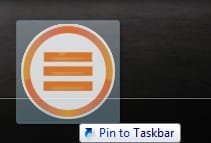
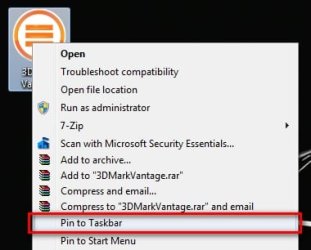
They are not using the quicklaunch toolbar any longer but if you want it back all you need to do is right click on taskbar and add new toolbar and direct it to the quicklaunch folder and you now have your quicklaunch toolbar back, alternatively you can directly pin programs to the taskbar by right clicking a shortcut and selecting pin to taskbar or simply drag it on to the taskbar until you see the pin to taskbar arrow pop up.

So there is method to their madness in leaving it off by default but it would be better if it could be enabled again a bit easier if it is desired.

2009-08-25_160534.jpg2009-08-25_160631.jpg
 

My Computer

Computer Manufacturer/Model Number
Home Brew
OS
Windows 7 Ultimate Vista Ultimate x64
CPU
Core 2 Duo E8500 3.16Ghz @ 3.8Ghz
Motherboard
eVGA 750i FTW
Memory
2x2Gigs Patriot PC2-6400 LL
Graphics Card(s)
Inno3D GeForce GTX260 216 SP
Monitor(s) Displays
ASUS VW222U 22" 2ms Response time
Screen Resolution
1680x1050
Hard Drives
SATA 150GB
SATA II 250GB
USB IDE 750GB Ext.
PSU
HYTEC 600W & Thermaltake 650W Toughpower Power Exp
Case
Thermaltake Armor LCS (Liquid Cooling System)
Cooling
Liquid Cooling System
Keyboard
Logitech G15 Gaming Keyboard
Mouse
Logitech G9 Gaming Mouse
Thanks a lot for your reply,

I understand that the 7 taskbar has replaced the quicklaunch feature however what I am trying to do is programatically pin programs to the taskbar (instead of right-clicking > pin to taskbar).

You will find the programs pinned to your taskbar are in..
%userprofile%\AppData\Roaming\Microsoft\Internet Explorer\Quick Launch\User Pinned\TaskBar

Technically u should be able to create a shortcut in this directory and it will appear on your taskbar but this is not the case even after a restart.

I was wondering what else you have to do in order for it to appear in the taskbar without having to right-click > Pin to taskbar.
 
Last edited by a moderator:

My Computer

Computer Manufacturer/Model Number
Intel
OS
Windows 7 RTM x64
CPU
i7 920
Motherboard
Intel DX58SO
Memory
3GB 1666MHz
Graphics Card(s)
nVidia 7300GT
Monitor(s) Displays
24" & 22" Samsung
Hard Drives
2x 320gb
1x 500gb
PSU
Corsair Modular 800w
Case
Thermaltake Sopranos DX
Open the program, click + hold the icon and drag it towards the start button.

Works for me.
 

My Computer

Computer Manufacturer/Model Number
I ono?
OS
Windows 7 Pro
CPU
Intel Pentium 4 3.00GHZ
Memory
!GB
Screen Resolution
1280x1024
Hard Drives
30GB
40GB
1TB
Case
Black lol.
Keyboard
Microsoft Cheap Piece of ****
Mouse
Microsoft Cheap Piece of ****
Internet Speed
3MB/S
i must be explaining this really badly, i know how to use windows GUI. click drag, right-click pin, yes i understand, that but programatically you cannot write an event as such. you cannot program a click and drag so alternatively there must be registry entries that determine what programs are pinned to the taskbar etc etc
 

My Computer

Computer Manufacturer/Model Number
Intel
OS
Windows 7 RTM x64
CPU
i7 920
Motherboard
Intel DX58SO
Memory
3GB 1666MHz
Graphics Card(s)
nVidia 7300GT
Monitor(s) Displays
24" & 22" Samsung
Hard Drives
2x 320gb
1x 500gb
PSU
Corsair Modular 800w
Case
Thermaltake Sopranos DX
Please, trying to understand why you would want to go into the register to add a program/application when all you have to do is right click and indicate whether you want to pin it to the taskbar or the start menu Sorry, to ask this question, albeit at times I can be a slow. :)
 

My Computer

Computer Manufacturer/Model Number
HP Pavilion a4302f
OS
Win 7 Pro x64, VM Win XP, Win7 Pro Sandbox, Kubuntu 11
CPU
AMD Athlon(tm) II X4 640 @ 3.0 Gbz
Memory
12GB 1066MHz DDR3 SDRAM - 2x4GB, 2x2GB
Graphics Card(s)
ATI Radeon HD 4350 HD Graphics/Audio with 512MB
Sound Card
Realtek High Definition Audio
Monitor(s) Displays
1. Dell 23" SP2307, 2. Mitsublishi 40" HDTV, Hannspree 25"
Screen Resolution
1. 2048x1152, 2. 1920-1080, 3. 1920x1200
Hard Drives
Int: 1 120 Gig SSD i
1 - 2.5" 500 USB External HDD
1 -1 Tb USB External HDD
Case
Mid Tower
Cooling
Standard Fans - 5 fans (very quiet)
Keyboard
Microsoft Wireless 2000
Mouse
Microsoft Wireless Mouse 5000
Internet Speed
10 Mbit (realistically 500 Kbit - 1.2 Mbit)
Other Info
Speakers - Bose Desktop (Excellent Sound)
1 external CD|DVD\Blue-ray Recorders/Players (Sony)
sorry for not explaining my situation.

I would like to do it this way because I'd like to create a script that pins different programs to the taskbar depending on the users that log in (in a domain environment).
 

My Computer

Computer Manufacturer/Model Number
Intel
OS
Windows 7 RTM x64
CPU
i7 920
Motherboard
Intel DX58SO
Memory
3GB 1666MHz
Graphics Card(s)
nVidia 7300GT
Monitor(s) Displays
24" & 22" Samsung
Hard Drives
2x 320gb
1x 500gb
PSU
Corsair Modular 800w
Case
Thermaltake Sopranos DX
Thanks for the come back. Now I understand, but can't help; never had to do that. :)
 
Last edited:

My Computer

Computer Manufacturer/Model Number
HP Pavilion a4302f
OS
Win 7 Pro x64, VM Win XP, Win7 Pro Sandbox, Kubuntu 11
CPU
AMD Athlon(tm) II X4 640 @ 3.0 Gbz
Memory
12GB 1066MHz DDR3 SDRAM - 2x4GB, 2x2GB
Graphics Card(s)
ATI Radeon HD 4350 HD Graphics/Audio with 512MB
Sound Card
Realtek High Definition Audio
Monitor(s) Displays
1. Dell 23" SP2307, 2. Mitsublishi 40" HDTV, Hannspree 25"
Screen Resolution
1. 2048x1152, 2. 1920-1080, 3. 1920x1200
Hard Drives
Int: 1 120 Gig SSD i
1 - 2.5" 500 USB External HDD
1 -1 Tb USB External HDD
Case
Mid Tower
Cooling
Standard Fans - 5 fans (very quiet)
Keyboard
Microsoft Wireless 2000
Mouse
Microsoft Wireless Mouse 5000
Internet Speed
10 Mbit (realistically 500 Kbit - 1.2 Mbit)
Other Info
Speakers - Bose Desktop (Excellent Sound)
1 external CD|DVD\Blue-ray Recorders/Players (Sony)
anyone else got any ideas?
 

My Computer

Computer Manufacturer/Model Number
Intel
OS
Windows 7 RTM x64
CPU
i7 920
Motherboard
Intel DX58SO
Memory
3GB 1666MHz
Graphics Card(s)
nVidia 7300GT
Monitor(s) Displays
24" & 22" Samsung
Hard Drives
2x 320gb
1x 500gb
PSU
Corsair Modular 800w
Case
Thermaltake Sopranos DX
Some good reading: The Deployment Guys : Pin Items to the Start Menu or Windows 7 Taskbar via Script

I found this by performing the following search: pin programs to taskbar script - Google Search

one of the links there, to MSFN, led back to the main forum page at MSFN - so I searched at MSFN for Pin to taskbar and saw a link to a utility that was posted from another website - Eoxsys Corporation

I just tried it, and if you extract it to a folder on your HD, and provide the *exact* path to the app you want to pin, it pins it for you. I just tried it in Windows 7 Ultimate x64 RTM, using an app I install on all my systems, RegEditX - Tweaks for the Windows Registry Editor (REGEDIT) and now I have RegEditX pinned to my taskbar.

HTH
 

My Computers

System One System Two

  • Computer type
    PC/Desktop
    Computer Manufacturer/Model Number
    The Beast Model A (homebrew)
    OS
    Windows 11 21H2 Current build
    CPU
    AMD Ryzen 9 3950X
    Motherboard
    MSI MEG X570 GODLIKE
    Memory
    4 * 32 GB - Corsair Vengeance 3600 MHz
    Graphics Card(s)
    EVGA GeForce RTX 3080 Ti XC3 ULTRA GAMING (12G-P5-3955-KR)
    Sound Card
    Realtek® ALC1220 Codec
    Monitor(s) Displays
    2x Eve Spectrum ES07D03 4K Gaming Monitor (Matte) | Eve Spec
    Screen Resolution
    3x 3840 x 2160
    Hard Drives
    3x Samsung 980 Pro NVMe PCIe 4 M.2 2 TB SSD (MZ-V8P2T0B/AM) } 3x Sabrent Rocket NVMe 4.0 1 TB SSD
    PSU
    PC Power & Cooling’s Silencer Series 1050 Watt, 80 Plus Plat
    Case
    Fractal Design Define 7 XL Dark ATX Full Tower Case
    Cooling
    SteelSeries Apex Pro Wired Gaming Keyboard
    Keyboard
    SteelSeries Apex Pro
    Mouse
    Logitech MX Master 3S | MX Master 3 for business
    Internet Speed
    AT&T LightSpeed Gigabit Duplex Ftth
    Antivirus
    Windows Defender + MB 3
    Browser
    Nightly (default) + Firefox (stable),Chrome, Edge
  • Computer type
    PC/Desktop
    System Manufacturer/Model Number
    Dell Latitude E5470
    OS
    ChromeOS Flex Dev Channel (current)
    CPU
    Intel(R) Core(TM) i5-6300U CPU @ 2.40GHz, 2501 Mhz, 2 Core(s), 4 Logical Processor(s)
    Motherboard
    Dell
    Memory
    16 GB
    Graphics Card(s)
    Intel(R) HD Graphics 520
    Sound Card
    Intel(R) HD Graphics 520 + RealTek Audio
    Monitor(s) Displays
    Dell laptop display 15"
    Screen Resolution
    1920 * 1080
    Hard Drives
    Toshiba 128GB M.2 22300 drive
    INTEL Cherryville 520 Series SSDSC2CW180A 180 GB SATA III SSD
    PSU
    Dell
    Case
    Dell
    Cooling
    Dell
    Keyboard
    Dell
    Mouse
    Logitech MX Master 3S (shared w. Sys 1) | Dell TouchPad
    Internet Speed
    AT&T LightSpeed Gigabit Duplex Ftth
:) Thanks JohnGalt! Works well!
 

My Computer

Computer Manufacturer/Model Number
Intel
OS
Windows 7 RTM x64
CPU
i7 920
Motherboard
Intel DX58SO
Memory
3GB 1666MHz
Graphics Card(s)
nVidia 7300GT
Monitor(s) Displays
24" & 22" Samsung
Hard Drives
2x 320gb
1x 500gb
PSU
Corsair Modular 800w
Case
Thermaltake Sopranos DX
can't work eoxpin

johngalt,
tried exopin, thanks for discovering it, followed your seemingly easy instructions, can't get it to work. Say for example i put eoxpin in c:, and say I, for simplicity, wanted to pin IT to the taskbar. After starting eoxpin, would I type eoxpin c:\eoxpin -s
I tried different progs to pin and different usage like with .exe and without the -s, but can't work it, can you help? I want to ultimately pin an aero/peak show desktop to the middle or left side of taskbar. At this point just to get a centered\left show desktop icon on taskbar, I've added a new toolbar, a show desktop shortcut where I want it on the left, but whenever I engage auto-hide the new toolbar disapears and I have to remake. thanks, jm
 

My Computer

OS
7
Hi, jmacie

I've never used eoxpin, but I think I can see what you do wrong here:

On eoxsys.com (where you downloaded eoxpin) you can see how it should be used:
It says: Usage: eoxpin.exe ["filename"] -s
Which means you have to run it from a command line (Window key+R and run "cmd"), not just double click on the executable! And "filename" means file name, including the ".exe".
Use these commands (assuming eoxpin is in "C:\eoxpin.exe"):
cd C:\
eoxpin.exe "C:\eoxpin.exe" -s

That should do it.
 

My Computer

Computer Manufacturer/Model Number
Acer Aspire 5739G
OS
Windows 7 RC build 7100; Windows XP Pro; Linux (Ubuntu Jaunty, Back|Track 4)
CPU
Intel Core 2 Duo P7350 @ 2GHz
Memory
4GB DDR3
Graphics Card(s)
NVIDIA GeForce GT 130M CUDA 1GB GRAM
Monitor(s) Displays
Built-in 1366x768@60Hz + LG Flatron W2042S 1680x1050@60Hz
Screen Resolution
1366*768
Hard Drives
500GB (WDC WD5000BEVT-22ZAT0):
*OEM part. Acer eRecovery
*Longhorn (Windows 7 RC)
*:
-Ubuntu Jaunty
-Back|Track 4
*OEM part.
PSU
Std. Acer Aspire 5739G PSU
Case
Std. Acer Aspire 5739G case
Cooling
Integrated
Keyboard
Laptop::Built-in || Logitech Ultra-Flat Keyboard
Mouse
Razer DeathAdder || Synaptics Pointing Device
Internet Speed
2Mb/s
Programmatically add items to the Windows 7 Taskbar

The following was put together based on ideas from other techs/coders and assumes that you are using an english version of Win7, as it uses Verbs (the items you see when you right click a file) to "Pin to Taskbar". Other languages will need to replace the text accordingly.
These two scripts and batch file that I put together for my agency are currently being used, and are implemented via SCCM. It is applied on first logon for any user to any PC.
We wanted to programmatically configure the icons on the Taskbar as follows -
Remove:
Windows Media Player
Add:
Outlook
Change:
Windows Explorer (Libraries) to Windows Explorer (Computer)
Create the three files and put them in the same folder...
***************************************
Name this script (Pin.vbs)
***************************************
Set objShell = CreateObject("Shell.Application")
Set filesystem = CreateObject("scripting.Filesystemobject")
If filesystem.FileExists(Wscript.Arguments(0)) Then
Set objFolder = objShell.Namespace(filesystem.GetParentFolderName(Wscript.Arguments(0)))
Set objFolderItem = objFolder.ParseName(filesystem.GetFileName(WScript.Arguments(0)))
Set colVerbs = objFolderItem.Verbs

Select case WScript.Arguments(1)
case 0
For Each objVerb in colVerbs
If Replace(objVerb.name, "&", "") = "Unpin from Taskbar" Then objVerb.DoIt
Next
case 1
For Each objVerb in colVerbs
If Replace(objVerb.name, "&", "") = "Pin to Taskbar" Then objVerb.DoIt
Next
case 2
For Each objVerb in colVerbs
If Replace(objVerb.name, "&", "") = "Install" Then objVerb.DoIt
Next
End Select
End If
***************************************
The following script can be used to programmatically create Shortcuts. I could have used a preconfigured .lnk file and just xcopy'd it, but this is just cooler :)
You'll notice there are commented (') out sections for Shortcut Name. You can use one of the three depending on the way you'd like to reference the destination folder for the icon being created.
***************************************
Name this script (MyExplorerLnk.vbs)
***************************************
Set WshShell = WScript.CreateObject("WScript.Shell" )
' Shortcut Name (Special Folders)
' strLocation = WshShell.SpecialFolders("AllUsersDesktop" )
' Set oShellLink = WshShell.CreateShortcut(strLocation & "\Windows Explorer.lnk" )
' Shortcut Name (Environment Variables)
strLocation = WshShell.ExpandEnvironmentStrings("%APPDATA%" )
set oShellLink = WshShell.CreateShortcut(strLocation & "\Microsoft\Internet Explorer\Quick Launch\User Pinned\TaskBar\Windows Explorer.lnk" )
' Shortcut Name (Normal Path)
' Set oShellLink = WshShell.CreateShortcut("C:\Windows Explorer.lnk" )
' Path to application
oShellLink.TargetPath = "%Windir%\explorer.exe"
' Command line arguments
oShellLink.Arguments = " shell:MyComputerFolder"
' Window Style
oShellLink.WindowStyle = 1
' Hotkey
oShellLink.Hotkey = ""
' Icon for Shortcut
oShellLink.IconLocation = "%windir%\explorer.exe"
' Shortcut Comment
oShellLink.Description = "Windows Explorer"
' Working Directory
oShellLink.WorkingDirectory = ""
oShellLink.Save
***************************************
The following Batch file is used to launch the above scripts, and also documents the use of Pin.vbs
Our agency primarily uses Win XP, Win 7 x86, and Win 7 x64... hence the limited version check.
***************************************
Name this Batch file (TBcustom.cmd)
***************************************
:: Set Environment
@ECHO OFF
CLS
TITLE Taskbar Customization Tool
COLOR 3f
PROMPT $s
SET UsrPinTBar="%APPDATA%\Microsoft\Internet Explorer\Quick Launch\User Pinned\TaskBar"
:: *** Usage - Pin.vbs
:: *** WScript.exe "%~dp0\%~dp0\Pin.vbs" [drive:][path]filename [Argument]
:: *** [Arguments] = 0 1 2
:: *** 0 = Unpin from Taskbar
:: *** 1 = Pin to Taskbar
:: *** 2 = Install
:: - - - - - - - - - - - - - - - - - - - - - - - - - - - - - - -
:: Identify Windows Version
:: *** Assign ver output to variable VerResult ***
FOR /F "delims=" %%A IN ('ver') Do Set VerResult=%%A
:: *** Parse VerResult and assign variable according to OS version ***
ECHO "%VerResult%" | find "Version 6.1" > nul && GOTO Windows7Var
ECHO "%VerResult%" | find "Version 6.0" > nul && GOTO WindowsVistaVar
ECHO "%VerResult%" | find "Version 5" > nul && GOTO :WindowsXPVar
ECHO Error - Unexpected Version Information
GOTO EOF
:: - - - - - - - - - - - - - - - - - - - - - - - - - - - - - - -
:Windows7Var
IF %processor_architecture%==x86 GOTO 7x86Var
IF %processor_architecture%==AMD64 GOTO 7x64Var
IF %processor_architecture%==IA64 GOTO 7x64Var
GOTO EOF
:: - - - - - - - - - - - - - - - - - - - - - - - - - - - - - - -
:WindowsVistaVar
ECHO This PC is running Windows Vista
:: *** Unsupported ***
GOTO EOF
:: - - - - - - - - - - - - - - - - - - - - - - - - - - - - - - -
:WindowsXPVar
ECHO This PC is running Windows XP
:: *** Unsupported ***
GOTO EOF
:: - - - - - - - - - - - - - - - - - - - - - - - - - - - - - - -
:7x86Var
ECHO This PC is running Windows 7 32Bit
:: *** REMOVE WINDOWS EXPLORER ***
WScript.exe "%~dp0\Pin.vbs" "%APPDATA%\Microsoft\Internet Explorer\Quick Launch\User Pinned\TaskBar\Windows Explorer.lnk" 0
IF EXIST "%UsrPinTBar%\Windows Explorer.lnk" DEL /q /f "%UsrPinTBar%\Windows Explorer.lnk"
:: *** REMOVE WINDOWS MEDIA PLAYER ***
WScript.exe "%~dp0\Pin.vbs" "%APPDATA%\Microsoft\Internet Explorer\Quick Launch\User Pinned\TaskBar\Windows Media Player.lnk" 0
IF EXIST "%UsrPinTBar%\Windows Media Player.lnk" DEL /q /f "%UsrPinTBar%\Windows Media Player.lnk"
:: *** ADD CUSTOM WINDOWS EXPLORER (opens to shell:MyComputerFolder) ***
WScript.exe "%~dp0\Pin.vbs" %windir%\explorer.exe 1
WScript.exe "%~dp0\MyExplorerLnk.vbs"
:: *** ADD OUTLOOK***
WScript.exe "%~dp0\Pin.vbs" "%ProgramFiles%\Microsoft Office\Office14\Outlook.exe" 1
GOTO EOF
:: - - - - - - - - - - - - - - - - - - - - - - - - - - - - - - -
:7x64Var
ECHO This PC is running Windows 7 64Bit
:: *** REMOVE WINDOWS EXPLORER ***
WScript.exe "%~dp0\Pin.vbs" "%APPDATA%\Microsoft\Internet Explorer\Quick Launch\User Pinned\TaskBar\Windows Explorer.lnk" 0
IF EXIST "%UsrPinTBar%\Windows Explorer.lnk" DEL /q /f "%UsrPinTBar%\Windows Explorer.lnk"
:: *** REMOVE WINDOWS MEDIA PLAYER ***
WScript.exe "%~dp0\Pin.vbs" "%APPDATA%\Microsoft\Internet Explorer\Quick Launch\User Pinned\TaskBar\Windows Media Player.lnk" 0
IF EXIST "%UsrPinTBar%\Windows Media Player.lnk" DEL /q /f "%UsrPinTBar%\Windows Media Player.lnk"
:: *** ADD CUSTOM WINDOWS EXPLORER (opens to shell:MyComputerFolder)***
WScript.exe "%~dp0\Pin.vbs" %windir%\explorer.exe 1
WScript.exe "%~dp0\MyExplorerLnk.vbs"
:: *** ADD OUTLOOK***
WScript.exe "%~dp0\Pin.vbs" "%ProgramFiles% (x86)\Microsoft Office\Office14\Outlook.exe" 1
GOTO EOF
:: - - - - - - - - - - - - - - - - - - - - - - - - - - - - - - -
:EOF
EXIT
***************************************
This method is what worked best for our particular needs, as our agency deploys virgin OS images and customizes and deploys software as SCCM task sequences and packages. It also does not dictate that a user can't customize the Taskbar as they see fit, and won't remove their own customizations, as would other methods posted that replace the Taskband registry values.
I hope this helps, and feel free to criticize or ask for assistance with it!

 

My Computer

OS
Windows 7 Ultimate x64
Back
Top