Pinning documents to taskbar instead of programs

jsuares

New member
Local time
8:03 PM
Messages
4
I am trying to pin a document to the taskbar. However, what gets pinned is the program that opens the document and not the document itself, so instead of just clicking on the icon to open the document I need to right click on it and then select the document.

Is there any way to pin the document itself so that clicking on the icon will open the document?
 

My Computer

OS
W7 RTM
No, but you can choose document from jump list...
Right click on the program icon and jump list with recent opened files will pop up...
 

My Computer

OS
OS
Try pinning the program then drag the file to the icon on the taskbar. I think that will pin it as a jump list item.
 

My Computer

Computer Manufacturer/Model Number
self built
OS
Windows 7 Professional 64-bit
CPU
Intel E8400 3GHz
Motherboard
Intel DX48BT2
Memory
Kingston PC3-10700H 4Gb
Graphics Card(s)
XFX Radeon HD 5850 BlackEd.
Sound Card
Asus Xonar DG
Monitor(s) Displays
2x Samsung SM-T220HD 22"
Screen Resolution
1680x1050 on two monitors
Hard Drives
OCZ Vertex 2 120gb 3.5" (OS)
Seagate Momentus XT 500gb
Samsung F3 1Tb (games)
2x Samsung F1 1Tb
PSU
Thermaltake ToughPower 850w
Case
Thermaltake Armor
Cooling
Scythe Mugen II
Keyboard
Microsoft Comfort Curve USB
Mouse
Razer Diamondback 3G
Internet Speed
8128/443
In the short term, the method described works as requested. Right click the pinned app icon and select the pinned doc.

You could pin a folder (Quick Launch) and place doc links there.
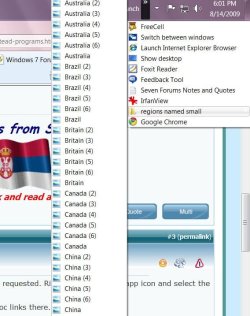
jsuares welcome to SevenForums. Here is a snip of what Antman say. A folder with jpg.'s in it residing on a QL toolbar has a jumplist.
quick launch.JPG
 

My Computer

Computer Manufacturer/Model Number
Gateway GT5692
OS
Windows 7 Ulti. x64
CPU
AMD Phenom 8450 triple-core 2.10 ghz
Memory
4GB
Graphics Card(s)
ATI Radion HD 3200
Monitor(s) Displays
Gateway FPD1775W
Screen Resolution
1280x720
Hard Drives
465.6613 Gibibytes
Pin in the Links area instead of quick launch

I have numerous documents and folders on my toolbars. I find I can't pin individual files on the left side quick launch but I can pin individual files on the right side in the links section. Not sure I see any difference other that left or right side of toolbar. For what it is worth I also pin Win7 libraries, Windows Home Server folders, the Cntl Panel, and Nvidia Physx Properties in the same links area. I also put short cuts to often used Websites in the same links. I just think of the Quick launch as Applications, and Links as targets. anyway this system works for me and I get where I want to with the least amount of jumping through hoops.

Hope this helps you OR you can place them on your desktop the old school way and if you want to keep a clean desktop use stardock Fences to hide/show your working areas of the desktop.

Either way it is all good.
 

My Computer

Computer Manufacturer/Model Number
Systemax N2000 Gaming PC
OS
Windows 7 Ultimate x64
CPU
Q6600 @2.4ghz (G0 stepping)
Motherboard
XFX nforce 680i LT
Memory
8 gb OCZ vista essential sli PC-6400
Graphics Card(s)
Dual 9800gt in SLI mode
Sound Card
Integrated 8.1 High Definition Audio
Monitor(s) Displays
Dual Sceptre x246w 24 inch monitors
Screen Resolution
1920 x 1200 each monitor
Hard Drives
500 GB SATA II / 7500 rpm
PSU
Cooler Master Real Power Pro 1250W
Case
N2000 server tower
Cooling
Thermaltake Bigwater 760 is
Keyboard
MS Intelitype 6000 v2.0
Mouse
MS Intelipoint 6000
Internet Speed
Wi-power 1.5GB up / 512k down
Other Info
Windows 7 Ultimate x64, Windows 7 Pro x64, Windows Home Premium X86, Windows XP pro, Windows Home Server x86, Ubuntu 10.4 x86 and x64, Ubuntu server 10.4, SQL Server 2005, MySQL 5.0
I'd like to circle back to the first post by jsuares... I'm working on a project that requires me to constantly switch back and forth between three Word docs. In Windows XP, each individual doc file was visible on my taskbar, but I can't figure our how to do that in W7. I know about jump lists, but they take an extra click to get to the docs. A quibble maybe, but when your switching 50 times an hour, those extra clicks add up.

So how can I pin a doc to the taskbar?
 

My Computer

Computer Manufacturer/Model Number
Dell Vostro 1220
OS
Windows 7
CPU
Intel Centrino
Memory
4 GB ram, 360 GB HD
I'd like to circle back to the first post by jsuares... I'm working on a project that requires me to constantly switch back and forth between three Word docs. In Windows XP, each individual doc file was visible on my taskbar, but I can't figure our how to do that in W7. I know about jump lists, but they take an extra click to get to the docs. A quibble maybe, but when your switching 50 times an hour, those extra clicks add up.

So how can I pin a doc to the taskbar?
Build the ql bar then put a shortcut for each doc in the bar then with the taskbar unlocked scroll the contents of the bar across the Taskbar so they are visable and then lock taskbar. One click to open.
http://www.sevenforums.com/tutorials/888-quick-launch-enable-disable.html?ltr=Q
 

My Computer

Computer Manufacturer/Model Number
Gateway GT5692
OS
Windows 7 Ulti. x64
CPU
AMD Phenom 8450 triple-core 2.10 ghz
Memory
4GB
Graphics Card(s)
ATI Radion HD 3200
Monitor(s) Displays
Gateway FPD1775W
Screen Resolution
1280x720
Hard Drives
465.6613 Gibibytes
I'd like to circle back to the first post by jsuares... I'm working on a project that requires me to constantly switch back and forth between three Word docs. In Windows XP, each individual doc file was visible on my taskbar, but I can't figure our how to do that in W7. I know about jump lists, but they take an extra click to get to the docs. A quibble maybe, but when your switching 50 times an hour, those extra clicks add up.

So how can I pin a doc to the taskbar?

See my previous post....its reasonably easy to do....just unlock the taskbar, activate the links toolbar, create desktop shortcuts and drag the shortcuts to the "Links" toolbar, relock the taskbar and ....walla....links to all the docs you want direct access to on your taskbar. Good luck with this issue.
 
Last edited:

My Computer

Computer Manufacturer/Model Number
Systemax N2000 Gaming PC
OS
Windows 7 Ultimate x64
CPU
Q6600 @2.4ghz (G0 stepping)
Motherboard
XFX nforce 680i LT
Memory
8 gb OCZ vista essential sli PC-6400
Graphics Card(s)
Dual 9800gt in SLI mode
Sound Card
Integrated 8.1 High Definition Audio
Monitor(s) Displays
Dual Sceptre x246w 24 inch monitors
Screen Resolution
1920 x 1200 each monitor
Hard Drives
500 GB SATA II / 7500 rpm
PSU
Cooler Master Real Power Pro 1250W
Case
N2000 server tower
Cooling
Thermaltake Bigwater 760 is
Keyboard
MS Intelitype 6000 v2.0
Mouse
MS Intelipoint 6000
Internet Speed
Wi-power 1.5GB up / 512k down
Other Info
Windows 7 Ultimate x64, Windows 7 Pro x64, Windows Home Premium X86, Windows XP pro, Windows Home Server x86, Ubuntu 10.4 x86 and x64, Ubuntu server 10.4, SQL Server 2005, MySQL 5.0
If you have them on the desktop you can add the desktop toolbar and stretch it out to show all the documents, but it makes for some hard readin!
 

My Computer

Computer Manufacturer/Model Number
Myself
OS
Windows 7 Ultimate 64Bit
CPU
C2D E8200
Motherboard
XFX 750i
Memory
8GB PNY PC2-6400
Graphics Card(s)
BFG 9600GT x 2
Sound Card
Stock XFX Optical
Monitor(s) Displays
Gateway 22" HD Display
Hard Drives
C: 1 TB G: 500 GB H: 500 GB
PSU
Ultra LSP 550 Pro Lifetime Series
Case
Xion2
Cooling
ThermalTake
OK, I tried what you suggested. Now I have a the Links toolbar showing and I can click on it and see the docs. But that's the same number of clicks as a jump list. What I"m trting to do is have the actual documents, themselves, show on the taskbar, ala Windows XP.
 

My Computer

Computer Manufacturer/Model Number
Dell Vostro 1220
OS
Windows 7
CPU
Intel Centrino
Memory
4 GB ram, 360 GB HD
You need to unlock your taskbar and then spread your icons from the list out on the taskbar by left click and hold then drag to right or left.
ql.JPG
 

My Computer

Computer Manufacturer/Model Number
Gateway GT5692
OS
Windows 7 Ulti. x64
CPU
AMD Phenom 8450 triple-core 2.10 ghz
Memory
4GB
Graphics Card(s)
ATI Radion HD 3200
Monitor(s) Displays
Gateway FPD1775W
Screen Resolution
1280x720
Hard Drives
465.6613 Gibibytes
When I do that, it just pins it to the program, but it doesn't stay on the taskbar. I've unlocked the taskbar as recommended... but it still doesn't work.
 

My Computer

Computer Manufacturer/Model Number
Dell Vostro 1220
OS
Windows 7
CPU
Intel Centrino
Memory
4 GB ram, 360 GB HD
Here's a solution

- Go to document of interest, right-click on it, go to Properties, copy and paste its location, that is, its path;
- Drag the application icon (from, say, the Start Menu) to the Desktop to make a shortcut;
- Right-click on application shortcut, go to Properties, and paste, between quotes, the path to the file (see example below);
- Add, the the file path, the name of the file (because the location in its Properties window contains only the path, not the name, of the file).

Example:

When you open the shortcut properties, you may seem something like:

"C:/Program Files/Application.exe"

Make that
"C:/Program Files/Application.exe" "C:/Users/John/My Documents/FileOfInterest.xxx"

PS: This assumes that the application takes a document full path and name as a first argument, and opens it. This is the case for most applications, but not necessarily all. In the case this is not true, you would have to find out how to open a file with that application from the command prompt (because using a shortcut is like running a command from the command prompt).
 

My Computer

OS
Windows 7
Hey John,

If you like, one option would be to use Quick Launch with large icons to be the same size as the others.
 

My Computer

Computer type
PC/Desktop
Computer Manufacturer/Model Number
Self built custom
OS
64-bit Windows 11 Pro for Workstations
CPU
Intel i7-8700K OC'd to 5 GHz
Motherboard
ASUS ROG Maximus XI Formula Z390
Memory
64 GB (4x16GB) G.SKILL TridentZ RGB DDR4 3600 MHz
Graphics Card(s)
ASUS ROG-STRIX-GTX1080TI-O11G-GAMING
Sound Card
Integrated
Monitor(s) Displays
2 x Samsung Odyssey G7 27"
Screen Resolution
2560x1440
Hard Drives
1TB Samsung 990 PRO M.2,
4TB Samsung 990 PRO PRO M.2,
TerraMaster F8 SSD Plus NAS
PSU
Seasonic Prime Titanium 850W
Case
Thermaltake Core P3
Cooling
Corsair Hydro H115i
Keyboard
Logitech wireless K800
Mouse
Logitech MX Master 4
Internet Speed
2 Gb/s Download and 100 Mb/s Upload
Antivirus
Malwarebyte Anti-Malware Premium
Browser
Google Chrome
Other Info
Logitech Z625 speaker system,
Logitech BRIO 4K Pro webcam,
HP Color LaserJet Pro MFP M477fdn,
APC SMART-UPS RT 1000 XL - SURT1000XLI,
Galaxy S23 Plus phone
Back
Top