pop up in second display ... STOP

stuartrozier

New member
Member
VIP
Local time
8:54 PM
Messages
113
Hello,

I have two displays connected to my pc.

The primary display is my pc monitor, it has the main display, taskbar, everything displays and comes up on this monitor without fail.

For some reason I don't know,

if I attach my Bluetooth dongle, or hard drive device for eg to the pc ... the symbol in the taskbar (installing drivers) appears ... BUT ... the window that open when its installing the drivers etc, appears in SECOND DISPLAY :( ...

Why is this :(

Many thanks in advance,

Stuart
 

My Computer

Computer Manufacturer/Model Number
HP
OS
Windows 7 Home Pre 64bit
CPU
i7 intel core 2.93GHZ
Motherboard
MSI
Memory
16.00GB
Graphics Card(s)
nVidia GT 220
Does this happen every time you attach a new piece of hardware?

And are you wanting to know how to make it appear on the main display?
 

My Computer

Computer type
Laptop
Computer Manufacturer/Model Number
Toshiba, Satellite L750/0T1
OS
Windows 7 64-bit SP1 (VM)
CPU
Intel(R) Core(TM) i7-2670QM CPU @ 2.20GHz (8 CPUs), ~2.2GHz
Motherboard
Intel Corp, PSK2YA-0T102S, Sandy Bridge - 09
Memory
4 GB (Expandable to 8 GB)
Graphics Card(s)
NVIDIA GeForce GT 525M
Sound Card
Conexant SmartAudio HD & NVIDIA High Definition Audio
Monitor(s) Displays
2 (Mobile PC Display, Dell E2009W)
Screen Resolution
1366 x 768 & 1680 x 1050
Hard Drives
TOSHIBA MK7575GSX - 698GB (Main Hard Drive)
WD Elements - 1TB (External Hard Drive)
Keyboard
Standard PS/2 Keyboard & Dell SK-8165
Mouse
Synaptics PS/2 Port TouchPad, Logitech Wireless Mouse M185
Internet Speed
Download: 49 Mb/s, Upload: 2 Mb/s 'via Ethernet' (OOKLA)
Antivirus
AVG AntiVirus Free Edition (Outside VM)
Browser
Internet Explorer, Google Chrome
Other Info
Main OS:Windows 10 64-bit
Yes and yes :)

appreciate the quick reply, its been happening for a while, but only today have I tried to rectify it ...

unplugged second display, and it appears on the primary display (display 1) ...

sooo, process of elimination ... when the second display is attached, and the driver box pops up in second display ... I click the box, drag it over to (1) and close it, ( hoping that explorer remembers where it was closed) ... but it does NOT! ...

when I then plug in another device, as a tester ... it then continues to open in (2) ...

:(

stuart
 

My Computer

Computer Manufacturer/Model Number
HP
OS
Windows 7 Home Pre 64bit
CPU
i7 intel core 2.93GHZ
Motherboard
MSI
Memory
16.00GB
Graphics Card(s)
nVidia GT 220
That must be annoying!

I do have a suggestion that might help:


  1. Right click on the desktop and select "Screen resolution"
  2. Under "Multiple displays" select "Show desktop on 1"
  3. Click "Apply" and save changes
  4. Try install another device
  5. When the windows appears, move it around a little on the main display.
  6. Then right click on the window at the top
  7. Right click on "Move" and center it in the middle of the main display.
  8. Click on "Close" then, go back to "Screen resolution" and under "Multiple displays" click on "Extend these displays" to return to your original setting.


The reason we have to go through all of these steps is because we want to try and tell the driver installation window that it needs to appear on the main display, even if there is a second monitor installed.
 

My Computer

Computer type
Laptop
Computer Manufacturer/Model Number
Toshiba, Satellite L750/0T1
OS
Windows 7 64-bit SP1 (VM)
CPU
Intel(R) Core(TM) i7-2670QM CPU @ 2.20GHz (8 CPUs), ~2.2GHz
Motherboard
Intel Corp, PSK2YA-0T102S, Sandy Bridge - 09
Memory
4 GB (Expandable to 8 GB)
Graphics Card(s)
NVIDIA GeForce GT 525M
Sound Card
Conexant SmartAudio HD & NVIDIA High Definition Audio
Monitor(s) Displays
2 (Mobile PC Display, Dell E2009W)
Screen Resolution
1366 x 768 & 1680 x 1050
Hard Drives
TOSHIBA MK7575GSX - 698GB (Main Hard Drive)
WD Elements - 1TB (External Hard Drive)
Keyboard
Standard PS/2 Keyboard & Dell SK-8165
Mouse
Synaptics PS/2 Port TouchPad, Logitech Wireless Mouse M185
Internet Speed
Download: 49 Mb/s, Upload: 2 Mb/s 'via Ethernet' (OOKLA)
Antivirus
AVG AntiVirus Free Edition (Outside VM)
Browser
Internet Explorer, Google Chrome
Other Info
Main OS:Windows 10 64-bit
That must be annoying!

I do have a suggestion that might help:


  1. Right click on the desktop and select "Screen resolution"
  2. Under "Multiple displays" select "Show desktop on 1"
  3. Click "Apply" and save changes
  4. Try install another device
  5. When the windows appears, move it around a little on the main display.
  6. Then right click on the window at the top
  7. Right click on "Move" and center it in the middle of the main display.
  8. Click on "Close" then, go back to "Screen resolution" and under "Multiple displays" click on "Extend these displays" to return to your original setting.
The reason we have to go through all of these steps is because we want to try and tell the driver installation window that it needs to appear on the main display, even if there is a second monitor installed.


I tried... but it failed to work ...

Followed all the steps ...

I think I know why this might not be working ...

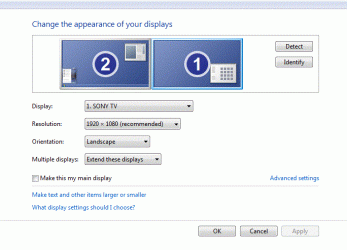
For some reason, my TV (the second display) ... is labelled in 'screen resolution' as (1) ...

I think for some reason my computer thinks the TV is the main display, even though it isn't ? ... even when im booting the pc up ... the boot screen starts on the TV , then switches over to my monitor once the desktop is loaded ...

Why is this do you think ? do you think this could be the reason for the driver pop-up ?

Many thanks,

Stuart

display.GIF
 
Last edited:

My Computer

Computer Manufacturer/Model Number
HP
OS
Windows 7 Home Pre 64bit
CPU
i7 intel core 2.93GHZ
Motherboard
MSI
Memory
16.00GB
Graphics Card(s)
nVidia GT 220
Ah Ha!

Yes that does have something to do with it ;).
Although I'm not sure why your task bar is being displayed on the second display.
(The main display should always be shown as 1 and the second display always shown as 2)

We should correct this first, which could be the reason why your problem is occurring.


Can you describe to me how your displays are setup?

Are you using a desktop computer, with a monitor and have a TV connected?

Or are you using a laptop computer, with your laptop screen and have a TV connected?

Finally could you tell me which cables you are using to connect these displays together?


  • Blue cables (VGA cables) - most common
  • White cables (DVI cables)
  • Black cables (HDMI cables) - more modern
 

My Computer

Computer type
Laptop
Computer Manufacturer/Model Number
Toshiba, Satellite L750/0T1
OS
Windows 7 64-bit SP1 (VM)
CPU
Intel(R) Core(TM) i7-2670QM CPU @ 2.20GHz (8 CPUs), ~2.2GHz
Motherboard
Intel Corp, PSK2YA-0T102S, Sandy Bridge - 09
Memory
4 GB (Expandable to 8 GB)
Graphics Card(s)
NVIDIA GeForce GT 525M
Sound Card
Conexant SmartAudio HD & NVIDIA High Definition Audio
Monitor(s) Displays
2 (Mobile PC Display, Dell E2009W)
Screen Resolution
1366 x 768 & 1680 x 1050
Hard Drives
TOSHIBA MK7575GSX - 698GB (Main Hard Drive)
WD Elements - 1TB (External Hard Drive)
Keyboard
Standard PS/2 Keyboard & Dell SK-8165
Mouse
Synaptics PS/2 Port TouchPad, Logitech Wireless Mouse M185
Internet Speed
Download: 49 Mb/s, Upload: 2 Mb/s 'via Ethernet' (OOKLA)
Antivirus
AVG AntiVirus Free Edition (Outside VM)
Browser
Internet Explorer, Google Chrome
Other Info
Main OS:Windows 10 64-bit
Hello again,

My primary display (main display) is a HP monitor that came with the Desktop pc, and is connected via VGA. I have the desktop displayed on this display. (Identifies as 2)

My second display is a Sony TV connected via HDMI cable. (Identifies as 1)

The display adaptor came with the pc.
 

My Computer

Computer Manufacturer/Model Number
HP
OS
Windows 7 Home Pre 64bit
CPU
i7 intel core 2.93GHZ
Motherboard
MSI
Memory
16.00GB
Graphics Card(s)
nVidia GT 220
Get your main monitor to display as 1 not 2

If a window is opening on 1 now you should be able to drag it to 2 and it should always open on 2.

How often do you use the Sony ? Just disconnect it. I only hook up mine if I`m going to use it.

Do you have an hdmi port and a vga port on the same video card ?

If your Sony is still starting up with windows, then technically it`s not your main monitor.

Right click the desktop and choose screen resolution to configure your monitors correctly, get the HP to 1 and the Sony to 2

Highlight the HP and make sure it`s the main monitor, there is a checkbox.
 
Last edited:

My Computer

Computer type
PC/Desktop
Computer Manufacturer/Model Number
Skylake Special #666
OS
Windows 10 Pro x64
CPU
Intel Core i7 6700K
Motherboard
Asus Sabertooth Z170 Mark 1
Memory
GSkill TridentZ RGB 16GB 3600 16-16-16-36
Graphics Card(s)
EVGA GTX 980 Ti SC x2
Sound Card
Realtek High Definition
Monitor(s) Displays
AOC G2460PG
Screen Resolution
1920 x 1080 144Hz
Hard Drives
Samsung 860 Pro 256GB, Seagate Barracuda 4TB x2
PSU
EVGA 1000 P2, EVGA White Custom Braided Cables
Case
Corsair Vengeance C70 Gunmetal Black
Cooling
Corsair H100i v2, Corsair ML120 x2, Thermal Grizzly Kryonaut
Keyboard
Logitech G910 Orion Spectrum
Mouse
Logitech G700s
Internet Speed
Verizon Fios Quantum Gateway 75/75
Antivirus
Windows Defender, Malwarebytes Free 3.8.3
Browser
Chrome
Other Info
Corsair SP120 x4, LG Blu-ray Drive, Durabrand HT-395 100 Watt Dolby Digital Amp, Corsair H2100 Wireless 7.1 Headset
Get your main monitor to display as 1 not 2

If a window is opening on 1 now you should be able to drag it to 2 and it should always open on 2.

How often do you use the Sony ? Just disconnect it. I only hook up mine if I`m going to use it.

Do you have an hdmi port and a vga port on the same video card ?

If your Sony is still starting up with windows, then technically it`s not your main monitor.

Right click the desktop and choose screen resolution to configure your monitors correctly, get the HP to 1 and the Sony to 2

Highlight the HP and make sure it`s the main monitor, there is a checkbox.

Thanks for your reply, how do I go about doing this, I have looked in the 'screen reso' window, and the advanced tab in their too ... but cant find an option to label to the display a different number.

could it be under the NVidia control panel , software for the display ?

unfortunately I do use it quite frequently, we use it to watch films on - and with my daughter its at least once a day ha.

many thanks

Stuart
 

My Computer

Computer Manufacturer/Model Number
HP
OS
Windows 7 Home Pre 64bit
CPU
i7 intel core 2.93GHZ
Motherboard
MSI
Memory
16.00GB
Graphics Card(s)
nVidia GT 220
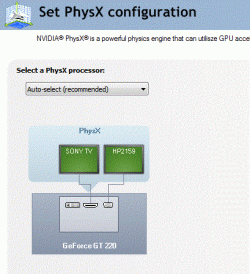
I have found this in NVidia control panel if it helps ...
nCapture.GIF
 

My Computer

Computer Manufacturer/Model Number
HP
OS
Windows 7 Home Pre 64bit
CPU
i7 intel core 2.93GHZ
Motherboard
MSI
Memory
16.00GB
Graphics Card(s)
nVidia GT 220
Okay, I was hoping you had two VGA cables and they might of been plugged into the wrong ports way but no matter.

I have two ways that might help you switch the TV to identify as 2.

First Method:


  1. Unplug the "HDMI" cable that connects to your TV from the HDMI port on your computer.
  2. Go to "Screen resolution" and make sure that your main monitor is identified as 1.
  3. Under the "Multiple displays" text it should say "This is currently your main display" (If it is not check the box "Make this my main display")
  4. Restart your computer
  5. Go back into "Screen resolution", check that everything is the same as mentioned above.
  6. Plug the TV back into your computer (via HDMI)


Second method:


  1. In "Screen resolution" make display 1 (TV) your main display (check the box make this my main display)
  2. Click Apply, then restart your computer
  3. Go back into "Screen resolution" then click on display 2 (Monitor) make it your main display (restore it back to what you had before)


Feel free to play around a bit with the other options, duplicate the displays, show desktop 1 only etc...
Maybe Windows will start to think about switching the number displays around ;).


Other than this I'm not quite sure how to solve this, however I'm fairly certain it is the reason for your hardware popup problem. You could also try connecting the TV to your computer (via VGA) unless you don't have to VGA ports on your computer.


Any one else have any ideas? :)
 
Last edited:

My Computer

Computer type
Laptop
Computer Manufacturer/Model Number
Toshiba, Satellite L750/0T1
OS
Windows 7 64-bit SP1 (VM)
CPU
Intel(R) Core(TM) i7-2670QM CPU @ 2.20GHz (8 CPUs), ~2.2GHz
Motherboard
Intel Corp, PSK2YA-0T102S, Sandy Bridge - 09
Memory
4 GB (Expandable to 8 GB)
Graphics Card(s)
NVIDIA GeForce GT 525M
Sound Card
Conexant SmartAudio HD & NVIDIA High Definition Audio
Monitor(s) Displays
2 (Mobile PC Display, Dell E2009W)
Screen Resolution
1366 x 768 & 1680 x 1050
Hard Drives
TOSHIBA MK7575GSX - 698GB (Main Hard Drive)
WD Elements - 1TB (External Hard Drive)
Keyboard
Standard PS/2 Keyboard & Dell SK-8165
Mouse
Synaptics PS/2 Port TouchPad, Logitech Wireless Mouse M185
Internet Speed
Download: 49 Mb/s, Upload: 2 Mb/s 'via Ethernet' (OOKLA)
Antivirus
AVG AntiVirus Free Edition (Outside VM)
Browser
Internet Explorer, Google Chrome
Other Info
Main OS:Windows 10 64-bit
That will not help you. You have to work on it from the screen resolution page.
 

My Computer

Computer type
PC/Desktop
Computer Manufacturer/Model Number
Skylake Special #666
OS
Windows 10 Pro x64
CPU
Intel Core i7 6700K
Motherboard
Asus Sabertooth Z170 Mark 1
Memory
GSkill TridentZ RGB 16GB 3600 16-16-16-36
Graphics Card(s)
EVGA GTX 980 Ti SC x2
Sound Card
Realtek High Definition
Monitor(s) Displays
AOC G2460PG
Screen Resolution
1920 x 1080 144Hz
Hard Drives
Samsung 860 Pro 256GB, Seagate Barracuda 4TB x2
PSU
EVGA 1000 P2, EVGA White Custom Braided Cables
Case
Corsair Vengeance C70 Gunmetal Black
Cooling
Corsair H100i v2, Corsair ML120 x2, Thermal Grizzly Kryonaut
Keyboard
Logitech G910 Orion Spectrum
Mouse
Logitech G700s
Internet Speed
Verizon Fios Quantum Gateway 75/75
Antivirus
Windows Defender, Malwarebytes Free 3.8.3
Browser
Chrome
Other Info
Corsair SP120 x4, LG Blu-ray Drive, Durabrand HT-395 100 Watt Dolby Digital Amp, Corsair H2100 Wireless 7.1 Headset
Oh, okay. Thanks AddRAM.


Just thought it might be helpful.

I do agree with you, but from what I know there is actually no way to change the identity numbers in screen resolution.

Maybe there is?
 

My Computer

Computer type
Laptop
Computer Manufacturer/Model Number
Toshiba, Satellite L750/0T1
OS
Windows 7 64-bit SP1 (VM)
CPU
Intel(R) Core(TM) i7-2670QM CPU @ 2.20GHz (8 CPUs), ~2.2GHz
Motherboard
Intel Corp, PSK2YA-0T102S, Sandy Bridge - 09
Memory
4 GB (Expandable to 8 GB)
Graphics Card(s)
NVIDIA GeForce GT 525M
Sound Card
Conexant SmartAudio HD & NVIDIA High Definition Audio
Monitor(s) Displays
2 (Mobile PC Display, Dell E2009W)
Screen Resolution
1366 x 768 & 1680 x 1050
Hard Drives
TOSHIBA MK7575GSX - 698GB (Main Hard Drive)
WD Elements - 1TB (External Hard Drive)
Keyboard
Standard PS/2 Keyboard & Dell SK-8165
Mouse
Synaptics PS/2 Port TouchPad, Logitech Wireless Mouse M185
Internet Speed
Download: 49 Mb/s, Upload: 2 Mb/s 'via Ethernet' (OOKLA)
Antivirus
AVG AntiVirus Free Edition (Outside VM)
Browser
Internet Explorer, Google Chrome
Other Info
Main OS:Windows 10 64-bit
I hope your problem has been solved, but the correct answer is for you to go to the screen resolution page, select your main display and then put a check-mark in the box that says "make this my main display" it is that simple.
Boo
 

My Computer

Computer type
PC/Desktop
Computer Manufacturer/Model Number
Custome Build
OS
Windows 7 Ultimate (tower) Windows 8.1 Tablet PC
CPU
Intel I7 X980
Motherboard
ASUS P6T6 Revolution
Memory
12 GB Curcial
Graphics Card(s)
Nvidia gforce GT520
Hard Drives
Samsung 250 GB sSSDSeagate Hybrid 4 TB w/8GB internal SSD
Antivirus
ESET Smart Security 8
Browser
IE and FF
Back
Top