Portable Hardrives No longer Work

Lat

New member
Local time
1:40 AM
Messages
2
Make: Portable Lacie Segate ST3160023A Desktop150gig HD
OS: Vista Business 64 and Windows 7 Proffesional 64

I recently upgraded to windows 7 from vista about 2 months ago. Everthing was working fine, apart from a few compatabilty issues with my printer and speakers. Both my portable hardrives, the one mentioned about and another 160 gig HD totaly in working order.

However when I moved house and did not have the internet for a few weeks they both stopped working on windows 7. When I got the internet back I tried installing new drivers/looking for help online but in the end put it down to windows 7 teething issues.

I then installed my old OS (Vista 64) dual boot with 7 so I could use them untill windows 7 caught up with updates. I managed to get the newer 160gig harddrive working with little problems however the older segate failed to work.

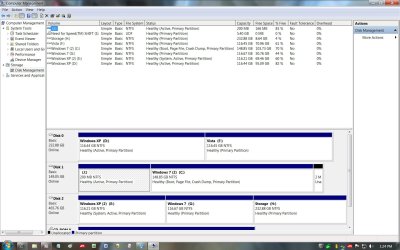
Its difficult to get it to recognize, I uninstalled an reisntalled the drivers many times. It comes up in Device manager under the USB controller and as a disk drive. It also appears in Disk Management, however it comes up as unallocated space and an unknown drive. And seems to need to be intialised (seen below), but it alredy was.

spaceuy.jpg


I really do not want to loose the data on this drive, any ideas how I can get it working again? Would rather not go down the remove it from the casing and install it in the PC route unless I really have too.

Posted this in the vista forums beacuse atleast one of them is working in vista. Would rather have them both working in 7 however.
 

My Computer My Computer

OS
Windows 7 Prof 64, Windows Vista Buisness 64
CPU
Intel Core 2 6700 @ 2.66GHz
Motherboard
ASUS P5W DH Deluxe SKT 775
Memory
8 GiG
Graphics Card(s)
Point Of View 8800GTX 768MB GDDR3
Monitor(s) Displays
Samsung 23", LG W2361 23"
Screen Resolution
(1280 x 720) (1920 x 1080)
Hard Drives
Western Digital WD5000AAKS 500GB SATAII 7200RPM 16MB Cache - OEM Caviar Blue

Portable Lacie Segate ST3160023A Desktop 150gig HD

Formac 160GB USB2.0 External 2.5" Hard Drive 8MB Cache
PSU
OCZ GameXStream 700W PSU
Case
NZXT LEXA Aluminium Case
Cooling
Asus Silent Knight
Keyboard
Logitech G15
Mouse
Logitech Mx Revolution
Internet Speed
10mg
Can you tell me - seeing your picture is too small to expand and read - does it say the drive is offline in the left column, and could you please post back a viewable picture, so we can see for ourselves, and please fill out your system specs. You can use paint to save it as a jpeg.
I'll upload one to see if it works
 

Attachments

  • diskmanagement.jpg
    diskmanagement.jpg
    172.9 KB · Views: 19
Last edited:

My Computer My Computer

OS
XP, Vista, W7 64bit Home Premium
CPU
Intel Core Duo 6850 3.0 ghz @ 3.7 ghz
Motherboard
Asus P5E
Memory
4GB Corsair DDR 2 PC-6400
Graphics Card(s)
Ati 4870 1ghz
Sound Card
Supreme FX 11
Monitor(s) Displays
View Sonic VX1962wm
Screen Resolution
1680 X1050
Hard Drives
3 Seagate Sata Drives 160gb 250gb 500gb
PSU
Thermaltake 600 watt
Case
NZXT Alpha
Cooling
3X120cm Fans
Keyboard
Microsoft Digital Media Pro Keyboard
Mouse
Microsoft Wheel Mouse Optical
Internet Speed
1.5Mb to 8Mb/384k
Move Disks to Another Computer[This topic is pre-release documentation and is subject to change in future releases. Blank topics are included as placeholders.]

This section describes the steps to take and considerations associated with moving disks to another computer. You might want to print this procedure or write down the steps before attempting to move disks from one computer to another.
Backup Operator or Administrator is the minimum membership required to perform these steps.
Verify volume health
Use Disk Management to make sure the status of the volumes on the disks is Healthy. If the status is not Healthy, you should repair the volumes before you move the disks.
To verify the volume status, check the Status column in the Volume List view or under the volume size and file system information in the Graphical view.
Uninstall the disks
Uninstall the disks you want to move using Device Manager.
To uninstall disks
Open Device Manager in Computer Management.
In the device list, double-click Disk drives.
Right-click the disks you want to uninstall, and then click Uninstall.
In the Confirm Device Removal dialog box, click OK.
Remove dynamic disks
If the disks you want to move are dynamic disks, in Disk Management, right-click the disks that you want to move, and then click Remove Disk.
After having removed dynamic disks or if you are moving basic disks, you can now physically disconnect them. If the disks are external, you can now unplug them from the computer. If they are internal, turn off the computer, and then physically remove the disks.
Install disks in the new computer
If the disks are external, plug them into the computer. If the disks are internal, make sure the computer is turned off and then physically install the disks in that computer.
Start the computer that contains the disks you moved and follow the instructions on the Found New Hardware dialog box.
Detect new disks
On the new computer, open Disk Management. Click Action and then click Rescan Disks. Right-click any disk marked Foreign, click Import Foreign Disks, and then follow the instructions on your screen.
Additional considerations
When moved to another computer, basic volumes receive the next available drive letter on that computer. Dynamic volumes retain the drive letter they had on the previous computer. If a dynamic volume did not have a drive letter on the previous computer, it does not receive a drive letter when moved to another computer. If the drive letter is already used on the computer where they are moved, the volume receives the next available drive letter. If an administrator has used the mountvol /n or the diskpart automount commands to prevent new volumes from being added to the system, volumes moved from another computer are prevented from being mounted and from receiving a drive letter. To use the volume, you must manually mount the volume and assign it a drive letter using Disk Management or the DiskPart and mountvol commands.

If you are moving spanned, striped, mirrored, or RAID-5 volumes, it is highly recommended that you move all disks containing the volume together. Otherwise, the volumes on the disks cannot be brought online and will not be accessible except to delete them.

You can move multiple disks from different computers to a computer by installing the disks, opening Disk Management, right-clicking any of the new disks, and then clicking Import Foreign Disks. When importing multiple disks from different computers, always import all of the disks from one computer at a time. For example, if you want to move disks from two computers, import disks from the first computer and then import disks from the second computer.

Disk Management describes the condition of the volumes on the disks before they are imported. Review this information carefully. If there are any problems, this will tell you what will happen to each volume on these disks once the disks have been imported.

If you move a GUID partition table disk containing the Windows operating system to an x86-based or x64-based computer, you can access the data, but you cannot boot from that operating system.
 

My Computer My Computer

OS
XP, Vista, W7 64bit Home Premium
CPU
Intel Core Duo 6850 3.0 ghz @ 3.7 ghz
Motherboard
Asus P5E
Memory
4GB Corsair DDR 2 PC-6400
Graphics Card(s)
Ati 4870 1ghz
Sound Card
Supreme FX 11
Monitor(s) Displays
View Sonic VX1962wm
Screen Resolution
1680 X1050
Hard Drives
3 Seagate Sata Drives 160gb 250gb 500gb
PSU
Thermaltake 600 watt
Case
NZXT Alpha
Cooling
3X120cm Fans
Keyboard
Microsoft Digital Media Pro Keyboard
Mouse
Microsoft Wheel Mouse Optical
Internet Speed
1.5Mb to 8Mb/384k
initilize.jpg


timeb.jpg


Bigger images of where Ive got it too, this is in windows 7 it registers, with a bit of coaxing but gives me the initilise dialogue shown in the top image and does not show any data on it. Also updated my system specs.

I tried to do the steps in the latter post but they didnt work.
 
Last edited:

My Computer My Computer

OS
Windows 7 Prof 64, Windows Vista Buisness 64
CPU
Intel Core 2 6700 @ 2.66GHz
Motherboard
ASUS P5W DH Deluxe SKT 775
Memory
8 GiG
Graphics Card(s)
Point Of View 8800GTX 768MB GDDR3
Monitor(s) Displays
Samsung 23", LG W2361 23"
Screen Resolution
(1280 x 720) (1920 x 1080)
Hard Drives
Western Digital WD5000AAKS 500GB SATAII 7200RPM 16MB Cache - OEM Caviar Blue

Portable Lacie Segate ST3160023A Desktop 150gig HD

Formac 160GB USB2.0 External 2.5" Hard Drive 8MB Cache
PSU
OCZ GameXStream 700W PSU
Case
NZXT LEXA Aluminium Case
Cooling
Asus Silent Knight
Keyboard
Logitech G15
Mouse
Logitech Mx Revolution
Internet Speed
10mg
Yes if it would let you initialise the disk your at risk of loosing data, and your idea to put it back in the case, and copy the data to another drive would be a good idea that is if you want to return to your current problem, and solve it. I would think this is the smartest solution - I haven't any safe ideas Im afraid although you might be able to find a data recovery programme that maybe able to work.

Well, it seems there maybe ways to fix this (I've done a search of the W7 Forums) some are suggesting if the drive will initialize you wont loose the data, but I will let you read all the solutions yourself, and make your own decision.

http://www.sevenforums.com/gtsearch.php?cx=partner-pub-7156303416008077%3Ahfslqp-2rmq&cof=FORID%3A9&ie=ISO-8859-1&q=initialize+hard+drive+without+losing+data+&sa=Search#1150
 

My Computer My Computer

OS
XP, Vista, W7 64bit Home Premium
CPU
Intel Core Duo 6850 3.0 ghz @ 3.7 ghz
Motherboard
Asus P5E
Memory
4GB Corsair DDR 2 PC-6400
Graphics Card(s)
Ati 4870 1ghz
Sound Card
Supreme FX 11
Monitor(s) Displays
View Sonic VX1962wm
Screen Resolution
1680 X1050
Hard Drives
3 Seagate Sata Drives 160gb 250gb 500gb
PSU
Thermaltake 600 watt
Case
NZXT Alpha
Cooling
3X120cm Fans
Keyboard
Microsoft Digital Media Pro Keyboard
Mouse
Microsoft Wheel Mouse Optical
Internet Speed
1.5Mb to 8Mb/384k
Back
Top