Why is it burning my CPU?
The Presentation Font Cache loads all fonts into its font cache (which is stored on your hard disk, but more on that later). However, at some point, this cache may become corrupted and unreadable due to a specific font. Then, the Presentation Font Cache will start to become unresponsive and get caught in a “I try to launch, but I’m stuck, so I will try it again” loop. That’s what causes the incredibly high CPU usage, and what may even result in a sudden shutdown due to overheating. Luckily, there are a few solutions to this problem!
Solution #1: Delete the font cache file
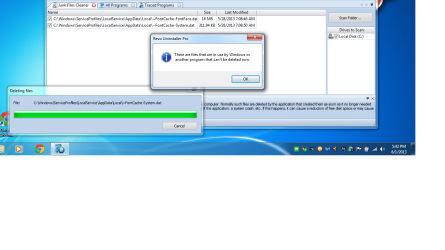
The font cache is located under the following folder: %windir%\ServiceProfiles\LocalService\AppData\Local. Simply hold down the WIN key on your keyboard and press “R”. Then, enter the path above and click “OK”. Delete all the “FontCache…dat” files you find, such as “FontCache-System.dat” or “FontCache3.0.0.0.dat”.
This will cause the WPF font cache to rebuild itself. However, if the problem persists, you might need to shut down the WPF font cache permanently.



 Caching is a technique that all operating systems use to improve performance.