Printer Troubles

zig553

New member
Local time
2:36 PM
Messages
1
A new computer was recently installed in our offices that runs windows 7 home premium 64 bit, there is also 2 network printers in our network. The problem is that the new computer can print test pages but it cannot print from any programs such as Openoffice, Microsoft Office or even Internet Explorer. When the computer was first installed, it printed just fine but this happened just recently. I've tried reinstalling the printer drivers and turning off the firewall but it still will not print from any programs. My only guess would be maybe a printer port issue or maybe a program got installed that caused an incompatibilty but I'm running out of ideas for it.

Edit: Okay I sort of fixed it, it appears the computer doesn't like it when theres 2 network printers setup on the computer at once. So I deleted one and reinstalled the other and everything seems to work just fine. Thought I would write this in case anyone else needs a temporary fix, I would still like to know if there is anyone of making this work though.
 
Last edited:

My Computer

OS
Windows 7 Professional x64
You state that you have 2 network printers - are they truly networked? (by that do they have their own network connections) or are they shared off other machines? I discovered issues with Win 7 starter won't print to a printer not connected to a Windows 7 machine (can print from Windows 7 Pro to XP machine with printer though).
Just a few ramblings. Also wondering if network printers attached to other machines issue could be they are 32-bit OSes?
 

My Computer

OS
Windows 7 Professional (upgrade) 32-bit
Please see this other particular post of mine in another thread, which may provide a solution to your problem, although the problem definition isn't all that clear to me yet. That other thread contains pictures, "recipe steps", etc., and at the end the problem was solved. You can look before and after the particular post I'm pointing to, for more insights, screenshots, etc., all of which should be helpful and informative in your current network printing situation.


Again, that story like yours involved a replaced computer, and things that used to work before (i.e. printing to a USB-connected printer from other computers on the network no longer "worked") and a need to fix things that had "broken" as a result of the new machine getting installed.

The very possible key to the problem is that the "workgroup" for all of the networked computers needs to be the same on all computers in the network, if resources are to be "shared" among them. The default workgroup name in Win7 is almost certainly not what you've got in place for your existing computers (which were probably configured previously by a "network department person").

So the new computer needs to also be configured, so that it is part of the same "workgroup" as all of the other computers on the network.


Also, you mention "network printers" but that can be either of two connection notions: (1) Ethernet cable connecting a TCPIP-enabled printer directly to the router, making it available by IP address from any computer on the same router-controlled netowrk, or (2) USB-connected to one computer on the network, with that printer set up as "shared" and thus available for printing through the "host/server" computer from every other client computer on the network.

This latter approach, which is very common, requires proper setup of "shared" printer and driver on the "host/server", and proper network configuration on the client machines to access the "shared" printer on the host machine.


You haven't really described your problem in much detail, but that post of mine in the other thread may be usable "as-is" to solve your problem.

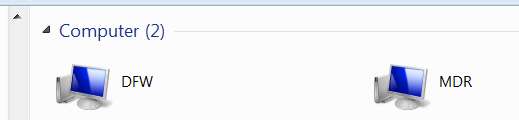
(1) You need all computers on the network to be in the same "workgroup". Start -> right-click on Network, to see your current "network view" within your workgroup:

networkcomputers.jpg


You need each computer on the network to have its own unique "machine/computer name" on the network. If they are not unique, change them. Same with the workgroup name: if they are not the same, change them on each computer so that the workgroup for all of them IS the same. Push the CHANGE button and enter the values as appropriate:

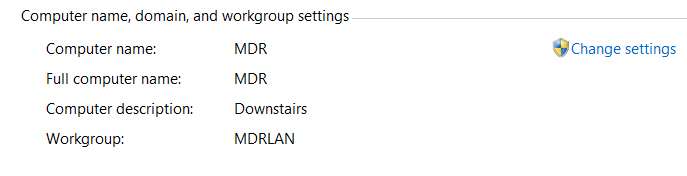
Start -> right-click on Computer, select Properties, and then show the portion dealing with computer name and workgroup name:

networkinfo2.jpg


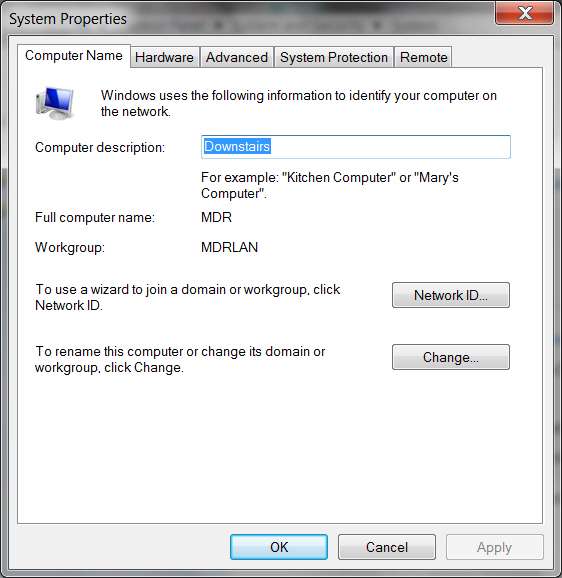
Click on the "Change settings" link on the right, to get the System Properties window where you can then make your changes.

computerproperties.jpg


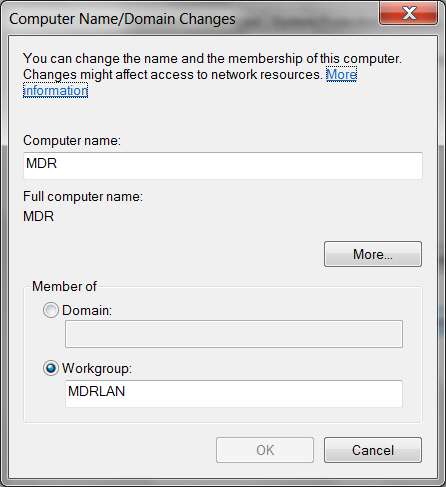
Push the "change"button, to change this information. You will then get the Computer name/domain and workgroup name changes screen:

computername.jpg


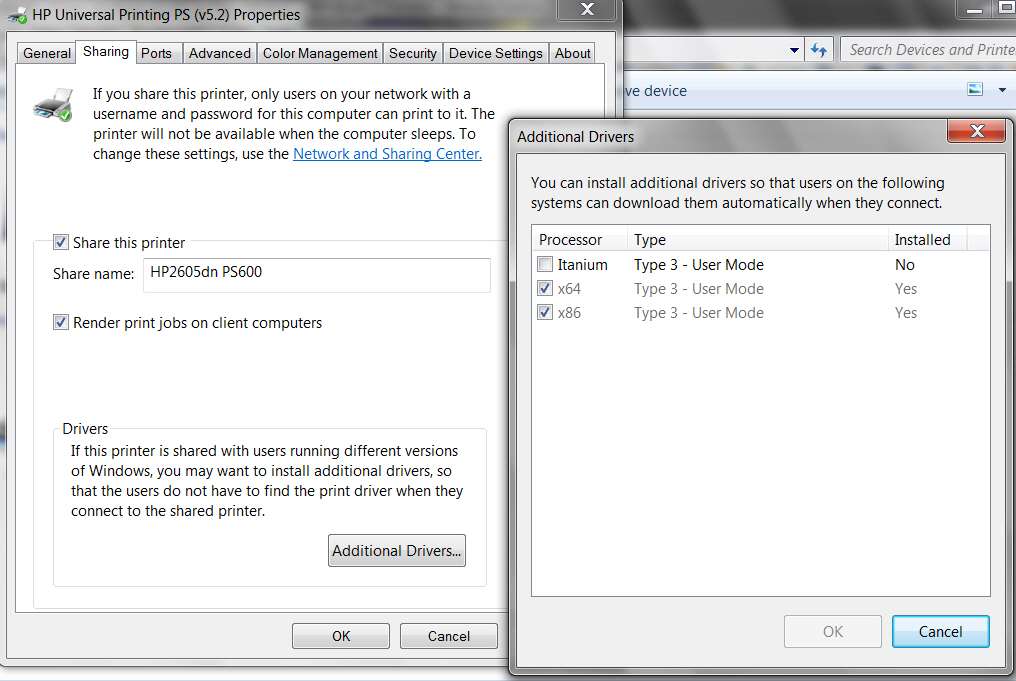
Each USB-connected printer must have "share this printer" specified in its own local setup for that printer. Start -> devices and printers, select your USB-connected printer on the machine to which it is locally connected, right-click and select Printer properties and then the Sharing tab:

sharedprinters.jpg


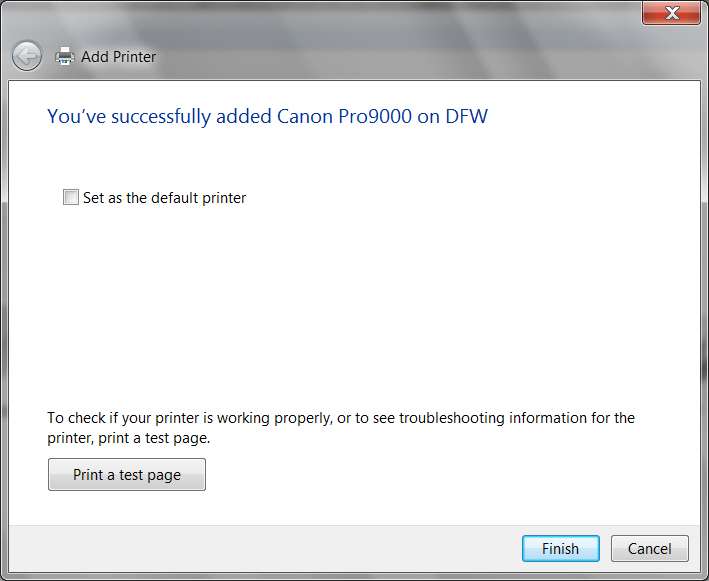
Each client computer on the network needs to go through the "ADD PRINTER" dialog, and then follow the "network, Bluetooth, or wireless" printer wizard. You will be able to "see" all "shared" printers on the other host computers on the network, and you simply need to select the printer you want to "add" and push the NEXT button in Win7 to complete the process. With WinXP once you select the desired "shared" printer to add, you right-click and select "Connect...". Same result.
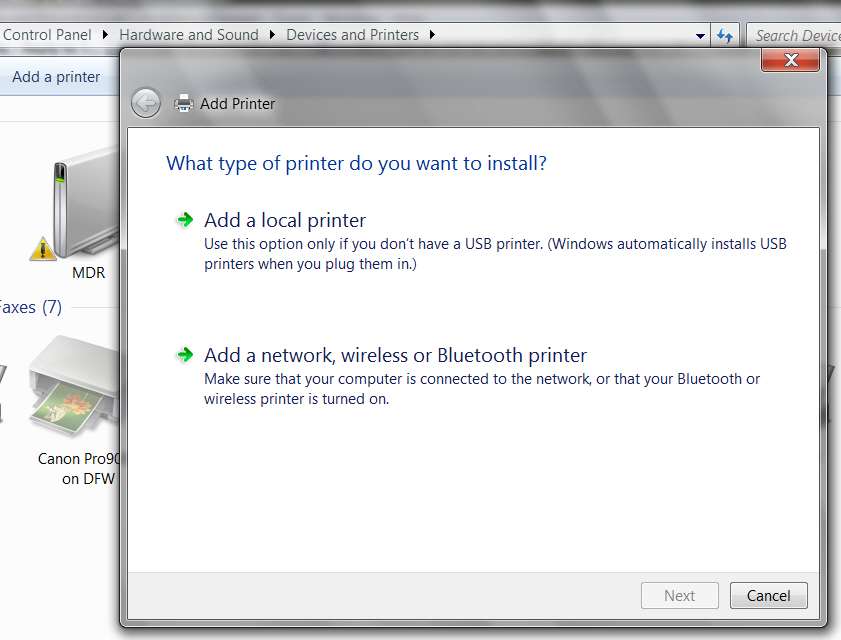
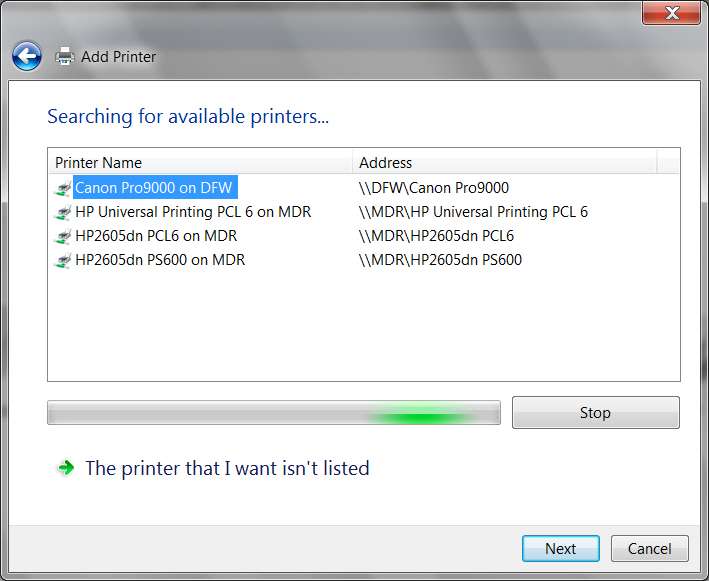
addprinter1.jpg


addprinter2.jpg


addprinter3.jpg


addprinter4.jpg


addprinter5.jpg


Back at the host machine with the USB-connected printer, if it is a 64-bit Win7 system then 64-bit printer drivers got installed. If there are only 64-bit client machines on the network that want to make use of that "shared" printer, there's no problem. But if there are 32-bit (e.g. WinXP) client machines that want to print on this USB-connected printer hosted by a 64-bit Win7 system, you need to "ADD ADDITIONAL DRIVER" to that 64-bt printer definition, adding a second 32-bit version in addition to the already installed 64-bit version. Now the host system can "ship" the proper printer driver to the client computer at "connect time", providing support for both 32-bit and 64-bit clients.


Enough for this preview.

If you can specify with more detail what your network and devices look like, and what you were doing before the machine got replaced, or how what I've already said above or in that other post might actually let you solve your own problem now... please do.

 
Last edited:

My Computer

Computer type
PC/Desktop
Computer Manufacturer/Model Number
Home-built, two systems (1) and (2)
OS
Windows 7 Pro x64 (1), Win7 Pro X64 (2)
CPU
i5-3350p 3.1Ghz/6MB-cache (1); E8400 3.0Ghz/6MB-cache (2)
Motherboard
ASUS P8Z77-V Pro (1); ASUS P5Q3 (2)
Memory
8GB PC3-12800 DDR3 (1); 4GB PC3-10600 DDR3 (2)
Graphics Card(s)
ATI HD7750 (1), (see TV cards); ATI R7 250 (2)
Sound Card
Realtek ALC892 HD Audio (1); Realtek ALC1200 HD Audio (2)
Monitor(s) Displays
Eizo HD2441W LCD, Eizo S2433W (1); Eizo 24" S2433W (2)
Screen Resolution
1920x1200, 1920x1200 (1); 1920x1200 (2)
Hard Drives
(1) 1TB SATA-II (7200RPM), 2x2TB SATA-III (7200RPM), 250GB SATA-III (10000RPM) for OS; 2x2TB external USB 3.0

(2) 320GB SATA-II (7200RPM), 750GB SATA-II (7200RPM), 150GB SATA-II (10000RPM) for OS; 2TB external USB 3.0
PSU
Nesteq ECS-6001 600W (1); Nesteq ECS-5001 500W (2)
Case
Acousti-Case 360 (1) and (2)
Cooling
Noctua NH-U12P SE2 for CPU, 2x120mm case fans (1) and (2)
Keyboard
IBM PS/2 (1) and (2)
Mouse
Logitech MX Revolution wireless (1); Microsoft wired (2)
Internet Speed
100mbps down / 10mbps up
Antivirus
Microsoft Security Essentials; Malwarebyte Anti-Malware Pro
Browser
Firefox
Other Info
Ceton InfiniTV 4-tuner cablecard-enabled TV card as well as Hauppauge HVR-2250 OTA/ATSC 2-tuner TV card in (1), running under Win7 WMC
dsperber- thanks for the great info...however do you have any advice on adding additonial drivers on the host computer when the only place you can get the printer driver is Windows Update? I tried adding the driver for 32 bit systems to by 64 bit system host but it prompts me for a driver location :(
 

My Computer

OS
Windows 7
dsperber- thanks for the great info...however do you have any advice on adding additonial drivers on the host computer when the only place you can get the printer driver is Windows Update? I tried adding the driver for 32 bit systems to by 64 bit system host but it prompts me for a driver location :(
You have to have the 32-bit driver downloaded (or otherwise available) at that point in the dialog.

If you download a 32-bit installer file from manufacturer or Microsoft Update Catalog (which you MUST access using Internet Explorer, not Firefox), you then use WINRAR or similar to expand it (not run it, just expand it so that you can then point to it). Then, in one of the expanded sub-folders, the INF file for the 32-bit environment will be found. That's where you want to navigate to when the "secondary driver" install wizard dialog asks you for it.

Alternatively, if you have the printer installed on a 32-bit Windows sytem, you can point to the Driver Repository on that system (assuming you have network access to it) when the install wizard asks you for it.

Or, if you have a 32-bit Win7 installation DVD and the printer is supported by Windows, you can MOUNT the WINDOWS.WIM file on that DVD and point to the Driver Repository.

Etc., etc.

One way or another it's up to you to make that 32-bit INF file accessible and then navigate to it when the wizard asks you for it. It is YOU that needs to make it available when it's this secondary driver installation process to support x86 clients from a x64 host.

NOTE: the Microsoft Update Catalog is exactly the site that Windows itself accesses when you have "Windows Updates" enabled. That's where the "new hardware detected" process goes to find a current driver, if the device was not originally supported by Win7 so that it is not found in the currently installed Driver Repository. You can search here yourself and download the proper installer file for the 32-bit environment.
 

My Computer

Computer type
PC/Desktop
Computer Manufacturer/Model Number
Home-built, two systems (1) and (2)
OS
Windows 7 Pro x64 (1), Win7 Pro X64 (2)
CPU
i5-3350p 3.1Ghz/6MB-cache (1); E8400 3.0Ghz/6MB-cache (2)
Motherboard
ASUS P8Z77-V Pro (1); ASUS P5Q3 (2)
Memory
8GB PC3-12800 DDR3 (1); 4GB PC3-10600 DDR3 (2)
Graphics Card(s)
ATI HD7750 (1), (see TV cards); ATI R7 250 (2)
Sound Card
Realtek ALC892 HD Audio (1); Realtek ALC1200 HD Audio (2)
Monitor(s) Displays
Eizo HD2441W LCD, Eizo S2433W (1); Eizo 24" S2433W (2)
Screen Resolution
1920x1200, 1920x1200 (1); 1920x1200 (2)
Hard Drives
(1) 1TB SATA-II (7200RPM), 2x2TB SATA-III (7200RPM), 250GB SATA-III (10000RPM) for OS; 2x2TB external USB 3.0

(2) 320GB SATA-II (7200RPM), 750GB SATA-II (7200RPM), 150GB SATA-II (10000RPM) for OS; 2TB external USB 3.0
PSU
Nesteq ECS-6001 600W (1); Nesteq ECS-5001 500W (2)
Case
Acousti-Case 360 (1) and (2)
Cooling
Noctua NH-U12P SE2 for CPU, 2x120mm case fans (1) and (2)
Keyboard
IBM PS/2 (1) and (2)
Mouse
Logitech MX Revolution wireless (1); Microsoft wired (2)
Internet Speed
100mbps down / 10mbps up
Antivirus
Microsoft Security Essentials; Malwarebyte Anti-Malware Pro
Browser
Firefox
Other Info
Ceton InfiniTV 4-tuner cablecard-enabled TV card as well as Hauppauge HVR-2250 OTA/ATSC 2-tuner TV card in (1), running under Win7 WMC
ok so

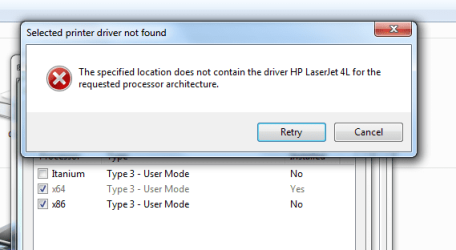
when I get to the driver location question i've tried browsing over the network to the Win 7 32 bit machine and I select the correct printer driver .inf file through the Driver Repository on the 32 bit laptop however it still doesn't like it and gives me the attached error. From what I found on line I think it may have something to do with the driver names not matching or etc.


Please anymore advice would be great!
 

Attachments

  • Capture.PNG
    Capture.PNG
    14.8 KB · Views: 2

My Computer

OS
Windows 7
Well, I would have thought it would work exactly as you've done.

Here's what I would think should be an absolutely reliable method (as I've described earlier).

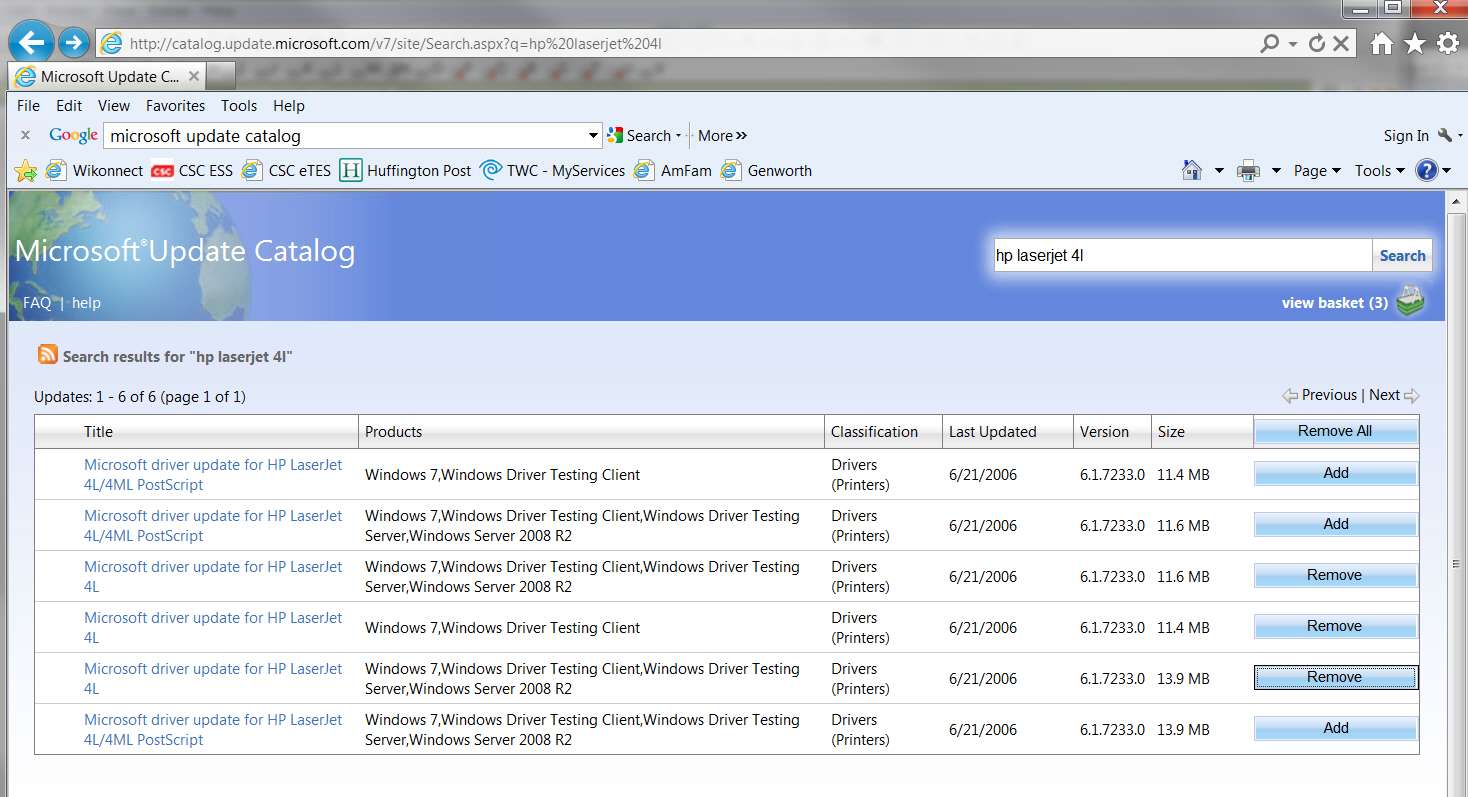
(1) Go to the Microsoft Update Catalog site and search for HP Laserjet 4L. You will get six "hits", three for Postscript drivers and three for PCL drivers. The three driver versions are x86, x64, and Xeon.

MS's descriptions don't indicate which is which, so just push the "add" button for the three PCL drivers and download them all. You can then see which is which and can expand the x86 version for your needs.

mscatalog1.jpg


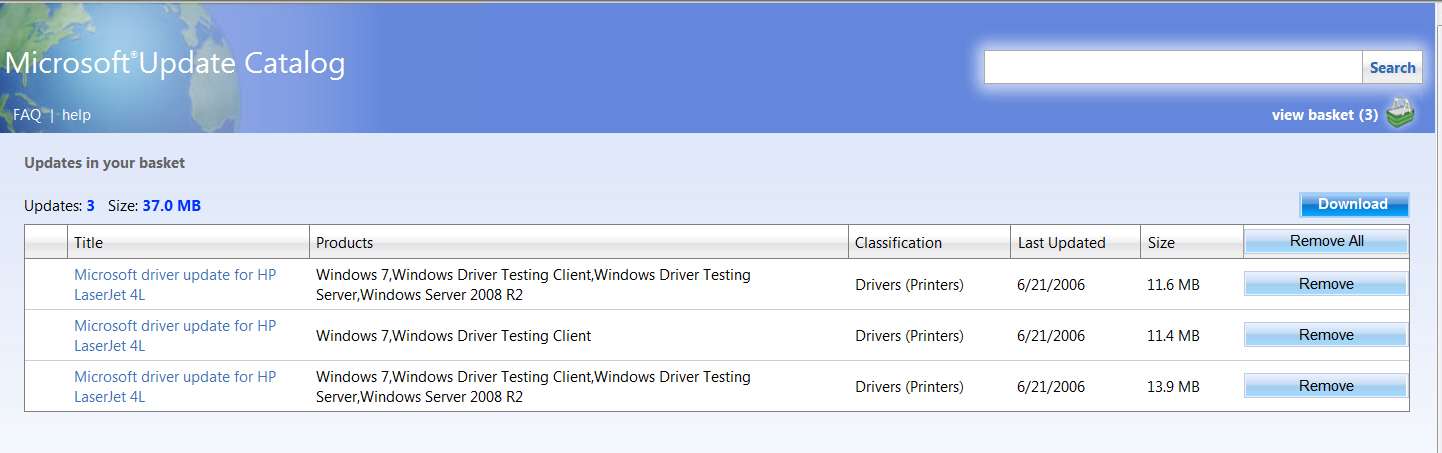
(2) Then push the "view basket" link to go to the next page, which shows the contents of your download group, which will show the three driver files you've "added".

mscatalog2ho.jpg


(3) Push the "download" button to get all three files downloaded to your target folder to hold these three zip files.

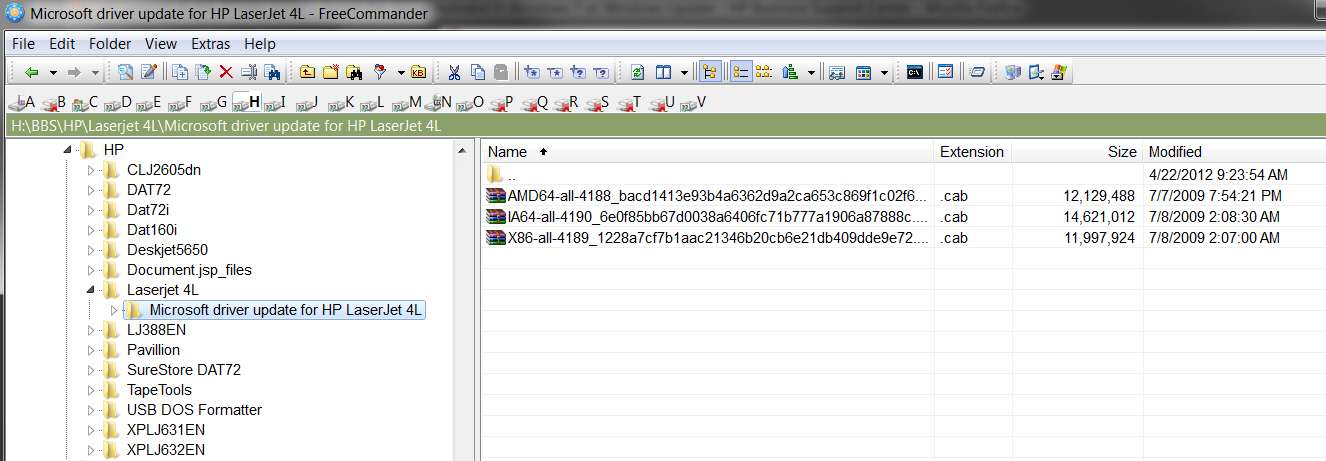
When the download if finished, you'll have one folder (named "driver folder for HP Laserjet 4L") containing the three driver zip files inside that folder.

mscatalog3.jpg


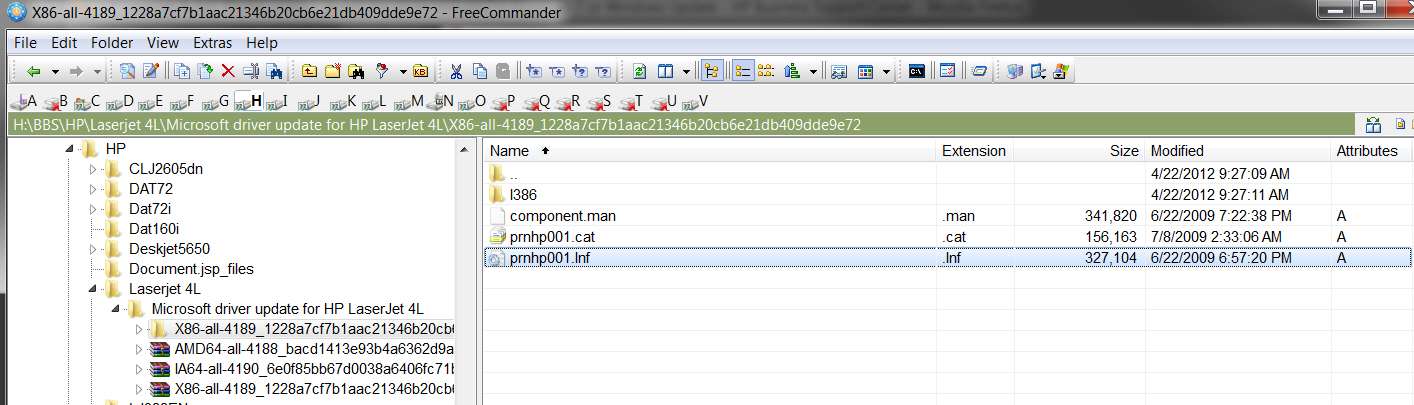
(4) Right-click on the x86 driver zip file and invoke WINRAR or whatever you use, to expand that driver zip file into its own folder. When you then look inside that folder you will see the file PRNHP001.INF for 32-bit, along with the i386 folder containing the actual 32-bit driver DLL files, PPD files, etc.

mscatalog4.jpg


This is the INF file you should point to in that "add secondary driver" dialog when you get to that point.

I would think this HAS to work for you.

NOTE: actually, the downloaded files are .CAB and not .ZIP. But you can still use WINRAR to expand them.
 

My Computer

Computer type
PC/Desktop
Computer Manufacturer/Model Number
Home-built, two systems (1) and (2)
OS
Windows 7 Pro x64 (1), Win7 Pro X64 (2)
CPU
i5-3350p 3.1Ghz/6MB-cache (1); E8400 3.0Ghz/6MB-cache (2)
Motherboard
ASUS P8Z77-V Pro (1); ASUS P5Q3 (2)
Memory
8GB PC3-12800 DDR3 (1); 4GB PC3-10600 DDR3 (2)
Graphics Card(s)
ATI HD7750 (1), (see TV cards); ATI R7 250 (2)
Sound Card
Realtek ALC892 HD Audio (1); Realtek ALC1200 HD Audio (2)
Monitor(s) Displays
Eizo HD2441W LCD, Eizo S2433W (1); Eizo 24" S2433W (2)
Screen Resolution
1920x1200, 1920x1200 (1); 1920x1200 (2)
Hard Drives
(1) 1TB SATA-II (7200RPM), 2x2TB SATA-III (7200RPM), 250GB SATA-III (10000RPM) for OS; 2x2TB external USB 3.0

(2) 320GB SATA-II (7200RPM), 750GB SATA-II (7200RPM), 150GB SATA-II (10000RPM) for OS; 2TB external USB 3.0
PSU
Nesteq ECS-6001 600W (1); Nesteq ECS-5001 500W (2)
Case
Acousti-Case 360 (1) and (2)
Cooling
Noctua NH-U12P SE2 for CPU, 2x120mm case fans (1) and (2)
Keyboard
IBM PS/2 (1) and (2)
Mouse
Logitech MX Revolution wireless (1); Microsoft wired (2)
Internet Speed
100mbps down / 10mbps up
Antivirus
Microsoft Security Essentials; Malwarebyte Anti-Malware Pro
Browser
Firefox
Other Info
Ceton InfiniTV 4-tuner cablecard-enabled TV card as well as Hauppauge HVR-2250 OTA/ATSC 2-tuner TV card in (1), running under Win7 WMC
Back
Top