Printing a screen at 200%

lostsoul62

Banned
Local time
8:01 PM
Messages
380
Location
AZ
When I enlarge the screen at whatever % I want I still get the 100% print out which I can't read because it's too small. So how can I print out a screen at say 200% so I can read what's on it. Can anyone help with this?
 

My Computer

OS
Windows 7 x64 RC1, Vista Ultimate, XP Pro
CPU
AMD 955
Memory
4 gigs - 1333
Graphics Card(s)
5750
Monitor(s) Displays
i-inc 28"
Screen Resolution
1920x1200
Hard Drives
2 SATA2 750 GB - 1 SATA2 1TB - 1 SATA3 1TB - 1 USB3 2TB - 1 USB3 500 GB, SSD 60 GB
Internet Speed
7 Megs
For clarification first, how are you printing your screen? Are you using the Windows snipping tool or some other method?
 

My Computer

Computer Manufacturer/Model Number
Dell Vostro 420
OS
Windows 7 Pro x64
CPU
3.00 GHz Intel Core2 Quad Q9650
Memory
4 GB
Graphics Card(s)
ATI Radeon HD 3400 Series
Monitor(s) Displays
DELL 2405FPW
Screen Resolution
1920x1200
Hard Drives
System: 80GB WDC WD800JD-22MSA1
Data: 500GB Hitachi HDP725050GLA360
Internet Speed
Verizon FiOS 20/5 mbps
Other Info
Computing is primarily business use with off-time troubleshooting practice: Remote desktop, scanning and producing invoices, some minor graphics work.
Word

I do a Print screen and paste it into Word and then enlarge it to 200% and then print it and it prints at 100%
 

My Computer

OS
Windows 7 x64 RC1, Vista Ultimate, XP Pro
CPU
AMD 955
Memory
4 gigs - 1333
Graphics Card(s)
5750
Monitor(s) Displays
i-inc 28"
Screen Resolution
1920x1200
Hard Drives
2 SATA2 750 GB - 1 SATA2 1TB - 1 SATA3 1TB - 1 USB3 2TB - 1 USB3 500 GB, SSD 60 GB
Internet Speed
7 Megs
Ah, okay. Thanks.

In your case the print enlargement becomes a function of the printer driver you are using. Most printers allow printed material to be enlarged or shrunk, depending.

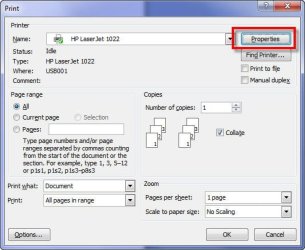
When you print from Word (what version of Word, by the way?), instead of choosing the print immediately button, choose the "Print..." menu choice (this assumes Word 2003 or lower), then choose the "Properties" button to the right of the printer name to which you are printing.

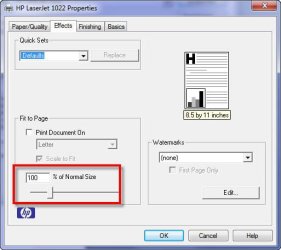
Once in the printer properties, look for the option to increase the print size, as you can see annotated in my attached printer screenshots.

You can even make this enlarged option the default for future prints by going to the "Start" Orb, then "Devices and Printers," right click on your printer to which you normally print, and choose the "Printer Preferences" or "Printer Properties" (depending on your printer driver).
 

Attachments

  • SNAG-0047.jpg
    SNAG-0047.jpg
    36.4 KB · Views: 4
  • SNAG-0046.jpg
    SNAG-0046.jpg
    28.5 KB · Views: 7

My Computer

Computer Manufacturer/Model Number
Dell Vostro 420
OS
Windows 7 Pro x64
CPU
3.00 GHz Intel Core2 Quad Q9650
Memory
4 GB
Graphics Card(s)
ATI Radeon HD 3400 Series
Monitor(s) Displays
DELL 2405FPW
Screen Resolution
1920x1200
Hard Drives
System: 80GB WDC WD800JD-22MSA1
Data: 500GB Hitachi HDP725050GLA360
Internet Speed
Verizon FiOS 20/5 mbps
Other Info
Computing is primarily business use with off-time troubleshooting practice: Remote desktop, scanning and producing invoices, some minor graphics work.
Oh, in addition, you may want to play with the Snipping Tool that comes with Windows 7 (click on the START orb, then type "Snipping Tool" without the quotes in the search box, then hit enter).

This tool somewhat streamlines the process of snapping screenshots, but you would still (I believe) need to play with the printer settings to enlarge the printout.

In my case I am a big fan of SnagIt, which offers the feature of enlarging or shrinking screenshots and then printing very easily, but it is payware.
 

My Computer

Computer Manufacturer/Model Number
Dell Vostro 420
OS
Windows 7 Pro x64
CPU
3.00 GHz Intel Core2 Quad Q9650
Memory
4 GB
Graphics Card(s)
ATI Radeon HD 3400 Series
Monitor(s) Displays
DELL 2405FPW
Screen Resolution
1920x1200
Hard Drives
System: 80GB WDC WD800JD-22MSA1
Data: 500GB Hitachi HDP725050GLA360
Internet Speed
Verizon FiOS 20/5 mbps
Other Info
Computing is primarily business use with off-time troubleshooting practice: Remote desktop, scanning and producing invoices, some minor graphics work.
Peter

Thanks Peter, I used the snipping tool and did a full screen snip save it and printed it and it worked.
Thanks
 

My Computer

OS
Windows 7 x64 RC1, Vista Ultimate, XP Pro
CPU
AMD 955
Memory
4 gigs - 1333
Graphics Card(s)
5750
Monitor(s) Displays
i-inc 28"
Screen Resolution
1920x1200
Hard Drives
2 SATA2 750 GB - 1 SATA2 1TB - 1 SATA3 1TB - 1 USB3 2TB - 1 USB3 500 GB, SSD 60 GB
Internet Speed
7 Megs
This is strange. When you "copy" from a webpage and "paste" it into a Word document, all you have to do is highlight the text in the Word document and increase the font size in the Home tab. Then it prints in the size you set it to.
With the snipping tool you get a picture, not a document and that will not work very well if you want to do enlarged printing from several contiguous pages.
 

My Computer

Computer Manufacturer/Model Number
HP, Dell, Gateway, Toshiba - 4 laptops and 2 desktops
OS
Vista, Windows7, Mint Mate, Zorin, Windows 8
CPU
from 1.6GHz Duo to i7
Monitor(s) Displays
2x HP w2207
Hard Drives
5x HDD, 7x SSD, 12x Externals
Keyboard
with trackball - no mices
Mouse
Trackball mice
Internet Speed
DSL 6000
This is strange. When you "copy" from a webpage and "paste" it into a Word document, all you have to do is highlight the text in the Word document and increase the font size in the Home tab. Then it prints in the size you set it to.
With the snipping tool you get a picture, not a document and that will not work very well if you want to do enlarged printing from several contiguous pages.

My interpretation was that he wasn't copying text - rather, prior to using the Snipping Tool he was snapping a picture of the website using the printscreen (or is it ALT-PrtScr? Been using SnagIt so long I forgot the sequence) and pasting that image into Word.

Now that you mention it, though, there are options after pasting into Word for simply enlarging the image by grabbing one of the corners of the image object and pulling it outward.
 

My Computer

Computer Manufacturer/Model Number
Dell Vostro 420
OS
Windows 7 Pro x64
CPU
3.00 GHz Intel Core2 Quad Q9650
Memory
4 GB
Graphics Card(s)
ATI Radeon HD 3400 Series
Monitor(s) Displays
DELL 2405FPW
Screen Resolution
1920x1200
Hard Drives
System: 80GB WDC WD800JD-22MSA1
Data: 500GB Hitachi HDP725050GLA360
Internet Speed
Verizon FiOS 20/5 mbps
Other Info
Computing is primarily business use with off-time troubleshooting practice: Remote desktop, scanning and producing invoices, some minor graphics work.
This is strange. When you "copy" from a webpage and "paste" it into a Word document, all you have to do is highlight the text in the Word document and increase the font size in the Home tab. Then it prints in the size you set it to.
With the snipping tool you get a picture, not a document and that will not work very well if you want to do enlarged printing from several contiguous pages.

My interpretation was that he wasn't copying text - rather, prior to using the Snipping Tool he was snapping a picture of the website using the printscreen (or is it ALT-PrtScr? Been using SnagIt so long I forgot the sequence) and pasting that image into Word.

Now that you mention it, though, there are options after pasting into Word for simply enlarging the image by grabbing one of the corners of the image object and pulling it outward.


Well, I assumed he was talking about text because he said: "I can't read". I have this problem all the time because I have a poor eyesight and use the described technique for cases where I cannot change the zoom level.
 

My Computer

Computer Manufacturer/Model Number
HP, Dell, Gateway, Toshiba - 4 laptops and 2 desktops
OS
Vista, Windows7, Mint Mate, Zorin, Windows 8
CPU
from 1.6GHz Duo to i7
Monitor(s) Displays
2x HP w2207
Hard Drives
5x HDD, 7x SSD, 12x Externals
Keyboard
with trackball - no mices
Mouse
Trackball mice
Internet Speed
DSL 6000
This is strange. When you "copy" from a webpage and "paste" it into a Word document, all you have to do is highlight the text in the Word document and increase the font size in the Home tab. Then it prints in the size you set it to.
With the snipping tool you get a picture, not a document and that will not work very well if you want to do enlarged printing from several contiguous pages.

I copied your post into a Word Document and could not highligh the text. How do you do that?
 

My Computer

OS
Windows 7 x64 RC1, Vista Ultimate, XP Pro
CPU
AMD 955
Memory
4 gigs - 1333
Graphics Card(s)
5750
Monitor(s) Displays
i-inc 28"
Screen Resolution
1920x1200
Hard Drives
2 SATA2 750 GB - 1 SATA2 1TB - 1 SATA3 1TB - 1 USB3 2TB - 1 USB3 500 GB, SSD 60 GB
Internet Speed
7 Megs
Well, I assumed he was talking about text because he said: "I can't read". I have this problem all the time because I have a poor eyesight and use the described technique for cases where I cannot change the zoom level.

That is a great idea (copying just the text of the website) and something perhaps the OP might consider, too.
 

My Computer

Computer Manufacturer/Model Number
Dell Vostro 420
OS
Windows 7 Pro x64
CPU
3.00 GHz Intel Core2 Quad Q9650
Memory
4 GB
Graphics Card(s)
ATI Radeon HD 3400 Series
Monitor(s) Displays
DELL 2405FPW
Screen Resolution
1920x1200
Hard Drives
System: 80GB WDC WD800JD-22MSA1
Data: 500GB Hitachi HDP725050GLA360
Internet Speed
Verizon FiOS 20/5 mbps
Other Info
Computing is primarily business use with off-time troubleshooting practice: Remote desktop, scanning and producing invoices, some minor graphics work.
This is strange. When you "copy" from a webpage and "paste" it into a Word document, all you have to do is highlight the text in the Word document and increase the font size in the Home tab. Then it prints in the size you set it to.
With the snipping tool you get a picture, not a document and that will not work very well if you want to do enlarged printing from several contiguous pages.

I copied your post into a Word Document and could not highligh the text. How do you do that?


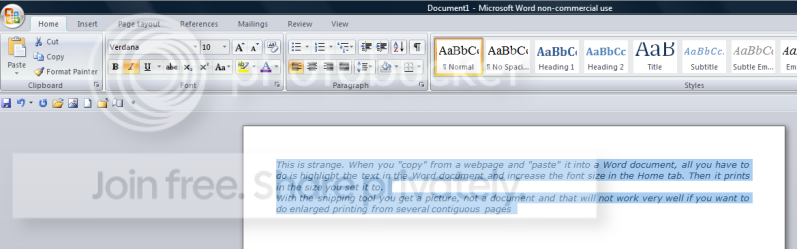
That is really strange. I had no problem with the highlighting:

highlight.png
 

My Computer

Computer Manufacturer/Model Number
HP, Dell, Gateway, Toshiba - 4 laptops and 2 desktops
OS
Vista, Windows7, Mint Mate, Zorin, Windows 8
CPU
from 1.6GHz Duo to i7
Monitor(s) Displays
2x HP w2207
Hard Drives
5x HDD, 7x SSD, 12x Externals
Keyboard
with trackball - no mices
Mouse
Trackball mice
Internet Speed
DSL 6000
Back
Top