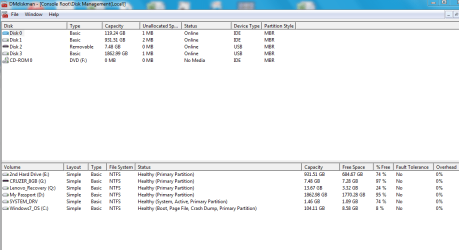
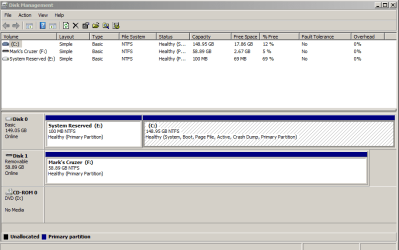
~ a year ago my wife's computer experienced (paraphrased) 'can't find boot loader' when rebooting. At the time, I downloaded Win 7 repair files that corrected the problem until last night. Apparently there was a short power line glitch. Her UPS' battery was no longer effective, her machine rebooted and got stuck at the 'can't find boot loader' prompt. She tried rebooting a few times to no avail. This morning her computer was at the login screen so the machine apparently got through the boot process on her last attempt after she left the room.
Apart from getting a new UPS I need to be prepared to deal with the boot loader issue again. I can't find the disk I used the last time. EasyBCD appeared as the first Google hit, has very clear instructions on the 3 steps to repair/replace in order of what works.
Before downloading the file and using it assuming the boot problem is back again, I wanted to check here to be sure the software is as good as it gets for the problem.
[EDIT] I found the instructions online that I had previously used: How to Manually Repair Windows 7 Boot Loader Problems
Easy Recovery Essentials costs ~$20. I'd pay for the software if it contained anything more helpful regarding the boot loader than just using the Win 7 repair disk + the referenced website's command line instructions.
If I don't hear back on this post I'll proceed with the Win 7 install disk on the assumption that the RE software simply automates the command line options.
[EDIT] From last year's occurrence of this problem I had changed the boot order to DVD first. I established last year that having either a DVD in the drive or a flash drive connected to the USB port resulted in the boot load error. However, to keep potential troubleshooting simpler I didn't change the boot order back so I'd be ready to use a boot DVD if needed. I had later forgotten to change the boot order back to hard drive first. My wife had the flash drive connected at the time. When she gave up for the night, she turned off the machine, removed the flash drive, turned the machine back on. That's why I saw the login screen this morning. Problem solved.
Thanks,
Mark
Apart from getting a new UPS I need to be prepared to deal with the boot loader issue again. I can't find the disk I used the last time. EasyBCD appeared as the first Google hit, has very clear instructions on the 3 steps to repair/replace in order of what works.
Before downloading the file and using it assuming the boot problem is back again, I wanted to check here to be sure the software is as good as it gets for the problem.
[EDIT] I found the instructions online that I had previously used: How to Manually Repair Windows 7 Boot Loader Problems
Easy Recovery Essentials costs ~$20. I'd pay for the software if it contained anything more helpful regarding the boot loader than just using the Win 7 repair disk + the referenced website's command line instructions.
If I don't hear back on this post I'll proceed with the Win 7 install disk on the assumption that the RE software simply automates the command line options.
[EDIT] From last year's occurrence of this problem I had changed the boot order to DVD first. I established last year that having either a DVD in the drive or a flash drive connected to the USB port resulted in the boot load error. However, to keep potential troubleshooting simpler I didn't change the boot order back so I'd be ready to use a boot DVD if needed. I had later forgotten to change the boot order back to hard drive first. My wife had the flash drive connected at the time. When she gave up for the night, she turned off the machine, removed the flash drive, turned the machine back on. That's why I saw the login screen this morning. Problem solved.
Thanks,
Mark
Last edited:
My Computer
- Computer type
- PC/Desktop
- OS
- Windows 7 & Windows 10