No I only asked the age of the computer because of the possible compatibility issues that there might be with Windows 7 OS I have no doubt it is fine

Plus I am just wondering also the inside of the machine is clean and free from dust etc I would expect a bit of dust but it can have an effect on any of the components if it has built up to excessive levels.
I am still confused as to why there are two sound cards though and I can only find an audio driver for a Realtek driver on the MSI site the Tiger capture seems to me to be a video component.
Support For K9N Neo V3 | MSI Global | Motherboard - The world leader in motherboard design 64
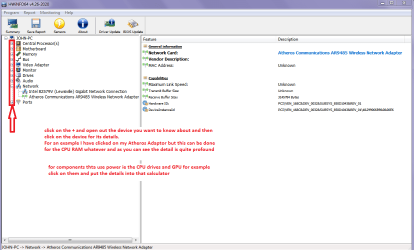
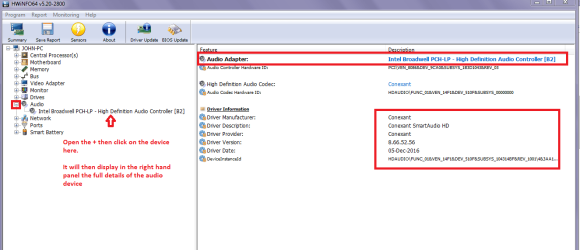
So can you please follow this and use PART B: to find out exactly what the audio device actually is and I have added pics to give you an idea of what to go for.
Using HW Info
PART A:
You can test the volts on the PSU with HW Info HWiNFO, HWiNFO32/64 - Download < download the right bit version and close the right hand window select Sensors and scroll down to the power section where you will see what the volts are doing see my pic. In my pic the section (Nuvoton) with VBATT as a dead give away you are in the section for the rail voltages. There are other section titles and one that pops up often is ITE (sometimes the usual one for Gigabyte boards)
Now the voltage on the different rails have to be within 5% =+/- of what is required or the machine will not work properly if at all.
Limits +/- (minimum - correct - maximum)
12v1 = 11.4 - 12 - 12.6v
12v2 = 11.4 - 12- 12.6v
5v = 4.75 – 5 - 5.25v
3.3v = 3.135 – 3 – 3.465v
-12v = -10.80 - -12 - -13.20v
+5VSB = 4.75 – 5 - 5.25v
The Power good signal voltage at pin 8 on the 24 pin plug (grey cable) should be the same as the 5v rail reading/s
See this for the rail voltage info
PSUs 101: A Detailed Look Into Power Supplies (Section 2.)
The original right hand window shows the machine running and is handy for that but for looking at the components in some detail close it and use the main left hand side panel
FOR OTHER COMPONENTS
PART B:
Open each small square with + in it on the section the components are in and then click on the individual component/s (it will highlight in blue) - in the right hand side will appear all sorts of details including brands speeds and other essential info that particular device. See pic for example.