Processor working at maximum on desktop

esia168

New member
Local time
2:59 AM
Messages
1
Hello, my windows 7 home premium, when it startup and the desktop appear, the processor was working at the maximum speed. I tried to restore the system, sometimes it works and sometimes not. When it works, when I restart it again the hang problem appear again. It seems like it has to do with windows update or certain program that I installed. I already disabled the "check windows update". But the windows still install the update for me, I think it's the old update that was downloaded.

How to solve this ? Thanks
 

My Computer

Computer Manufacturer/Model Number
Acer Aspire 4736Z
OS
Windows 7 Home Premium
CPU
Intel Pentium processor T4400 (2.2 GHZ, 800 MHz FSB)
Memory
2 GB
Graphics Card(s)
Intel GMA 4500M
Hard Drives
320 GB
I'd start off by running something like CCleaner to clean up your computer and registry, then see what programs are started on startup. You may have things like Skype WLM, Itunes etc loading on startup which maybe a reason.

P.s Welcome to Seven forums :party: and thanks for helping me help you by filling out your system specs.
 

My Computer

Computer Manufacturer/Model Number
Toshiba
OS
Windows 7 Home Premium x64
CPU
Celeron
Other Info
I will Fill in my Specs soon
Win 7's built in Resource Monitor lets you monitor which processes and applications are consuming most system resources. You can keep an eye on your cpu usage, memory usage, disk status and network status.

1) Click Start button, type resmon in Start Search and hit enter.

2) On the main window, the Overview tab will be pre-selected. Here you will get an overview of the resource consumption. CPU, Disk, Network, and Memory are all there.

3) When you click on the CPU tab, it shows you Real-Time processes, CPU usage and Maximum frequency. On the right side, you can see a graphical representation of the same. If you want more details, you can look for related handles and modules.

4) Similarly Memory tab shows the memory consumption process wise, Disk tab gives details of disk activity, and so on.

Once you've gone through each tab, identify the programs that are consuming maximum resources. If they are set to start at startup, disable them in the Startup tab of MSCONFIG. Windows processes such as Indexing and Search can be trimmed/disabled. For 3rd party apps, try tweaking them or using alternatives.
 

My Computer

Computer Manufacturer/Model Number
Too many to describe...
OS
Windows 7 x64 pro/ Windows 7 x86 Pro/ XP SP3 x86
Win 7's built in Resource Monitor lets you monitor which processes and applications are consuming most system resources. You can keep an eye on your cpu usage, memory usage, disk status and network status.

1) Click Start button, type resmon in Start Search and hit enter.

2) On the main window, the Overview tab will be pre-selected. Here you will get an overview of the resource consumption. CPU, Disk, Network, and Memory are all there.

3) When you click on the CPU tab, it shows you Real-Time processes, CPU usage and Maximum frequency. On the right side, you can see a graphical representation of the same. If you want more details, you can look for related handles and modules.

4) Similarly Memory tab shows the memory consumption process wise, Disk tab gives details of disk activity, and so on.

Once you've gone through each tab, identify the programs that are consuming maximum resources. If they are set to start at startup, disable them in the Startup tab of MSCONFIG. Windows processes such as Indexing and Search can be trimmed/disabled. For 3rd party apps, try tweaking them or using alternatives.

hello bill2
thanks you just help me out with this advice too:)
 

My Computer

Computer Manufacturer/Model Number
packard bell IXTREME M5722
OS
Operating System : Windows 7 Home Premium Edition 6.01.7600 SP1 (x64)
CPU
Processor : Intel Core 2 Quad Q8300 @ 2500 MHz
Motherboard
Mainboard : Packard Bell (Acer EG43M )
Memory
Physical Memory :8GB Corsair4x 2GB 800MHz C5 DDR2
Graphics Card(s)
Video Card : XFX 6700 AMD
Monitor(s) Displays
Maestro 234DL - BenQ V2220 - BenQ VW2420H
Screen Resolution
Current Display :1920x1080p pixels at 60 Hz in HD LED
Hard Drives
Hard Disks : WDC (1000 GB)
Drive C: (Hard Disk) : 428 GB available on 491 GB
Drive D: (Hard Disk) : 426 GB available on 492 GB
SAMSUNG spinpoint HD103SJ 1000.2 GB
(X 2) KINGSTON SSD NOW V 30GB
PSU
XFX ProSeries 550W PSU
Case
PACKARD BELL IXTREME
Cooling
System Blower Current: 150mA Air Flow16CFM ;Akasa 90mm rear
Keyboard
Gigabyte Aivia K8100
Mouse
TRUST-Wireless Laser Mouse - Carbon edition MI-7770C
Internet Speed
TP-LINK > TL-WN951N / AV500 Gigabit Powerline Adapters
Browser
chrome dev
Other Info
EXTRA COOLING>(FAN CONTROLLER) PC Bay Cooler 3 x 40mm fans; Akasa AK-HD-BL Blue hard drive cooler 2 x 40 mm fan 4500 rpm 29.7 dBA
Bios> American Megatrends Inc.
Version : P01-A1
Date : 08/31/2009
Hello, my windows 7 home premium, when it startup and the desktop appear, the processor was working at the maximum speed. I tried to restore the system, sometimes it works and sometimes not. When it works, when I restart it again the hang problem appear again. It seems like it has to do with windows update or certain program that I installed. I already disabled the "check windows update". But the windows still install the update for me, I think it's the old update that was downloaded.

How to solve this ? Thanks


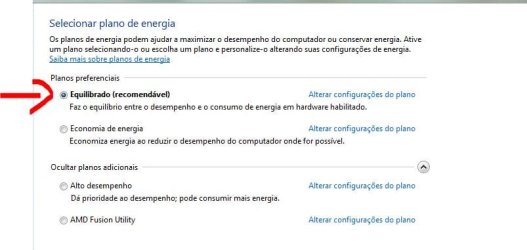
Go to:

Control panel > Hardware and sounds > Energy options

Is it at "recommended"?!...


Hope it helps you!!!


"PLEASE REP ANYONE WHO HELPS YOU"
 

Attachments

  • Captur.JPG
    Captur.JPG
    50.3 KB · Views: 33

My Computer

Computer Manufacturer/Model Number
WALLONN7 / LIN BLACK SERIES II
OS
Windows 7 Ultimate x64 SP1
CPU
AMD PHENOM II X6 1090T 3.2GHz
Motherboard
GIGABYTE GA-890FXA-UD7
Memory
8GB G.SKILL RIPJAWS - F3-10666CL7D
Graphics Card(s)
SAPPHIRE ATI RADEON HD 5870 VAPOR X OC
Sound Card
REALTEK DOLBY HOME THEATER
Monitor(s) Displays
LED LG W2486L
Screen Resolution
1080p
Hard Drives
SEAGATE 1TB -ST31000528AS - AHCI MODE - AS SATA
PSU
ZALMAN ZM1000-HP 1000W
Case
THERMALTAKE XASER VI VG4000SWA
Cooling
140MM x3 / 120MM x1 AIR COOLING - THERMALTAKE
Keyboard
MICROSOFT DIGITAL MEDIA KEYBOARD 3000 - USB
Mouse
MICROSOFT BASIC OPTICAL MOUSE 2.0 - USB
Internet Speed
600KBPS
Other Info
MICROSOFT XBOX 360 CONTROLLER
Back
Top