Program Icon changed

Tantalum

New member
Member
Local time
8:21 AM
Messages
25
I am using Win7 Ultimate 64/ 8MB ram /Intel i5 CPU / Gigabyte MOBO

I was changing themes by using the control panel appearance section
and selecting the various themes available including High
Contrast, just to see how they looked.
After doing so and returning to the theme I had been using for some while
I noticed that three program icons had been replaced by the generic icon that usually indicates there is no program associated with a file.
Other programs are fine.
However, the programs still work but the .exe file ( in the programs folder)and the icon that shows up in the task-bar as well as the short-cut icon is not that of the program but the "generic" icon as mentioned.
I tried reinstalling the three programs but the same icon appears each time after
re-installation.


It is not such a big problem as I can use the program but I wonder why this could have occurred and if in fact it has anything to do with me selecting various themes.

The programs are
Diagram Designer / Edrawmind map / wordformat2.
which I believe are all 64 bit compatible and did have the program icon when originally installed.

Any suggestions to reinstate the correct icon?
 

My Computer

OS
Windows 7 ultimate x64
CPU
Intel i5 3450
Motherboard
Gigabyte B75M-D3V-JP
Memory
8 GB
Monitor(s) Displays
Flatron E2341

My Computer

Computer type
PC/Desktop
Computer Manufacturer/Model Number
Dell Inspiron 530
OS
Windows 7 Professional SP1 64-bit
CPU
Intel Core 2 Duo Processor E8300 @ 2.83GHz
Motherboard
Dell Inc. 0RY007 (Socket 775)
Memory
4.00 GB Dual-Channel DDR2 @ 332MHz (5-5-5-15)
Graphics Card(s)
Intel(R) G33/G31 Express Chipset Family
Sound Card
Integrated 7.1 Channel Audio
Monitor(s) Displays
Acer G245HQL 23.6" LED(1920x1080@60Hz)
Screen Resolution
1920 x 1080
Hard Drives
Disk 0 HITACHI 1TB OS Installed - Disk 1 HITACHI 1TB For Backups
Keyboard
Dell USB Keyboard
Mouse
Dell Optical USB Mouse
Internet Speed
DSL 10 meg
Antivirus
Symantec(SEP)
Browser
Pale Moon
I am using Win7 Ultimate 64/ 8MB ram /Intel i5 CPU / Gigabyte MOBO

I was changing themes by using the control panel appearance section
and selecting the various themes available including High
Contrast, just to see how they looked.
After doing so and returning to the theme I had been using for some while
I noticed that three program icons had been replaced by the generic icon that usually indicates there is no program associated with a file.
Other programs are fine.
However, the programs still work but the .exe file ( in the programs folder)and the icon that shows up in the task-bar as well as the short-cut icon is not that of the program but the "generic" icon as mentioned.
I tried reinstalling the three programs but the same icon appears each time after
re-installation.


It is not such a big problem as I can use the program but I wonder why this could have occurred and if in fact it has anything to do with me selecting various themes.

The programs are
Diagram Designer / Edrawmind map / wordformat2.
which I believe are all 64 bit compatible and did have the program icon when originally installed.

Any suggestions to reinstate the correct icon?

You could try rebuilding the icon cache;

http://www.sevenforums.com/tutorials/49819-icon-cache-rebuild.html

HTH
 

My Computer

Computer type
PC/Desktop
Computer Manufacturer/Model Number
Custom Built
OS
Windows 7 Professional x64
CPU
Intel i5 quad processor
Motherboard
DP67BG
Memory
16 GB
Graphics Card(s)
Radeon HD 5770
Sound Card
Realtek High Definition Audio
Monitor(s) Displays
Samsung SyncMaster
Screen Resolution
1920X1080
Hard Drives
WD 2TB (SATA Internal)
WD 1TB (USB External)
PSU
Corsair GS800
Case
Tower (Generic)
Cooling
3 Internal Fans
Keyboard
MS Wireless
Mouse
MS Optical Wired
Internet Speed
54 mbps
Antivirus
Emsisoft
Browser
IE-Version 9, Palemoon-Version 24.2.0
I am using Win7 Ultimate 64/ 8MB ram /Intel i5 CPU / Gigabyte MOBO

I was changing themes by using the control panel appearance section
and selecting the various themes available including High
Contrast, just to see how they looked.
After doing so and returning to the theme I had been using for some while
I noticed that three program icons had been replaced by the generic icon that usually indicates there is no program associated with a file.
Other programs are fine.
However, the programs still work but the .exe file ( in the programs folder)and the icon that shows up in the task-bar as well as the short-cut icon is not that of the program but the "generic" icon as mentioned.
I tried reinstalling the three programs but the same icon appears each time after
re-installation.


It is not such a big problem as I can use the program but I wonder why this could have occurred and if in fact it has anything to do with me selecting various themes.

The programs are
Diagram Designer / Edrawmind map / wordformat2.
which I believe are all 64 bit compatible and did have the program icon when originally installed.

Any suggestions to reinstate the correct icon?

You could try rebuilding the icon cache;

http://www.sevenforums.com/tutorials/49819-icon-cache-rebuild.html

HTH
Thanks for the lightning responses.

I have checked out the Iron cache link but before I use the tool is there any reason for this happening?
If all icons were affected I might feel it necessary to use the tool but just for three programs it seems overkill. Not that I don't appreciate the advice. But I might find using the tool could cause more problems so I like to have a bit more information first. I still don't see why re-insallation does not correct the problem and why only those programs were affected

Thanks
 

My Computer

OS
Windows 7 ultimate x64
CPU
Intel i5 3450
Motherboard
Gigabyte B75M-D3V-JP
Memory
8 GB
Monitor(s) Displays
Flatron E2341
It won't hurt to run it.

I ran it months ago for one Icon and it worked.
 
Last edited:

My Computer

Computer type
PC/Desktop
Computer Manufacturer/Model Number
Dell Inspiron 530
OS
Windows 7 Professional SP1 64-bit
CPU
Intel Core 2 Duo Processor E8300 @ 2.83GHz
Motherboard
Dell Inc. 0RY007 (Socket 775)
Memory
4.00 GB Dual-Channel DDR2 @ 332MHz (5-5-5-15)
Graphics Card(s)
Intel(R) G33/G31 Express Chipset Family
Sound Card
Integrated 7.1 Channel Audio
Monitor(s) Displays
Acer G245HQL 23.6" LED(1920x1080@60Hz)
Screen Resolution
1920 x 1080
Hard Drives
Disk 0 HITACHI 1TB OS Installed - Disk 1 HITACHI 1TB For Backups
Keyboard
Dell USB Keyboard
Mouse
Dell Optical USB Mouse
Internet Speed
DSL 10 meg
Antivirus
Symantec(SEP)
Browser
Pale Moon
You could right click on the icon and select properties and then go to change icon and pick one.
 

My Computer

Computer type
PC/Desktop
Computer Manufacturer/Model Number
Home made Desktop
OS
Windows 10 Pro. 64/ version 1709 Windows 7 Pro/64
CPU
Intel i7-6800K @ 4.3
Motherboard
ASUS X-99 Deluxe II
Memory
Corsair Platinum 16 gig @2400
Graphics Card(s)
EVGA GTX 1070 OC
Monitor(s) Displays
Asus 27" LED LCD/VE278Q
Screen Resolution
1920-1080 or 1280-720 HDMI
Hard Drives
INTEL SSD 730-240 Gb Sata 3.0/
PSU
EVGA Platium 1200W
Case
Phanteks Luxe Tempered Glass 8 fans/ one radiator
Cooling
XSPC/ Water Cooled CPU
Keyboard
Das 4 Professional
Mouse
Logitech M705/MX Anywhere 2-S
Internet Speed
100 mbits
Antivirus
Microsoft Security Essentials/ Malwarebytes Premium 3.0/ SAS
Browser
I.E. 11 default/Firefox/ ISP Time Warner Cable/Spectrum
Other Info
LG BluRay Burner/
Sound system-KLipsch-THX/
Icy Dock ssd Hot Swap bays.
You could right click on the icon and select properties and then go to change icon and pick one.

I don't believe there is a setting in the "program executable" properties that allows you to change the icon; I know it's there for shortcuts, however.

As stated by the OP:

"However, the programs still work but the .exe file (in the programs folder) and the icon that shows up in the task-bar as well as the short-cut icon is not that of the program but the "generic" icon as mentioned."

If the program executable icon can be changed, where is that option? I have experienced the same problem as the OP and would like to be able to change the icon on a "program by program" basis instead of using the "rebuild icon chache" option.
 

My Computer

Computer type
PC/Desktop
Computer Manufacturer/Model Number
Custom Built
OS
Windows 7 Professional x64
CPU
Intel i5 quad processor
Motherboard
DP67BG
Memory
16 GB
Graphics Card(s)
Radeon HD 5770
Sound Card
Realtek High Definition Audio
Monitor(s) Displays
Samsung SyncMaster
Screen Resolution
1920X1080
Hard Drives
WD 2TB (SATA Internal)
WD 1TB (USB External)
PSU
Corsair GS800
Case
Tower (Generic)
Cooling
3 Internal Fans
Keyboard
MS Wireless
Mouse
MS Optical Wired
Internet Speed
54 mbps
Antivirus
Emsisoft
Browser
IE-Version 9, Palemoon-Version 24.2.0
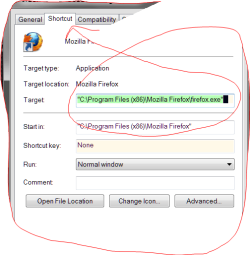
Well George I'm sorry I can't help. You have got me lost. I was always under the understanding that a icon on the taskbar, desktop, start menu were exe. Because when used they would send you to the desired program, file, folder it was designed to get you to without having to know the exact path. This is what I used to refresh my memory.


Capture.PNG
 

My Computer

Computer type
PC/Desktop
Computer Manufacturer/Model Number
Home made Desktop
OS
Windows 10 Pro. 64/ version 1709 Windows 7 Pro/64
CPU
Intel i7-6800K @ 4.3
Motherboard
ASUS X-99 Deluxe II
Memory
Corsair Platinum 16 gig @2400
Graphics Card(s)
EVGA GTX 1070 OC
Monitor(s) Displays
Asus 27" LED LCD/VE278Q
Screen Resolution
1920-1080 or 1280-720 HDMI
Hard Drives
INTEL SSD 730-240 Gb Sata 3.0/
PSU
EVGA Platium 1200W
Case
Phanteks Luxe Tempered Glass 8 fans/ one radiator
Cooling
XSPC/ Water Cooled CPU
Keyboard
Das 4 Professional
Mouse
Logitech M705/MX Anywhere 2-S
Internet Speed
100 mbits
Antivirus
Microsoft Security Essentials/ Malwarebytes Premium 3.0/ SAS
Browser
I.E. 11 default/Firefox/ ISP Time Warner Cable/Spectrum
Other Info
LG BluRay Burner/
Sound system-KLipsch-THX/
Icy Dock ssd Hot Swap bays.
Well George I'm sorry I can't help. You have got me lost. I was always under the understanding that a icon on the taskbar, desktop, start menu were exe. Because when used they would send you to the desired program, file, folder it was designed to get you to without having to know the exact path. This is what I used to refresh my memory.


View attachment 229909

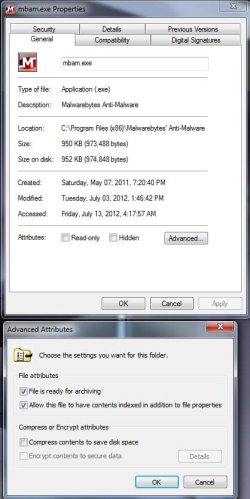
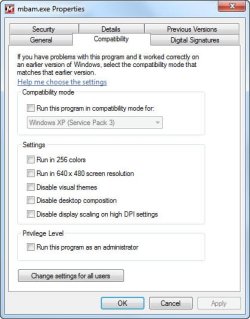
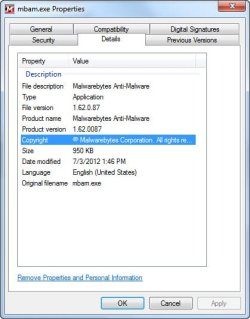
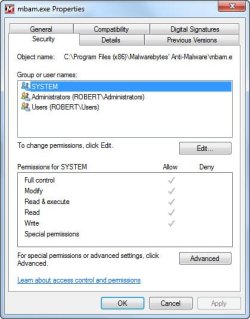
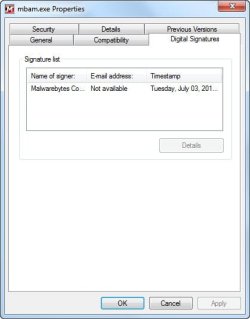
Maybe I didn't make my statement as clear as I could have. I realize the shortcut points to the directory where the "program.exe" (such as "Norton.exe) exists, but the shortcut has its own properties. Therefore, when you go to the program folder (Norton, in this case) and check the "program.exe" (Norton.exe) properties, there is no option for changing the icon; see images below. The OP states that the "program.exe" is also generic...do you know how to change that icon on a program by program basis? That's my question. If you know how to change the "program.exe" icon, I would like to know how to do it; if you don't mind sharing the information.
 

Attachments

  • mbam exe general advanced.jpg
    mbam exe general advanced.jpg
    49 KB · Views: 3
  • mbam exe compat.jpg
    mbam exe compat.jpg
    36.1 KB · Views: 3
  • mbam exe details.jpg
    mbam exe details.jpg
    32.3 KB · Views: 3
  • mbam exe security.jpg
    mbam exe security.jpg
    34.7 KB · Views: 4
  • mbam exe sig.jpg
    mbam exe sig.jpg
    21.8 KB · Views: 3

My Computer

Computer type
PC/Desktop
Computer Manufacturer/Model Number
Custom Built
OS
Windows 7 Professional x64
CPU
Intel i5 quad processor
Motherboard
DP67BG
Memory
16 GB
Graphics Card(s)
Radeon HD 5770
Sound Card
Realtek High Definition Audio
Monitor(s) Displays
Samsung SyncMaster
Screen Resolution
1920X1080
Hard Drives
WD 2TB (SATA Internal)
WD 1TB (USB External)
PSU
Corsair GS800
Case
Tower (Generic)
Cooling
3 Internal Fans
Keyboard
MS Wireless
Mouse
MS Optical Wired
Internet Speed
54 mbps
Antivirus
Emsisoft
Browser
IE-Version 9, Palemoon-Version 24.2.0
Back
Top