Program shadow?

speedlever

New member
Member
VIP
Local time
12:40 AM
Messages
128
I'm not sure what the correct term is so I'm not quite sure what to search for.

I recently updated my Process Explorer from 12.03 to 12.04. In the process, the program icon shadow is no longer co-located with the program icon on the taskbar.

I had this issue before but can't remember what I did to resolve it. Any suggestions on how to fix this?

See the example below. Note the program icon in the top left corner of the taskbar and the shadow in the bottom right corner. It normally shadows itself like the Firefox icons.

IlnK7.png
 

My Computer

OS
Windows 7 x64 home premium
CPU
Intel core i5-2500k
Motherboard
Asus P8Z68-V Pro
Memory
2x4GB G.Skill DDR3-1333, 2x2GB AData DDR3-1333
Graphics Card(s)
HD3000 graphics
Sound Card
on board
Monitor(s) Displays
Samsung 19" syncmaster
Screen Resolution
1280x1024
Hard Drives
Intel 80 GB X25-M SSD
Samsung HD321KJ 320 GB SATA
Samsung HD204UI 2.0 TB SATA
WD 1.5 TB Green eSATA in an external NexStar enclosure
PSU
Corsair HX520W
Case
Antec Solo
Cooling
CoolerMaster Hyper 212+ with dual fans
Keyboard
MS Natural Ergonomic 4000
Mouse
Logitech
Internet Speed
RoadRunner
Hi speedlever,
Try right clicking the taskbar - properties
next to Taskbar buttons, click the drop down arrow and select never combine, click apply
Then change it back to always combine, hide labels, click combine, apply and ok.
 

My Computer

OS
XP Pro/Vista Ultimate (64)/Windows 7 Ultimate Signature Edition(64)
CPU
Core 2 Duo E8500 @ stock
Motherboard
Gigabyte EP45-UD3R
Memory
8Gb (4 X 2Gb) Corsair Dominator 1066Mhz DDR2
Graphics Card(s)
XFX ATI Radeon 4870 1Gb
Sound Card
Onboard 7.1
Monitor(s) Displays
BenQ E2200Hd, Asus VW161D, HP L1506
Screen Resolution
1920 X 1080
Hard Drives
Seagate 7200.12 500Gb
2 X Hitachi 1Tb
PSU
CoolerMaster 650 EPD
Case
Thermaltake
Cooling
2 X Noctua 120mm's, Stock Intel
Keyboard
Logitech
Mouse
Logitech
Thanks for that tip Orpheous. I thought that would fix it, but alas, it remains split. I can see the combined windows split and recombine when I choose and apply different options. But for whatever reason, PE1204 stays split regardless.

I know I saw this when I updated to 1203, but I just can't remember what I did to fix it.
 

My Computer

OS
Windows 7 x64 home premium
CPU
Intel core i5-2500k
Motherboard
Asus P8Z68-V Pro
Memory
2x4GB G.Skill DDR3-1333, 2x2GB AData DDR3-1333
Graphics Card(s)
HD3000 graphics
Sound Card
on board
Monitor(s) Displays
Samsung 19" syncmaster
Screen Resolution
1280x1024
Hard Drives
Intel 80 GB X25-M SSD
Samsung HD321KJ 320 GB SATA
Samsung HD204UI 2.0 TB SATA
WD 1.5 TB Green eSATA in an external NexStar enclosure
PSU
Corsair HX520W
Case
Antec Solo
Cooling
CoolerMaster Hyper 212+ with dual fans
Keyboard
MS Natural Ergonomic 4000
Mouse
Logitech
Internet Speed
RoadRunner
Unpin Process Explorer (Top Left), then the one that is active (Bottom Right) pin it.
 

My Computer

Computer type
PC/Desktop
Computer Manufacturer/Model Number
Alienware Aurora ALX R4
OS
Windows 10 Pro (x64)
CPU
Intel Core i7-3930K (3.2GHz - 4.5GHz)
Motherboard
Alienware Aurora-R4 x79
Memory
4x Samsung 4GB PC3-12800 DDR3 (16GB 1600MHz)
Graphics Card(s)
Nvidia Geforce GTX 690
Sound Card
SteelSeries Siberia Elite
Monitor(s) Displays
Dell UltraSharp U3011
Screen Resolution
2560x1600
Hard Drives
Samsung 850 Pro 256 GB, Seagate 1TB Desktop Hybrid HDD, 2x Western Digital 4TB Green HDD
PSU
875W Some Dell PSU <.<
Case
Alienware Aurora ALX
Cooling
Custom Liquid Cooling (EK CPU & GPU blocks) dual EK 480RAD
Keyboard
Logitech G710+ Mechanical
Mouse
Logitech G700s
Internet Speed
Verizon Fios (50 mbps average)
Other Info
Server: Intel NUC D54250WYK: i5-4250U, 16GB, 256 GB mSATA, Windows Server 2012 R2
logicearth,

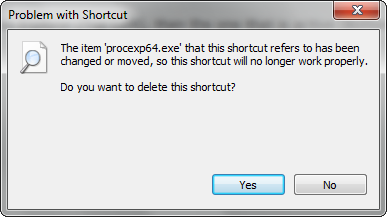
I tried that and got this error msg when I clicked on the active (now pinned )icon:

pNOfJ.png
 

My Computer

OS
Windows 7 x64 home premium
CPU
Intel core i5-2500k
Motherboard
Asus P8Z68-V Pro
Memory
2x4GB G.Skill DDR3-1333, 2x2GB AData DDR3-1333
Graphics Card(s)
HD3000 graphics
Sound Card
on board
Monitor(s) Displays
Samsung 19" syncmaster
Screen Resolution
1280x1024
Hard Drives
Intel 80 GB X25-M SSD
Samsung HD321KJ 320 GB SATA
Samsung HD204UI 2.0 TB SATA
WD 1.5 TB Green eSATA in an external NexStar enclosure
PSU
Corsair HX520W
Case
Antec Solo
Cooling
CoolerMaster Hyper 212+ with dual fans
Keyboard
MS Natural Ergonomic 4000
Mouse
Logitech
Internet Speed
RoadRunner
I think I see what the problem is...
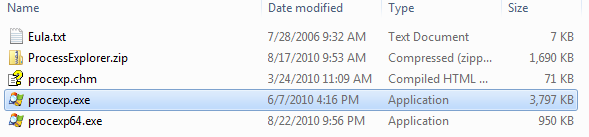
The Process Explorer download link is for a .zip archive that contains a .chm file, an EULA.txt file and a standalone executable, procexp.exe
Try this little workaround:
Go to where you downloaded the zip archive (ProcessExplorer.zip from Process Explorer)
Right click the zip file, select "Extract All..."
Browse to Computer/C://Program Files/
click "Make New Folder" (and click through the UAC windows to allow yourself permission to make a new folder)
Name the new folder "Process Explorer" (or whatever else you want to all it), click ok, and allow
Click ok to extract.
Now you should see the 3 extracted files in your newly created folder.
Double click procexp.exe to run the program and watch the folder contents... Did you see what happened?
procexp64.exe appeared. If you exit or close the program, this file dissappears!

Before we go any further, delete the procexp64.exe shortcut from your taskbar.
Now, with procexp.exe opened, right click procexp64.exe and select copy, then in the Process Explorer window, right click in a blank space a click paste. This will result in a new file called procexp64 - Copy.exe.
Exit the program and rename the copy to procexp64.exe, then drag it to your taskbar to create a new shortcut.
 
Last edited:

My Computer

OS
XP Pro/Vista Ultimate (64)/Windows 7 Ultimate Signature Edition(64)
CPU
Core 2 Duo E8500 @ stock
Motherboard
Gigabyte EP45-UD3R
Memory
8Gb (4 X 2Gb) Corsair Dominator 1066Mhz DDR2
Graphics Card(s)
XFX ATI Radeon 4870 1Gb
Sound Card
Onboard 7.1
Monitor(s) Displays
BenQ E2200Hd, Asus VW161D, HP L1506
Screen Resolution
1920 X 1080
Hard Drives
Seagate 7200.12 500Gb
2 X Hitachi 1Tb
PSU
CoolerMaster 650 EPD
Case
Thermaltake
Cooling
2 X Noctua 120mm's, Stock Intel
Keyboard
Logitech
Mouse
Logitech
Thanks Orpheous, that worked.

I know that I've never had to jump through those hoops before. I wonder what changed... or what I did to make it work last time? Oh well. I appreciate the help.
 

My Computer

OS
Windows 7 x64 home premium
CPU
Intel core i5-2500k
Motherboard
Asus P8Z68-V Pro
Memory
2x4GB G.Skill DDR3-1333, 2x2GB AData DDR3-1333
Graphics Card(s)
HD3000 graphics
Sound Card
on board
Monitor(s) Displays
Samsung 19" syncmaster
Screen Resolution
1280x1024
Hard Drives
Intel 80 GB X25-M SSD
Samsung HD321KJ 320 GB SATA
Samsung HD204UI 2.0 TB SATA
WD 1.5 TB Green eSATA in an external NexStar enclosure
PSU
Corsair HX520W
Case
Antec Solo
Cooling
CoolerMaster Hyper 212+ with dual fans
Keyboard
MS Natural Ergonomic 4000
Mouse
Logitech
Internet Speed
RoadRunner
You're welcome :)
I haven't used this program for a long time, and can't remember if it used to be distributed as a standalone .exe like version 12.04 is now or an installer. If the 12.03 download was an installer, it might explain why you've been having problems with it. Anyway, glad I could help out!
 

My Computer

OS
XP Pro/Vista Ultimate (64)/Windows 7 Ultimate Signature Edition(64)
CPU
Core 2 Duo E8500 @ stock
Motherboard
Gigabyte EP45-UD3R
Memory
8Gb (4 X 2Gb) Corsair Dominator 1066Mhz DDR2
Graphics Card(s)
XFX ATI Radeon 4870 1Gb
Sound Card
Onboard 7.1
Monitor(s) Displays
BenQ E2200Hd, Asus VW161D, HP L1506
Screen Resolution
1920 X 1080
Hard Drives
Seagate 7200.12 500Gb
2 X Hitachi 1Tb
PSU
CoolerMaster 650 EPD
Case
Thermaltake
Cooling
2 X Noctua 120mm's, Stock Intel
Keyboard
Logitech
Mouse
Logitech
AFAIK, PE has always been a stand-alone program. I wish I could remember what I did to fix it last time.

I'd already done most of what you suggested today... except for making a copy of the PE64 file. That was a new one on me. I tried to pin the PE64 file to the taskbar, but it wouldn't do it. I'll have to bookmark this thread so I can remember how to fix it for the next PE upgrade!
 

My Computer

OS
Windows 7 x64 home premium
CPU
Intel core i5-2500k
Motherboard
Asus P8Z68-V Pro
Memory
2x4GB G.Skill DDR3-1333, 2x2GB AData DDR3-1333
Graphics Card(s)
HD3000 graphics
Sound Card
on board
Monitor(s) Displays
Samsung 19" syncmaster
Screen Resolution
1280x1024
Hard Drives
Intel 80 GB X25-M SSD
Samsung HD321KJ 320 GB SATA
Samsung HD204UI 2.0 TB SATA
WD 1.5 TB Green eSATA in an external NexStar enclosure
PSU
Corsair HX520W
Case
Antec Solo
Cooling
CoolerMaster Hyper 212+ with dual fans
Keyboard
MS Natural Ergonomic 4000
Mouse
Logitech
Internet Speed
RoadRunner
Just had another look at it, and I owe you an apology for overcomplicating the solution!
Instead of creating the copy of the procexp64.exe file, pasting it and renaming it,
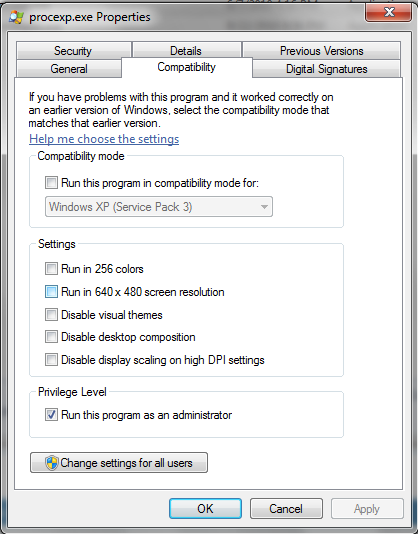
just right click the procexp.exe file, click properties, compatibility (tab), and check run as administrator,
then you can create a shortcut to the procexp.exe as per usual and it will allow the 64 bit version to run.
Sorry about that!

*EDIT* Disregard this post please, the OP found that the shortcut created using this post didn't work. Use the one in post #6 instead :)
 
Last edited:

My Computer

OS
XP Pro/Vista Ultimate (64)/Windows 7 Ultimate Signature Edition(64)
CPU
Core 2 Duo E8500 @ stock
Motherboard
Gigabyte EP45-UD3R
Memory
8Gb (4 X 2Gb) Corsair Dominator 1066Mhz DDR2
Graphics Card(s)
XFX ATI Radeon 4870 1Gb
Sound Card
Onboard 7.1
Monitor(s) Displays
BenQ E2200Hd, Asus VW161D, HP L1506
Screen Resolution
1920 X 1080
Hard Drives
Seagate 7200.12 500Gb
2 X Hitachi 1Tb
PSU
CoolerMaster 650 EPD
Case
Thermaltake
Cooling
2 X Noctua 120mm's, Stock Intel
Keyboard
Logitech
Mouse
Logitech
Hmm. At one point I had changed that to run as admin, but had no luck with it.

I just tried it again with no joy.

1) unpinned the PE64 bit program from the taskbar
2) RClicked on PE.exe (32 bit) and went to compatibility, checked run as admin and then applied.
3) RClicked the PE.exe file and chose Pin to Taskbar
4) Ran PE from the taskbar and returned to the original problem with the program icon in the top left corner and the active program (shadow) in the lower right corner.

n3NW3.png


yUYAS.png


Edit: After I tried the changes, I went back to my PE folder to put my copy of PE/64 bit back in use. I was surprised to find it gone! Had to go through the copy and rename process again.
 

My Computer

OS
Windows 7 x64 home premium
CPU
Intel core i5-2500k
Motherboard
Asus P8Z68-V Pro
Memory
2x4GB G.Skill DDR3-1333, 2x2GB AData DDR3-1333
Graphics Card(s)
HD3000 graphics
Sound Card
on board
Monitor(s) Displays
Samsung 19" syncmaster
Screen Resolution
1280x1024
Hard Drives
Intel 80 GB X25-M SSD
Samsung HD321KJ 320 GB SATA
Samsung HD204UI 2.0 TB SATA
WD 1.5 TB Green eSATA in an external NexStar enclosure
PSU
Corsair HX520W
Case
Antec Solo
Cooling
CoolerMaster Hyper 212+ with dual fans
Keyboard
MS Natural Ergonomic 4000
Mouse
Logitech
Internet Speed
RoadRunner
The "shadow" file is the shortcut to the 32 bit version, which, when clicked, launches the 64 bit version named procexp64.exe. As they have different names, they have separate icons :)
 

My Computer

OS
XP Pro/Vista Ultimate (64)/Windows 7 Ultimate Signature Edition(64)
CPU
Core 2 Duo E8500 @ stock
Motherboard
Gigabyte EP45-UD3R
Memory
8Gb (4 X 2Gb) Corsair Dominator 1066Mhz DDR2
Graphics Card(s)
XFX ATI Radeon 4870 1Gb
Sound Card
Onboard 7.1
Monitor(s) Displays
BenQ E2200Hd, Asus VW161D, HP L1506
Screen Resolution
1920 X 1080
Hard Drives
Seagate 7200.12 500Gb
2 X Hitachi 1Tb
PSU
CoolerMaster 650 EPD
Case
Thermaltake
Cooling
2 X Noctua 120mm's, Stock Intel
Keyboard
Logitech
Mouse
Logitech
I wonder why your simpler, 2nd solution wouldn't work? Any ideas?
 

My Computer

OS
Windows 7 x64 home premium
CPU
Intel core i5-2500k
Motherboard
Asus P8Z68-V Pro
Memory
2x4GB G.Skill DDR3-1333, 2x2GB AData DDR3-1333
Graphics Card(s)
HD3000 graphics
Sound Card
on board
Monitor(s) Displays
Samsung 19" syncmaster
Screen Resolution
1280x1024
Hard Drives
Intel 80 GB X25-M SSD
Samsung HD321KJ 320 GB SATA
Samsung HD204UI 2.0 TB SATA
WD 1.5 TB Green eSATA in an external NexStar enclosure
PSU
Corsair HX520W
Case
Antec Solo
Cooling
CoolerMaster Hyper 212+ with dual fans
Keyboard
MS Natural Ergonomic 4000
Mouse
Logitech
Internet Speed
RoadRunner
Unpin Process Explorer (Top Left), then the one that is active (Bottom Right) pin it.

Update. Due to a(nother) HD crash, I've had to reinstall W7/64.... this time on a SSD.

I ran into the same problem as before, but using Orpheus' method, was able to get the shadow for PE to work.

However, I couldn't get the same technique to work with SIW. So I tried logicearth's suggestion and that worked for SIW. Go figure.

I have no clue why the two programs would require different techniques to get the shadow to work properly.
 

My Computer

OS
Windows 7 x64 home premium
CPU
Intel core i5-2500k
Motherboard
Asus P8Z68-V Pro
Memory
2x4GB G.Skill DDR3-1333, 2x2GB AData DDR3-1333
Graphics Card(s)
HD3000 graphics
Sound Card
on board
Monitor(s) Displays
Samsung 19" syncmaster
Screen Resolution
1280x1024
Hard Drives
Intel 80 GB X25-M SSD
Samsung HD321KJ 320 GB SATA
Samsung HD204UI 2.0 TB SATA
WD 1.5 TB Green eSATA in an external NexStar enclosure
PSU
Corsair HX520W
Case
Antec Solo
Cooling
CoolerMaster Hyper 212+ with dual fans
Keyboard
MS Natural Ergonomic 4000
Mouse
Logitech
Internet Speed
RoadRunner
Back
Top