
How to Run Specific Programs and Documents at User Logon in Vista, Windows 7, and Windows 8
Information
This will show you how to specify additional programs or documents that Windows starts automatically when a user logs on to the system for the first time in addition to any other startup programs.
You must be logged in as an administrator to be able to do the steps in this tutorial.
You must be logged in as an administrator to be able to do the steps in this tutorial.
OPTION ONE
To Set to Run Programs and Documents at User Logon in Group Policy
1. Open the all users, specific users or groups, or all users except administrators Local Group Policy Editor for how you want this policy applied.
2. In the left pane, click on to expand User Configuration, Administrative Templates, System, and Logon. (see screenshot below)
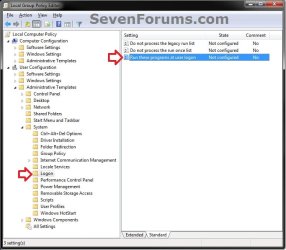
3. In the right pane, right click on Run these programs at user logon and click on Edit. (see screenshot above)
4. Do step 5, 6, or 7 below for what you would like to do.
5. To ADD Specific Programs and Documents to Run at User Logon
A) Select (dot) Enabled, and click on the Show button under Options. (see screenshot below)
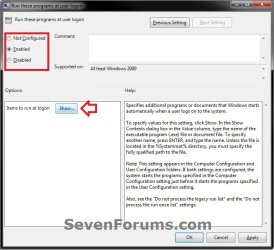
B) Click twice in a empty line field, and type in the full path of the program's .exe file or document file including the file extension within quotes. (see screenshot below)
NOTE: For example: "C:\Program Files\CCleaner\CCleaner64.exe"
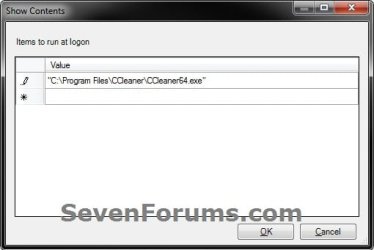
C) Repeat step 5B if you wish to add another program or document to the list of items to run at user logon.
D) When finished, click on OK. (see sceenshot below step 6B)
E) Go to step 8.
6. To REMOVE Specific Programs and Documents to Not Run at User Logon
NOTE: This step is to be able to remove any programs and/or documents that you had previously added from step 5.
A) Click on the Show button under Options. (see screenshot below step 5A)
B) Click twice on a listed item you want to remove, then clear it to be blank. (see screenshots below)
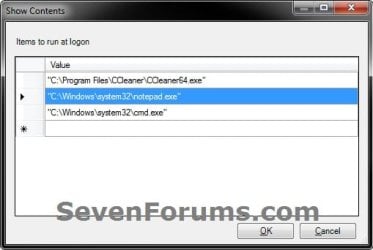
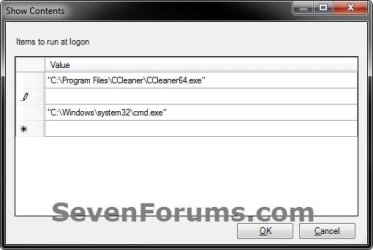
C) Repeat step 6B if you wish to remove another program or document from the list of items to run at user logon.
D) When finished, click on OK. (see sceenshots below step 6B)
E) Go to step 8.
7. To Not Run any of these Programs and Documents at User Logon
NOTE: This step will also clear the list of all programs and documents added previously in the Show button.
A) Select (dot) either Not Configured or Disabled. (see screenshot below 5A)
NOTE: Not Configured is the default setting.
B) Go to step 8.
8. Click on OK. (see screenshot below step 5A)
9. Close the Local Group Policy Editor window.
OPTION TWO
To Set to Run Programs and Documents at User Logon in Registry Editor
NOTE: This option will affect all users on the computer.
1. Open the Start Menu, type regedit in the search box, and press Enter.
2. If prompted by UAC, then click on Yes (Windows 7) or Continue (Vista).
3. In regedit, navigate to the location below. (see screenshot below)
HKEY_CURRENT_USER\Software\Microsoft\Windows\CurrentVersion\Policies\Explorer
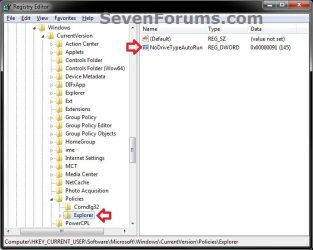
4. Do step 5 or 6 below for what you would like to do.
5. To ADD Specific Programs and Documents to Run at Current User Logon
A) In the left pane of regedit, right click on the Explorer key, click on New and Key, type Run, and press Enter. (see screenshot below)
NOTE: If you already have the Run key as a subkey of Explorer, then skip this step and go to step 5B.

B) In the right pane of Run, right click on a empty space, click on New and String Value, type in a number (ex: 1) for what order to run this item at user logon, and press Enter. (see screenshot below)
NOTE: The numbers you use for each new string value needs to be in numerical sequence (ex: 1, 2, 3, etc...) when created, and you cannot have the same number listed more than once.
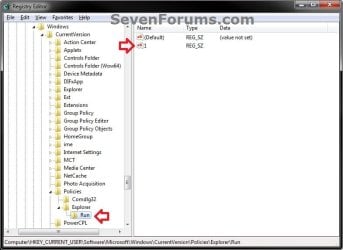
C) Double click on the new string value (ex: 1), type in the full path of the program's .exe file or document file including the file extension within quotes, and click on OK. (see screenshots below)
NOTE: For example: "C:\Program Files\CCleaner\CCleaner64.exe"
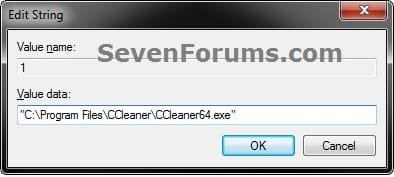
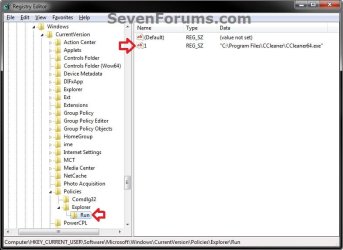
D) Repeat steps 5B and 5C if you wish to add another program or document to the list of items to run at user logon.
E) When finished, go to step 7.
6. To REMOVE Specific Programs and Documents to Not Run at Current User Logon
NOTE: This step is to be able to remove any programs and/or documents that you had previously added from step 5.
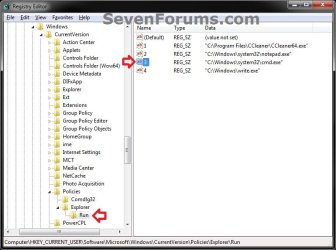
A) In the right pane of Run, right click on the string value number (ex: 3) for the program or document the you no longer want to have run at user logon, and click on Delete. (see screenshot below)
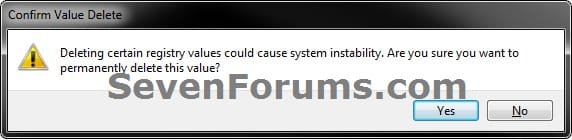
B) Click on Yes, to confirm deleting it. (see screenshot below)
C) Repeat steps 6A and 6B if you wish to remove another program or document from the list of items (string value numbers) to run at user logon.
D) When finished, go to step 7.
7. Close regedit.
8. Restart the computer to apply.
That's it,
Shawn
Related Tutorials
- How to Change, Add, or Remove Startup Programs in Windows 7
- How to Manage Startup Items in Windows 8
- How to Create a Task to Run a Program at Startup and Log On in Windows 7
- How to Prevent Users from Running Specified Programs in Windows
- How to Allow Users to Run Only Specified Programs in Windows
- How to Set Up an Account for Assigned Access in Windows 8.1 and Windows RT 8.1
Last edited:


