Properties - Add or Remove from Computer Context Menu

How to Add or Remove Properties from Computer Context Menu


   Information
This will show you how to add or remove Properties from the Computer context menu in the Start Menu and desktop icon, and prevent opening any "System" Control Panel settings for all or specific users in Vista and Windows 7.

When Properties is selected, it opens the System (Control Panel) window.


   Note
Affected "System" Settings:
  • System Properties window
  • Computer Name
    • C:\Windows\System32\SystemPropertiesComputerName.exe
  • Hardware from System Properties only
    • C:\Windows\System32\SystemPropertiesHardware.exe
  • Remote settings (Remote Assistance and Remote Desktop)
    • C:\Windows\System32\SystemPropertiesRemote.exe
  • System Protection (System Restore)
    • C:\Windows\System32\SystemPropertiesProtection.exe
  • Advanced system settings ("Performance" Visual Effects, Page file, DEP, processor scheduling)
    • C:\Windows\System32\SystemPropertiesAdvanced.exe
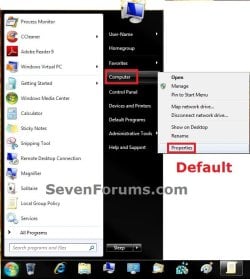
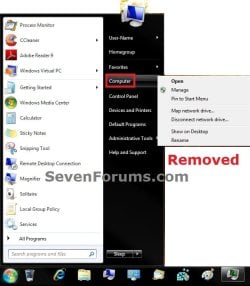
EXAMPLE: Computer Context Menu with Properties Added and Removed
Default.jpgRemoved.jpg


OPTION ONE

Using a REG File Download


1. To Add Properties to Computer Context Menu of All Users
NOTE: This is the default setting.
A) Click on the Download button below to download the file below.
Add_Properties_Computer_Context_Menu.reg

Download


B) Go to step 3.
2. To Remove Properties from Computer Context Menu of All Users
A) Click on the Download button below to download the file below.
Remove_Properties_Computer_Context_Menu.reg

Download


3. Click on Save, and save the .reg file to the desktop.

4. Right click the downloaded .reg file on the Desktop and click on Merge.

5. Click on Run, Yes, Yes, and OK when prompted.

6. Log off and log on, or restart the computer to apply.

7. When done, you can delete the downloaded .reg file if you like.


OPTION TWO

Through the Local Group Policy Editor


1. Open the all users, specific users or groups, or all users except administrators Local Group Policy Editor for how you want this policy applied.
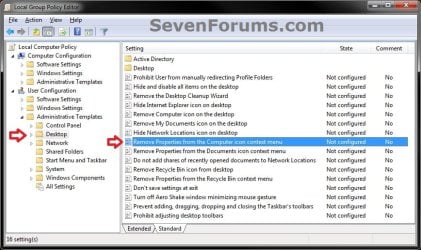
2. In the left pane, click on to expand User Configuration, Administrative Templates, and Desktop. (see screenshot below)
Step1.jpg
3. In the right pane, right click on Remove Properties from the Computer icon context menu and click on Edit. (see screenshot above)

4. To Add Properties to Computer Context Menu
A) Select (dot) either Not Configured or Disabled. (see screenshot below step 6)
B) Go to step 6.
5. To Remove Properties from Computer Context Menu
A) Select (dot) Enabled. (see screenshot below step 6)
6. Click on OK. (see screenshot below)
Step2.jpg
7. Close the Local Group Policy Editor window.

8. Log off and log on, or restart the computer to apply.
That's it,
Shawn


Attachments

Last edited:
Question

This seems to disable the ability to change performance options as in visual effects after applied. Is this also supposed to disable system settings in control panel?
 

My Computer

OS
Windows 7 Ultimate x64
Hello Papayrus,

Yes, it affects all "System" settings from being allowed to be opened or not as well. That was nice this wasn't mentioned in the policy description.
 

My Computer

Computer type
PC/Desktop
Computer Manufacturer/Model Number
Self built custom
OS
64-bit Windows 11 Pro for Workstations
CPU
Intel i7-8700K OC'd to 5 GHz
Motherboard
ASUS ROG Maximus XI Formula Z390
Memory
64 GB (4x16GB) G.SKILL TridentZ RGB DDR4 3600 MHz
Graphics Card(s)
ASUS ROG-STRIX-GTX1080TI-O11G-GAMING
Sound Card
Integrated
Monitor(s) Displays
2 x Samsung Odyssey G7 27"
Screen Resolution
2560x1440
Hard Drives
1TB Samsung 990 PRO M.2,
4TB Samsung 990 PRO PRO M.2,
TerraMaster F8 SSD Plus NAS
PSU
Seasonic Prime Titanium 850W
Case
Thermaltake Core P3
Cooling
Corsair Hydro H115i
Keyboard
Logitech wireless K800
Mouse
Logitech MX Master 4
Internet Speed
2 Gb/s Download and 100 Mb/s Upload
Antivirus
Malwarebyte Anti-Malware Premium
Browser
Google Chrome
Other Info
Logitech Z625 speaker system,
Logitech BRIO 4K Pro webcam,
HP Color LaserJet Pro MFP M477fdn,
APC SMART-UPS RT 1000 XL - SURT1000XLI,
Galaxy S23 Plus phone
I guess there's probably no way to remove the properties item then without disabling system settings? Do you think it's a bug in windows since it's not mentioned like you say?
 

My Computer

OS
Windows 7 Ultimate x64
It's hard to say, but I would imagine that it's just an oversight in the policy description. I guess they figured that if one wanted to remove "Properties" (System Properties), then they would also want to prevent access to those settings as well. Otherwise, there's no point of removing Properties other than cosmetic purposes.
 

My Computer

Computer type
PC/Desktop
Computer Manufacturer/Model Number
Self built custom
OS
64-bit Windows 11 Pro for Workstations
CPU
Intel i7-8700K OC'd to 5 GHz
Motherboard
ASUS ROG Maximus XI Formula Z390
Memory
64 GB (4x16GB) G.SKILL TridentZ RGB DDR4 3600 MHz
Graphics Card(s)
ASUS ROG-STRIX-GTX1080TI-O11G-GAMING
Sound Card
Integrated
Monitor(s) Displays
2 x Samsung Odyssey G7 27"
Screen Resolution
2560x1440
Hard Drives
1TB Samsung 990 PRO M.2,
4TB Samsung 990 PRO PRO M.2,
TerraMaster F8 SSD Plus NAS
PSU
Seasonic Prime Titanium 850W
Case
Thermaltake Core P3
Cooling
Corsair Hydro H115i
Keyboard
Logitech wireless K800
Mouse
Logitech MX Master 4
Internet Speed
2 Gb/s Download and 100 Mb/s Upload
Antivirus
Malwarebyte Anti-Malware Premium
Browser
Google Chrome
Other Info
Logitech Z625 speaker system,
Logitech BRIO 4K Pro webcam,
HP Color LaserJet Pro MFP M477fdn,
APC SMART-UPS RT 1000 XL - SURT1000XLI,
Galaxy S23 Plus phone
Yeah I just do it to make it harder for them to look at system specs it's not a big deal. It is funny though that it ends up not being cosmetic and actually disabling. I would reather it was just cosmetic. Thanks alot for the insight again.
 

My Computer

OS
Windows 7 Ultimate x64
Anytime. Yeah, it would be best if it was only cosmetic.
 

My Computer

Computer type
PC/Desktop
Computer Manufacturer/Model Number
Self built custom
OS
64-bit Windows 11 Pro for Workstations
CPU
Intel i7-8700K OC'd to 5 GHz
Motherboard
ASUS ROG Maximus XI Formula Z390
Memory
64 GB (4x16GB) G.SKILL TridentZ RGB DDR4 3600 MHz
Graphics Card(s)
ASUS ROG-STRIX-GTX1080TI-O11G-GAMING
Sound Card
Integrated
Monitor(s) Displays
2 x Samsung Odyssey G7 27"
Screen Resolution
2560x1440
Hard Drives
1TB Samsung 990 PRO M.2,
4TB Samsung 990 PRO PRO M.2,
TerraMaster F8 SSD Plus NAS
PSU
Seasonic Prime Titanium 850W
Case
Thermaltake Core P3
Cooling
Corsair Hydro H115i
Keyboard
Logitech wireless K800
Mouse
Logitech MX Master 4
Internet Speed
2 Gb/s Download and 100 Mb/s Upload
Antivirus
Malwarebyte Anti-Malware Premium
Browser
Google Chrome
Other Info
Logitech Z625 speaker system,
Logitech BRIO 4K Pro webcam,
HP Color LaserJet Pro MFP M477fdn,
APC SMART-UPS RT 1000 XL - SURT1000XLI,
Galaxy S23 Plus phone
Back
Top