Solved purchased larger monitor thinking I could have more windows open....

pleiades357

New member
Member
Local time
1:37 PM
Messages
74
Location
Southern CA
I've seen large screens with normal size windows, for example, a normal size letter page... at 110% should be 8.5" x 11.0"
but... not working that way,
my new LG 32MP58HQ - P just super sizes every window...

nice screen but... windows are larger, large icons, large text in windows, reducing size means loss of clarity
LG's story that splitting the screen results in normal size fonts, does not seem to work
worse, splitting the screen means I can't size the window open, it fills the divided section and that is the only choice...

settings for the recommended 1920 x 1080
aspect ratio at smallest, 100%

I've seen large screens with normal size windows, for example, a normal size letter page...

what setting have I not found?

windows 7
 

My Computer My Computer

At a glance

Windows 7 Home Premium x64Intel(R) Core(TM) 2 Quad CPU Q830Intel (R) G33/G31 Express Chipset family
Computer type
PC/Desktop
Computer Manufacturer/Model Number
PoweSpec B409
OS
Windows 7 Home Premium x64
CPU
Intel(R) Core(TM) 2 Quad CPU Q830
Graphics Card(s)
Intel (R) G33/G31 Express Chipset family
Antivirus
MS Security Essentials
Browser
FireFox
A larger screen just means a bigger image. You don't get any more icons on a bigger screen. It's the same as a bigger TV, same image as a smaller screen but much bigger so you can sit further away & still see small items & print.

With the larger monitor you can have more split screens open & still see the info on each, which is difficult on a small screen.

You should be able drag the open split screen windows, by moving the mouse to the edge of the one you want to enlarge & dragging it. You will have to reduce the size of the other by the same method or the larger one might cover part of the smaller one.

If you really want to have more windows open & each completely separate you need 2 or more monitors.
 

My Computer My Computer

At a glance

Windows 7 Home Premium 64 bit sp1Intel i5 3570 3.4Ghz Ivy Bridge SKT 1155 quad...G-Skill Rip Jaws 16Gb (8x2) DDR3 -1600 PC3 12...Gigabyte NVIDIA GT610 1Gb DDR3 810/1200 PCI-E...
Computer type
PC/Desktop
Computer Manufacturer/Model Number
Self built using existing case
OS
Windows 7 Home Premium 64 bit sp1
CPU
Intel i5 3570 3.4Ghz Ivy Bridge SKT 1155 quad core
Motherboard
Gigabyte Z77-HD3 SKT 1155 2xSata 3, 4x USB 3.0
Memory
G-Skill Rip Jaws 16Gb (8x2) DDR3 -1600 PC3 12800 CL 10 red
Graphics Card(s)
Gigabyte NVIDIA GT610 1Gb DDR3 810/1200 PCI-E 2.0 Silent
Sound Card
NVIDIA High Definition & Realtech High Definition Audio
Monitor(s) Displays
2 x Philips 226V4L 16:9 aspect ratio
Screen Resolution
1920 x 1080 HD
Hard Drives
Samsung 840 Pro 256gb SSD, SATA 3.
Hitachi Touro Portable 1tb, USB 3.0 HDD used for image b/ups.
PSU
Corsair VS450
Case
Codeng
Cooling
PSU fan & CPU fan
Keyboard
Logitech
Mouse
Logitech Wireless trackball M570
Internet Speed
Wireless 3G. 3mg down & 550kb up.
Antivirus
Bitdefender Internet Security 2020
Browser
Opera (Current Version) & Firefox
Other Info
MS Office 2013 Pro. Davis weather station software. MGE Nova 600 avr UPS.
Pleiades,

Your question suggests you don't quite have a grasp of the relationship between screen size and screen resolution. Resolution (number of horizontal and vertical pixels) determines how much content you can display on the screen. Screen size determines how much physical space that content will occupy.

A 24" 1920x1080 monitor and a 32" 1920x1080 monitor will show exactly the same amount of content, but the 32" monitor will spread that content out across a larger physical area. Text and icons will all be larger, but there will be the same amount of text and the same number of icons on both monitors, even though one monitor is much larger.

In contrast, a 27" 3840x2160 monitor will show four times as much content (twice as much vertically and twice as much horizontally) as a 32" 1920x1080 monitor. That content, however, will be much tinier--partly because there's a lot more content, and partly because the 27" screen covers less physical space.

Whenever you opt for a larger monitor, the tradeoff is always going to be content amount vs. physical size. If the text on your old monitor was too small to read, get a larger monitor but don't go up on the resolution. If the text size isn't a problem but you want more stuff on the screen, get a larger monitor with a higher resolution. It depends on what your reason is for buying the larger monitor in the first place.

It sounds like you didn't get the monitor you wanted. You wanted more resolution, but got one with the same resolution as you already had, just in a larger package. Perhaps you can return the 32MP58HQ and replace it with a better choice for your purposes.

Take a look at the Amazon listing for your monitor, and scroll down to the table comparing five monitors. You'll note the other four have higher resolutions. Even the two 27" monitors have higher resolutions--of course, everything will appear less than half the size of what it looks like on the 32MP58HQ, but there will be a lot more of it.

Note the 34UM68 takes a kind of middle ground approach--the same amount of content vertically but one-third more content horizontally.

Note I'm not saying that page shows your only choices; there are many high resolution monitors from other manufacturers, as well. I'm just using that LG chart for illustration.
 

My Computer My Computer

At a glance

Windows 7/8.1/10 multibootIntel Core i7-770048GB (2x16GB Crucial DDR4-3200 + 2x8GB Hynix ...Intel HD630 + AMD Radeon R7 450 PCIe
Computer type
PC/Desktop
Computer Manufacturer/Model Number
Dell Optiplex 7050
OS
Windows 7/8.1/10 multiboot
CPU
Intel Core i7-7700
Motherboard
Dell, Intel Q270 chipset
Memory
48GB (2x16GB Crucial DDR4-3200 + 2x8GB Hynix DDR4-2400)
Graphics Card(s)
Intel HD630 + AMD Radeon R7 450 PCIe
Monitor(s) Displays
Asus VC279 (27")
Screen Resolution
1920x1080
Hard Drives
Toshiba M.2 NVMe (256GB),
Samsung 960 Evo (500GB),
WD Red Plus 80EFBX (8TB)
You should be able drag the open split screen windows, by moving the mouse to the edge of the one you want to enlarge & dragging it. You will have to reduce the size of the other by the same method or the larger one might cover part of the smaller one.

If you really want to have more windows open & each completely separate you need 2 or more monitors.

the LG split screen option is really very limited, each section will only take one window per section, maybe there is a way to make this work but I asked it it made each section act like a separate screen... it doesn't, I still have the same super size, it just makes a line each Word or Excel page fills, no reducing it meaning as I move windows while I work with them I have to continually choose a new "shape" for the splits....
I'm finding that clumsy....
but, new with it

thanks for the info!
 

My Computer My Computer

At a glance

Windows 7 Home Premium x64Intel(R) Core(TM) 2 Quad CPU Q830Intel (R) G33/G31 Express Chipset family
Computer type
PC/Desktop
Computer Manufacturer/Model Number
PoweSpec B409
OS
Windows 7 Home Premium x64
CPU
Intel(R) Core(TM) 2 Quad CPU Q830
Graphics Card(s)
Intel (R) G33/G31 Express Chipset family
Antivirus
MS Security Essentials
Browser
FireFox
Pleiades,

Your question suggests you don't quite have a grasp of the relationship between screen size and screen resolution. Resolution (number of horizontal and vertical pixels) determines how much content you can display on the screen. Screen size determines how much physical space that content will occupy.
***
If the text size isn't a problem but you want more stuff on the screen, get a larger monitor with a higher resolution. It depends on what your reason is for buying the larger monitor in the first place."""""

that was the concept.....
and, that was what I asked about in the store...
purchased at the Microcenter... does not say "no return" on the receipt, probably will

I'm disappointed in the fuzzy quality of text with Word and Excel documents... but, add that to what I don't know... would greater resolution make that more clear? my other LG text was pretty sharp at 75% and smaller, on this screen, smaller percentages of view become very fuzzy... or... is it a quality in Word and Excel I may see on any larger screen....

pictures are not clear at a size that appear clear on the smaller screen...

Q, if another screen like my older... might work, what does my computer need to have to work with two screens? can I drag and drop from one to the other? though, one screen might fit better...

thanks!

I should have asked here (sevenforums) first.... Microcenter is a long drive...
 

My Computer My Computer

At a glance

Windows 7 Home Premium x64Intel(R) Core(TM) 2 Quad CPU Q830Intel (R) G33/G31 Express Chipset family
Computer type
PC/Desktop
Computer Manufacturer/Model Number
PoweSpec B409
OS
Windows 7 Home Premium x64
CPU
Intel(R) Core(TM) 2 Quad CPU Q830
Graphics Card(s)
Intel (R) G33/G31 Express Chipset family
Antivirus
MS Security Essentials
Browser
FireFox
old monitor...
 

Attachments

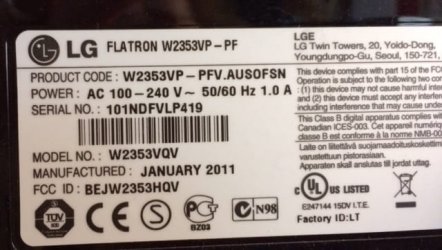
  • LCD monitor 2011 IMG_0854.jpg
    LCD monitor 2011 IMG_0854.jpg
    40.3 KB · Views: 53
Last edited:

My Computer My Computer

At a glance

Windows 7 Home Premium x64Intel(R) Core(TM) 2 Quad CPU Q830Intel (R) G33/G31 Express Chipset family
Computer type
PC/Desktop
Computer Manufacturer/Model Number
PoweSpec B409
OS
Windows 7 Home Premium x64
CPU
Intel(R) Core(TM) 2 Quad CPU Q830
Graphics Card(s)
Intel (R) G33/G31 Express Chipset family
Antivirus
MS Security Essentials
Browser
FireFox

My Computer My Computer

At a glance

Windows 7 Home Premium x64Intel(R) Core(TM) 2 Quad CPU Q830Intel (R) G33/G31 Express Chipset family
Computer type
PC/Desktop
Computer Manufacturer/Model Number
PoweSpec B409
OS
Windows 7 Home Premium x64
CPU
Intel(R) Core(TM) 2 Quad CPU Q830
Graphics Card(s)
Intel (R) G33/G31 Express Chipset family
Antivirus
MS Security Essentials
Browser
FireFox
Your questions cover several different topics. Let's start by making sure you've got a firm grasp on the relationship between screen size and resolution. I've put together the attached graphic to help show you a relative comparison of five LG monitors. (Zoom in to get a better view.)

Your old W2353 is represented at the bottom. It is a 23" 1920x1080 monitor.

The new 32MP58 you bought is shown above it. It is a 32" 1920x1080 monitor. Note is has the same amount of content down and across, but everything is larger. That wasn't exactly what you wanted.

The 27UD68 is from the Amazon link I posted earlier. It is a 27" 3840x2160 monitor. Note it has twice as much content across and twice as much down, but everything is tiny--even smaller than on your old W2353.

The 29WK600 is the one most recently recommended to you, and I think it's a pretty good option. It is a 29" 2560x1080 monitor. It has the same amount of content vertically as your W23, but one-third more across. Furthermore, the content will appear onscreen about the same size as your W23. Both have the same 0.26mm pixel pitch (the size of its pixels).

The 34UC98 is also from the earlier Amazon link. It is a 34" 3440x1440 monitor, and is the widest of the bunch. It's got more content in both directions than the 23, 29, and 32-inch monitors, but not as much in either direction as the 27-incher. As a result, content is not quite as tiny as the 27" model, and is fairly close to the 23" and 29" models. It's 0.23mm pixel pitch is almost as large as the W23 and 29WK, though substantially smaller than the 0.36mm pixels on the 32MP.

Another factor in the 29WK600's favor is it is almost exactly the same height as your W2353. With the same height, vertical resolution, and pixel pitch, this makes it attractive for running dual monitors side-by-side.
 

Attachments

  • resolution-vs-size.png
    resolution-vs-size.png
    261 KB · Views: 2

My Computer My Computer

At a glance

Windows 7/8.1/10 multibootIntel Core i7-770048GB (2x16GB Crucial DDR4-3200 + 2x8GB Hynix ...Intel HD630 + AMD Radeon R7 450 PCIe
Computer type
PC/Desktop
Computer Manufacturer/Model Number
Dell Optiplex 7050
OS
Windows 7/8.1/10 multiboot
CPU
Intel Core i7-7700
Motherboard
Dell, Intel Q270 chipset
Memory
48GB (2x16GB Crucial DDR4-3200 + 2x8GB Hynix DDR4-2400)
Graphics Card(s)
Intel HD630 + AMD Radeon R7 450 PCIe
Monitor(s) Displays
Asus VC279 (27")
Screen Resolution
1920x1080
Hard Drives
Toshiba M.2 NVMe (256GB),
Samsung 960 Evo (500GB),
WD Red Plus 80EFBX (8TB)
I'm not sure where you're getting those ratios ("100%" and "110%" in post #1, and "75%" in post #5). In Control Panel->Display->Screen Resolution you can drop down to lower resolutions, but that makes everything larger, so I'm not sure if that's where you were. That's never a good idea, though. You always want Windows to use the monitor's native resolution.

In Control Panel->Display->"Make text larger or smaller" you can adjust things to larger than 100%. That helps a little if the text is normally too small to read comfortably, but I don't recommend going above about 110% or so. The result can be weird side effects like text spilling over the border of windows or dialog boxes, for instance.

To minimize fuzziness, always run at the monitor's native resolution. If text is supposed to be 9 pixels high, you want Windows to paint it across 9 pixels. Trying to shoehorn it into fewer pixels or stretch it across more pixels forces the display driver to interpolate, resulting in even more jagged lines or deformed letters.

To deal with jaggedness, Windows uses anti-aliasing techniques to make things appear smoother. That means it fiddles with adjacent pixels to make the jagged edges less noticeable.

Take a look at the attached graphic for an illustration.

The two small characters are 9 pixels high, but if you look closely you may notice more jagged edges on the leftmost letter. The second letter uses anti-aliasing to make the lines appear a tad heavier and smoother. This is done by fuzzing the lines a bit, but normally it's more pleasing to the eye if you don't look too closely.

The two large letters are the same two small letters, but magnified 5 times. When magnified like this, you can see the effect of the anti-aliasing. You can also see that it results in fuzzier characters.

That brings us back to your comparison of your 23" monitor with the 32" monitor. The 32" monitor is, to a degree, magnifying the impression of the anti-aliasing technique--not as bad as 5 times, but at least a little. It's like looking at your 23" monitor but moving in real close to the screen. Of course, when you do that, even the 23" is not going to look as sharp as it does from normal viewing distance.

IOW, from the same viewing distance the 23" will seem sharper than the 32" (given that the two monitors here have the same resolution), but if you move further away the 32" should look just as good.

FTR, Windows allows you to adjust how aggressively it handles anti-aliasing. That's under the Control Panel setting to "Adjust ClearType text". It walks you through a few screens whereby you can give Windows a sense for how much fuzzing looks best to you, given your specific monitor and viewing environment.
 

Attachments

  • antialiasing-illustration.jpg
    antialiasing-illustration.jpg
    2.4 KB · Views: 47

My Computer My Computer

At a glance

Windows 7/8.1/10 multibootIntel Core i7-770048GB (2x16GB Crucial DDR4-3200 + 2x8GB Hynix ...Intel HD630 + AMD Radeon R7 450 PCIe
Computer type
PC/Desktop
Computer Manufacturer/Model Number
Dell Optiplex 7050
OS
Windows 7/8.1/10 multiboot
CPU
Intel Core i7-7700
Motherboard
Dell, Intel Q270 chipset
Memory
48GB (2x16GB Crucial DDR4-3200 + 2x8GB Hynix DDR4-2400)
Graphics Card(s)
Intel HD630 + AMD Radeon R7 450 PCIe
Monitor(s) Displays
Asus VC279 (27")
Screen Resolution
1920x1080
Hard Drives
Toshiba M.2 NVMe (256GB),
Samsung 960 Evo (500GB),
WD Red Plus 80EFBX (8TB)
To use two monitors, your hardware must of course support that. If your computer is using a graphics adapter built into your CPU or motherboard, it's likely you only have one video port. If that's the case, you may be able to install another video card. There are also external video adapters that plug into a USB port.

The first image below shows an old computer with three video ports--one on the motherboard and two on an add-in card. Some motherboards will allow you to run one monitor on an add-in card at the same time as another on the built-in port, while other motherboards may disable the on-board port if an add-in card is detected. Many add-in cards have dual ports on them, and may let you use both at the same time.

Just for kicks, the second photo below shows four monitors running off one laptop. The laptop is of course driving its own built-in screen, one monitor is plugged into the laptop's external video port, and the other two are connected to this dual-monitor USB graphics adapter, plugged into the laptop's USB port.

Ideally, if you're settings up dual monitors it would be nice to put them on a dual monitor stand. That provides flexibility to juxtapose the monitors in the most convenient arrangement. Unfortunately, your old monitor is not VESA Mount compliant, so it doesn't have the screw holes on the back to line up with the mounting brackets. IOW, in your case you'd be on your own to cobble together some way to position the two monitors how you want them.
 

Attachments

  • IMG_20180417_173740.jpg
    IMG_20180417_173740.jpg
    48.4 KB · Views: 43
  • IMG_20170207_191950.jpg
    IMG_20170207_191950.jpg
    42.7 KB · Views: 43

My Computer My Computer

At a glance

Windows 7/8.1/10 multibootIntel Core i7-770048GB (2x16GB Crucial DDR4-3200 + 2x8GB Hynix ...Intel HD630 + AMD Radeon R7 450 PCIe
Computer type
PC/Desktop
Computer Manufacturer/Model Number
Dell Optiplex 7050
OS
Windows 7/8.1/10 multiboot
CPU
Intel Core i7-7700
Motherboard
Dell, Intel Q270 chipset
Memory
48GB (2x16GB Crucial DDR4-3200 + 2x8GB Hynix DDR4-2400)
Graphics Card(s)
Intel HD630 + AMD Radeon R7 450 PCIe
Monitor(s) Displays
Asus VC279 (27")
Screen Resolution
1920x1080
Hard Drives
Toshiba M.2 NVMe (256GB),
Samsung 960 Evo (500GB),
WD Red Plus 80EFBX (8TB)
Your questions cover several different topics. Let's start by making sure you've got a firm grasp on the relationship between screen size and resolution. I've put together the attached graphic to help show you a relative comparison of five LG monitors. (Zoom in to get a better view.)

WOW you are brilliant...
that really makes the difference clear,
I had read some comments about the wide screen distorting images wide... I can't imagine anyone paying more for them if they did... but then, the large screen sells...

but, comparing features, I was leaning toward the 29WK600

thanks!
 

My Computer My Computer

At a glance

Windows 7 Home Premium x64Intel(R) Core(TM) 2 Quad CPU Q830Intel (R) G33/G31 Express Chipset family
Computer type
PC/Desktop
Computer Manufacturer/Model Number
PoweSpec B409
OS
Windows 7 Home Premium x64
CPU
Intel(R) Core(TM) 2 Quad CPU Q830
Graphics Card(s)
Intel (R) G33/G31 Express Chipset family
Antivirus
MS Security Essentials
Browser
FireFox
To use two monitors, your hardware must of course support that. If your computer is using a graphics adapter built into your CPU or motherboard, it's likely you only have one video port. If that's the case, you may be able to install another video card. There are also external video adapters that plug into a USB port.


and psychic... I spent some time this am trying to figure out the two monitor potential... a tough fit on the desk, but not impossible...
current... LG 23” view
height 11 1/4” (14”)
length 20” (22”)
the 29WK600 says 17.10" x 24.90"

does that translate into only 3" wider?


you said there are external ports for adding a monitor?
when I turn the computer off I will look inside and see what the potential is... actually, I will take a picture and ask someone ;-)
I've installed RAM and a dvd drive... that is about the extent of my skills


thanks for all the help!
 

My Computer My Computer

At a glance

Windows 7 Home Premium x64Intel(R) Core(TM) 2 Quad CPU Q830Intel (R) G33/G31 Express Chipset family
Computer type
PC/Desktop
Computer Manufacturer/Model Number
PoweSpec B409
OS
Windows 7 Home Premium x64
CPU
Intel(R) Core(TM) 2 Quad CPU Q830
Graphics Card(s)
Intel (R) G33/G31 Express Chipset family
Antivirus
MS Security Essentials
Browser
FireFox

My Computer My Computer

At a glance

Windows 7 Home Premium 64 bit sp1Intel i5 3570 3.4Ghz Ivy Bridge SKT 1155 quad...G-Skill Rip Jaws 16Gb (8x2) DDR3 -1600 PC3 12...Gigabyte NVIDIA GT610 1Gb DDR3 810/1200 PCI-E...
Computer type
PC/Desktop
Computer Manufacturer/Model Number
Self built using existing case
OS
Windows 7 Home Premium 64 bit sp1
CPU
Intel i5 3570 3.4Ghz Ivy Bridge SKT 1155 quad core
Motherboard
Gigabyte Z77-HD3 SKT 1155 2xSata 3, 4x USB 3.0
Memory
G-Skill Rip Jaws 16Gb (8x2) DDR3 -1600 PC3 12800 CL 10 red
Graphics Card(s)
Gigabyte NVIDIA GT610 1Gb DDR3 810/1200 PCI-E 2.0 Silent
Sound Card
NVIDIA High Definition & Realtech High Definition Audio
Monitor(s) Displays
2 x Philips 226V4L 16:9 aspect ratio
Screen Resolution
1920 x 1080 HD
Hard Drives
Samsung 840 Pro 256gb SSD, SATA 3.
Hitachi Touro Portable 1tb, USB 3.0 HDD used for image b/ups.
PSU
Corsair VS450
Case
Codeng
Cooling
PSU fan & CPU fan
Keyboard
Logitech
Mouse
Logitech Wireless trackball M570
Internet Speed
Wireless 3G. 3mg down & 550kb up.
Antivirus
Bitdefender Internet Security 2020
Browser
Opera (Current Version) & Firefox
Other Info
MS Office 2013 Pro. Davis weather station software. MGE Nova 600 avr UPS.
I don't know where you got the 24.90" figure from; both the microcenter website and the LG spec sheet say the 29WK600 is 27.5" wide with bezels.

Dusting off my old high school trigonometry, a 23" 16:9 screen should be 20.0x11.3 inches and a 29" 21:9 screen should be 26.7x11.4 inches. Those are viewable areas, so bezels will add a bit to those figures.

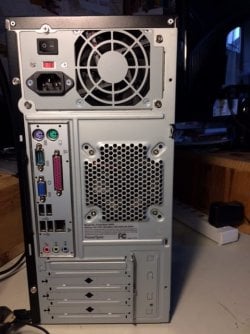
You don't need to open up the computer (unless you're installing an add-in video card). Just look on the back panel of the chassis. As shown in post #10, you're looking to see how many video ports you have available to plug into. Keep in mind there are different types of port connectors. VGA (the two blue ports in post #10), DVD (the white port in post #10), HDMI (not shown), and DisplayPort (not shown) are the most common.

If you're lucky, you might already have more than one video port, so might not need additional hardware. Otherwise, you'll need to either add an add-in video graphics adapter (of course, you'll need to open the computer case to do that) or else use an external graphics adapter that plugs into a USB port.

In the lower photo of post #10, I used an external USB graphics adapter that was a single device supporting two external monitors.

Caveat: beware that the USB-type adapters often don't support ultra-high resolution monitors the way internal cards do. They'll support the W2353, but some may not support the 29KW600. If your internal video subsystem will support the 29KW600, though, you could put that on the computer's built-in port and use a USB device for the W2353.
 

My Computer My Computer

At a glance

Windows 7/8.1/10 multibootIntel Core i7-770048GB (2x16GB Crucial DDR4-3200 + 2x8GB Hynix ...Intel HD630 + AMD Radeon R7 450 PCIe
Computer type
PC/Desktop
Computer Manufacturer/Model Number
Dell Optiplex 7050
OS
Windows 7/8.1/10 multiboot
CPU
Intel Core i7-7700
Motherboard
Dell, Intel Q270 chipset
Memory
48GB (2x16GB Crucial DDR4-3200 + 2x8GB Hynix DDR4-2400)
Graphics Card(s)
Intel HD630 + AMD Radeon R7 450 PCIe
Monitor(s) Displays
Asus VC279 (27")
Screen Resolution
1920x1080
Hard Drives
Toshiba M.2 NVMe (256GB),
Samsung 960 Evo (500GB),
WD Red Plus 80EFBX (8TB)
I don't know where you got the 24.90" figure from; both the microcenter website and the LG spec sheet say the 29WK600 is 27.5" wide with bezels.

****yes, I must have confused the screen shot of specs with another.... subtracting an inch for the bezels, would be 25.5" viewing area? *****

Dusting off my old high school trigonometry, a 23" 16:9 screen should be 20.0x11.3 inches and a 29" 21:9 screen should be 26.7x11.4 inches. Those are viewable areas, so bezels will add a bit to those figures.

***measures 11.25" high,20" wide....******

You don't need to open up the computer (unless you're installing an add-in video card). Just look on the back panel of the chassis. As shown in post #10, you're looking to see how many video ports you have available to plug into. Keep in mind there are
**** pic attached, will go read my homework... one blue (15 pins) one 9 pins *****
different types of port connectors. VGA (the two blue ports in post #10), DVD (the white port in post #10), HDMI (not shown), and DisplayPort (not shown) are the most common.

If you're lucky, you might already have more than one video port, so might not need additional hardware.

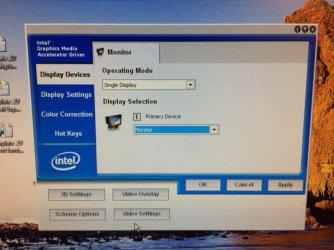
*** window shows "1" display... means potential for another? ******

Otherwise, you'll need to either add an add-in video graphics adapter (of course, you'll need to open the computer case to do that) or else use an external graphics adapter that plugs into a USB port.

In the lower photo of post #10, I used an external USB graphics adapter that was a single device supporting two external monitors.

Caveat: beware that the USB-type adapters often don't support ultra-high resolution monitors the way internal cards do. They'll support the W2353, but some may not support the 29KW600. If your internal video subsystem will support the 29KW600, though, you could put that on the computer's built-in port and use a USB device for the W2353.
***** if I buy the wider, not planning to run two.... if the wide screen gives enough area, no need for two... ***
 

Attachments

  • IMG_0951.JPG
    IMG_0951.JPG
    60.8 KB · Views: 16
  • IMG_0944.JPG
    IMG_0944.JPG
    84.2 KB · Views: 16
  • IMG_0952.JPG
    IMG_0952.JPG
    48 KB · Views: 16

My Computer My Computer

At a glance

Windows 7 Home Premium x64Intel(R) Core(TM) 2 Quad CPU Q830Intel (R) G33/G31 Express Chipset family
Computer type
PC/Desktop
Computer Manufacturer/Model Number
PoweSpec B409
OS
Windows 7 Home Premium x64
CPU
Intel(R) Core(TM) 2 Quad CPU Q830
Graphics Card(s)
Intel (R) G33/G31 Express Chipset family
Antivirus
MS Security Essentials
Browser
FireFox
You should not have to look inside the computer. Monitor ports are accessible from outside. This YouTube video might help you locate them & tell you if have 2 monitor ports.

How to Connect Dual Monitors in Windows 7 - YouTube


one 15 pin port only, looking inside to see if there is a place for the graphics card that would support two monitors, want to be able to move windows from monitor/monitor...

thanks for the link!
 

My Computer My Computer

At a glance

Windows 7 Home Premium x64Intel(R) Core(TM) 2 Quad CPU Q830Intel (R) G33/G31 Express Chipset family
Computer type
PC/Desktop
Computer Manufacturer/Model Number
PoweSpec B409
OS
Windows 7 Home Premium x64
CPU
Intel(R) Core(TM) 2 Quad CPU Q830
Graphics Card(s)
Intel (R) G33/G31 Express Chipset family
Antivirus
MS Security Essentials
Browser
FireFox
I don't know where you got the 24.90" figure from; both the microcenter website and the LG spec sheet say the 29WK600 is 27.5" wide with bezels.

Dusting off my old high school trigonometry, a 23" 16:9 screen should be 20.0x11.3 inches and a 29" 21:9 screen should be 26.7x11.4 inches. Those are viewable areas, so bezels will add a bit to those figures.

I've looked at so many... I'm confusing them.....

so... the 600, the bezels are thinner on the lower edge than my 23"

looks like it will be, 3" higher and 5" wider than my 23"?
actually, the bezels are very thin on this monitor...


23" is....height 14.25 “ screen area 11.25” width 22” screen area 20”

LG 29WK600
height 16.2“ screen area 14” ?
width 27.5” screen area 25.5” ?


and you've shown the picture quality, as clear as my 23"....
 

My Computer My Computer

At a glance

Windows 7 Home Premium x64Intel(R) Core(TM) 2 Quad CPU Q830Intel (R) G33/G31 Express Chipset family
Computer type
PC/Desktop
Computer Manufacturer/Model Number
PoweSpec B409
OS
Windows 7 Home Premium x64
CPU
Intel(R) Core(TM) 2 Quad CPU Q830
Graphics Card(s)
Intel (R) G33/G31 Express Chipset family
Antivirus
MS Security Essentials
Browser
FireFox
a 23" 16:9 screen should be 20.0x11.3 inches and a 29" 21:9 screen should be 26.7x11.4 inches. Those are viewable areas, so bezels will add a bit to those figures.


LG 29WK600
height 16.2“ screen area 14” ?
width 27.5” screen area 25.5” ?

According to the LG spec sheet, the 29WK600 is 27.5x12.5 without the stand, and 16.2" tall when the stand is added.

27.5x12.5 is with the bezels. As I calculated, the display area should be 26.7x11.4 inches.
 

My Computer My Computer

At a glance

Windows 7/8.1/10 multibootIntel Core i7-770048GB (2x16GB Crucial DDR4-3200 + 2x8GB Hynix ...Intel HD630 + AMD Radeon R7 450 PCIe
Computer type
PC/Desktop
Computer Manufacturer/Model Number
Dell Optiplex 7050
OS
Windows 7/8.1/10 multiboot
CPU
Intel Core i7-7700
Motherboard
Dell, Intel Q270 chipset
Memory
48GB (2x16GB Crucial DDR4-3200 + 2x8GB Hynix DDR4-2400)
Graphics Card(s)
Intel HD630 + AMD Radeon R7 450 PCIe
Monitor(s) Displays
Asus VC279 (27")
Screen Resolution
1920x1080
Hard Drives
Toshiba M.2 NVMe (256GB),
Samsung 960 Evo (500GB),
WD Red Plus 80EFBX (8TB)
The Intel Windows driver (lower photo in your post #15) has nothing to do with how many monitors you might be able to have, it only shows how many monitors are actually connected and detected. If you plug in multiple monitors, it should change to show more than one.

Note the lower photo in my post #10, for example. The lower left monitor is displaying Win8.1's multiple display configuration window, where I've arranged the four monitors into a 2x2 grid. Win7 is similar, whereby you can tell Windows how the monitors are oriented in relation to each other--above, below, to the left, to the right...

And, yes, once you open a program in a window, you can use your mouse to drag that window across to another screen.

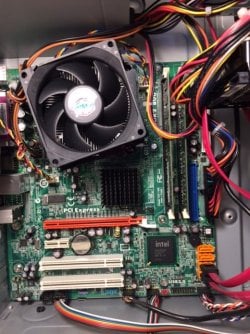
The middle photo in your post #15 shows the motherboard has four SATA ports (the light orange ports), so it's not exactly ancient, but the top photo of the back panel indicates it is nevertheless relatively old. That's evidenced by the parallel printer port, the 9-pin serial port, and the PS2-style keyboard and mouse ports. Those haven't been included on computers for many years now.

The age of your computer leaves open the question as to whether the built-in graphics subsystem will support the 29KW600's resolution--specifically, the 2560 horizontal resolution. You may need to check the computer's full specs if you want to determine that.

OTOH, the 29KW600 has only HDMI and DVI inputs, while your computer has only a 15-pin VGA output, so that's an obstacle you'll need to deal with. There are adapters that will deal with the mismatch, but that will only be a viable option if your graphics subsystem will support the 29KW's resolution. If it doesn't, don't bother trying to get the 29KW connected to the motherboard graphics. Use an add-in card instead.

An add-in card will bypass the above problems. Take a look at the specs on this graphics card, for example. It has VGA, HDMI and DVI output ports, and will support monitors on all three at the same time. It supports resolutions up to 3840x2160 on the HDMI or DVI port, and up to 2048x1536 on the VGA port.

You'll need to plug the add-in card into the motherboard's PCI-E connector (the dark orange slot in the middle photo of post #15). Given the age of your computer, though, you'll need to check the specs to see which PCI-E version that slot supports. (The add-in card example in the previous paragraph is a PCI-E 2.0 card.)

If you decide to go with an add-in card (which I think is a good idea), you may want to start a new thread to attract opinions from other forum members. The add-in card I mentioned above is only an example, not necessarily the best option. Other people may have additional feedback you may want to consider.
 

My Computer My Computer

At a glance

Windows 7/8.1/10 multibootIntel Core i7-770048GB (2x16GB Crucial DDR4-3200 + 2x8GB Hynix ...Intel HD630 + AMD Radeon R7 450 PCIe
Computer type
PC/Desktop
Computer Manufacturer/Model Number
Dell Optiplex 7050
OS
Windows 7/8.1/10 multiboot
CPU
Intel Core i7-7700
Motherboard
Dell, Intel Q270 chipset
Memory
48GB (2x16GB Crucial DDR4-3200 + 2x8GB Hynix DDR4-2400)
Graphics Card(s)
Intel HD630 + AMD Radeon R7 450 PCIe
Monitor(s) Displays
Asus VC279 (27")
Screen Resolution
1920x1080
Hard Drives
Toshiba M.2 NVMe (256GB),
Samsung 960 Evo (500GB),
WD Red Plus 80EFBX (8TB)
one 15 pin port only, looking inside to see if there is a place for the graphics card that would support two monitors, want to be able to move windows from monitor/monitor...

thanks for the link!

As you seem a little unsure of what to do, may I suggest the you visit a good computer shop & have a look at dual monitor set ups & what you can do with 2 monitors, compared to just one & what you will need in parts etc.. If you need a new graphics card they will advise you on what you need & how to set it up, or you can get them to do it for you.

If you elect to use 2 monitors it is best if both monitors are the same, preferably the same make, as they will react the same when making any setting adjustments.
 

My Computer My Computer

At a glance

Windows 7 Home Premium 64 bit sp1Intel i5 3570 3.4Ghz Ivy Bridge SKT 1155 quad...G-Skill Rip Jaws 16Gb (8x2) DDR3 -1600 PC3 12...Gigabyte NVIDIA GT610 1Gb DDR3 810/1200 PCI-E...
Computer type
PC/Desktop
Computer Manufacturer/Model Number
Self built using existing case
OS
Windows 7 Home Premium 64 bit sp1
CPU
Intel i5 3570 3.4Ghz Ivy Bridge SKT 1155 quad core
Motherboard
Gigabyte Z77-HD3 SKT 1155 2xSata 3, 4x USB 3.0
Memory
G-Skill Rip Jaws 16Gb (8x2) DDR3 -1600 PC3 12800 CL 10 red
Graphics Card(s)
Gigabyte NVIDIA GT610 1Gb DDR3 810/1200 PCI-E 2.0 Silent
Sound Card
NVIDIA High Definition & Realtech High Definition Audio
Monitor(s) Displays
2 x Philips 226V4L 16:9 aspect ratio
Screen Resolution
1920 x 1080 HD
Hard Drives
Samsung 840 Pro 256gb SSD, SATA 3.
Hitachi Touro Portable 1tb, USB 3.0 HDD used for image b/ups.
PSU
Corsair VS450
Case
Codeng
Cooling
PSU fan & CPU fan
Keyboard
Logitech
Mouse
Logitech Wireless trackball M570
Internet Speed
Wireless 3G. 3mg down & 550kb up.
Antivirus
Bitdefender Internet Security 2020
Browser
Opera (Current Version) & Firefox
Other Info
MS Office 2013 Pro. Davis weather station software. MGE Nova 600 avr UPS.
Back
Top