Question about read-only attribute

LowStrung

New member
Local time
11:13 AM
Messages
24
I don't use the recycle bin, but have set the read-only attribute for a few of my files, hoping to protect them from accidental deletion. Windows 7 always allows me to delete them anyway, whereas trying that from the command prompt results in the "access denied" message, which is what I'd expect. Can anyone explain this inconsistency, and is there any way to force Windows 7 to respect the read-only attribute (for all files with that attribute, not just particular ones)?
 

My Computer

Computer type
Laptop
OS
Windows 7 Starter 32bit
The read-only attribute is an obsolete thing of the past, a leftover from DOS, pretty much like all file attributes.

Nowadays, Windows doesn't pays any attention or does anything special for it, it behaves almost the same (I know of only one exception where Windows changes behavior based on the attribute, and still have my doubts). However, individual programs might take care of it, as you have noted, cmd's refuses to delete such a file, giving a fake "access denied" message. Consider this a coincidence rather than a rule.

Use, instead, the proper tool for the job. Use the real file access permissions and deny your own account permission to delete the affected file, so that the restriction is enforced by the kernel itself. Or, to prevent accidental deletion, the right thing to do is to make a backup (the recycle bin could be a rudimentary form of backup).

The attribute doesn't give any security at all and is ignored by almost everything. You could as well forget that it exists, as software most likely won't pay attention to it.
 

My Computer

Computer type
Laptop
Computer Manufacturer/Model Number
Toshiba Sattelite A665-S6092
OS
Windows 7 Ultimate x64
CPU
Intel Core i7-740QM
Memory
8 GB DDR3
Graphics Card(s)
NVIDIA GeForce 330GT
Screen Resolution
1366x768
Hard Drives
Samsung 840 SSD 500GB
1TB USB3 external HD
Cooling
Coolermaster Notepal U3 notebook cooling pad
Internet Speed
3mbps ASDL
Antivirus
ClamWin 0.98.7
Browser
Opera 12.17 x86 (main), Firefox 38 (sec), IE11 (last resort)
The read-only attribute is an obsolete thing of the past, a leftover from DOS, pretty much like all file attributes.

Nowadays, Windows doesn't pays any attention or does anything special for it, it behaves almost the same (I know of only one exception where Windows changes behavior based on the attribute, and still have my doubts). However, individual programs might take care of it, as you have noted, cmd's refuses to delete such a file, giving a fake "access denied" message. Consider this a coincidence rather than a rule.

One thing that the attribute does accomplish, however, is that the files usually can't be overwritten by the Save command when they've been modified in editing software, such as image or text editors. It brings up an error message.

... to prevent accidental deletion, the right thing to do is to make a backup (the recycle bin could be a rudimentary form of backup).
It's not that big a problem anyway, since I do back up files to my external hard drive from time to time, but I was just curious about read-only, having spent lots of time with DOS in the past (ancient history).

Actually, read-only files have another slight advantage: I use a third-party file manager, and one of its features is the ability to color-code files by type or attribute. I've selected red for my read-only files, so at least that's a warning to clumsy old me when I'm either tired or in too much of a hurry. :)
 

My Computer

Computer type
Laptop
OS
Windows 7 Starter 32bit
One thing that the attribute does accomplish, however, is that the files usually can't be overwritten by the Save command when they've been modified in editing software, such as image or text editors. It brings up an error message.

It depends on each software, programs decide what to do with the attribute, or if even look at it at all. Consider this a coincidence rather than a rule, and don't expect that the simple attribute will protect anything against accidental changes.
As far as I know, at least notepad and paint honor it. Any other program, I don't know.


It's not that big a problem anyway, since I do back up files to my external hard drive from time to time, but I was just curious about read-only, having spent lots of time with DOS in the past (ancient history).

Good to know, that'll be your first line of defense if something goes wrong.
In the "ancient" :p times, it used to have some more relevance, and most uses right now are likely leftovers from migrations from DOS programs (like cmd.exe inherited it from command.com). Nowadays, it could as well disappear and nothing would change.


Actually, read-only files have another slight advantage: I use a third-party file manager, and one of its features is the ability to color-code files by type or attribute. I've selected red for my read-only files, so at least that's a warning to clumsy old me when I'm either tired or in too much of a hurry. :)

:roflmao:
Nice use. Each program does whatever it likes with it. At least it has some useful utility.
 

My Computer

Computer type
Laptop
Computer Manufacturer/Model Number
Toshiba Sattelite A665-S6092
OS
Windows 7 Ultimate x64
CPU
Intel Core i7-740QM
Memory
8 GB DDR3
Graphics Card(s)
NVIDIA GeForce 330GT
Screen Resolution
1366x768
Hard Drives
Samsung 840 SSD 500GB
1TB USB3 external HD
Cooling
Coolermaster Notepal U3 notebook cooling pad
Internet Speed
3mbps ASDL
Antivirus
ClamWin 0.98.7
Browser
Opera 12.17 x86 (main), Firefox 38 (sec), IE11 (last resort)
In the "ancient" :p times, it used to have some more relevance, and most uses right now are likely leftovers from migrations from DOS programs (like cmd.exe inherited it from command.com).
I'm glad some of the old DOS functionality still exists, because I write lots of batch files. One of them selectively cleans up after programs that don't clean up after themselves. The disk cleanup provided by Windows doesn't provide for that, and the 3rd-party cleanup programs are not flexible enough to find various temporary files from lesser-known applications, esp. if they're portable.

I'm even fussy enough to include commands for restoring some of my program settings that a program modifies during a session. These are generally .ini files located in the application folders of portable programs. I keep the originals in subfolders, and the batch file uses them to overwrite the modified versions. If the settings are stored in the registry, I back up the registry keys, and import those .reg files back into the registry.

It's this flexibility that keeps me from upgrading my OS. I've been using Windows 7 since 2011, and intend to keep using it as long as possible.
 

My Computer

Computer type
Laptop
OS
Windows 7 Starter 32bit
I don't use the recycle bin, but have set the read-only attribute for a few of my files, hoping to protect them from accidental deletion. Windows 7 always allows me to delete them anyway, whereas trying that from the command prompt results in the "access denied" message, which is what I'd expect. Can anyone explain this inconsistency, and is there any way to force Windows 7 to respect the read-only attribute (for all files with that attribute, not just particular ones)?
This is one of the few gripes I have with W7.
I even wrote to Ed Bott about it during the W7 betas.

Just before W7 was released, I was training people on how to use XP and Office.
XP would generate an additional warning if you tried to change/delete a "Read-only" file.
I suggested to the students that they should set the "Read-only" attribute on their files to prevent accidental deletion. :(

With the exception of FreeCommander (file manager) my other software complains if you try to change/delete a "Read-only" file.

Use, instead, the proper tool for the job. Use the real file access permissions and deny your own account permission to delete the affected file, so that the restriction is enforced by the kernel itself.
The trouble is:

  • It takes more steps to step up and more steps to disable
  • If you have multiple accounts you have to do it to every account
  • Unskilled users might accidentally change the wrong permission(s)
IMO, the "obsolete" method was better for ordinary users.
There was only one checkbox to toggle and it affected all users.

That said, in a business setting changing the Security Permissions would be better, as it would prevent anyone without the proper Access Rights from changing the file permissions and then deleting something they shouldn't. :geek:
 

My Computer

Computer type
PC/Desktop
Computer Manufacturer/Model Number
n/a
OS
W7 Ultimate SP1, LM19.2 MATE, W10 Home 1703, W10 Pro 1703 VM, #All 64 bit
CPU
AMD Phenom II x6 1100T, 3.3 GHz
Motherboard
ASUS M4A88T-M/USB3 (AM3)
Memory
12GB DDR3 1333 G-Skill (4GB x 2), G-Skill (2GB x 2)
Graphics Card(s)
NVIDIA GeForce GTX 660
Sound Card
Realtek?
Monitor(s) Displays
Samsung S23B350
Screen Resolution
1920x1080
Hard Drives
WD Green 2TB (SATA), WD Green 3TB (SATA), WD Blue 4TB (SATA), WD Blue 6TB (SATA)
PSU
Cooler Master
Case
Antec GX300 Tower
Cooling
3x Antec TRICOOL 120mm Fans
Mouse
Wired Optical
Internet Speed
DSL
Antivirus
Avast
Browser
Pale Moon (64 bit)
Other Info
2018-12-27 Upgraded HDDs
2015-12-10 Upgraded case, graphics card, storage
2015-08-15 Upgraded motherboard & RAM
2015-07-15 Upgraded LM17.1 to LM17.2
With the exception of FreeCommander (file manager) my other software complains if you try to change/delete a "Read-only" file.
I use XYplorer (the free edition) as my default file manager. Deletions bring up the standard Windows Explorer delete confirmation. If I try to delete a read-only file, I'm asked to confirm it, but without any mention of the read-only attribute.

Recently I tried an experiment: I set both the read-only and the system attribute for an unimportant file. On deleting it, I got a warning about the system attribute, but access was not denied; I was allowed to delete the file anyway.

IMO, the "obsolete" method was better for ordinary users.
There was only one checkbox to toggle and it affected all users.

Windows 7 dialogs often ask too many questions. If I want to set the read-only attribute for a folder, I'm asked whether to apply that to the files within it, as well. Most of the time that's not what I want. If I wanted to apply it to the files, I'd go into the folder, select the files and apply the attribute to my selection.

The copy, move and replace dialogs are also far too wordy, but that's another matter, which is why I use a 3rd-party file manager instead of Windows Explorer.
 

My Computer

Computer type
Laptop
OS
Windows 7 Starter 32bit
I use XYplorer (the free edition) as my default file manager. Deletions bring up the standard Windows Explorer delete confirmation. If I try to delete a read-only file, I'm asked to confirm it, but without any mention of the read-only attribute.
Currently I have FreeCommander XE set to behave the same as Windows Explorer.
The behaviour can be changed using options in "Settings > File/folder operations".

If I change the setting to "Use FreeCommander":

  • Using the "Delete" key or toolbar button generates an additional options window and a warning if I then try to delete a "Read-only" file
  • Using the context menu "Delete" option, it still behaves the same as Windows Explorer :(
FC-XE - File-Folder Operations.png
I wouldn't be surprised if XYplorer has similar options somewhere. :)

Windows 7 dialogs often ask too many questions. If I want to set the read-only attribute for a folder, I'm asked whether to apply that to the files within it, as well. Most of the time that's not what I want. If I wanted to apply it to the files, I'd go into the folder, select the files and apply the attribute to my selection.
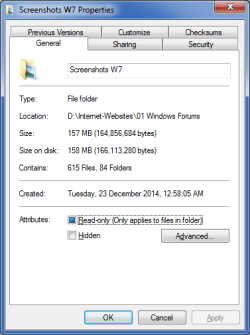
Setting "Read-only" on a folder doesn't really do anything in W7 (it's basically a way of setting "Read-only" on all files without entering the folder and selecting them).

"Read-only" only applies to the files in a folder.

The Properties Windows states this.
Folder Properties - Read Only.png
If you set that option you'll see a check mark in the checkbox.
If you close the Properties Window and then reopen it, you'll see that the check mark has been replaced with the blue block (like in the picture above).
 

My Computer

Computer type
PC/Desktop
Computer Manufacturer/Model Number
n/a
OS
W7 Ultimate SP1, LM19.2 MATE, W10 Home 1703, W10 Pro 1703 VM, #All 64 bit
CPU
AMD Phenom II x6 1100T, 3.3 GHz
Motherboard
ASUS M4A88T-M/USB3 (AM3)
Memory
12GB DDR3 1333 G-Skill (4GB x 2), G-Skill (2GB x 2)
Graphics Card(s)
NVIDIA GeForce GTX 660
Sound Card
Realtek?
Monitor(s) Displays
Samsung S23B350
Screen Resolution
1920x1080
Hard Drives
WD Green 2TB (SATA), WD Green 3TB (SATA), WD Blue 4TB (SATA), WD Blue 6TB (SATA)
PSU
Cooler Master
Case
Antec GX300 Tower
Cooling
3x Antec TRICOOL 120mm Fans
Mouse
Wired Optical
Internet Speed
DSL
Antivirus
Avast
Browser
Pale Moon (64 bit)
Other Info
2018-12-27 Upgraded HDDs
2015-12-10 Upgraded case, graphics card, storage
2015-08-15 Upgraded motherboard & RAM
2015-07-15 Upgraded LM17.1 to LM17.2
Currently I have FreeCommander XE set to behave the same as Windows Explorer.
The behaviour can be changed using options in "Settings > File/folder operations".

If I change the setting to "Use FreeCommander":

  • Using the "Delete" key or toolbar button generates an additional options window and a warning if I then try to delete a "Read-only" file
  • Using the context menu "Delete" option, it still behaves the same as Windows Explorer :(
I wouldn't be surprised if XYplorer has similar options somewhere. :)

Well, it has an optional feature which I like called "Custom Copy". This is a complete substitute for the corresponding W7 copy, move and replace dialog, as well as the standard progress window. Multiple undo is also present, with a detailed history of file operations during the session so that they can be selectively undone. Beyond that, I believe the only option XYplorer offers relating to Windows Explorer is the treatment of drag & drop operations. By default, drag & drop moves a file if the destination is on the same drive, but only copies it to external drives. XYplorer can be set to change that behavior, although I prefer the default.

As for deletions, XYplorer uses the standard W7 dialog. In fact, I've noticed at times that on deleting a file, the confirmation box comes up behind XYp's window. I discovered that when there seemed to be no response to the delete key. There was -- I just couldn't see it. :( This doesn't happen often, and perhaps it's caused by yours truly accidentally switching the focus. :o

Setting "Read-only" on a folder doesn't really do anything in W7 (it's basically a way of setting "Read-only" on all files without entering the folder and selecting them).

"Read-only" only applies to the files in a folder.

The Properties Windows states this.

If you set that option you'll see a check mark in the checkbox.
If you close the Properties Window and then reopen it, you'll see that the check mark has been replaced with the blue block (like in the picture above).

Understood. The funny thing is, pressing Delete on a folder brings up nothing more than the standard delete confirmation, whether the files inside are read-only or not. I'm not warned that the folder is not empty. I'm always more careful than that, but perhaps Windows needs a "complete idiot" mode for newcomers. Perhaps a "sleepy user" mode, as well. :D

Of course, that total destruction can't be done from the command prompt with the RD command, unless the appropriate switches are included.
 

My Computer

Computer type
Laptop
OS
Windows 7 Starter 32bit
Understood. The funny thing is, pressing Delete on a folder brings up nothing more than the standard delete confirmation, whether the files inside are read-only or not. I'm not warned that the folder is not empty. I'm always more careful than that, but perhaps Windows needs a "complete idiot" mode for newcomers. Perhaps a "sleepy user" mode, as well. :D
That's why I prefer the way XP handles deletions.
 

My Computer

Computer type
PC/Desktop
Computer Manufacturer/Model Number
n/a
OS
W7 Ultimate SP1, LM19.2 MATE, W10 Home 1703, W10 Pro 1703 VM, #All 64 bit
CPU
AMD Phenom II x6 1100T, 3.3 GHz
Motherboard
ASUS M4A88T-M/USB3 (AM3)
Memory
12GB DDR3 1333 G-Skill (4GB x 2), G-Skill (2GB x 2)
Graphics Card(s)
NVIDIA GeForce GTX 660
Sound Card
Realtek?
Monitor(s) Displays
Samsung S23B350
Screen Resolution
1920x1080
Hard Drives
WD Green 2TB (SATA), WD Green 3TB (SATA), WD Blue 4TB (SATA), WD Blue 6TB (SATA)
PSU
Cooler Master
Case
Antec GX300 Tower
Cooling
3x Antec TRICOOL 120mm Fans
Mouse
Wired Optical
Internet Speed
DSL
Antivirus
Avast
Browser
Pale Moon (64 bit)
Other Info
2018-12-27 Upgraded HDDs
2015-12-10 Upgraded case, graphics card, storage
2015-08-15 Upgraded motherboard & RAM
2015-07-15 Upgraded LM17.1 to LM17.2
Back
Top