Question about Windows 7 Control Panel\Programs\Programs and Features

McSeven

New member
Member
VIP
Local time
6:39 PM
Messages
213
I have Windows 7 Prof x64.

My question is, when displaing all software installed and choosing more columns of information to display, they don't stay. For example, choosing Location column. Getting out of the installed programs list and then returning to it, the Location column is gone.

Is there some what to get the columns to be persistent?

Thanks in advance.
 

My Computer

Computer type
PC/Desktop
Computer Manufacturer/Model Number
HomieJunker
OS
W7 Prof 64 bit
CPU
i7-3770k
Motherboard
Sabertooth Z77
Memory
G.Skill Sniper 1866 16 GB
Graphics Card(s)
Evga GTX 770
Sound Card
Sound Blaster Z
Monitor(s) Displays
Asus VG278HE
Screen Resolution
1920 x 1080
Hard Drives
4 Seagate Barracudas 250 GB
2 Intel® X25-M 160GB
PSU
Corsair H1000X
Case
Lian-Li A77B
Cooling
Phantek 120 dual fans
Keyboard
Corsair K70 RGB
Mouse
Logitech G502
Internet Speed
FiOS Quantum
Antivirus
Avira
Browser
Chrome
The Programs and Features listing is shown to you by the Explorer app. Each time that you open/close the Windows (file) Explorer while viewing a folder (or a special view/list like the Programs and Features listing), Explorer tries to write info to the registry about how Explorer was showing you that folder. Windows (file) Explorer tries to write this "how to display a folder" info at other times besides just closing an Explorer window, but I'll not go into all of that.

Microsoft has not solved the problem that happens when these places in the registry get too big. When this happens, you may see the problem that you are experiencing - that of no longer being able to store the layout/view/column width/column selection/... info in the registry.

Below is video that I made showing registry keys being made. (I'm not suggesting that you mess with the registry.) Notice that new keys are made when visiting the folder named Temp. Deleting this Temp folder does not remove those registry keys. If you close Windows (file) Explorer while viewing a compressed folder (a ZIP file), the Explorer app tries to make keys so that it can remember how it last showed you that folder. If you delete or move that ZIP folder to another location, the original registry keys remain. So you can see how this area of the registry can fill up.

edit: I had to make this video again. I hope that I covered all of the original points.

One solution is to remove all of the entries/keys in the areas of the registry that attempt to track this info for the Explorer app... then rebuild them over time as you visit various folders (and special views like the Programs and Features listing). You can safely remove the entries by following the steps detailed in this tutorial: http://www.sevenforums.com/tutorials/15692-folder-view-settings-reset-all-default.html

I opt for a more draconian solution: I change the permissions on those registry keys to prevent any app from being able to add entries in those areas; thus, the areas never get too big. But changing the permissions will cause other problems that I just live with.
 
Last edited:

My Computer

Computer type
Laptop
Computer Manufacturer/Model Number
Employer provided Dell Latitude
OS
W7 Pro SP1 64bit
CPU
i7
Memory
8GB
Graphics Card(s)
Intel HD Graphics
Hard Drives
crappy SSD
Antivirus
Employer mandated Symantec Endpoint Protection
Browser
Pale Moon 64bit, IE11 64bit & Chrome 64bit
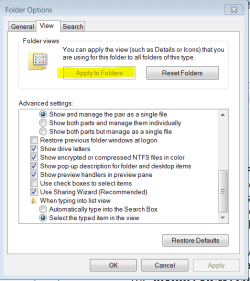
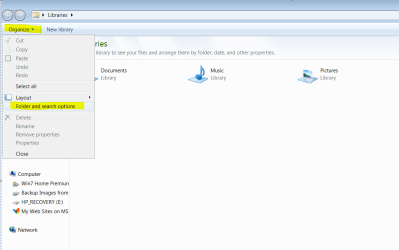
You can also save the settings you've made for a specific folder for all folders of that type by using this button in Folder Options on the Organize tab of all folders:

Capture.PNG Capture2.PNG
 

My Computer

Computer type
PC/Desktop
Computer Manufacturer/Model Number
n/a
OS
W7 Ultimate SP1, LM19.2 MATE, W10 Home 1703, W10 Pro 1703 VM, #All 64 bit
CPU
AMD Phenom II x6 1100T, 3.3 GHz
Motherboard
ASUS M4A88T-M/USB3 (AM3)
Memory
12GB DDR3 1333 G-Skill (4GB x 2), G-Skill (2GB x 2)
Graphics Card(s)
NVIDIA GeForce GTX 660
Sound Card
Realtek?
Monitor(s) Displays
Samsung S23B350
Screen Resolution
1920x1080
Hard Drives
WD Green 2TB (SATA), WD Green 3TB (SATA), WD Blue 4TB (SATA), WD Blue 6TB (SATA)
PSU
Cooler Master
Case
Antec GX300 Tower
Cooling
3x Antec TRICOOL 120mm Fans
Mouse
Wired Optical
Internet Speed
DSL
Antivirus
Avast
Browser
Pale Moon (64 bit)
Other Info
2018-12-27 Upgraded HDDs
2015-12-10 Upgraded case, graphics card, storage
2015-08-15 Upgraded motherboard & RAM
2015-07-15 Upgraded LM17.1 to LM17.2
You can also save the settings you've made for a specific folder for all folders of that type by using this button in Folder Options on the Organize tab of all folders:

View attachment 280854 View attachment 280855
Or, as in the case some special folders/views that do not have an Organize tab*, you might press Alt to bring up the menu toolbar - then Tools > Folder Options... and then follow those steps. The steps seem to force a save even when a system gets into the mode mention by the OP. (It took me a while to test that :-)

*edit: I should have looked closer. The window mentioned by the OP does have an Organize tab. Perhaps it is everywhere :-)

Does the old trick (from the days of XP) still work?
You could increase the value of "BagMRU" to allow for more customisations to be remembered.

Read this MS link:
Changes to the size, view, icon or position of a folder are lost
Yes, this still works, but it can slow things down a bit as the number gets large. The KB Fix it sets the limit to to 5000. Some bloggers suggest using a number more like 10,000. But I only need 4 or 5 entries :-)

To get a system into the mode mentioned by the OP, I had a script...
...create a folder
...open that folder via the Windows (file) Explorer
...close the Explorer window
...delete that folder
Repeat those step 25,000 times.
Somewhere around 5500 folders, the Explorer window was opening noticeably slower. I paused the script and manually attempted to save the location column mentioned in the OP; it would not save. Using the Alt key (as mentioned above) and then Greg's steps did force a save, but I'm not sure that this will always work. The script that I was running was creating lots of keys just under the Bags key. It also created a corresponding sub-key a few levels down under the BagMRU key. If I had taken the time to have the script do a few more things, I could have loaded down the keys directly under the BagMRU key too. Once those keys have reached the limit, Greg's steps might not have worked.

So, the OP can...
...force the save via Greg's steps*
...or increase the limit (which requires deleting the current entries)
...or just delete the current entries per the tutorial batch file
...or prevent unwanted keys in that area.(not recommended).

*The button labeled Apply to Folders... was not enabled by only adding the Location column to the special folder view mentioned by the OP. I had to make another change (which I later undid) to get the button to be enabled.
 
Last edited:

My Computer

Computer type
Laptop
Computer Manufacturer/Model Number
Employer provided Dell Latitude
OS
W7 Pro SP1 64bit
CPU
i7
Memory
8GB
Graphics Card(s)
Intel HD Graphics
Hard Drives
crappy SSD
Antivirus
Employer mandated Symantec Endpoint Protection
Browser
Pale Moon 64bit, IE11 64bit & Chrome 64bit
Thanks gregrocker

You can also save the settings you've made for a specific folder for all folders of that type by using this button in Folder Options on the Organize tab of all folders:

View attachment 280854 View attachment 280855

I didn't realise that the special folders had their own (hidden) special Folder Template.

That seems to have fixed my recent "Recycle Bin" problem.

I'd Rep you, but I'm not allowed to. :(
 

My Computer

Computer type
PC/Desktop
Computer Manufacturer/Model Number
n/a
OS
W7 Ultimate SP1, LM19.2 MATE, W10 Home 1703, W10 Pro 1703 VM, #All 64 bit
CPU
AMD Phenom II x6 1100T, 3.3 GHz
Motherboard
ASUS M4A88T-M/USB3 (AM3)
Memory
12GB DDR3 1333 G-Skill (4GB x 2), G-Skill (2GB x 2)
Graphics Card(s)
NVIDIA GeForce GTX 660
Sound Card
Realtek?
Monitor(s) Displays
Samsung S23B350
Screen Resolution
1920x1080
Hard Drives
WD Green 2TB (SATA), WD Green 3TB (SATA), WD Blue 4TB (SATA), WD Blue 6TB (SATA)
PSU
Cooler Master
Case
Antec GX300 Tower
Cooling
3x Antec TRICOOL 120mm Fans
Mouse
Wired Optical
Internet Speed
DSL
Antivirus
Avast
Browser
Pale Moon (64 bit)
Other Info
2018-12-27 Upgraded HDDs
2015-12-10 Upgraded case, graphics card, storage
2015-08-15 Upgraded motherboard & RAM
2015-07-15 Upgraded LM17.1 to LM17.2
Finally I am back after recover time from a back operation. Thanks to all who responded!
 

My Computer

Computer type
PC/Desktop
Computer Manufacturer/Model Number
HomieJunker
OS
W7 Prof 64 bit
CPU
i7-3770k
Motherboard
Sabertooth Z77
Memory
G.Skill Sniper 1866 16 GB
Graphics Card(s)
Evga GTX 770
Sound Card
Sound Blaster Z
Monitor(s) Displays
Asus VG278HE
Screen Resolution
1920 x 1080
Hard Drives
4 Seagate Barracudas 250 GB
2 Intel® X25-M 160GB
PSU
Corsair H1000X
Case
Lian-Li A77B
Cooling
Phantek 120 dual fans
Keyboard
Corsair K70 RGB
Mouse
Logitech G502
Internet Speed
FiOS Quantum
Antivirus
Avira
Browser
Chrome
Back
Top